1. הקדמה
This user manual provides detailed instructions for the Logitech G533 Wireless 7.1 Dolby Surround Gaming Headset. It covers essential information regarding product features, setup, operation, maintenance, and troubleshooting to ensure optimal performance and longevity of your device. Please read this manual thoroughly before using your headset.
2. פּעקל אינהאַלט
באַשטעטיקט אַז אַלע זאכן וואָס זענען אויסגערעכנט אונטן זענען אַרייַנגערעכנט אין אייער פּעקל:
- Logitech G533 ווירעלעסס גיימינג כעדסעט
- וסב ווירעלעסס אַדאַפּטער
- וסב טשאַרדזשינג קאַבלע
- באַניצער דאָקומענטאַציע (דיזער מאַנואַל)
3. פּראָדוקט איבערview
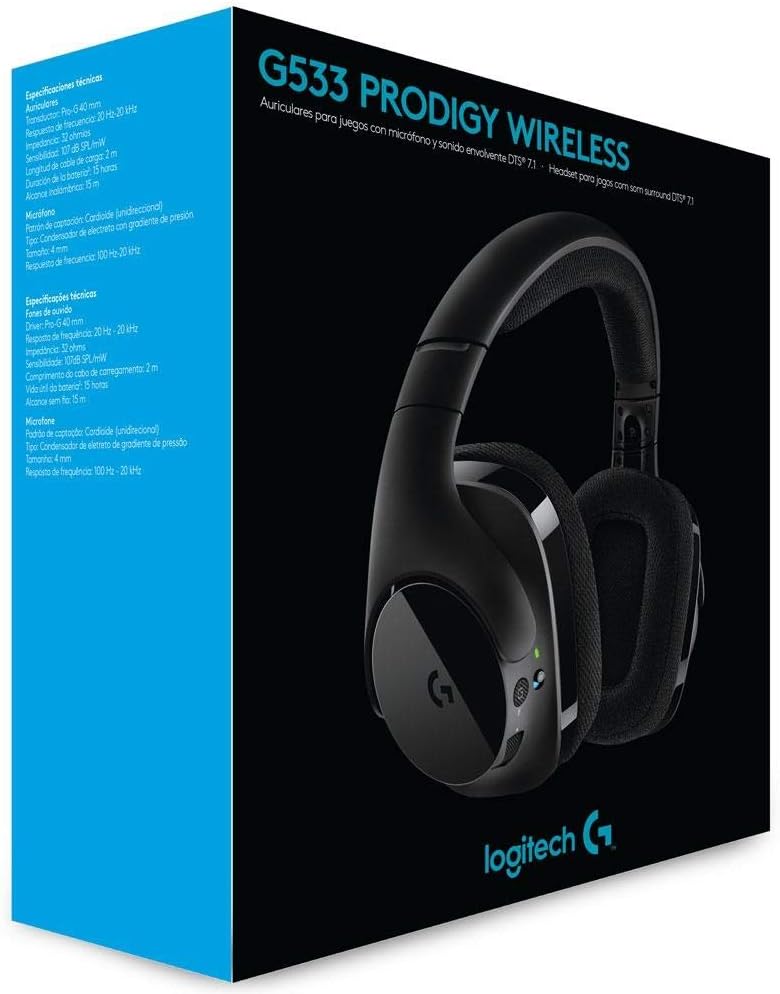
The Logitech G533 Wireless Gaming Headset is designed for immersive gaming audio with 7.1 Dolby Surround Sound and Pro-G audio drivers. It features a lightweight, durable design with breathable ear pads for extended comfort.

פיגורע 1: Logitech G533 Wireless Gaming Headset. This image shows the overall design of the headset, highlighting its sleek black finish and comfortable earcups.
3.1 כעדסעט קאָמפּאָנענטן
- אַדזשאַסטאַבאַל כעדבאַנד: פֿאַר אַ באַקוועמען פּאַסיק.
- Breathable Ear Pads: Removable and washable for hygiene and comfort during long gaming sessions.
- Flip-up Microphone: Features noise reduction and automatically mutes when flipped up.
- On-ear Controls: Volume roller, microphone mute button, and power button located on the left earcup.

פיגורע 2: Left Earcup Controls. This image displays the volume roller, microphone mute button, and power button on the left earcup for easy access during use.

פיגורע 3: Flip-up Microphone. This image shows the flexible, noise-reducing microphone that can be flipped up to mute.
4. סעטאַפּ גייד
Follow these steps to set up your Logitech G533 Wireless Gaming Headset:
- לאָדנט דעם כעדסעט: Connect the USB charging cable to the headset and a powered USB port on your computer or a USB wall adapter. Allow the headset to fully charge before first use (approximately 2-3 hours). The LED indicator will show charging status.
- Connect the USB Wireless Adapter: Plug the USB wireless adapter into an available USB port on your computer.
- Power On the Headset: Press and hold the power button on the left earcup until the LED indicator lights up. The headset should automatically connect to the USB wireless adapter.
- אינסטאַלירן לאָגיטעטש דזשי האַב ווייכווארג (אפציאָנעל אָבער רעקאָמענדירט): For full functionality, including 7.1 surround sound customization, equalizer settings, and microphone adjustments, download and install the Logitech G HUB software from the official Logitech webפּלאַץ (www.logitechg.com/ghub).
- קאָנפיגורירן אַודיאָ סעטטינגס: After installing G HUB, open the software to customize your audio experience. Ensure the Logitech G533 is selected as your default audio input and output device in your operating system's sound settings.

פיגורע 4: USB Wireless Adapter. This compact adapter provides the wireless connection between your headset and computer.
פיגורע 5: USB Charging Cable. Use this cable to recharge your headset's internal battery.
5. אַפּערייטינג ינסטרוקטיאָנס
5.1 מאַכט אויף / אַוועק
- To power on, press and hold the power button on the left earcup until the LED indicator illuminates.
- צו מאַכט אַוועק, דריקן און האַלטן די מאַכט קנעפּל ביז די געפירט גראדן טורנס אַוועק.
5.2 באַנד קאָנטראָל
Adjust the audio volume using the scroll wheel located on the left earcup. This control is integrated with your computer's system volume.
5.3 מיקראָפאָן באַניץ
- אַקטיווירן מיקראָפאָן: Flip the microphone boom down to activate it.
- שטום מיקראָפאָן:
- Flip the microphone boom up to automatically mute it. A distinct sound will indicate the mute status.
- Press the dedicated microphone mute button on the left earcup to mute/unmute.
- The microphone features noise reduction for clear communication.
5.4 DTS Headphone:X 7.1 Surround Sound
The G533 utilizes DTS Headphone:X technology to accurately reproduce 7.1 speaker placement and positional audio, enhancing in-game environmental effects. This feature is configurable via the Logitech G HUB software.
5.5 באַטעריע לעבן און טשאַרדזשינג
The headset provides up to 15 hours of battery life on a single charge. Connect the USB charging cable to recharge. You can continue using the headset while it charges.
6. וישאַלט
6.1 רייניקן די כעדסעט
- ווישט אָפּ דעם כעדסעט מיט אַ ווייכן, טרוקענעם שטאָף.amp שטאָף. ויסמיידן ניצן האַרב קעמיקאַלז אָדער אַברייסיוו מאַטעריאַלס.
- The ear pads are removable and washable. Gently detach them and hand wash with mild soap and water. Allow them to air dry completely before reattaching.
6.2 באַטערי קער
- To prolong battery life, avoid fully discharging the headset frequently.
- סטאָר די כעדסעט אין אַ קיל, טרוקן אָרט ווען ניט אין נוצן.
7. טראָובלעשאָאָטינג
7.1 No Audio or Disconnection
- זיכער מאַכן אַז די כעדסעט איז אנגעצונדן און גאָר אויפגעלאָדן.
- Verify the USB wireless adapter is securely plugged into a working USB port on your computer.
- Check your computer's sound settings to ensure the Logitech G533 is selected as the default playback and recording device.
- Try restarting both your computer and the headset.
- If using Logitech G HUB, ensure the software is running and the headset is recognized.
7.2 מיקראָפאָן אַרבעט נישט
- Ensure the microphone boom is flipped down and not muted via the mute button.
- Check your computer's sound settings to ensure the Logitech G533 is selected as the default recording device and microphone volume is not set to zero.
- In Logitech G HUB, verify microphone settings and ensure noise reduction is not causing issues (some users report issues with aggressive noise reduction settings).
- Test the microphone in different applications.
7.3 Robotic or Distorted Audio
- This can sometimes occur with multiple audio sources playing simultaneously. Try closing unnecessary applications.
- Ensure your wireless adapter is not too far from the headset and there are no significant obstructions.
- Update your audio drivers and Logitech G HUB software to the latest versions.
7.4 Annoying Noise While Charging
- Some users report a notification sound when the battery percentage increases during charging. This is a known characteristic of the device.
- If the noise is excessive or unusual, ensure you are using the provided charging cable and a stable power source.
8. טעכניש ספּעסאַפאַקיישאַנז
| שטריך | באַשרייַבונג |
|---|---|
| מאָדעל נאָמען | G533 |
| קאַנעקטיוויטי | דראָטלאָז (2.4 GHz) |
| ווירעלעסס ראַנגע | אַרויף צו 15 מעטער (4.57 פֿיס) |
| כעדפאָון דרייווער | 40 mm Pro-G (Neodymium) |
| כעדפאָונז אָפטקייַט רעספּאָנסע | 20 הערץ - 20 קילאָהערץ |
| כעדפאָון ימפּידאַנס | 32 Ohm |
| סאָונד דרוק מדרגה (SPL) | 107 dB SPL/mW |
| מיקראָפאָן טיפּ | Fold-Up, Noise-Reducing |
| מיקראָפאָן אָפטקייַט ענטפער | 100 הערץ - 20 קילאָהערץ |
| מיקראָפאָן ימפּידאַנס | 2200 Ohm |
| באַטערי טיפּ | קריקאָנלאָדלעך ליטהיום-יאָן |
| באַטערי לעבן | אַרויף צו 15 שעה |
| סיסטעם רעקווירעמענץ | Windows 10, Windows 8.1, Windows 8, Windows 7; USB Port; Internet connection for optional software download |
| פּראָדוקט דימענשאַנז | 18.9 X 8.5 X 19.7 סענטימעטער (7.44 X 3.35 X 7.76 אינטשעס) |
| פּראָדוקט וואָג | 675 גראַמז (1.49 לבס) |
9. וואָראַנטי און שטיצן
The Logitech G533 Wireless Gaming Headset comes with a two-year manufacturer's warranty. For detailed warranty information, technical support, or to contact customer service, please visit the official Logitech support webפּלאַץ:
Ensure you have your product model number (G533) and proof of purchase available when contacting support.