1. איבערview
The Tascam CD-A580 is a versatile rackmount media player and recorder designed for professional and installation applications. It combines a cassette recorder, CD player, and USB flash drive recorder/player into a single unit, offering multiple playback and recording options.
שליסל פֿעיִקייטן אַרייַננעמען:
- Playback of various audio formats from cassette, CD, and USB flash media.
- Recording from cassette to USB to digitally archive cassette collections.
- Recording from CDs to cassettes.
- Recording audio from CDs and LINE inputs to USB flash drives in MP3 format.
- A single-direction logic-based transport control for stability and longevity.
- Pitch adjustment of up to ±10% during cassette tape playback.
- Support for CD-DA, CD-R, CD-RW, and data CDs containing MP3 files.
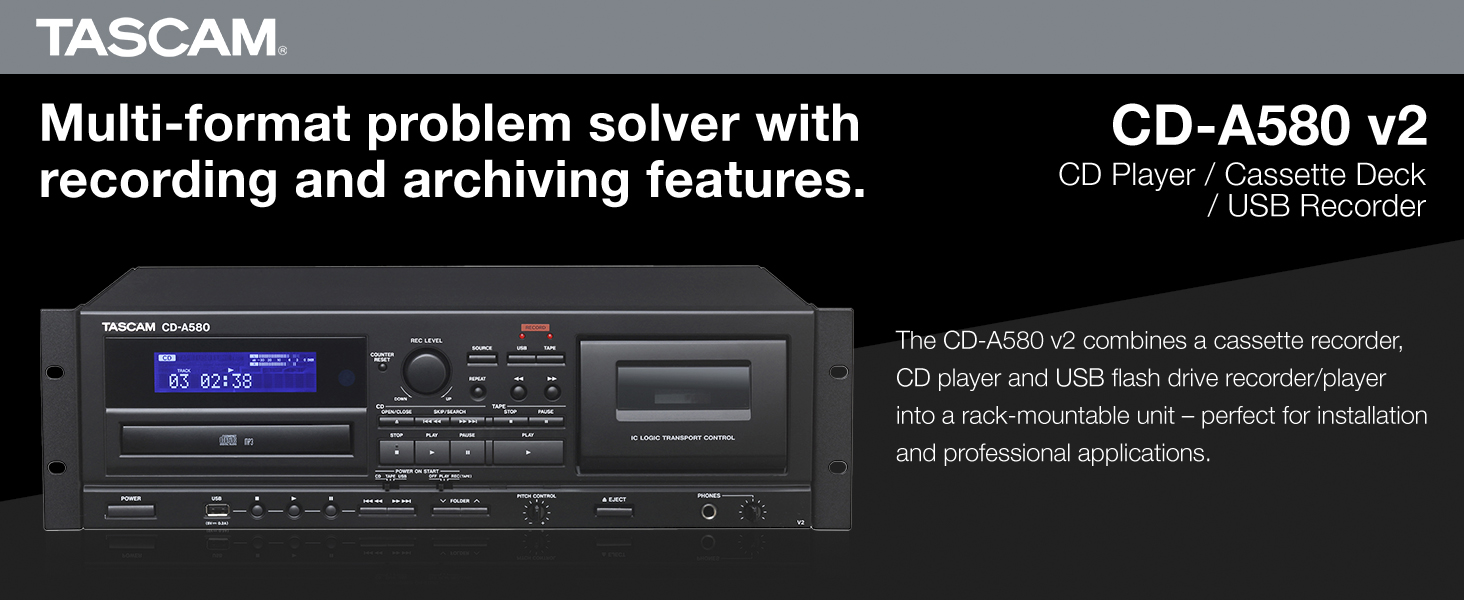
פיגורע 1: פראָנט view of the Tascam CD-A580 unit, highlighting its multi-format capabilities.
Video 1: A product summary video demonstrating the Tascam CD-A580's features and functions.
2. סעטאַפּ
2.1 אַנפּאַקינג
Carefully remove the CD-A580 unit from its packaging. Ensure all components, including the player/recorder unit, power cord, and remote control, are present. Retain the packaging for future transport or storage.
Video 2: This video provides a visual guide to what is included inside the box of the Tascam CD-A580.
2.2 געשטעל מאַונטינג
The CD-A580 is designed for standard 19-inch rack mounting. Secure the unit using appropriate rack screws (not included) through the mounting holes on the side flanges. Ensure adequate ventilation around the unit to prevent overheating.
2.3 קאַנעקשאַנז
Connect the CD-A580 to your audio system using the appropriate input and output jacks on the rear panel. This typically involves RCA audio cables for line input/output. Connect the power cord to a suitable AC outlet.

Figure 2: Rear panel of the Tascam CD-A580, illustrating the various audio input and output connections.
3. אַפּערייטינג ינסטרוקטיאָנס
3.1 מאַכט אויף / אַוועק
דרוק די מאַכט button on the front panel to turn the unit on or off. The display will illuminate upon power-up.
3.2 סי פּלייבאַק
צו שפּילן אַ קאָמפּאַקטדיסק:
- דרוק די עפענען / נאָענט קנעפּל צו עפענען די CD טאַץ.
- Place a CD (CD-DA, CD-R, CD-RW, or data CD with MP3 files) onto the tray with the label side up.
- דרוק עפענען / נאָענט again to close the tray. The unit will read the disc.
- דרוק די שפּיל קנעפּל צו אָנהייבן פּלייבאַק.
- ניצן די SKIP קנעפּלעך (◀◀ / ▶▶) צו נאַוויגירן צווישן לידער.
- דרוק האַלטן צו אפשטעלן די ווידערשפילן.
3.3 קאַסעט פּלייַבאַקק
צו שפּילן אַ קאַסעט טאַשמע:
- דרוק די אַרויסוואַרפן קנעפּל צו עפענען די קאַסעט טיר.
- Insert a cassette tape into the compartment.
- נאָענט די קאַסעט טיר.
- דרוק די שפּיל button for the cassette deck.
- סטרויערן די פּעך קאָנטראָל knob to fine-tune the playback speed (up to ±10%).
- ניצן די ריוויינד (◀◀) און שנעל פאָרויס (▶▶) buttons to quickly move through the tape.
- דרוק האַלטן צו אפשטעלן די ווידערשפילן.
3.4 USB MP3 Playback
צו שפּילן mp3 files from a USB flash drive:
- אַרײַנשטעלן אַ USB פלאַש דרייוו אין דעם USB פּאָרט אויף דער פראָנט פּאַנעל.
- Select the USB source using the מקור קנעפּל.
- Use the navigation buttons to select folders and MP3 files.
- דרוק די שפּיל קנעפּל צו אָנהייבן פּלייבאַק.
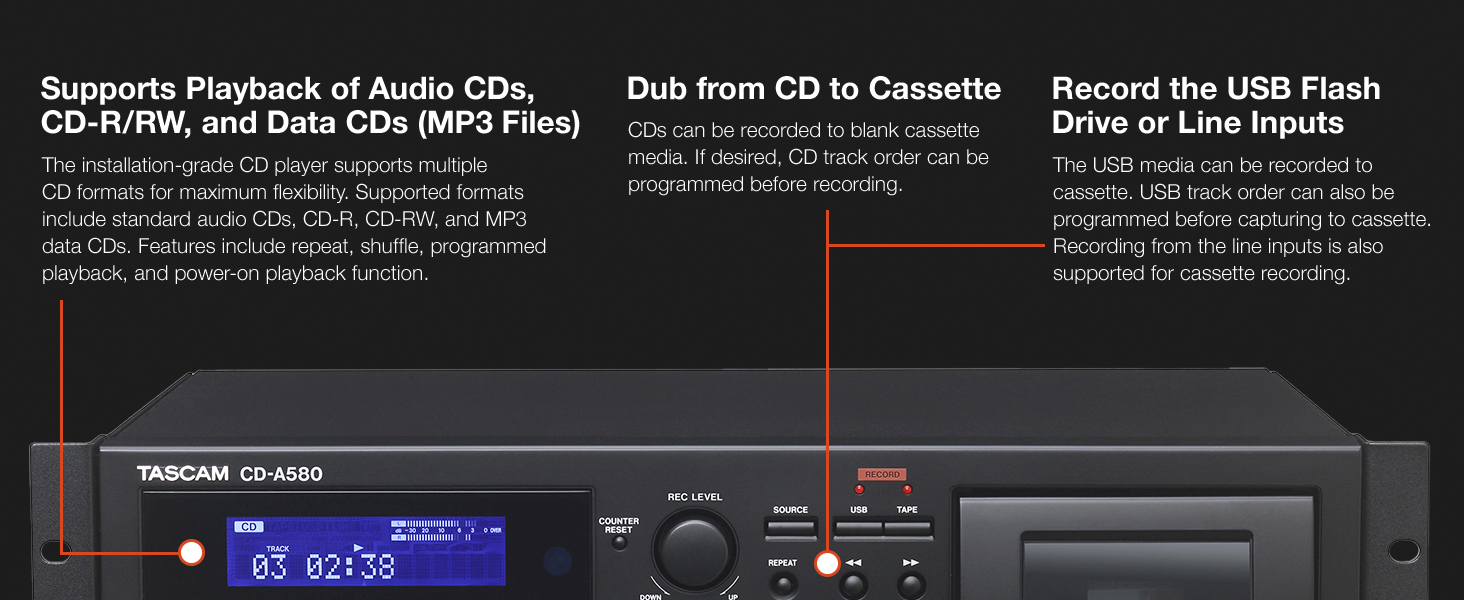
Figure 3: Front panel details of the CD-A580, illustrating controls for CD, USB, and cassette playback.
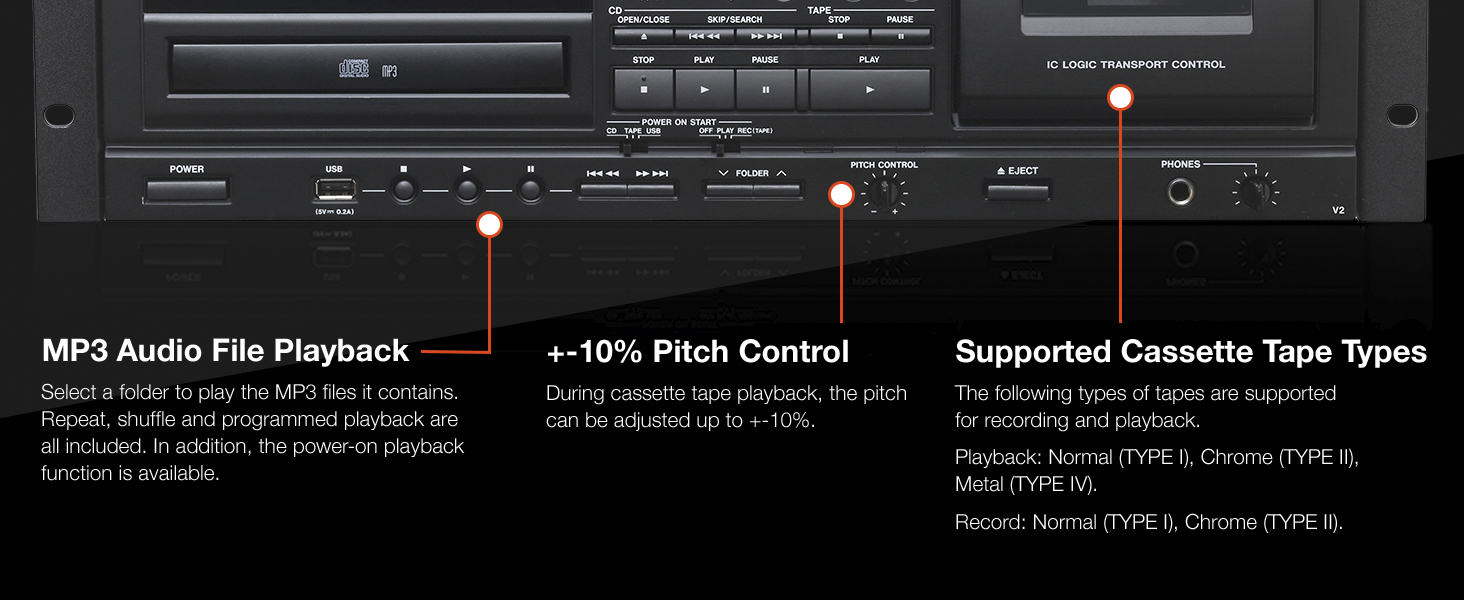
Figure 4: Close-up of the CD-A580's pitch control for cassette playback and information on supported tape types.
3.5 רעקאָרדינג פונקציעס
The CD-A580 offers several recording options:
- Cassette to USB Recording: Insert a cassette and a USB flash drive. Select the cassette as the source and USB as the recording destination. Press רעקאָרד on the USB section to begin digitizing your cassette collection into MP3 files.
- CD to Cassette Recording: Insert a CD and a blank cassette. Select the CD as the source and cassette as the recording destination. You can program the CD track order before recording. Press רעקאָרד on the cassette section.
- CD/LINE Input to USB Recording: Audio from CDs or external devices connected to the LINE inputs can be recorded directly to a USB flash drive in MP3 format. CDs automatically create track-specific MP3 files, while tape and LINE input recordings can be manually divided.

Figure 5: Section of the CD-A580 front panel detailing the controls for dubbing audio from cassette to USB media.
3.6 Remote Control (RC-1329)
The included RC-1329 wireless remote control provides convenient operation of all functions from a distance. Ensure batteries are correctly installed. Refer to the remote control diagram for button layout and functions.

Figure 6: The RC-1329 wireless remote control for the Tascam CD-A580.
Video 3: A closer look at the Tascam CD-A580, demonstrating various operational aspects and features.
4. וישאַלט
4.1 רייניקונג
Regularly wipe the exterior of the unit with a soft, dry cloth. For stubborn dirt, use a slightly damp cloth and then dry thoroughly. Avoid using abrasive cleaners, solvents, or chemical sprays, as these can damage the finish.
For the CD tray and cassette head, use specialized cleaning kits designed for audio equipment. Refer to the cleaning kit instructions for proper use.
4.2 סטאָרידזש
When not in use for extended periods, store the unit in a cool, dry place away from direct sunlight and extreme temperatures. It is recommended to remove any discs or cassettes from the trays/compartments before storage.
5. טראָובלעשאָאָטינג
If you encounter issues with your CD-A580, refer to the following common problems and solutions:
| פּראָבלעם | מעגלעך סיבה | לייזונג |
|---|---|---|
| דער אַפּאַראַט טוט נישט מאַכט אויף. | Power cord not connected, power outlet faulty. | Check power cord connection, try a different outlet. |
| "NO DISC" error on CD player. | Disc inserted incorrectly, disc is dirty/scratched, disc format not supported. | Reinsert disc correctly, clean disc, try a different disc. |
| Cassette tape not playing/recording. | Tape inserted incorrectly, tape is damaged, recording tabs removed. | Reinsert tape, try a different tape, ensure recording tabs are present for recording. |
| USB recording not working. | USB drive not formatted correctly, insufficient space, USB drive not recognized. | Ensure USB is FAT32 formatted, check available space, try a different USB drive. |
| קיין אַודיאָ רעזולטאַט. | Incorrect cable connections, volume too low, wrong source selected. | Verify all audio cable connections, increase volume, select correct source. |
If the problem persists after attempting these solutions, please contact Tascam customer support.
6. ספּעסאַפאַקיישאַנז
| שטריך | דעטאַל |
|---|---|
| פּונקט וואָג | 15.7 פונט |
| פּראָדוקט דימענשאַנז | 22 X 10 X 15 אינטשעס |
| נומער מאָדעל נומער | CDA580 |
| ערשטער דאַטע בנימצא | 23 מערץ 2017 |
| קאָליר נאָמען | שוואַרץ |
| קאַמפּאַטאַבאַל דעוויסעס | רעדנער, כעדפאָון |
| קאַנעקטער טיפּ | וסב |
| באַטערי טיפּ | Manganese (for remote control) |
| מאַכט מקור | קאָרדעד עלעקטריק |
| וואָסtage | 13 וואטס |
| סאָרט | טאַסקאַם |
| מאָדעל נאָמען | CD-A580 |
| קאַנעקטיוויטי טעכנאָלאָגיע | וסב |
| ספּעציעלע שטריך | CD-R/RW Compatible |
| אַפּערייטינג טעמפּעראַטור | 5 צו 35 דיגריז סעלסיוס |
7. וואָראַנטי און שטיצן
7.1 וואָראַנטי אינפֿאָרמאַציע
This product is covered by a manufacturer's warranty. Please refer to the warranty card included with your product or visit the official Tascam webזייטל פֿאַר דעטאַלירטע וואָראַנטי טערמינען און באַדינגונגען. האַלט דיין באַווייַז פון קויפן פֿאַר וואָראַנטי קליימז.
7.2 קונה שטיצן
For technical assistance, troubleshooting, or service inquiries, please contact Tascam customer support. You can find contact information and additional resources on the official Tascam webפּלאַץ: www.tascam.com.


