הקדמה
This manual provides comprehensive instructions for the setup, operation, maintenance, and troubleshooting of your SiriusXM Sound Station Internet Radio, model GDI-SXTTR2. Please read this manual thoroughly before using your device to ensure proper functionality and to maximize your listening experience.
The SiriusXM Sound Station allows you to access SiriusXM live news, talk, sports, weather, and music channels, personalized channels, and on-demand shows via your Wi-Fi network. A SiriusXM Streaming Subscription or All Access Subscription Plan is required and sold separately.
וואָס איז אין די קעסטל:
- SiriusXM Sound Station (GDI-SXTTR2)
- ווייַט קאָנטראָל
- אַק מאַכט אַדאַפּטער
- שנעל אָנהייב גייד
סעטאַפּ
1. מאַכט קאַנעקשאַן
Connect the supplied AC power adapter to the DC IN port on the back of the Sound Station and then plug the adapter into a standard electrical outlet. The unit will power on automatically or enter standby mode.
2. נעץ פֿאַרבינדונג (Wi-Fi)
The Sound Station requires a Wi-Fi 802.11 b/g/n wireless connection with WEP or WPA security to access SiriusXM content. An optional Ethernet adapter is sold separately if a wired connection is preferred.
- Upon initial power-on, the device will guide you through the network setup process.
- Use the navigation controls (typically a rotary dial and select button) to scan for available Wi-Fi networks.
- אויסקלייַבן דיין היים Wi-Fi נעץ פון דער רשימה.
- Enter your Wi-Fi password using the on-screen keyboard and navigation controls. This process can be tedious due to the rotary dial input method.
- Confirm the connection. The device should indicate a successful connection.

Image: The SiriusXM Sound Station internet radio shown with its remote control. The radio features a digital display, control knobs, and a speaker grille.
3. SiriusXM Account Setup
After connecting to the internet, you will need to log in with your SiriusXM account credentials. Ensure you have an active SiriusXM Streaming or All Access subscription.
- Follow the on-screen prompts to enter your SiriusXM username and password.
- Use the rotary dial and select button to input characters.
- Once logged in, the Sound Station will be ready to stream content.
אַפּערייטינג ינסטראַקשאַנז
יקערדיק קאָנטראָלס
The Sound Station features intuitive controls for navigation and playback:
- Rotary Dial (Tune/Scroll): Used to scroll through menus, channels, and adjust settings.
- אויסקלייַבן קנעפּל: קאַנפערמז סאַלעקשאַנז.
- באַנד קנעפּל: אַדזשאַסטירט אַודיאָ אַרויסגאַנג לעוועל.
- היים קנעפּל: קערט צו די הויפּט מעניו.
- צוריק קנעפּל: Navigates to the previous screen or menu.
- נומער קנעפּלעך (0-9): For direct channel entry or preset recall.
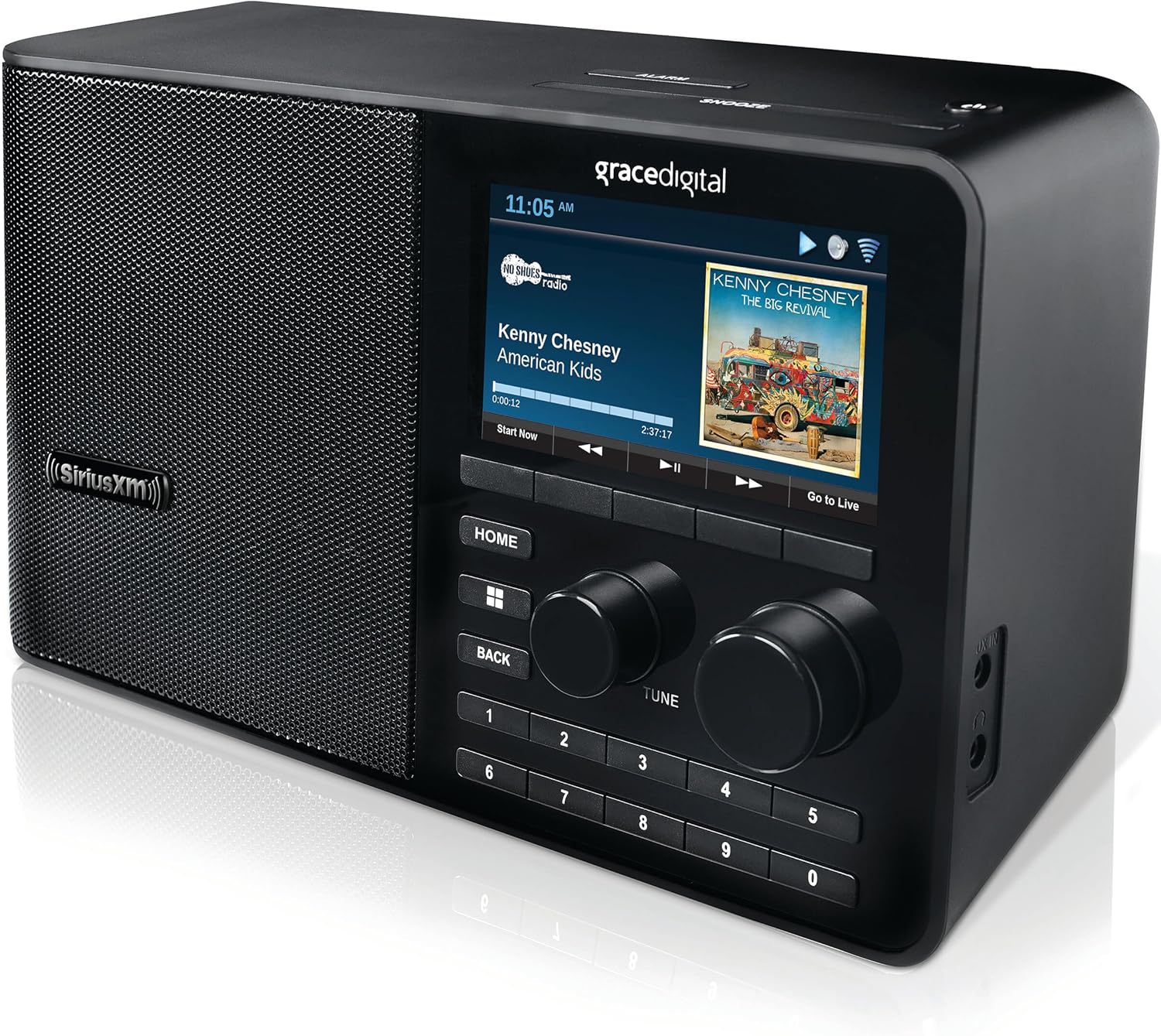
בילד: א נאָענטע בילד view of the SiriusXM Sound Station's display, showing channel information, album art, and control buttons.
Channel Selection and Presets
- Browsing Channels: Use the rotary dial to scroll through the list of available SiriusXM channels. Press the Select button to tune in.
- דירעקט קאַנאַל אַרייַנטרעטן: Use the number buttons on the unit or remote control to directly enter a channel number.
- באַשטעטיקן פּרעסעץ: Tune to your desired channel. Press and hold one of the number buttons (1-10) until the display confirms the preset has been saved.
- צוריקרופן פּרעסעץ: Briefly press the corresponding number button (1-10) to instantly tune to a saved preset channel.
פּלייבאַק פֿעיִקייטן
- Pause, Rewind, Replay: The Sound Station allows you to pause, rewind, and replay live radio content. Use the dedicated playback controls on the unit or remote.
- Start Now Function: On select channels, you can access the "Start Now" function to hear shows from the beginning, even if you tune in late.
- On-Demand Shows: Access a library of on-demand content through the device's menu.
שרעק סיסטעם
The Sound Station includes an advanced digital alarm system:
- Access the alarm settings through the main menu.
- Set up to 5 custom alarms with options for weekly, weekends, weekdays, or one-time activation.
- Configure snooze duration and sleep timer settings.
אַגזיליערי אַרייַנשרייַב
The unit features an integrated auxiliary input jack, allowing you to connect external audio devices (e.g., MP3 players, smartphones) using a 3.5mm audio cable (not included). Select the auxiliary input source from the device's menu to play audio from the connected device.
וישאַלט
רייניקונג
To maintain the appearance and functionality of your Sound Station:
- אָפּשטעקן די אַפּאַראַט פון די מאַכט ווענטיל איידער רייניקונג.
- ניצט אַ ווייכן, טרוקענעם שטאָף צו ווישן די אויסערלעכע ייבערפלאַכן.
- Do not use liquid cleaners, abrasive cleaners, or solvents, as these may damage the finish.
- Avoid spraying cleaners directly onto the unit.
Firmware דערהייַנטיקונגען
The Sound Station may periodically receive firmware updates to improve performance or add new features. The device will typically prompt you when an update is available. It is generally recommended to install updates, but be aware that some updates may introduce unforeseen issues. Ensure a stable power connection during any update process.
טראָובלעשאָאָטינג
If you encounter issues with your SiriusXM Sound Station, refer to the following common problems and solutions:
| פּראָבלעם | מעגלעך סיבה / לייזונג |
|---|---|
| קיין מאַכט |
|
| No Wi-Fi Connection / Cannot Connect to Network |
|
| "Playback stopped - Invalid Session (208)" Error |
|
| Poor Sound Quality / Crackling |
|
| ווייַט קאָנטראָל איז נישט ארבעטן |
|
If these solutions do not resolve your issue, please refer to the Support section for further assistance.
ספּעסאַפאַקיישאַנז
| שטריך | דעטאַל |
|---|---|
| מאָדעל נומער | GDI-SXTTR2 |
| פּראָדוקט דימענשאַנז | 5.25 X 10.75 X 6 אינטשעס |
| פּונקט וואָג | 3 פונט |
| קאַנעקטיוויטי טעכנאָלאָגיע | ווי-פי (802.11 ב/ג/ען) |
| טונער טעכנאָלאָגיע | אינטערנעט ראַדיאָ |
| מאַכט מקור | AC (Input: 100-240 VAC, 50/60 Hz, 0.2 A) |
| ספּעציעלע שטריך | שרעק |
| קאָליר | שוואַרץ |
| אַרייַנגערעכנט קאַמפּאָונאַנץ | SiriusXM Sound Station, Remote Control, AC Power Adapter, Quick Start Guide |
וואָראַנטי און שטיצן
Warranty information for your SiriusXM Sound Station is typically provided with your purchase documentation. Please refer to the warranty card or the original packaging for details regarding coverage and terms.
For technical support, customer service, or further assistance with your SiriusXM subscription, please contact SiriusXM directly. You can often find support contact information on the official SiriusXM website or within your account details.
For product-specific inquiries related to the hardware, you may also refer to Grace Digital's support resources, as they are the manufacturer of this device.
אָנליין רעסורסן: