1. הקדמה
This manual provides detailed instructions for the installation, operation, and maintenance of your Avision FL-1501B document scanner. Please read this manual thoroughly before using the scanner to ensure proper and safe operation. Keep this manual for future reference.

Figure 1: Avision FL-1501B Document Scanner with its automatic document feeder (ADF) and output tray extended.
2. זיכערקייַט אינפֿאָרמאַציע
Observe the following safety precautions to prevent damage to the scanner and ensure user safety:
- ניצט נאָר דעם מאַכט אַדאַפּטער וואָס ווערט צוגעשטעלט מיטן סקאַנער.
- שטעלט נישט אויס דעם סקאַנער צו וואַסער אָדער צו פיל הומידיטי.
- שטעלט דעם סקאַנער אויף אַ סטאַבילער, גלייכער ייבערפלאַך.
- ויסמיידן בלאַקינג ווענטאַליישאַן אָופּאַנינגז.
- פרובירט נישט צו צענעמען אדער פאררעכטן דעם סקענער אליין. ווענדט זיך צו קוואַליפֿיצירטע סערוויס פּערסאָנעל.
- Keep the scanner away from direct sunlight and heat sources.
3. פּעקל אינהאַלט
באַשטעטיקן אַז אַלע זאכן זענען פאַראַן אין פּעקל:
- Avision FL-1501B Scanner Unit
- מאַכט אַדאַפּטער
- וסב קאַבלע
- שנעל אָנהייב גייד
- ווייכווארג סי-די (אדער דאונלאוד אינסטרוקציעס)
4. סעטאַפּ
4.1 אַנפּאַקינג און פּלייסמאַנט
- נעמט פֿאָרזיכטיק אַרויס דעם סקאַנער פֿון זײַן פּאַקעט.
- Remove all protective tapes and packing materials.
- Place the scanner on a flat, stable surface with adequate space for document feeding and output.

Figure 2: The Avision FL-1501B scanner in its closed position, suitable for storage or before extending trays.
4.2 פֿאַרבינדן דעם סקאַנער
- Connect the power adapter to the scanner's power input port and then to an electrical outlet.
- Connect the USB cable to the scanner's USB port and then to an available USB port on your computer.
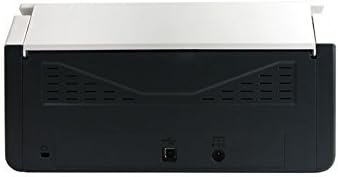
Figure 3: Rear panel of the scanner, illustrating the power input and USB connection ports.
4.3 דרייווער און ווייכווארג אינסטאַלאַציע
Before using the scanner, you must install the necessary drivers and scanning software on your computer.
- Insert the provided Software CD into your computer's optical drive, or download the latest drivers and software from the official Avision webפּלאַץ.
- Follow the on-screen instructions to complete the installation process. It is recommended to install all bundled software for full functionality.
- ריסטאַרט דיין קאָמפּיוטער אויב געבעטן.
5. אָפּעראַציע
5.1 לאָדן דאָקומענטן
- Extend the input tray and output tray of the scanner.
- אַדזשאַסטירן די פּאַפּיר גיידס צו גלייַכן די ברייט פון דיין דאָקומענטן.
- Place the documents face down, top edge first, into the automatic document feeder (ADF). Ensure the stack is neatly aligned. The scanner supports a maximum input sheet capacity of 100 sheets.

פיגור 4: זייט פּראָfile of the scanner, showing the fully extended input and output trays ready for document feeding.
5.2 ניצן די קאָנטראָל פּאַנעל
The scanner features a control panel for quick access to common scanning functions.

פיגורע 5: דעטאַילעד view of the scanner's control panel, featuring a digital display, function selection buttons, Cancel, Scan, and Power buttons.
- מאַכט קנעפּל: Press to turn the scanner on or off.
- Function Buttons (Up/Down Arrows): Use these to select different scanning profiles or functions displayed on the digital screen.
- סקאַן קנעפּל: Initiates the scanning process based on the currently selected function.
- באָטל מאַכן קנעפּל: Stops the current scanning operation.
5.3 דורכפירן א סקען
- זייט זיכער אז דער סקאַנער איז אנגעצונדן און פארבונדן צו אייער קאָמפּיוטער.
- Load your documents into the ADF as described in section 5.1.
- Open the Avision scanning software on your computer (e.g., Button Manager, Capture Tool).
- Select your desired scanning settings (e.g., color mode, resolution, destination folder, single-sided/duplex).
- Click the "Scan" button in the software or press the סקאַן button on the scanner's control panel to begin scanning.
- The scanned images will be processed and saved according to your software settings.
6. וישאַלט
6.1 רייניקן דעם סקאַנער
Regular cleaning helps maintain optimal scanning performance.
- אויסלעשן דעם סקאַנער און אָפּשטעקן דעם עלעקטרישן קאַבל איידער רייניקונג.
- ניצן אַ ווייך, לינט-פֿרייַ שטאָף לייטלי דampאָפּגעווישט מיט וואַסער אָדער אַ מילד, נישט-אַבראַוויזיוו רייניגער צו ווישן די אויסערלעכע זייט פון דעם סקאַנער.
- To clean the glass platen (if applicable) and rollers, open the scanner cover. Use a specialized scanner cleaning kit or a soft cloth with isopropyl alcohol.
- Allow all components to dry completely before reconnecting power.
6.2 פירמוואַרע דערהייַנטיקונגען
Periodically check the Avision website for firmware updates. Firmware updates can improve performance, add features, or resolve issues. Follow the instructions provided with the firmware update package carefully.
7. טראָובלעשאָאָטינג
אויב איר טרעפט פּראָבלעמען מיט אייער סקאַנער, זעט די פאלגענדע געוויינטלעכע פּראָבלעמען און לייזונגען:
| פּראָבלעם | מעגלעך סיבה | לייזונג |
|---|---|---|
| דער סקאַנער גייט נישט אָן. | שטראָם קאַבל נישט פארבונדן; שטראָם אַוטלעט דעפעקטיוו. | זיכער מאַכן אַז דער עלעקטרישער קאַבל איז זיכער פֿאַרבונדן. פּרוּווט אַן אַנדער עלעקטרישער אַוטלעט. |
| Computer does not detect scanner. | USB cable loose; drivers not installed or corrupted. | Check USB cable connection. Reinstall scanner drivers. Try a different USB port. |
| סקענירטע בילדער זענען פארשוואָמען אדער שטרייכיק. | Scanner glass or rollers are dirty; document misfeed. | Clean the scanner's internal components (refer to Section 6.1). Ensure documents are loaded correctly. |
| Documents jam in the ADF. | Documents are wrinkled or stapled; paper guides not adjusted. | Straighten documents. Remove staples/clips. Adjust paper guides to fit document width. |
8. ספּעסאַפאַקיישאַנז
| שטריך | דעטאַל |
|---|---|
| סאָרט | אַוויסיאָן |
| מאָדעל | FL-1501ב |
| סקאַננער טיפּ | דאָקומענט סקאַננער |
| סקאַננער האַכלאָטע | 600 דפּי |
| מאַקסימום אַרייַנשרייַב בלאַט קאַפּאַסיטי | 100 שיץ |
| מעדיע טיפּ | פּאַפּיר |
| וואָסtage | 24 וואטס |
| פּראָדוקט דימענשאַנז | 33 X 32.32 X 80.94 סענטימעטער |
| פּונקט וואָג | 5.67 קג |
| ערשטער דאַטע בנימצא | 6 יוני 2016 |
9. וואָראַנטי און שטיצן
9.1 וואָראַנטי אינפֿאָרמאַציע
Avision products are manufactured to high-quality standards. This product is covered by a limited warranty against defects in materials and workmanship. The specific terms and duration of the warranty may vary by region. Please refer to the warranty card included with your product or visit the official Avision webפּלאַץ פֿאַר דיטיילד וואָראַנטי אינפֿאָרמאַציע.
9.2 טעכניש שטיצן
For technical assistance, driver downloads, or further information, please visit the official Avision support website or contact your local Avision service center. Contact details can typically be found on the Avision webוועבזייטל אדער אין אייער פּראָדוקט'ס דאָקומענטאַציע.


