1. הקדמה
This manual provides essential instructions for setting up, operating, maintaining, and troubleshooting your Apple iPad Air (Model MD785LL/A). Please read this guide thoroughly to ensure proper use and to maximize your device's capabilities. The iPad Air is a versatile tablet designed for various tasks, including web browsing, email, media consumption, and app usage.
2. פּראָדוקט איבערview
The Apple iPad Air features a 9.7-inch Retina display, a powerful A6 processor, and a lightweight design. Familiarize yourself with the device's physical components.

פיגורע 2.1: פראָנט View of iPad Air. This image shows the front of the iPad Air, featuring its 9.7-inch display with the home screen visible. App icons for FaceTime, Camera, Contacts, Notes, Reminders, App Store, Settings, Safari, Google, Calendar, Messages, Mail, and Clock are arranged on the screen. The Home button is located below the display.

פיגורע 2.2: זייַט View of iPad Air. This image illustrates the thin profile of the iPad Air, highlighting its sleek design. The side buttons, typically for volume control and mute/rotation lock, are visible along the edge.
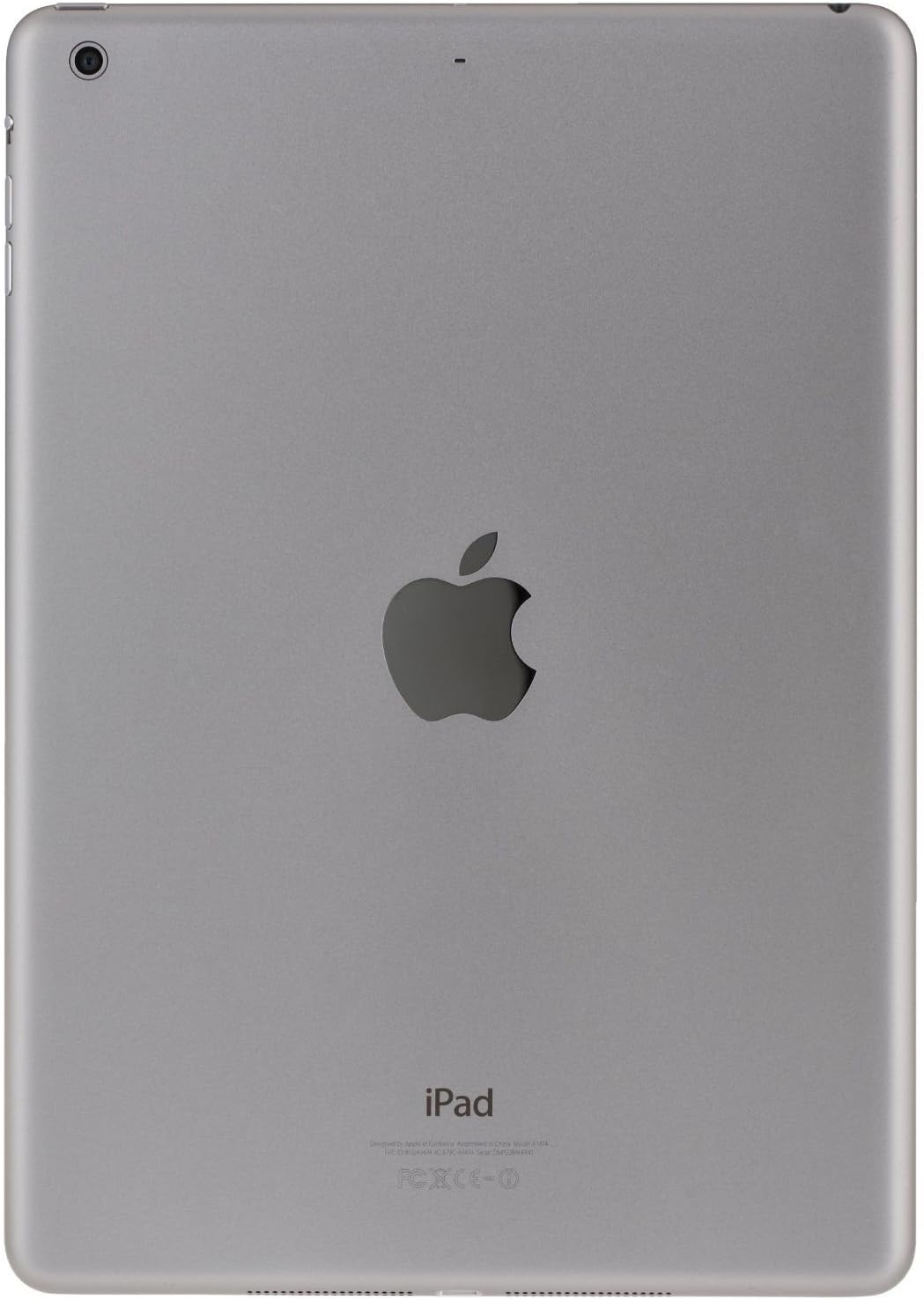
פיגורע 2.3: דערציען View of iPad Air. This image displays the back of the iPad Air, featuring the prominent Apple logo in the center. The rear camera lens is visible in the upper left corner, and regulatory information is printed at the bottom.
3. סעטאַפּ
3.1 ערשט מאַכט אויף
- דריקן און האַלטן די Power/Sleep/Wake button (located on the top right edge) until the Apple logo appears.
- Follow the on-screen instructions to begin the setup process.
3.2 יקערדיק קאַנפיגיעריישאַן
- שפּראַך און ראַיאָן: Select your preferred language and country/region.
- Wi-Fi נעטוואָרק: Connect to a Wi-Fi network. This is required for activation and many features.
- אָרט באַדינונגס: Choose whether to enable or disable Location Services.
- Set Up iPad: You can choose to set up as a new iPad, restore from an iCloud backup, or restore from an iTunes backup.
- Apple ID: Sign in with your existing Apple ID or create a new one. An Apple ID is necessary for downloading apps, using iCloud, and other Apple services.
- שפּריכוואָרט: שאַפֿן אַ פּאַראָל צו באַשיצן דיין מיטל.
- iCloud & Find My iPad: Configure iCloud settings and enable Find My iPad for security.
4. אַפּערייטינג ינסטרוקטיאָנס
4.1 יקערדיק דזשעסטשערז
- צאַפּן: Touch the screen briefly with one finger to select an item or activate a button.
- לאַקכענען: Drag one finger across the screen to scroll, navigate between home screens, or reveal hidden options.
- קניפּ: Use two fingers to pinch in or out to zoom in or out of photos, web בלעטער, אדער מאַפּעס.
- מולטי-טאטש דזשעסטשערז: Depending on your settings, you can use four or five fingers to pinch to the Home screen, swipe up to reveal the multitasking bar, or swipe left/right to switch between apps.
4.2 Home Button Functions
- איין פרעסע: קערט צו די היים פאַרשטעלן.
- טאָפּל פּרעס: Opens the multitasking bar, showing recently used apps.
- טריפּלע דרוק: Activates Accessibility Shortcut (if configured in Settings).
- דריקן און האַלטן: Activates Siri (if enabled).
4.3 Control Center and Notification Center
- קאָנטראָל צענטער: סווייפּ אַרויף פֿון די אונטערשטע ברעג פֿון דעם עקראַן צו צוטריט שנעלע סעטטינגס ווי Wi-Fi, בלועטוט, ברייטקייט און מעדיע קאָנטראָלס.
- נאָטיפיקאַטיאָן צענטער: סווייפּ אַראָפּ פֿון דער אויבערשטער ראַנד פֿון דעם עקראַן צו view נאָוטאַפאַקיישאַנז און ווידזשיץ.
4.4 App Store and Applications
Access the App Store icon on your Home screen to browse, search, and download applications. Many apps are free, while others require purchase. Ensure you are signed in with your Apple ID.
5. וישאַלט
5.1 רייניקן אייער אייפּאַד עיר
- ניצט אַ ווייכן, לינט-פֿרייע שטאָף (למשל, מיקראָפֿייבער שטאָף) צו רייניקן דעם עקראַן און דעם אויסערן.
- פֿאַרמײַדן די נוצן פֿון אַברייסיוו מאַטעריאַלן, אַעראָסאָלס, סאָלווענטן, אָדער אַמאָניאַק-באַזירטע רייניגער.
- Dampen the cloth slightly with water if necessary, but avoid getting moisture into any openings.
5.2 ווייכווארג דערהייַנטיקונגען
Regularly check for and install software updates to ensure your iPad Air has the latest features, security enhancements, and performance improvements. Go to סעטטינגס > אַלגעמיין > ווייכווארג דערהייַנטיקונג.
5.3 באַקקופּ פּראָוסידזשערז
It is recommended to regularly back up your iPad Air to iCloud or your computer using iTunes. This protects your data in case of device loss or damage.
6. טראָובלעשאָאָטינג
6.1 אַפּאַראַט רעאַגירט נישט
If your iPad Air becomes unresponsive, perform a force restart:
- דריקן און האַלטן ביידע די היים קנעפּל און די מאַכט / שלאָף / וועקן קנעפּל simultaneously until the Apple logo appears. Release both buttons once the logo is visible.
6.2 Wi-Fi פֿאַרבינדונג פּראָבלעמען
- זיכער מאַכן אַז Wi-Fi איז אַקטיווירט אין סעטטינגס> Wi-Fi.
- פּרוּווט ריסטאַרטן דיין Wi-Fi ראַוטער.
- גיין צו סעטטינגס > אַלגעמיין > צוריקשטעלן > צוריקשטעלן נעץ סעטטינגסדאָס וועט אויסמעקן אַלע נעץ סעטטינגס, אַרייַנגערעכנט Wi-Fi פּאַסווערטער.
6.3 App Crashes or Freezes
- Close the app by double-pressing the Home button, then swiping the app's preview card upwards.
- Restart your iPad Air.
- קוק פֿאַר אַפּ דערהייַנטיקונגען אין די אַפּ סטאָר.
- If the issue persists, delete and reinstall the app.
7. ספּעסאַפאַקיישאַנז
| מאָדעל נאָמען | iPad Air |
| מאָדעל נומער | MD785LL/A |
| ווייַז | 9.7-inch Retina display |
| האַכלאָטע | 2048 רענטגענ 1536 פּיקסעלס |
| פּראַסעסער | Apple A6 1.4 GHz |
| סטאָרידזש קאַפּאַסיטי | 16 גיגאבייט פלאַש זכּרון |
| באַראַן זכּרון | 1 גיגאבייט |
| אָפּערייטינג סיסטעם | Apple iOS 5 (initial release, upgradable) |
| באַטערי לעבן | אַרויף צו 10 שעה |
| וואָג | 1.00 פונט (בעערעך 453 גראַמז) |
| דימענסיעס (L X W X H) | 9.4 x 6.6 x 0.29 אינטשעס (אומגעפער 240 x 169.5 x 7.5 מ״מ) |
8. Important Information and Support
8.1 Legal Disclaimer for Returns
If you wish to return the iPad: You must erase all your content, which will remove any activation lock from iCloud. Failure to remove activation lock from the iPad will result in no refund or exchange. To erase content, go to: Settings > General > Reset > Erase All Content and Settings.
8.2 Warranty and Technical Support
For detailed warranty information, technical support, or service, please refer to the official Apple support website or contact Apple customer service directly. Information regarding your specific warranty coverage can typically be found by entering your device's serial number on the Apple support portal.
You can visit the official Apple Support webפּלאַץ פֿאַר ווייַטער הילף: support.apple.com


