הקדמה
This manual provides essential information for the proper setup, operation, and maintenance of your RCA Cambio 10.1 W101 V2 Windows 10 2-in-1 Tablet PC. Please read these instructions thoroughly before using your device to ensure optimal performance and longevity.
The RCA Cambio 10.1 W101 V2 is a versatile 10-inch tablet powered by an Intel quad-core processor and preloaded with Windows 10. It features a detachable keyboard, allowing for flexible use as both a tablet and a laptop. Key features include Bluetooth connectivity, front and rear 2MP cameras, and 32GB of internal storage.
סעטאַפּ
1. ונבאָקסינג און ערשט דורכקוק
נעמט פֿאָרזיכטיק אַרויס אַלע קאָמפּאָנענטן פֿון דער פּאַקעט. מאַכט זיכער אַז די פֿאָלגנדיקע זאַכן זענען פֿאַראַן:
- RCA Cambio 10.1 W101 V2 Tablet
- דעטאַטשאַבלע קיבאָרד
- מאַכט אַדאַפּטער
Inspect the device for any visible damage. If any components are missing or damaged, contact customer support.
2. טשאַרדזשינג די מיטל
Before first use, fully charge the tablet. Connect the power adapter to the charging port on the tablet and then to a power outlet. The charging indicator will illuminate. A full charge may take several hours.
3. Attaching the Detachable Keyboard
Align the tablet with the magnetic connector on the detachable keyboard. Gently push the tablet down until it securely clicks into place. The keyboard does not require separate power or pairing.

בילד: הינטערשטע view of the RCA Cambio 10.1 W101 V2 tablet with the detachable keyboard attached, illustrating the connection point and available ports.
4. Initial Power On and Windows 10 Setup
Press and hold the power button located on the side of the tablet until the screen illuminates. Follow the on-screen prompts to complete the initial Windows 10 setup, including language selection, network connection, and user account creation.
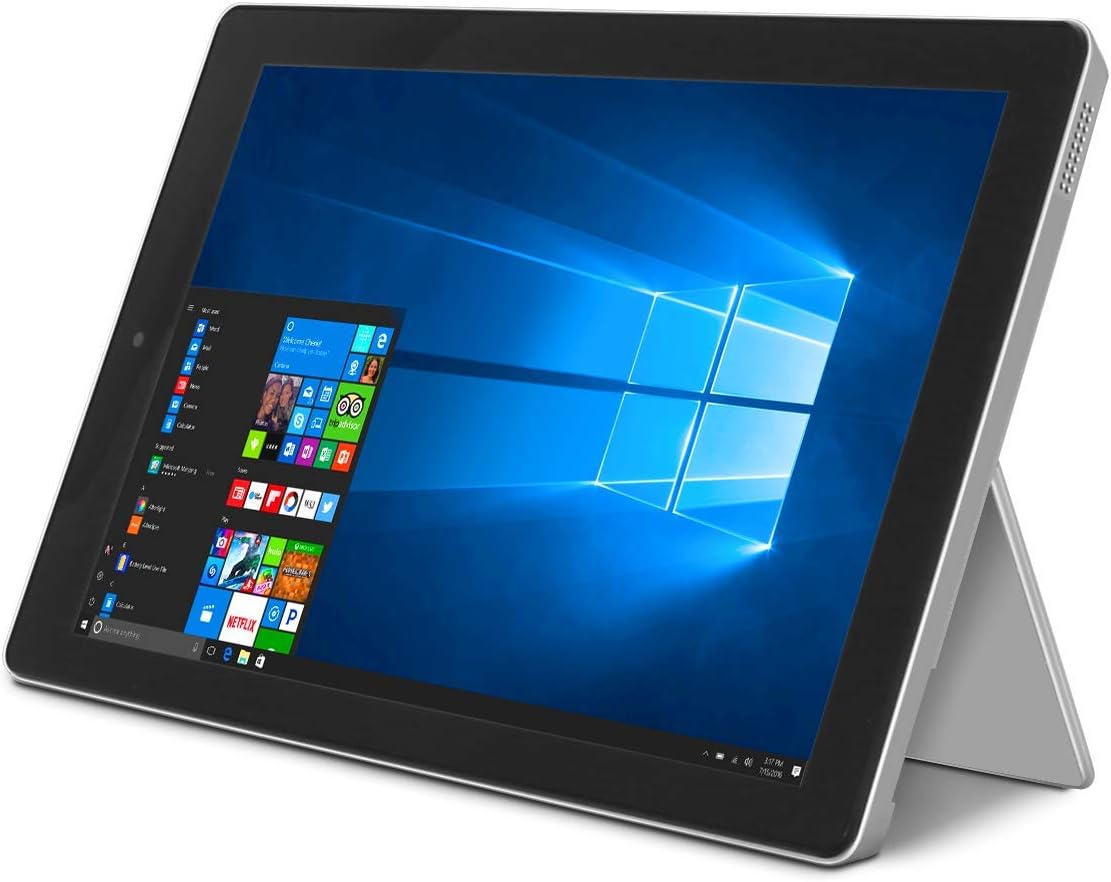
Image: The RCA Cambio 10.1 W101 V2 tablet in laptop mode, showcasing the Windows 10 operating system interface.
אַפּערייטינג ינסטראַקשאַנז
1. יקערדיק נאַוויגאַציע
טאָוטשסקרעען:
The tablet features a multi-touch display. Use gestures such as tap, swipe, pinch-to-zoom, and press-and-hold to interact with the interface.
קלאַוויאַטור און טאָוטשפּאַד:
When the detachable keyboard is connected, you can use the physical keys for typing and the integrated touchpad for cursor control. The touchpad supports multi-touch gestures similar to a laptop touchpad.

Image: The RCA Cambio 10.1 W101 V2 tablet in portrait orientation, showing the Windows 10 Start screen with application tiles.
2. קאַנעקטינג צו ווי-פי
- עפענען די אָנהייב מעניו און גיט אויף סעטטינגס.
- אויסקלייַבן נעץ & אינטערנעט.
- קלייַבן ווי-פי from the left-hand menu.
- טוישן Wi-Fi On אויב עס איז אַוועק.
- Select your desired network from the list and click פאַרבינדן.
- אַרייַן די נעץ פּאַראָל אויב פּראַמפּטיד.
3. בלועטאָאָטה פּערינג
- עפענען די אָנהייב מעניו און גיט אויף סעטטינגס.
- אויסקלייַבן דיווייסאַז.
- קלייַבן בלועטאָאָטה און אנדערע דעוויסעס from the left-hand menu.
- באַשטימען בלועטאָאָטה On.
- דריקט לייג בלועטאָאָטה אָדער אנדערע מיטל and follow the instructions to pair with your desired device.
4. ניצן די קאַמעראַס
The tablet is equipped with front and rear 2MP cameras. To access the camera, open the אַפּאַראַט application from the Start Menu or search bar. You can switch between front and rear cameras within the application interface.
5. Productivity with Microsoft Office 365
The device comes preloaded with Windows 10, which supports Microsoft Office 365 applications. You can create and edit documents, spreadsheets, and presentations. An active subscription to Microsoft Office 365 may be required for full functionality.

Image: The RCA Cambio 10.1 W101 V2 tablet running Microsoft Office applications, highlighting its use for productivity tasks.
6. סטאָרידזש מאַנאַגעמענט
The tablet includes 32GB of internal storage. To manage your storage, go to סעטטינגס> סיסטעם> סטאָרידזש. איר קענען view storage usage, free up space, and change where new content is saved. Consider using cloud storage or an external microSD card (not included) for additional space.
וישאַלט
1. רייניקונג די מיטל
Use a soft, lint-free cloth to clean the screen and exterior surfaces. For stubborn smudges, slightly dampווישט דעם שטאָף מיט וואַסער אָדער אַ רייניקונג לייזונג פֿאַר דעם עקראַן. פֿאַרמייַדט ניצן שטרענגע כעמיקאַלן אָדער אַברייסיוו מאַטעריאַלן.
2. ווייכווארג דערהייַנטיקונגען
Regularly check for and install Windows updates to ensure your system has the latest security patches and features. Go to סעטטינגס > דערהייַנטיקונג און זיכערהייט > ווינדאָוז דערהייַנטיקונג צו קאָנטראָלירן פֿאַר דערהייַנטיקונגען.
3. באַטערי קער
צו פאַרלענגערן די באַטאַרייע לעבן:
- פֿאַרמײַדט אָפֿט פֿולשטענדיק אויסצולאָדן די באַטעריע.
- דו זאלסט נישט ויסשטעלן די מיטל צו עקסטרעם טעמפּעראַטורעס.
- Unplug the charger once the battery is fully charged, especially during extended periods of non-use.
4. דאַטן באַקאַפּ
Regularly back up important data to an external drive or cloud storage to prevent data loss in case of device malfunction.
טראָובלעשאָאָטינג
This section addresses common issues you might encounter with your RCA Cambio 10.1 W101 V2.
מיטל נישט פּאַוערינג אויף:
- Ensure the device is fully charged. Connect the power adapter and wait a few minutes before attempting to power on again.
- Press and hold the power button for at least 10-15 seconds to perform a hard reset.
לאַנגזאַמע פאָרשטעלונג אָדער איינפֿרירן:
- שליסט אומנייטיקע אַפּליקאַציעס וואָס לויפן אין הינטערגרונט.
- קוקט נאָך און אינסטאַלירט אַלע וואַרטנדיקע ווינדאָוז דערהייַנטיקונגען.
- Ensure sufficient free storage space. Delete unnecessary files or move them to external storage.
- ריסטאַרט די מיטל.
Wi-Fi קאַנעקטיוויטי ישוז:
- זיכער מאַכן אַז Wi-Fi איז אַקטיווירט אין סעטטינגס> נעץ און אינטערנעט> ווי-פי.
- ריסטאַרט דיין Wi-Fi ראַוטער און די טאַבלעט.
- פארגעסט דאס נעץ און פארבינדט זיך ווידער דורך נאכאמאל אריינגעבן דאס פאסווארט.
- זייט זיכער אז איר זענט אין דער רייך פון די Wi-Fi סיגנאַל.
בלועטאָאָטה פּערינג פּראָבלעמס:
- Ensure Bluetooth is enabled on both the tablet and the device you are trying to pair.
- Make sure both devices are in pairing mode and within close proximity.
- Remove previously paired devices from the tablet's Bluetooth settings if you are experiencing conflicts.
קלאַוויאַטור ניט ריספּאַנדינג:
- Ensure the keyboard is securely attached to the tablet's magnetic connector.
- Detach and reattach the keyboard.
- ריסטאַרט די טאַבלעט.
די באַטערי דריינז געשווינד:
- שטעל די ליכטיקייט פון דעם עקראַן צו אַ נידעריקערע שטאַפּל.
- Close background applications and disable unnecessary features like Bluetooth or Wi-Fi when not in use.
- טשעק באַטאַרייע באַניץ אין Settings > System > Battery to identify power-consuming applications.
פאַבריק ריסעט (לעצטע ריזאָרט):
If issues persist, you may consider performing a factory reset. This will erase all data and reinstall Windows 10. באַקאַפּ אַלע וויכטיקע דאַטן איידער איר גייט ווייטער. גיין צו Settings > Update & Security > Recovery > Reset this PC און נאָכגיין די ינסטראַקשאַנז אויף דעם עקראַן.
ספּעסאַפאַקיישאַנז
| שטריך | באַשרייַבונג |
|---|---|
| מאָדעל נומער | W101 V2 |
| אָפּערייטינג סיסטעם | Windows 10 |
| פאַרשטעלן גרייס | 10.1 אינטשעס |
| פאַרשטעלן האַכלאָטע | 1280 X 800 |
| פּראַסעסער | Intel Quad-Core (1.83 GHz) |
| באַראַן | 2 גיגאבייט DDR3 SDRAM |
| אינערלעכער סטאָרידזש | 32 גיגאבייט פלאַש זכּרון |
| ווירעלעסס קאַנעקטיוויטי | 802.11b Wi-Fi, Bluetooth |
| קאַמעראַס | Front and Rear (2 MP) |
| באַטערי | 1 ליטהיום יאָן באַטאַרייע (אַרייַנגערעכנט) |
| דימענשאַנז (LxWxH) | 12.2 X 8.5 X 3.15 אינטשעס |
| פּונקט וואָג | 2.75 פונט |
וואָראַנטי און שטיצן
For warranty information and technical support, please refer to the documentation included with your product or visit the official RCA support webזייטל. האַלט דיין קויפן באַווייַז פֿאַר וואָראַנטי קליימז.
For further assistance, you may contact RCA customer service. Contact details are typically available on the manufacturer's webפּלאַץ.


