1. הקדמה
This manual provides essential information for the safe and efficient use of your InFocus IF195a Touch Pad. Please read this manual thoroughly before operating the device and retain it for future reference.
2. זיכערקייַט אינפֿאָרמאַציע
- שטעלט נישט אויס דעם אפאראט צו עקסטרעמע טעמפעראטורן, דירעקטע זונשייַן, אדער הויכע הומידיטי.
- ויסמיידן דראַפּינג אָדער אונטערטעניק די מיטל צו שטאַרק ימפּאַקץ.
- Use only the charger provided or approved by InFocus.
- פרובירט נישט צו צענעמען אדער פאררעכטן דעם אפאראט אליין. לאָזט איבער אלע סערוויסעס צו קוואַליפֿיצירטע פּערסאָנעל.
- האַלטן די מיטל אַוועק פון וואַסער און אנדערע ליקווידס.
- אַוועקוואַרפן דאָס אַפּאַראַט און זײַן באַטאַרייע פֿאַראַנטוואָרטלעך לויט די לאָקאַלע רעגולאַציעס.
3. פּראָדוקט איבערview
The InFocus IF195a is a 20-inch Android-powered touch pad designed for interactive use. Familiarize yourself with its components.
3.1 פראָנט View

פיגורע 1: פראָנט view of the InFocus IF195a Touch Pad. This image shows the large 20-inch display with the Android operating system interface, including various app icons and the Google search bar. The device features a sleek bezel around the screen.
- ווייַז: 20-inch multi-touch screen.
- פראָנט אַפּאַראַט: Located at the top center bezel.
- מיקראָפאָן: Integrated for voice input.
3.2 זייַט View און פּאָרטן
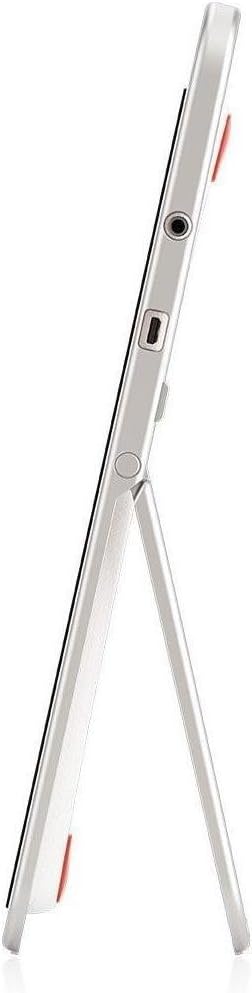
פיגורע 2: זייַט view of the InFocus IF195a Touch Pad. This image highlights the device's slim profile and the integrated kickstand, which allows for upright positioning. Visible ports include a headphone jack and a USB port.
- מאַכט קנעפּל: Used to turn the device on/off or put it to sleep.
- באַנד קנעפּלעך: אַדזשאַסטירן די דעווייס'ס אַודיאָ אַוטפּוט.
- כעדפאָון דזשאַק (3.5 מם): פֿאַר קאַנעקטינג פונדרויסנדיק אַודיאָ דעוויסעס.
- מיקראָ-וסב פּאָרט: פֿאַר טשאַרדזשינג און דאַטן אַריבערפירן.
- אינטעגרירטע קיקשטאַנד: Allows the device to stand upright.
4. סעטאַפּ
4.1 אויספּאַקן און ערשטע אָפּצאָל
- Carefully remove the InFocus IF195a Touch Pad and all accessories from the packaging.
- Connect the provided power adapter to the Micro-USB port on the device and plug it into a power outlet. Allow the device to charge fully before first use. The charging indicator will typically show a full battery when complete.
4.2 פּאַוערינג אויף / אַוועק
- צו מאַכט אויף: Press and hold the Power button until the InFocus logo appears on the screen.
- צו מאַכט אַוועק: דריק און האלט דעם פּאַוער קנעפּל ביז אַ "אויסלאָשן" מעניו דערשיינט. סעלעקטיר "אויסלאָשן" און באַשטעטיק.
- צו שלאפן/אויפוואכן: Briefly press the Power button to put the device into sleep mode or wake it up.
4.3 ערשטע סעטאַפּ וויזאַרד
Upon first power-on, the device will guide you through an initial setup process:
- שפּראַך סעלעקציע: קלייַבן דיין בילכער שפּראַך.
- Wi-Fi קאַנעקשאַן: Select your Wi-Fi network from the list and enter the password. A stable internet connection is required for many features.
- גוגל אקאונט: Sign in with an existing Google account or create a new one. This is necessary to download apps from the Google Play Store and access Google services.
- טאָג און צייט: Set the correct date and time or allow the device to set it automatically via the network.
- פּריוואַטקייט סעטטינגס: Review און סטרויערן פּריוואַטקייט סעטטינגס ווי געוואונטשן.
5. אַפּערייטינג די מיטל
5.1 ריר דזשעסטשערז
- צאַפּן: רירט דעם עקראַן איין מאָל צו אויסקלײַבן אַן איינהייט אָדער עפֿענען אַן אַפּליקאַציע.
- ריר און האלט: Press and hold an item to access contextual menus or drag items.
- לאַקכענען: שלעפּט אייער פינגער אַריבער דעם עקראַן צו סקראָלן דורך רשימות אָדער וועקסלען צווישן היים סקרינז.
- קניפּ-צו-זומען: Use two fingers to zoom in or out on images, maps, or web בלעטער.
5.2 היים־עקראַן און נאַוויגאַציע
- היים קנעפּל: Returns you to the main home screen.
- צוריק קנעפּל: Returns to the previous screen or closes the current application.
- לעצטע אַפּפּס קנעפּל: Displays a list of recently used applications for quick switching.
- אָנזאָג פּאַנעל: סווייפּ אַראָפּ פֿון דער שפּיץ פֿונעם עקראַן צו צוקומען צו נאָטיפיקאַציעס און שנעלע סעטטינגס.
5.3 Installing and Managing Applications
- Google פּלייַ סטאָר: Open the "Play Store" app to browse and download applications. A Google account is required.
- ינסטאָלינג אַפּפּס: Select an app and tap "Install." Follow on-screen prompts for permissions.
- אַראָפּנעמען אַפּפּס: גיין צו סעטטינגס > אַפּפּס, select the desired app, and tap "Uninstall." Alternatively, touch and hold an app icon on the home screen and drag it to the "Uninstall" option (if available).
5.4 פֿאַרבינדן זיך צו עקסטערנע דעוויסעס
- כעדפאָונז: צאַפּן 3.5 מם כעדפאָונז אין די כעדפאָון דזשאַק.
- USB דעוויסעס: Connect compatible USB devices (e.g., flash drives, keyboards) to the Micro-USB port using an appropriate adapter if necessary. The device supports USB On-The-Go (OTG).
6. וישאַלט
6.1 רייניקונג די מיטל
- ניצן אַ ווייך, לינט-פריי שטאָף צו ריין די פאַרשטעלן און גוף פון די מיטל.
- פֿאַר שווערע מאַרקן, אַ ביסל דampווישט דעם שטאָף מיט וואַסער אָדער אַ פאַרשטעלן רייניגער ספּעציעל דיזיינד פֿאַר עלעקטראָניק.
- פֿאַרמײַדן ניצן שטרענגע כעמיקאַלן, אַברייסיוו רייניגער, אָדער אַעראָסאָל ספּרײַס.
6.2 באַטערי קער
- כדי צו פארלענגערן די לעבן פון די באַטעריע, זאָל מען נישט אָפט אויסלאָדן די באַטעריע גאָר.
- לאָזט נישט דעם אַפּאַראַט פֿאַרבונדן צום טשאַרדזשער פֿאַר לענגערע צייטן נאָכדעם ווי עס איז פֿולשטענדיק אויפֿגעלאָדן.
- Store the device in a cool, dry place if not used for a long time, with the battery charged to about 50%.
6.3 ווייכווארג דערהייַנטיקונגען
Periodically check for software updates to ensure optimal performance and security. Go to סעטטינגס > וועגן טאַבלעט > סיסטעם דערהייַנטיקונגען to check for and install available updates. Ensure your device is connected to Wi-Fi and has sufficient battery charge before starting an update.
7. טראָובלעשאָאָטינג
| פּראָבלעם | מעגלעך לייזונג |
|---|---|
| די דעווייס וועט זיך נישט אנצינדן. | Ensure the device is charged. Connect the charger and wait a few minutes before attempting to power on again. If unresponsive, perform a hard reset by holding the power button for 10-15 seconds. |
| Wi-Fi פֿאַרבינדונג פּראָבלעמען. | קאָנטראָלירט צי Wi-Fi איז אַקטיווירט אין די סעטטינגס. ריסטאַרט אייער Wi-Fi ראַוטער. פֿאַרגעסט וועגן דעם נעץ און פֿאַרבינדט זיך ווידער. מאַכט זיכער אַז איר זענט אין דער ראַנגע פֿון דעם Wi-Fi סיגנאַל. |
| Applications are crashing or freezing. | Close and restart the application. Clear the app's cache (סעטטינגס > אַפּפּס > [אַפּ נאָמען] > סטאָרידזש > ויסמעקן קאַש). If the problem persists, uninstall and reinstall the app. |
| די פאַרשטעלן איז ניט ריספּאַנדאַבאַל. | Restart the device. Ensure the screen is clean and free of debris. If the issue continues, contact support. |
| לאַנגזאַמע פאָרשטעלונג. | Close unnecessary background applications. Clear cache for frequently used apps. Check available storage (סעטטינגס> סטאָרידזש) and free up space if needed. Consider a factory reset as a last resort. |
7.1 פאַבריק באַשטעטיק
א פאַבריק ריסעט וועט אויסמעקן אַלע דאַטן פון דיין מיטל און צוריקשטעלן עס צו זיין אָריגינעל פאַבריק סעטטינגס. באַקאַפּ אַלע וויכטיקע דאַטן איידער איר גייט ווייטער.
- גיין צו סעטטינגס > באַקאַפּ און ריסעט > פאַבריק דאַטן ריסעט.
- Read the warning message carefully.
- Tap "Reset tablet" and then "Erase everything" to confirm.
- די דעווייס וועט ריסטאַרטן און אָנהייבן דעם ריסעט פּראָצעס.
8. טעכניש ספּעסאַפאַקיישאַנז
| שטריך | באַשרייַבונג |
|---|---|
| מאָדעל | IF195a |
| סאָרט | ינפאָקוס |
| ווייַז גרייס | 20 אינטשעס |
| מאַקסימום האַכלאָטע | 1600 X 900 |
| פּראַסעסער | ARM Cortex-A15 Quad-Core 1.8 GHz |
| באַראַן קאַפּאַציטעט | 2 גיגאבייט |
| סטאָרידזש קאַפּאַסיטי | 16 גיגאבייט |
| אָפּערייטינג סיסטעם | אַנדרויד 4.4 קיטקאַט |
| דערציען אַפּאַראַט האַכלאָטע | 5 מפּ |
| דימענסיעס (L X W X H) | 61.6 X 47 X 8.6 סענטימעטער |
| וואָג | 3.7 קג |
| קאָליר | גרוי |
9. וואָראַנטי און שטיצן
For warranty information, please refer to the warranty card included with your product or visit the official InFocus website. For technical support, product registration, or service inquiries, please contact InFocus customer service through their official channels.
Please note that warranty terms may vary by region and retailer. Keep your proof of purchase for warranty claims.


