הקדמה
The Cree Connected LED bulb is designed to provide an easy-to-use and cost-effective solution for customizing lighting in your home. This smart bulb can be controlled from anywhere, offering convenience and flexibility. It integrates with compatible home automation systems, allowing you to manage your lighting settings via an app on your iOS or Android device.

The Cree Connected LED bulb offers convenient control from anywhere, enhancing your home lighting experience.
זיכערקייַט אינפֿאָרמאַציע
ביטע ליינט און פארשטייט אלע זיכערהייט אינסטרוקציעס איידער איר אינסטאלירט אדער ניצט דעם פראדוקט. נישט נאכפאלגן די אינסטרוקציעס קען רעזולטירן אין עלעקטרישע שאק, פייער, אדער אנדערע געפארן.
- בלויז דרינענדיק נוצן: This bulb is designed for indoor use in dry locations. Do not use in wet or damp ינווייראַנמאַנץ.
- נישט פֿאַר פֿאַרמאַכטע פֿיקסטשורז: Do not use this bulb in fully enclosed luminaires or fixtures, as this can trap heat and shorten the bulb's lifespan.
- דימאַבלע LED: This bulb is dimmable, but it is not recommended for use with traditional wall dimmers. Control dimming via a compatible smart hub and app.
- מאַכט אַוועק איידער ינסטאַלירונג: Always turn off the power to the fixture at the circuit breaker before installing or removing the bulb.
- Voltage קאַמפּאַטאַבילאַטי: זיכער מאַכן די שטאַרקייט פון די פיקסטשערtage (120 Volts) matches the bulb's requirements.
- שעפּן מיט זאָרג: Avoid dropping the bulb or subjecting it to excessive force.
פּעקל אינהאַלט
The package for your Cree Connected LED Smart Bulb typically includes:
- 1 x Cree Connected LED Smart Bulb

The product packaging for the Cree Connected LED Smart Bulb.
סעטאַפּ
To set up your Cree Connected LED Smart Bulb, you will need a compatible ZigBee certified hub (e.g., Wink, SmartThings, WeMo, or Alexa devices with built-in ZigBee hub like Echo Plus, Echo Studio, Echo Show 2nd Gen).
- ינסטאַלירן די באַלב: Screw the Cree Connected LED bulb into a standard E26 light socket. Ensure the power to the fixture is off before installation.
- Prepare Your Hub: Place your compatible ZigBee hub into device discovery mode. Refer to your hub's specific instructions for this step. It is often recommended to initiate discovery mode on the hub פריער turning on the bulb.
- Power On the Bulb: Turn on the power to the light fixture. The bulb should light up. Your hub should detect and pair with the bulb automatically. A successful pairing is often indicated by the bulb blinking twice.
- Download and Launch App: Download the applicable app for your chosen hub (e.g., Wink app, SmartThings app, Alexa app) on your iOS or Android device. Launch the app and follow the on-screen instructions to add and configure your new bulb.
- נעם אן אייער ציבעלע: Once paired, you can name your bulb within the app for easy identification and control (e.g., "Living Room Lamp," "Kitchen Light").
Resetting the Bulb to Factory Defaults
If you experience difficulty pairing the bulb or need to reset it, follow this sequence:
- 1. Turn the bulb OFF פֿאַר 2 סעקונדעס.
- 2. Turn the bulb ON פֿאַר 1 רגע.
- 3. Turn the bulb OFF פֿאַר 2 סעקונדעס.
- 4. Turn the bulb ON פֿאַר 1 רגע.
- 5. Turn the bulb OFF פֿאַר 2 סעקונדעס.
- 6. Turn the bulb ON פֿאַר 1 רגע.
- 7. Turn the bulb OFF פֿאַר 2 סעקונדעס.
- 8. Turn the bulb ON.
After the fourth ON cycle, the light will blink twice, indicating a successful reset. You can then attempt to pair the bulb again.

Cree Lighting offers a variety of smart lighting solutions.
אַפּערייטינג ינסטראַקשאַנז
Once your Cree Connected LED Smart Bulb is successfully paired with your hub, you can control it using the associated mobile application or voice commands through compatible smart assistants.
- אָנ / אַוועק קאָנטראָל: Use the app to turn the bulb on or off instantly.
- דימינג: Adjust the brightness of the bulb to your desired level using the dimming controls within the app. The bulb offers a full range of dimming.
- סקעדזשולינג: Set schedules for your lights to turn on or off automatically at specific times, or to simulate occupancy when you are away from home.
- גרופּינג: Group multiple Cree Connected bulbs together to control them simultaneously as a single unit.
- קול קאָנטראָל: If connected to a voice assistant (e.g., Alexa), use voice commands to control your lights (e.g., "Alexa, turn on Living Room Light," "Alexa, dim Kitchen to 50%").
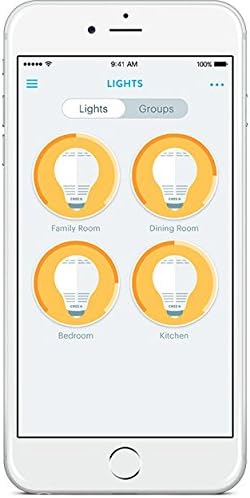
Control your smart bulbs easily through the mobile application.

Control your lights remotely for convenience and security.
וישאַלט
The Cree Connected LED Smart Bulb requires minimal maintenance. Follow these guidelines to ensure optimal performance and longevity:
- רייניקונג: זיכער מאַכן אַז די לאַמפּע איז קיל און די מאַכט איז אויסגעלאָשן איידער איר רייניקט. ווישט די לאַמפּע מיט אַ ווייכן, טרוקענעם שטאָף. ניצט נישט פליסיקע אָדער שאַרפע רייניקונגסמיטלען.
- סטאָרידזש: If storing the bulb for an extended period, keep it in its original packaging or a protective container in a cool, dry place.
- ויסמיידן אָוווערכיטינג: Do not install the bulb in enclosed fixtures or areas with poor ventilation, as this can lead to overheating and reduce its lifespan.
טראָובלעשאָאָטינג
If you encounter issues with your Cree Connected LED Smart Bulb, refer to the following common problems and solutions:
| פּראָבלעם | מעגלעך סיבה / לייזונג |
|---|---|
| ציבעלע טוט נישט ליכט אַרויף. |
|
| Bulb does not pair with the hub. |
|
| Bulb does not turn off completely (faint glow). |
|
| Bulb comes on at full brightness after being manually switched off and on. |
|
| Bulb loses connection or is unresponsive. |
|
ספּעסאַפאַקיישאַנז

Dimensions of the Cree Connected LED Smart Bulb.
| שטריך | דעטאַל |
|---|---|
| סאָרט | קרי ליגהטינג |
| מאָדעל נאָמען | Cree Connected LED |
| טייל נומער | BA19-08027OMF-12CE26-1C100 |
| UPC | 849665009542 |
| ליכט טיפּ | געפירט |
| וואָסtage | 11 וואטס |
| ינקאַנדעסאַנט עקוויוואַלענט וואַטtage | 60 וואטס |
| ברייטנאַס | 815 לומענס |
| ליכט קאָליר | ווייך ווייסע |
| קאָליר טעמפּעראַטור | 2700 קעלווין |
| ציבעלע פאָרעם גרייס | A19 |
| באַלב באַסע | E26 |
| Voltage | 120 וואלטס |
| קאַנעקטיוויטי טעכנאָלאָגיע | זיגבעע |
| קאַנעקטיוויטי פּראָטאָקאָל | זיגבעע |
| דרינענדיק / דרויסנדיק באַניץ | דרינענדיק נוצן בלויז |
| דורכשניטלעך לעבן | 22 Years (25,000 hours rated life) |
| פּראָדוקט דימענשאַנז | 2.4"ברייט x 4.4"היך |
| מאַטעריאַל | גלאז |
| קאָליר רענדערינג אינדעקס | 80 |
וואָראַנטי און שטיצן
וואָראַנטי: The Cree Connected LED Smart Bulb comes with a 3-year limited warranty. Please refer to the product packaging for complete details regarding warranty coverage and terms.
שטיצן: For additional support, frequently asked questions, or to access the latest user guides and installation manuals, please visit the official Cree Lighting website. You may also find helpful resources in the PDF documents provided by the manufacturer: