הקדמה
This manual provides instructions for setting up, operating, and maintaining your Mercury MW3030R Dual Band Wireless Router. Please read this manual carefully before use to ensure proper installation and optimal performance.
זיכערקייַט אינפֿאָרמאַציע
- שטעלט נישט אויס דעם אפאראט צו וואסער אדער איבעריגע הומידיטי.
- דו זאלסט נישט פּרווון צו דיסאַסעמבאַל אָדער פאַרריכטן די מיטל זיך.
- ניצן בלויז די מאַכט אַדאַפּטער צוגעשטעלט מיט די מיטל.
- זאָרגט פֿאַר געהעריקע ווענטילאַציע אַרום דעם ראַוטער צו פֿאַרמייַדן איבערהיצונג.
פּעקל אינהאַלט
באַשטעטיקן אַז דיין פּעקל כּולל די פאלגענדע זאכן:
- Mercury MW3030R Wireless Router
- מאַכט אַדאַפּטער
- עטהערנעט קאַבלע
- Quick Installation Guide (this manual serves as a detailed guide)
פּראָדוקט איבערview
Familiarize yourself with the router's components and indicators.
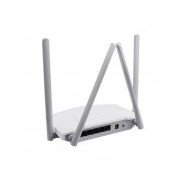
פיגורע 1: דערציען view of the Mercury MW3030R router. This image displays the four external antennas, the WAN port (typically blue), multiple LAN ports (typically yellow), and the power input jack. The reset button and WPS button are also usually located on the rear panel.
פיגורע 2: Top-down view of the Mercury MW3030R router with its antennas folded. This perspective highlights the router's sleek, white casing and its overall compact form factor, suitable for various placements.
פיגורע 3: דנאָ view of the Mercury MW3030R router. This image shows the ventilation holes designed for heat dissipation and the product label, which typically contains important information such as the default Wi-Fi name (SSID), password, and web management address.
LED ינדיקאַטאָרס:
- Power LED: Indicates the power status of the router.
- אינטערנעט LED: ווײַזט אָן דעם סטאַטוס פֿון דער אינטערנעט פֿאַרבינדונג.
- WLAN LED: ווײַזט אויף ווייערלעסע טעטיקייט.
- לאַן לעדס: Indicate connection status for each LAN port.
סעטאַפּ
1. ייַזנוואַרג קאַנעקשאַן
- מאַכט אויף: Connect the power adapter to the router's power port and plug it into a wall outlet. Wait for the Power LED to become stable.
- פאַרבינדן צו אינטערנעט (WAN): Connect one end of an Ethernet cable to your modem's LAN port and the other end to the router's WAN port (usually distinctively colored, e.g., blue).
- פֿאַרבינדן דעוויסעס (LAN): For wired connections, connect your computer or other devices to the router's LAN ports (usually yellow) using Ethernet cables.
- אַנטענאַז: Adjust the four antennas for optimal signal coverage.
2. ערשטע קאָנפיגוראַציע (Web צובינד)
- פאַרבינדן צו ראָוטער: Connect your computer to the router either via an Ethernet cable to a LAN port or wirelessly using the default Wi-Fi SSID and password printed on the router's label (refer to Figure 3).
- אַקסעס Web בלעטערער: עפענען א web browser (e.g., Chrome, Firefox) and type the default access address (e.g., http://192.168.1.1 or http://tplinkwifi.net) אין די אַדרעס באַר און דריק אויף Enter.
- לאָגין: אַרייַן דעם פעליקייַט באַניצער נאָמען און פּאַראָל (געוויינטלעך אַדמין פֿאַר ביידע, אָדער ווי ספּעציפֿיצירט אויף די ראַוטער'ס עטיקעט).
- לויפן שנעל סעטאַפּ: Follow the on-screen instructions of the Quick Setup Wizard to configure your internet connection type (e.g., PPPoE, Dynamic IP, Static IP) and wireless settings (SSID, password).
- טוישן דיפאָלט פּאַראָל: For security, it is highly recommended to change the default login password for the router's web פאַרוואַלטונג צובינד.
אַפּערייטינג ינסטראַקשאַנז
קאַנעקטינג צו Wi-Fi
- אויף אייער ווייערלעס דעווייס (סמאַרטפאָן, לאַפּטאָפּ), זוכט פֿאַר פֿאַראַן Wi-Fi נעטוואָרקס.
- Select your router's Wi-Fi network name (SSID) that you configured during setup.
- Enter the Wi-Fi password you set.
- אייער דעווייס זאָל איצט זיין פארבונדן צום אינטערנעט.
צווייענדיק באַנד אָפּעראַציע
The MW3030R supports both 2.4GHz and 5.0GHz wireless bands. The 2.4GHz band offers wider coverage, while the 5.0GHz band provides faster speeds with less interference over shorter distances. You can connect your devices to either band based on your needs.
גאַסט נעטוואָרק
צוטריט דעם ראָוטער'ס web interface to enable and configure a separate guest network. This allows guests to access the internet without accessing your main network resources.
וישאַלט
- Firmware דערהייַנטיקונגען: רעגולער קאָנטראָלירן די פאַבריקאַנט ס webזייטל פֿאַר פירמווער דערהייַנטיקונגען. דערהייַנטיקן פירמווער קען פֿאַרבעסערן פאָרשטעלונג, צולייגן נייע פֿעיִקייטן און פֿאַרריכטן זיכערהייט שוואַכקייטן.
- ריסטאַרטינג דעם ראַוטער: If you experience network issues, try restarting the router by unplugging the power adapter, waiting 10 seconds, and then plugging it back in.
- רייניקונג: Keep the router clean and free from dust. Use a soft, dry cloth. Do not use liquid cleaners.
- אָרט: שטעלט דעם ראַוטער אין אַ צענטראַלן אָרט, ווײַט פֿון שטערונגען און דעוויסעס וואָס קענען פֿאַראורזאַכן שטערונגען (למשל, מייקראַווייווז, שנורלאָזע טעלעפֿאָנען).
טראָובלעשאָאָטינג
קיין אינטערנעט אַקסעס
- Check if the Internet LED on the router is lit or blinking correctly.
- זייט זיכער אז דער עטערנעט קאַבל פון אייער מאָדעם איז זיכער פארבונדן צום ראַוטער'ס WAN פּאָרט.
- ריסטאַרט דיין מאָדעם און ראַוטער.
- איבערקוק אייערע אינטערנעט קאנעקשאן סעטינגס אין די ראוטער'ס web צובינד.
Slow Wireless Speed
- Ensure your device is connected to the 5.0GHz band if it supports it, for faster speeds.
- Move closer to the router or adjust antenna positions.
- קוק פֿאַר ינטערפיראַנס פון אנדערע עלעקטראָניש דעוויסעס.
- Reduce the number of devices connected to the network or bandwidth-intensive activities.
קען נישט צוקומען צום ראוטער'ס Web צובינד
- זיכער מאַכן אַז אייער דעווייס איז פארבונדן צום ראַוטער (מיט אַ דראָט אָדער אָן אַ ווייער).
- Verify the IP address you are typing in the browser is correct (e.g., http://192.168.1.1).
- פרובירט אויסצורייניגן אייער בלעטערער'ס קעש אדער ניצן אן אנדערן בלעטערער.
- If you forgot the login password, you may need to perform a factory reset (Warning: This will erase all your settings).
ספּעסאַפאַקיישאַנז
| שטריך | באַשרייַבונג |
|---|---|
| מאָדעל | MW3030R |
| ווירעלעסס סטאַנדאַרדס | IEEE 802.11ac/n/g/b/a |
| אָפטקייַט | 2.4GHz און 5.0GHz (צוויי-באַנד) |
| ווירעלעסס ספּיד | Up to 600Mbps (combined) |
| אַנטענע | 4 פונדרויסנדיק אַנטענאַז |
| ינטערפייסיז | 1x WAN Port, Multiple LAN Ports (typically 3 or 4) |
| מאַכט צושטעלן | External Power Adapter (provided) |
וואָראַנטי און שטיצן
The Mercury MW3030R router comes with a standard manufacturer's warranty. For detailed warranty information, technical support, or service inquiries, please refer to the official Mercury webזייטל אדער קאנטאקט זייער קאסטומער סופארט. האלט אייער קויף קוויטל פאר גאראנטיע קליימס.


