הקדמה
This manual provides comprehensive instructions for the installation, operation, maintenance, and troubleshooting of your Intel DC S3710 800 GB 2.5" Internal Solid State Drive. Please read this manual thoroughly before using the product to ensure optimal performance and longevity.
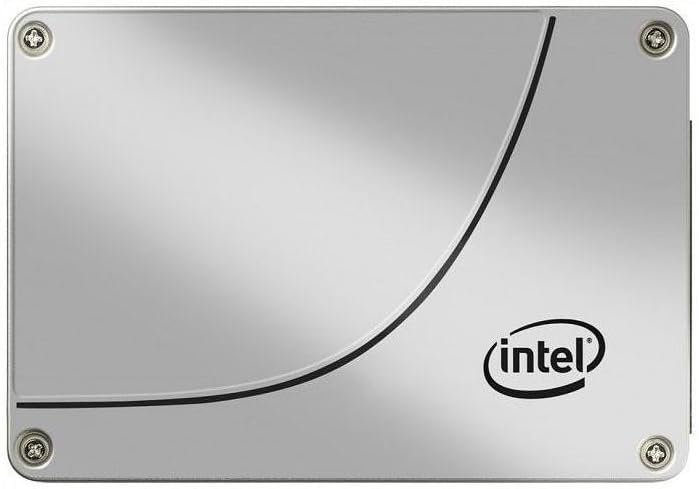
פיגורע 1: פראָנט view of the Intel DC S3710 800 GB 2.5" Internal Solid State Drive, showcasing its metallic silver casing with the Intel logo and a distinctive curved line design.
סעטאַפּ און ינסטאַלירונג
The Intel DC S3710 SSD is designed for internal installation in desktop computers. Ensure your system is powered off and disconnected from the power source before proceeding.
רעקווירעמענץ:
- Desktop computer with an available 2.5-inch drive bay.
- SATA data cable.
- SATA power cable from your power supply unit (PSU).
- Screwdriver (Phillips head recommended).
ינסטאַלירונג סטעפּס:
- צוגרייטן אייער קאָמפּיוטער: Power down your desktop computer and unplug all cables. Open the computer case.
- געפינען אַ דרייוו ביי: Identify an available 2.5-inch drive bay. Some cases may require a 3.5-inch to 2.5-inch adapter bracket (not included).
- מאָנטירן די SSD: Secure the SSD into the drive bay using screws. Ensure it is firmly seated to prevent movement.
- פאַרבינדן דאַטן קאַבל: Connect one end of the SATA data cable to the SSD's SATA data port and the other end to an available SATA port on your motherboard.
- פאַרבינדן מאַכט קאַבלע: Connect a SATA power cable from your PSU to the SSD's SATA power port.
- פאַרמאַכן דעם פאַל: Once all connections are secure, close your computer case and reconnect all cables.
- מאַכט אויף: צינדט אן אייער קאמפיוטער. די סיסטעם זאל דעטעקטירן דעם נייעם SSD דרייוו.
אַפּערייטינג ינסטראַקשאַנז
After physical installation, the SSD needs to be initialized and formatted before use. If you plan to install an operating system, refer to your operating system's installation guide.
Initializing and Formatting (Windows 10 Exampלאַ):
- עפֿענען דיסק פאַרוואַלטונג: רעכט-קליק די "סטאַרט" קנעפּל און סעלעקטירן "דיסק פאַרוואַלטונג".
- איניציאליזירן דיסק: A pop-up window may appear prompting you to initialize the new disk. Select MBR (Master Boot Record) or GPT (GUID Partition Table) based on your system's requirements (GPT is recommended for modern systems and drives larger than 2TB, though this drive is 800GB). Click OK.
- שאַפֿן נײַעם פּשוטן באַנד: Locate the unallocated space on your new SSD. Right-click it and select "New Simple Volume...".
- נאָכפאָלגן וויזערד: Follow the New Simple Volume Wizard to specify the volume size, assign a drive letter, and format the partition (NTFS file system is standard for Windows).
- גאַנץ: Once the wizard completes, your SSD will be ready for use.
דאַטאַ אַריבערפירן:
איר קענען אַריבערפירן files to and from the SSD like any other storage drive. For optimal performance, ensure your motherboard's SATA ports are configured for AHCI mode in the BIOS/UEFI settings.
וישאַלט
Solid State Drives generally require less maintenance than traditional Hard Disk Drives. However, following these practices can help maintain performance and extend lifespan:
- אַקטיווירן TRIM: Ensure TRIM is enabled in your operating system. TRIM helps the SSD manage data more efficiently, preventing performance degradation over time. Most modern operating systems (Windows 7+, macOS, Linux) enable TRIM by default.
- פֿאַרמייַדן דעפֿראַגמענטאַציע: דעפראַגמענטירט נישט אַן SSD. דעפראַגמענטאַציע איז דיזיינד פֿאַר HDDs און קען רעדוצירן די לעבנסדויער פון אַן SSD דורך פאַראורזאַכן אומנייטיקע שרייב-ציקלען.
- האַלטן פרייען פּלאַץ: פרובירט צו האלטן לפחות 10-15% פון די SSD'ס קאפאציטעט פריי. דאס ערלויבט די SSD'ס וועאַר-לעוועלינג אַלגעריטמען צו פונקציאָנירן אָפּטימאַל.
- Firmware דערהייַנטיקונגען: Periodically check Intel's official website for firmware updates for your SSD model. Firmware updates can improve performance, stability, and address known issues.
- Proper Shutdowns: Always shut down your computer properly. Abrupt power loss can potentially lead to data corruption or drive issues.
טראָובלעשאָאָטינג
If you encounter issues with your Intel DC S3710 SSD, refer to the following common problems and solutions:
| פּראָבלעם | מעגלעך סיבה | לייזונג |
|---|---|---|
| SSD not detected by BIOS/OS. | Loose cables, incorrect BIOS settings, faulty port. |
|
| לאַנגזאַמע פאָרשטעלונג. | TRIM not enabled, nearly full drive, outdated firmware. |
|
| Operating system not booting from SSD. | Incorrect boot order, corrupted OS installation. |
|
ספּעסאַפאַקיישאַנז
| שטריך | דעטאַל |
|---|---|
| סאָרט | ינטעל |
| מאָדעל סעריעס | SSDSC2BA800G4 |
| סטאָרידזש קאַפּאַסיטי | 800 גיגאבייט |
| פאָרם פאַקטאָר | 2.5 אינטשעס |
| צובינד | סאַטאַ 6 גיגאבייט / s |
| ייַנמאָנטירונג טיפּ | אינערלעכער שווער פאָר |
| קאַמפּאַטאַבאַל דעוויסעס | דעסקטאָפּ |
| פּונקט וואָג | 2.53 אונסעס |
| פּראָדוקט דימענשאַנז (LxWxH) | 4.1 X 2.7 X 0.3 אינטשעס |
| פאַבריקאַנט | Intel Corporation |
| ערשטער בנימצא טאָג | 16 פעברואר 2015 |
וואָראַנטי און שטיצן
For warranty information and technical support, please refer to Intel's official webזייטל אדער קאנטאקט זייער קאסטומער סערוויס. האלט אייער קויף קוויטל אלס באווייז פון קויפן פאר גאראנטיע פארלאנגען.
Intel may offer various support resources including:
- אָנליין וויסן באַזע און אָפֿט געשטעלטע פֿראַגעס.
- דרייווער און פירמווער דאַונלאָודז.
- Community forums.
- Direct customer support via phone or email.
באַטראַכטן קויפןasing additional data recovery plans for enhanced protection of your valuable data. Options such as 2-Year or 3-Year Data Recovery Plans may be available from various retailers.