1. הקדמה
This manual provides comprehensive instructions for the setup, operation, maintenance, and troubleshooting of your Genius Traveler 9005BT 4-D Bluetooth Mouse. Please read this manual thoroughly before using the device to ensure proper functionality and longevity.
שליסל פֿעיִקייטן:
- Precision 1200 dpi BlueEye engine for versatile surface tracking.
- Bluetooth 4-button wireless optical mouse.
- Ergonomic design suitable for both left and right-handed users.
- Turbo Scroll function for rapid document and web בלאַט נאַוויגאַציע.
- BlueEye technology allows operation on various surfaces including dusted glass, marble, carpet, and sofa upholstery.
- Compatible with multiple operating systems: Android 3.0+, Windows 7/XP/Vista, and Mac OS X 10.4 or later.
2. פּעקל אינהאַלט
באַשטעטיקט אַז אַלע זאכן וואָס זענען אויסגערעכנט אונטן זענען פאַראַן אין אייער פּראָדוקט פּאַקעט:
- Genius Traveler 9005BT Mouse
- CD driver for mouse 4-D Scroll function
- Two AA Alkaline batteries
- מולטי-שפּראַך באַניצער מאַנואַל
3. סעטאַפּ
3.1. באַטאַרייע ייַנמאָנטירונג
- געפינט דעם דעקל פונעם באַטעריע־אָפּטייל אויף דער אונטערשטער זייט פון דער מויז.
- לײַכט שלעפּן אָדער הייבן דעם דעקל צו עפֿענען דעם אָפּטייל.
- Insert the two AA Alkaline batteries, ensuring correct polarity (+ and -) as indicated inside the compartment.
- לייג צוריק דעם דעקל פונעם באַטעריע־אָפּטייל ביז עס קליקט זיכער אַרײַן אין פּלאַץ.
3.2. בלועטאָאָטה פּערינג
To connect your Traveler 9005BT mouse to your device:
- Ensure the mouse is powered on. There is typically a power switch on the underside of the mouse.
- Activate Bluetooth on your computer, laptop, or Android device.
- On your device, navigate to the Bluetooth settings and initiate a search for new devices.
- The Genius Traveler 9005BT should appear in the list of available devices. Select it to begin the pairing process.
- Follow any on-screen prompts to complete the pairing. A successful connection will be indicated by a confirmation message on your device.
The mouse supports Bluetooth EDR 2.0 technology, providing a reliable working distance of up to 10 meters. It is compatible with Android 3.0+, Windows 7/XP/Vista, and Mac OS X 10.4 or later.
3.3. Driver Installation (for 4-D Scroll Function)
For optimal use of the 4-D Scroll function, install the provided driver:
- Insert the included CD driver into your computer's optical drive.
- גיי די ינסטראַקשאַנז אויף דעם עקראַן צו ינסטאַלירן די נייטיק ווייכווארג.
- Restart your computer if prompted to ensure the driver is fully installed and recognized.
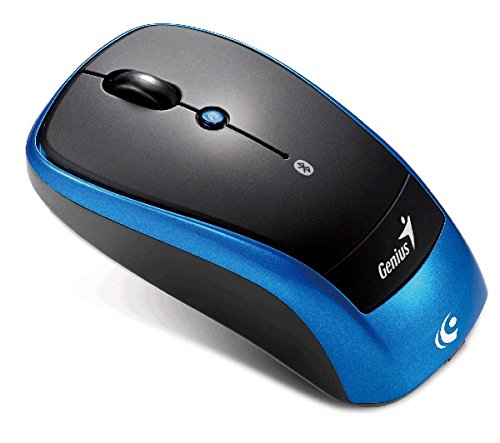
אַן איבערהויפּט view of the Genius Traveler 9005BT 4-D Bluetooth Mouse, showcasing its ergonomic design with a black top surface and blue sides. It features a scroll wheel, left and right click buttons, and a small button for 4-D scroll functionality.
4. אפערירן די מויז
4.1. יקערדיק פאַנגקשאַנז
- לינק קליקט: Press the left button for primary selection and activation.
- רעכט גיט: Press the right button to access contextual menus.
- סקראָל ראָד: Roll the wheel up or down to scroll vertically through documents and web בלעטער.
4.2. 4-D Scroll Function
The Traveler 9005BT features a dedicated 4-D scroll function key. Once the driver is installed, this function allows for more natural and convenient scrolling by simply moving your mouse in the direction you wish to scroll (up, down, left, or right) while holding down the 4-D scroll button.
4.3. Turbo Scroll
Engage the Turbo Scroll feature for hyper-fast navigation through lengthy documents, spreadsheets, and web pages. This function allows you to accelerate scrolling speed, significantly improving efficiency when reviewing extensive content.
4.4. BlueEye Technology
The integrated BlueEye technology enables the mouse to operate on a wide variety of surfaces that traditional optical mice may struggle with. This includes challenging textures such as dusted glass, marble, carpet, and sofa upholstery, providing flexibility in your workspace.
5. וישאַלט
5.1. רייניקונג
צו האַלטן אָפּטימאַלע פאָרשטעלונג און אויסזען:
- זיכער מאַכן אַז די מויז איז אויסגעלאָשן איידער איר רייניגט עס.
- ניצט אַ ווייכן, טרוקענעם, לינט-פֿרייעם שטאָף צו ווישן די אויסערלעכע פֿלאַכן.
- פֿאַר שווערן שמוץ, אַ ביסל דampווישט דעם שטאָף מיט וואַסער אָדער אַ מילדן, נישט-שרייַבנדיקן רייניגער. פֿאַרמייַדט איבעריקע פֿײַכטקייט.
- Do not use harsh chemicals, solvents, or abrasive materials, as these can damage the mouse's finish or internal components.
- Periodically clean the optical sensor area on the underside of the mouse with a cotton swab to prevent tracking issues.
5.2. באַטערי פאַרבייַט
When the mouse's performance degrades or it stops responding, it may be time to replace the batteries. Follow the battery installation steps outlined in Section 3.1.
6. טראָובלעשאָאָטינג
If you encounter issues with your Genius Traveler 9005BT mouse, refer to the following common solutions:
- מויז ענטפערט נישט:
- מאַכן זיכער אַז די מויז איז פּאַוערד אויף.
- קאָנטראָלירן און פאַרבייַטן די באַטעריז אויב נייטיק.
- Verify that Bluetooth is enabled on your device and the mouse is paired correctly. Try re-pairing if needed.
- Move the mouse closer to your device to rule out range issues.
- אומשטענדלעכע קורסאָר באַוועגונג:
- רייניקט דעם אָפּטישן סענסאָר אויף דער אונטערשטער זײַט פֿון דער מויז.
- Ensure you are using the mouse on a suitable surface. While BlueEye technology is versatile, extreme surfaces or highly reflective ones can still cause issues.
- Check for any obstructions around the optical sensor.
- 4-D Scroll Function Not Working:
- Confirm that the 4-D scroll driver has been installed correctly from the provided CD.
- ריסטאַרט דיין קאָמפּיוטער נאָך די דרייווער אינסטאַלאַציע.
- Bluetooth Disconnections:
- Ensure no other devices are causing Bluetooth interference.
- Update your device's Bluetooth drivers.
- פֿאַרבינדט די מויז ווידער מיט אייער דעווייס.
If these steps do not resolve the issue, consult the multi-language user manual included in your package or contact Genius customer support.
7. ספּעסאַפאַקיישאַנז
| שטריך | דעטאַל |
|---|---|
| סאָרט | זשעני |
| מאָדעל נומער | Traveler 9005BT |
| באַוועגונג דעטעקשאַן טעכנאָלאָגיע | Optical (BlueEye) |
| דפּי | 1200 דפּי |
| קאַנעקטיוויטי | Bluetooth EDR 2.0 |
| נומער פון קנעפּלעך | 4 |
| האַנט אָריענטירונג | אַמבידעקסטראַס |
| מאַכט מקור | 2 x AA אַלקאַליין באַטעריעס (נישט אַרייַנגערעכנט) |
| קאַמפּאַטאַבאַל אַפּערייטינג סיסטעמס | Windows® 7, Vista, XP / Android 3.0+ / Mac OS X 10.4+ |
| ייַזנוואַרג פּלאַטפאָרמע | לאַפּטאַפּ, פערזענלעכע קאָמפּיוטער |
8. וואָראַנטי און שטיצן
For warranty information, please refer to the documentation provided with your purchase or contact your retailer. Genius products typically come with a limited warranty. For technical support or further assistance, please consult the multi-language user manual included in your package or visit the official Genius webפּלאַץ פֿאַר קאָנטאַקט אינפֿאָרמאַציע.


