הקדמה
The Microsoft Wireless Mobile Mouse 1850 is designed for portability and ease of use, offering wireless freedom for your computing needs. Its compact design and ambidextrous shape make it suitable for various users and environments. This manual provides essential information for setting up, operating, maintaining, and troubleshooting your device.
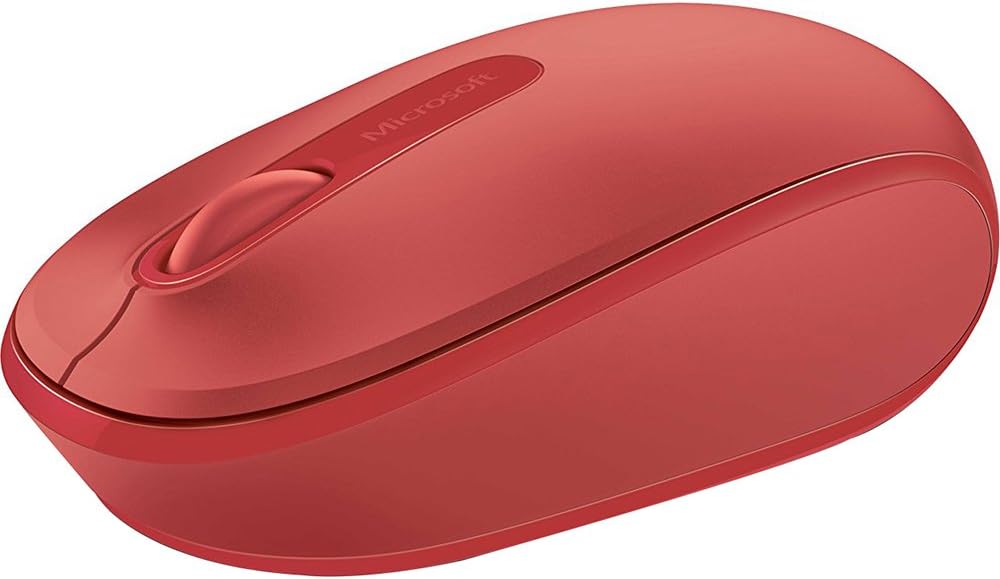
בילד 1: The Microsoft Wireless Mobile Mouse 1850 in Flame Red. This image displays the top view of the mouse, highlighting its ergonomic shape, the scroll wheel, and the Microsoft logo.
סעטאַפּ
- ינסטאַלירן די באַטאַרייע:
Locate the battery compartment on the underside of the mouse. Open the compartment cover and insert one AA battery, ensuring correct polarity. Close the cover securely. A single AA battery is included with your purchase.
- Connect the USB Nano Transceiver:
The USB nano transceiver is typically stored inside the battery compartment or provided alongside the mouse. Remove the transceiver. Plug the transceiver into an available USB port on your PC, laptop, or desktop computer. The mouse should be automatically detected by your operating system.
- סיסטעם קאַמפּאַטאַבילאַטי:
The Microsoft Wireless Mobile Mouse 1850 is compatible with various operating systems, including Windows 8, Windows 10, Windows 11, and Mac computers.
אַפּערייטינג ינסטראַקשאַנז
The Wireless Mobile Mouse 1850 features a standard three-button layout with a scroll wheel for intuitive navigation.
- לינק קליקט: דריק דעם לינקן קנעפל צו אויסקלויבן זאכן, עפֿענען fileס, אדער אקטיוויזירן פונקציעס.
- רעכט גיט: דריק דעם רעכטן קנעפּל צו צוקומען צו קאנטעקסטועלע מעניוס אדער ספעציפישע אפציעס.
- סקראָל ראָד: דרייט דאָס ראָד אַרויף אָדער אַראָפּ צו סקראָלן דורך דאָקומענטן און web pages. The scroll wheel can also be pressed down for a middle-click function, depending on software configuration.
- אַמבידעקסטראָוס פּלאַן: The mouse is designed for comfortable use with either the left or right hand.
וישאַלט
- באַטערי פאַרבייַט:
When the mouse performance degrades or stops responding, it is likely time to replace the AA battery. Follow the battery installation steps outlined in the Setup section.
- רייניקונג:
To clean your mouse, gently wipe the exterior with a soft, damp cloth. Avoid using harsh chemicals or abrasive materials. Ensure no liquid enters the device.
- Transceiver Storage:
For ultimate portability and to prevent loss, the USB nano transceiver can be stored securely within the mouse's dedicated storage slot, usually located near the battery compartment.
טראָובלעשאָאָטינג
| פּראָבלעם | לייזונג |
|---|---|
| די מויז ענטפערט נישט. |
|
| קורסאָר באַוועגונג איז אומשטענדלעך אָדער פּאַמעלעך. |
|
| פראבלעמען מיט דראטלאזע פארבינדונג. |
|
ספּעסאַפאַקיישאַנז
- מאָדעל נומער: U7Z-00031
- ווירעלעסס טיפּ: 2.4 GHz ראַדיאָ אָפטקייַט
- באַוועגונג דעטעקשאַן טעכנאָלאָגיע: אָפּטיש
- קאַנעקטיוויטי טעכנאָלאָגיע: Infrared (via USB transceiver)
- ייַזנוואַרג פּלאַטפאָרמע: לאַפּטאַפּ, פּיסי
- אַפּערייטינג סיסטעם קאַמפּאַטאַבילאַטי: Windows 8, Windows 10, Windows 11, Mac
- מאַכט מקור: באַטאַרייע פּאַוערד
- באַטעריז: 1 אַאַ באַטאַרייע (אַרייַנגערעכנט)
- נומער וואָג: 3.17 אונסעס
- פּראָדוקט דימענשאַנז (LxWxH): 5.51 X 4.92 X 2.36 אינטשעס
- קאָליר: פלאַם רויט
- ערשטער בנימצא: 18 פעברואר 2014
וואָראַנטי און שטיצן
For detailed warranty information and technical support, please refer to the official Microsoft support website or the documentation included with your product packaging. Microsoft provides resources to assist with product inquiries, troubleshooting, and service requests.
You can visit the official Microsoft Store for additional product information and support resources: Microsoft Store on Amazon.


