הקדמה
This manual provides essential information for the proper setup, operation, maintenance, and troubleshooting of your AOC E2070Swn 19.5-inch LED Widescreen Monitor. Please read this manual thoroughly before using the product to ensure optimal performance and longevity.

פיגורע 1: פראָנט view of the AOC E2070Swn monitor, showcasing its 19.5-inch LED display and compact design.
סעטאַפּ אינסטרוקציעס
1. ונפּאַקקינג
נעמט פֿאָרזיכטיק אַרויס אַלע קאָמפּאָנענטן פֿון דער פּאַקעט. מאַכט זיכער אַז די פֿאָלגנדיקע זאַכן זענען פֿאַראַן:
- AOC E2070Swn Monitor
- מאָניטאָר שטאַנד (באַזע און האַלדז)
- מאַכט קאַבלע
- ווגאַ קאַבלע
- באַניצער מאַנואַל (דעם דאָקומענט)
- Driver CD (for software installation)
2. אַסעמבאַל די שטיין
- באַפעסטיקט דעם שטאַנד האַלדז צום מאָניטאָר פּאַנעל. מאַכט זיכער אַז עס קליקט זיכער אין פּלאַץ.
- Attach the stand base to the stand neck. Tighten any screws if provided, usually located at the bottom of the base.

פיגורע 2: דערציען view of the AOC E2070Swn monitor, illustrating the stand's attachment area and ventilation.
3. קאַנעקטינג קאַבלעס
- מאַכט קשר: פֿאַרבינדט דעם מאַכט קאַבל צום מאָניטאָר'ס מאַכט אַרייַנגאַנג פּאָרט און דערנאָך צו אַ מאַכט ווענטיל.
- ווידעא קשר: Connect one end of the VGA cable to the VGA port on your computer's graphics card and the other end to the VGA input port on the monitor.
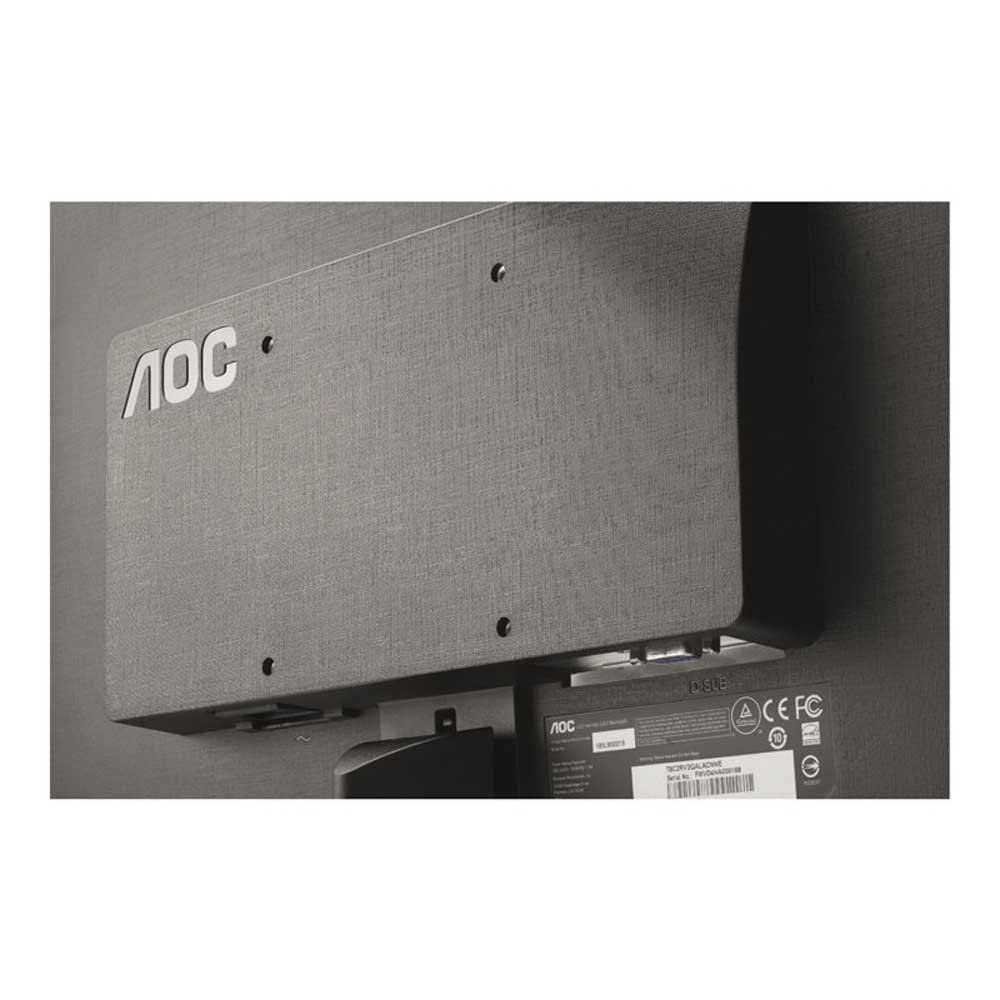
פיגורע 3: דעטאַילעד view of the monitor's rear panel, highlighting the VGA input and power connector for cable attachment.
4. ערשטע אויפשטעל
Press the power button located on the monitor. The monitor should power on and display an image from your connected computer. If no image appears, ensure all cables are securely connected and the computer is powered on.
אַפּערייטינג ינסטראַקשאַנז
1. מאַכט אויף / אויסגעלאשן
Press the power button on the front or bottom bezel of the monitor to turn it on or off.
2. אויף-סקרין ווייַז (אָסד) מעניו
The monitor features an On-Screen Display (OSD) menu for adjusting various settings. Use the physical buttons, typically located on the bottom right bezel, to navigate and select options within the OSD menu.
3. אַדזשאַסטינג ווייַז סעטטינגס
Through the OSD menu, you can adjust settings such as:
- ברייטקייט: קאָנטראָלירט די אַלגעמיינע ליכטיקייט פֿון דעם עקראַן.
- קאַנטראַסט: אַדזשאַסטירט דעם חילוק צווישן די העלסטע און טונקלסטע געביטן פון דעם בילד.
- קאָליר טעמפּעראַטור: Modifies the color balance (e.g., Warm, Cool, sRGB).
- אַרייַנשרייַב אויסקלייַבן: Manually switch between available video inputs (if multiple are present).
For advanced display settings and optimal resolution configuration, it is recommended to install the drivers and software provided on the included CD. These tools allow for fine-tuning of display parameters directly from your computer's operating system.
וישאַלט
1. רייניקונג די מאָניטאָר
צו רייניקן דעם מאָניטאָר עקראַן און casing:
- שטענדיק אויסלעשן דעם מאָניטאָר און אַרויסציען דעם עלעקטרישן שנור איידער איר רייניגט עס.
- ניצן אַ ווייך, לינט-פֿרייַ שטאָף אַ ביסל דampגעוואשן מיט וואַסער אָדער אַ ניט-אַברייסיוו פאַרשטעלן רייניגער.
- Avoid using alcohol, ammonia, or abrasive cleaners, as these can damage the screen surface.
- ווישט אָפּ לײַכט; לייגט נישט צו פיל דרוק אויפן עקראַן.
2. אַלגעמיינע קער
- ויסמיידן פּלייסינג די מאָניטאָר אין דירעקט זונשייַן אָדער לעבן היץ קוואלן.
- זיכערט זיך אז עס זאָל זיין גענוג ווענטילאַציע אַרום דעם מאָניטאָר כדי צו פאַרמייַדן איבערהיצונג.
- לייגט נישט קיין שווערע אביעקטן אויפן מאָניטאָר אדער זיינע קאַבלען.
טראָובלעשאָאָטינג
אויב איר טרעפט פּראָבלעמען מיט אייער מאָניטאָר, זעט די פאלגענדע געוויינטלעכע פּראָבלעמען און לייזונגען:
- קיין בילד אויף דעם עקראַן:
- Ensure the monitor's power cable is securely connected to both the monitor and a working power outlet.
- Verify the video cable (VGA) is firmly connected to both the monitor and the computer.
- באַשטעטיקן אַז דער קאָמפּיוטער איז אנגעצונדן און נישט אין שלאָף מאָדע.
- דריק דעם מאָניטאָר'ס מאַכט קנעפּל צו זיכער מאַכן אַז עס איז אנגעצינדן.
- Image is Distorted or Unclear:
- קאָנטראָלירן די ווידעא קאַבלע פֿאַר קיין שעדיקן אָדער פרייַ קאַנעקשאַנז.
- Adjust the monitor's resolution settings through your computer's display settings to match the monitor's native resolution (e.g., 640 x 480).
- Use the OSD menu to perform an auto-adjustment or manually adjust brightness, contrast, and phase settings.
- Monitor Power LED is Off:
- Ensure the power cable is properly connected and the power outlet is functional.
- דרוק די מאַכט קנעפּל אויף די מאָניטאָר.
If the problem persists after attempting these solutions, please contact AOC customer support for further assistance.
ספּעסאַפאַקיישאַנז

פיגורע 4: דימענסיאָנעל איבערview of the AOC E2070Swn monitor, indicating height, width, and depth.
| שטריך | דעטאַל |
|---|---|
| סאָרט | AOC |
| מאָדעל נומער | E2070Swn |
| פאַרשטעלן גרייס | 19.5 אינטשעס |
| ווייַז טיפּ | לעד ברייטסקרין |
| האַכלאָטע | 640 X 480 |
| אַספּעקט פאַרהעלטעניש | 16:9 |
| ווידעא אַרייַנשרייַב | 1 x VGA Port |
| Voltage | 220 וואלטס |
| וואָסtage | 18 וואטס |
| פּראָדוקט דימענשאַנז (LxWxH) | 52.07 X 10.67 X 11.43 סענטימעטער |
| פּונקט וואָג | 3.18 קג |
וואָראַנטי און שטיצן
וואָראַנטי אינפֿאָרמאַציע
This AOC E2070Swn monitor comes with a 3 יאָר וואָראַנטי from the date of purchase. This warranty covers manufacturing defects and ensures repair or replacement of the product under normal usage conditions. Please retain your proof of purchase for warranty claims.
קונה שטיצן
For technical assistance, warranty claims, or any other inquiries regarding your AOC monitor, please visit the official AOC support website or contact their customer service department. Refer to the contact information provided with your product packaging or on the AOC official webפּלאַץ.


