1. הקדמה
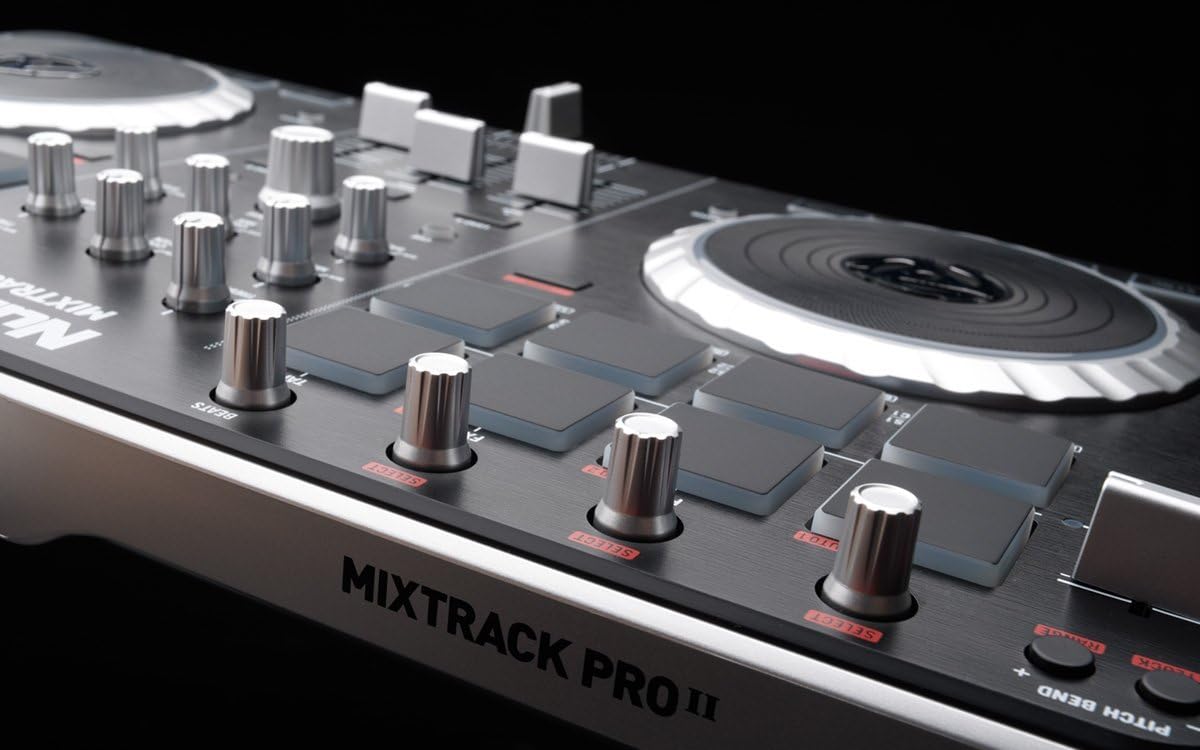
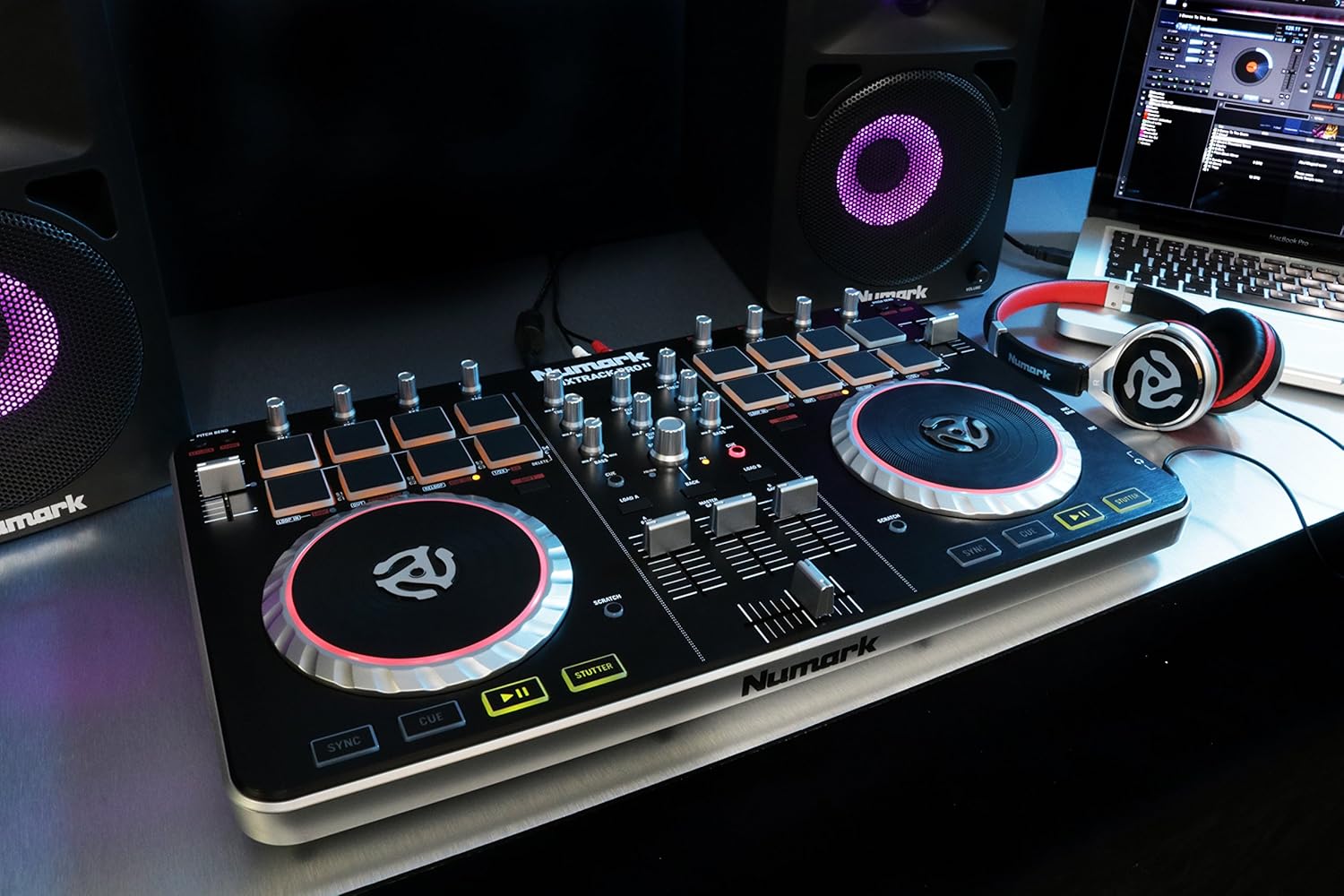
The Numark Mixtrack Pro II is a complete DJ system designed for use with your Mac or PC. It offers a streamlined design with an expanded layout of professional controls, including 16 backlit multifunction drum pads and illuminated touch-activated platters. This controller provides everything needed for digital DJ performance, such as hot cues, looping, and effects controls, along with a built-in professional DJ audio interface and Serato DJ Intro software.
שליסל פֿעיִקייטן:
- 16 backlit rubber drum pads with Loop Mode, Sample Mode, and Hot Cue Mode.
- Touch-activated illuminated platters for precise scratching and control.
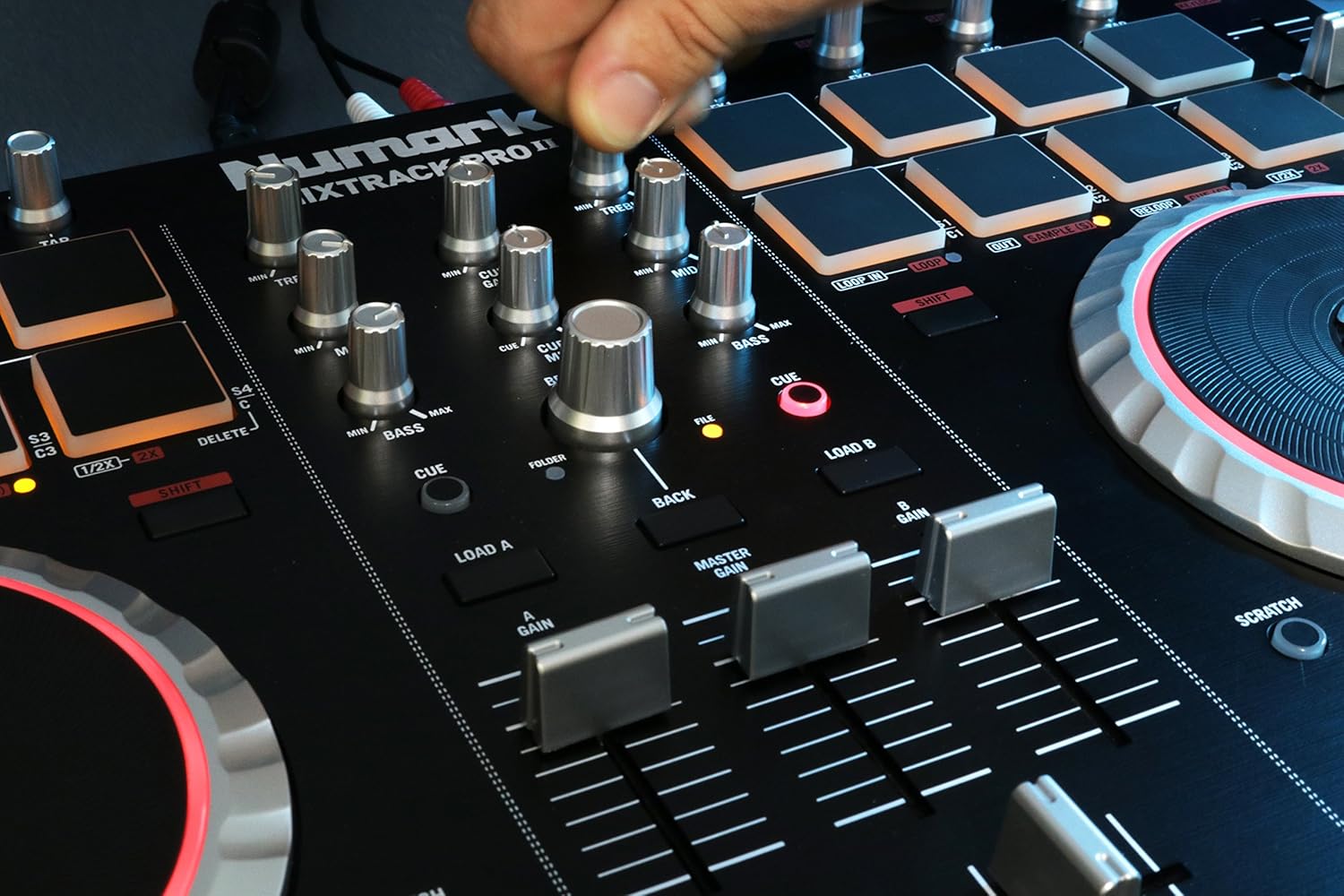
- Complete mixer section with a crossfader, 3-band EQ, and music library navigation controls.
- 16 dedicated effects controls to add and manipulate flanger, phaser, echo, and more.
- Built-in audio system for headphone cueing, microphone input, and PA system output.
- Pitch and Sync controls for seamless and easy mixing.
- Serato DJ Intro software included.
- Standard MIDI for use with most popular DJ software.
- Class-compliant with both Mac and PC; no driver required.
- USB-powered; no power adapter required.
- 1/8-inch and 1/4-inch headphone inputs.
2. וואָס איז אין דער קעסטל?
Upon unpacking your Numark Mixtrack Pro II, please ensure all the following items are present:
- Mixtrack Pro II Controller
- וסב קאַבלע
- קוויקקסטאַרט גייד
- Serato DJ Intro Software Installation Instructions
3. סעטאַפּ
3.1. ווייכווארג ינסטאַלירונג
- באַזוכט דעם סעראַטאָ website (as indicated in the included instructions) to download the latest version of Serato DJ Intro.
- Follow the on-screen instructions to install the software on your Mac or PC.
- No additional drivers are required as the Mixtrack Pro II is class-compliant.
3.2. ייַזנוואַרג קאַנעקשאַן
- Connect the included USB cable from the Mixtrack Pro II to an available USB port on your computer. The unit is USB-powered, so no external power adapter is needed.
- Connect your headphones to either the 1/8-inch or 1/4-inch headphone output on the front of the unit for cueing.
- Connect your main speakers or PA system to the RCA outputs on the rear of the unit.
- אויב איר נוצן אַ מיקראָפאָן, פאַרבינדן עס צו די מיקראָפאָן אַרייַנשרייַב.
- Launch Serato DJ Intro. The software should automatically detect your Mixtrack Pro II.
4. Operating the Mixtrack Pro II
4.1. Navigating Your Music Library
Use the dedicated music library navigation controls located in the center mixer section to browse and load tracks into your virtual decks within Serato DJ Intro.
4.2. Using the Platters
The Mixtrack Pro II features advanced low-profile, capacitive, and dual-zone platters. Touching the top of the platter allows you to scratch or stop a track, while manipulating the platter from the side enables pitch adjustment. These platters provide precise control over every track and transition.
4.3. פאָרשטעלונג פּאַדס
The 16 backlit rubber drum pads allow for dynamic performance. You can create loops, launch samples, and control hot cues. Instantly switch between Loop Mode, Sample Mode, and Hot Cue Mode using the dedicated buttons above the pads.
4.4. Mixer Section
The complete mixer section includes a precise crossfader for smooth transitions between decks, 3-band EQ knobs (Treble, Mid, Bass) for frequency control, and gain knobs for adjusting individual deck volumes. Use these controls to blend your tracks seamlessly.
4.5. Effects Control
Utilize the 16 dedicated effects controls to add and manipulate various effects such as flanger, phaser, and echo. Experiment with these effects to enhance your mixes and create unique sounds.
4.6. Pitch and Sync
The Pitch faders allow for fine-tuning the tempo of your tracks. The Sync button automatically matches the tempo of one track to another, facilitating seamless mixing.
5. מעדיע גאַלערי
5.1. פּראָדוקט בילדער







5.2. אפיציעלע פּראָדוקט ווידעאָס
6. וישאַלט
To ensure the longevity and optimal performance of your Mixtrack Pro II, follow these maintenance guidelines:
- רייניקונג: ניצט אַ ווייכע, טרוקענע שטאָף צו רייניקן די ייבערפלאַך פון דעם קאָנטראָללער. פֿאַר שווערע שמוץ, אַ ביסל טרוקןamp מען קען ניצן אַ שטאָף, אָבער זאָרגט זיך אַז קיין נעץ זאָל נישט אַרײַנגיין אין דער אַפּאַראַט. פֿאַרמײַדט אַברייסיוו רייניגער אָדער סאָלווענטן.
- סטאָרידזש: When not in use, store the controller in a cool, dry place away from direct sunlight, excessive heat, or humidity. If transporting, use a protective case to prevent damage.
- פֿאַרבינדונגען: Periodically check all cable connections for wear and tear. Ensure USB and audio cables are securely plugged in during operation.
7. טראָובלעשאָאָטינג
If you encounter issues with your Mixtrack Pro II, refer to the following common solutions:
7.1. No Power/Unit Not Recognized
- Ensure the USB cable is securely connected to both the controller and your computer.
- פּרוּווט אַ אַנדערש וסב פּאָרט אויף דיין קאָמפּיוטער.
- If using a USB hub, ensure it is a powered hub.
- Restart your computer and the Serato DJ Intro software.
7.2. קיין אודיאָ אַרויסגאַנג
- Check that your speakers/PA system are properly connected to the RCA outputs and are powered on.
- Verify that the Master Gain knob on the controller is turned up.
- Ensure the volume levels within Serato DJ Intro are not muted or too low.
- Check your computer's sound settings to ensure the Mixtrack Pro II is selected as the audio output device.
7.3. Software Not Responding
- Close and reopen Serato DJ Intro.
- Ensure your operating system and Serato DJ Intro software are up to date.
- Disconnect and reconnect the USB cable from the controller.
8. ספּעסאַפאַקיישאַנז
| שטריך | באַשרייַבונג |
|---|---|
| פּונקט וואָג | 4.7 פונט |
| פּראָדוקט דימענשאַנז | 10.4 X 18.3 X 2 אינטשעס |
| נומער מאָדעל נומער | MixTrack Pro II |
| קאַנעקטיוויטי טעכנאָלאָגיע | וסב |
| קאַנעקטער טיפּ | יו-עס-בי, אר-סי |
| Digital Audio Protocol | MIDI |
| ייַזנוואַרג צובינד | USB 1.0, USB 1.1, USB 2.0, USB 3.0 |
| שטיצט ווייכווארג | Traktor Pro, Serato DJ, Virtual DJ |
| מאַטעריאַל טיפּ | plastic, brushed aluminum, rubber, metal |
| מיקסער קאַנאַל קוואַנטיטי | 2 |
| מאַכט מקור | USB-powered (Corded Electric) |
9. וואָראַנטי און שטיצן
For warranty information and technical support, please refer to the documentation included with your product or visit the official Numark website. Numark provides resources and customer service to assist with any product-related inquiries.
Numark Official Webפּלאַץ: www.numark.com


