1. הקדמה
The SteelSeries Sensei Laser Gaming Mouse is designed for precision and customization, catering to both casual and competitive gamers. It features an advanced laser sensor, an ambidextrous design, and extensive customization options through its dedicated software. This manual provides detailed instructions for setup, operation, maintenance, and troubleshooting to ensure optimal performance of your device.

בילד 1: פון אויבן אַראָפּ view of the SteelSeries Sensei Laser Gaming Mouse, showcasing its sleek grey finish and central scroll wheel.
2. פּעקל אינהאַלט
ביטע באַשטעטיקן אַז אַלע זאכן זענען פאַראַן אין דיין פּעקל:
- SteelSeries Sensei Laser Gaming Mouse
- שנעלע אָנהייב גייד (אויב אַרייַנגערעכנט)

Image 2: Retail packaging for the SteelSeries Sensei Laser Gaming Mouse, displaying the product name and brand logo.
3. סעטאַפּ
3.1 האַרדוואַרע קאַנעקשאַן
- Unpack the SteelSeries Sensei Laser Gaming Mouse from its packaging.
- Connect the USB cable of the mouse to an available USB port on your computer. The mouse is plug-and-play compatible, and your operating system should automatically detect and install the necessary basic drivers.
3.2 Software Installation (SteelSeries Engine)
For full customization and advanced features, it is recommended to install the SteelSeries Engine software:
- Visit the official SteelSeries webפּלאַץ (steelseries.com/engine) to download the latest version of the SteelSeries Engine software.
- גיי די ינסטראַקשאַנז אויף דעם עקראַן צו ינסטאַלירן די ווייכווארג.
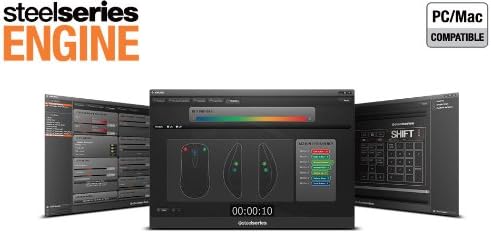
- Once installed, launch the SteelSeries Engine to configure your mouse settings, including CPI, button assignments, macros, and lighting effects.
בילד 3: אונטן view of the SteelSeries Sensei Laser Gaming Mouse, showing the laser sensor and product information label.
4. אפערירן די מויז
4.1 אַמבידעקסטראָס דיזיין
The Sensei mouse features an ambidextrous shape, making it comfortable for both left-handed and right-handed users. The side buttons are mirrored on both sides to accommodate different grip styles and preferences.
4.2 פּראָגראַממאַבלע קנעפּלעך
The mouse is equipped with 7 programmable buttons. These buttons can be customized using the SteelSeries Engine software to perform various functions, including:
- Standard mouse clicks (left, right, middle)
- Keyboard key assignments
- Complex macros
- CPI switching

בילד 4: זייט view of the SteelSeries Sensei Laser Gaming Mouse, highlighting the two programmable side buttons.
4.3 CPI Adjustment
The Sensei mouse allows for on-the-fly CPI (Counts Per Inch) adjustment. The dedicated CPI indicator button, typically located behind the scroll wheel, allows you to cycle between two user-defined CPI settings. These settings can be configured within the SteelSeries Engine software to match your preferred sensitivity levels for different tasks or games.
4.4 יללומינאציע
The mouse features three-zone illumination: the scroll wheel, the CPI indicator, and the SteelSeries logo. The color and lighting effects (e.g., steady, pulse) for these zones can be customized through the SteelSeries Engine software.
5. SteelSeries Engine Software
The SteelSeries Engine is a powerful software suite that unlocks the full potential of your Sensei mouse. Key functionalities include:
- קנעפּל מאַפּינג: Assign any function, keyboard key, or macro to any of the 7 programmable buttons.
- CPI Settings: Fine-tune and save multiple CPI profileס פֿאַר פֿאַרשידענע אַפּליקאַציעס אָדער שפּילערייַ.
- מאַקראָו עדיטאָר: Create and manage complex macros for in-game actions or productivity tasks.
- פּאָללינג קורס: אַדזשאַסטירן די מויז'ס פּאָלינג קורס פֿאַר אָפּטימאַלע רעספּאָנסיוונאַס.
- יללומינאַטיאָן קאָנטראָל: Customize LED colors and effects for the scroll wheel, CPI indicator, and logo.
- פּראָfile פאַרוואַלטונג: שאַפֿן און ראַטעווען קייפל פּראָfiles, allowing you to switch between different configurations quickly.
- Firmware דערהייַנטיקונגען: Keep your mouse's firmware up-to-date for improved performance and new features.

Image 5: Screenshot of the SteelSeries Engine software interface, showing options for button mapping, CPI adjustment, and lighting customization.
6. וישאַלט
To ensure the longevity and optimal performance of your SteelSeries Sensei mouse, follow these maintenance guidelines:
- רייניקונג: ניצט אַ ווייכע, טרוקענע שטאָף צו ווישן די ייבערפלאַך פון דער מויז. פֿאַר שווערע שמוץ, אַ ביסל טרוקןamp מען קען ניצן אַ שטאָף, אָבער זאָרגט זיך אַז קיין נעץ זאָל נישט אַרײַנגיין אין דער מויז. פֿאַרמײַדט שטרענגע כעמיקאַלן אָדער שרײַבנדיקע רייניקונגסמיטלען.
- סענסאָר זאָרגן: Keep the laser sensor on the bottom of the mouse clean and free from dust or debris. Use a cotton swab or compressed air if necessary.
- קאַבלע פאַרוואַלטונג: פֿאַרמײַדט שאַרפֿע בייגן אָדער איבערגעטריבענעם ציען דעם USB קאַבל כּדי צו פֿאַרמײַדן שאָדן.
7. טראָובלעשאָאָטינג
If you encounter issues with your SteelSeries Sensei mouse, refer to the following common solutions:
- מויז ענטפערט נישט:
- מאַכן זיכער אַז די וסב קאַבלע איז סיקיורלי פארבונדן צו דיין קאָמפּיוטער.
- פרובירט צו קאנעקטן די מויז צו אן אנדערן USB פארט.
- ריסטאַרט דיין קאָמפּיוטער.
- Inconsistent Tracking:
- רייניקט דעם לאַזער סענסאָר אויף דער אונטערשטער טייל פון דער מויז.
- זייט זיכער אַז איר ניצט די מויז אויף אַ פּאַסיקער ייבערפלאַך (למשל, אַ מויז פּאַד).
- Check for dust or debris on your mouse pad.
- קנעפּלעך נישט ארבעטן:
- Verify button assignments in the SteelSeries Engine software.
- Ensure the software is running correctly and profileס זענען געלאָדן.
- ווייכווארג ישוז:
- Update the SteelSeries Engine software to the latest version.
- Reinstall the SteelSeries Engine software.
- קוקט אויב עס זענען פֿאַראַן פֿירמווער דערהייַנטיקונגען פֿאַר אייער מויז אין דער ווייכווארג.
8. ספּעסאַפאַקיישאַנז
| שטריך | דעטאַל |
|---|---|
| סאָרט | SteelSeries |
| מאָדעל נומער | 62150 |
| באַוועגונג דעטעקשאַן טעכנאָלאָגיע | לייזער |
| קאַנעקטיוויטי טעכנאָלאָגיע | וסב |
| קאָליר | גרוי |
| ייַזנוואַרג פּלאַטפאָרמע | PC |
| אַפּערייטינג סיסטעם קאַמפּאַטאַבילאַטי | All Major PC Operating Systems |
| פּונקט וואָג | 14.6 אונסעס |
| פּראָדוקט דימענשאַנז (LxWxH) | 7.9 X 6.8 X 2.3 אינטשעס |
| פּראָגראַממאַבלע קנעפּלעך | 7 |
| Illumination Zones | 3 (Scroll Wheel, CPI Indicator, Logo) |
9. וואָראַנטי און שטיצן
The SteelSeries Sensei Laser Gaming Mouse is covered by a manufacturer's warranty. For detailed information regarding warranty terms, conditions, and duration, please refer to the warranty card included with your product or visit the official SteelSeries website. For technical support, driver downloads, and frequently asked questions, please visit the SteelSeries support page.
SteelSeries Official Webפּלאַץ: steelseries.com
SteelSeries Support: support.steelseries.com


