1. הקדמה
Welcome to the user manual for your Logitech M705 Marathon Wireless Mouse. This document provides essential information for setting up, operating, and maintaining your device, ensuring optimal performance and longevity. The M705 mouse is designed for comfort and efficiency, featuring a long battery life and customizable controls for enhanced productivity.
2. פּראָדוקט איבערview
שליסל פֿעיִקייטן
- עקסטענדעד באַטאַרייע לעבן: Enjoy up to 3 years of battery life, reducing the need for frequent replacements.
- ערגאָנאָמיק פּלאַן: Sculpted to fit the natural curve of your right hand, providing comfort during prolonged use.
- היפּער-שנעל סקראָלינג: Navigate through long documents and web pages with a single spin of the scroll wheel, or switch to click-to-click scrolling for precision.
- פּראָגראַממאַבלע קנעפּלעך: Five customizable buttons, including forward/back thumb buttons, allow for personalized shortcuts and enhanced control.
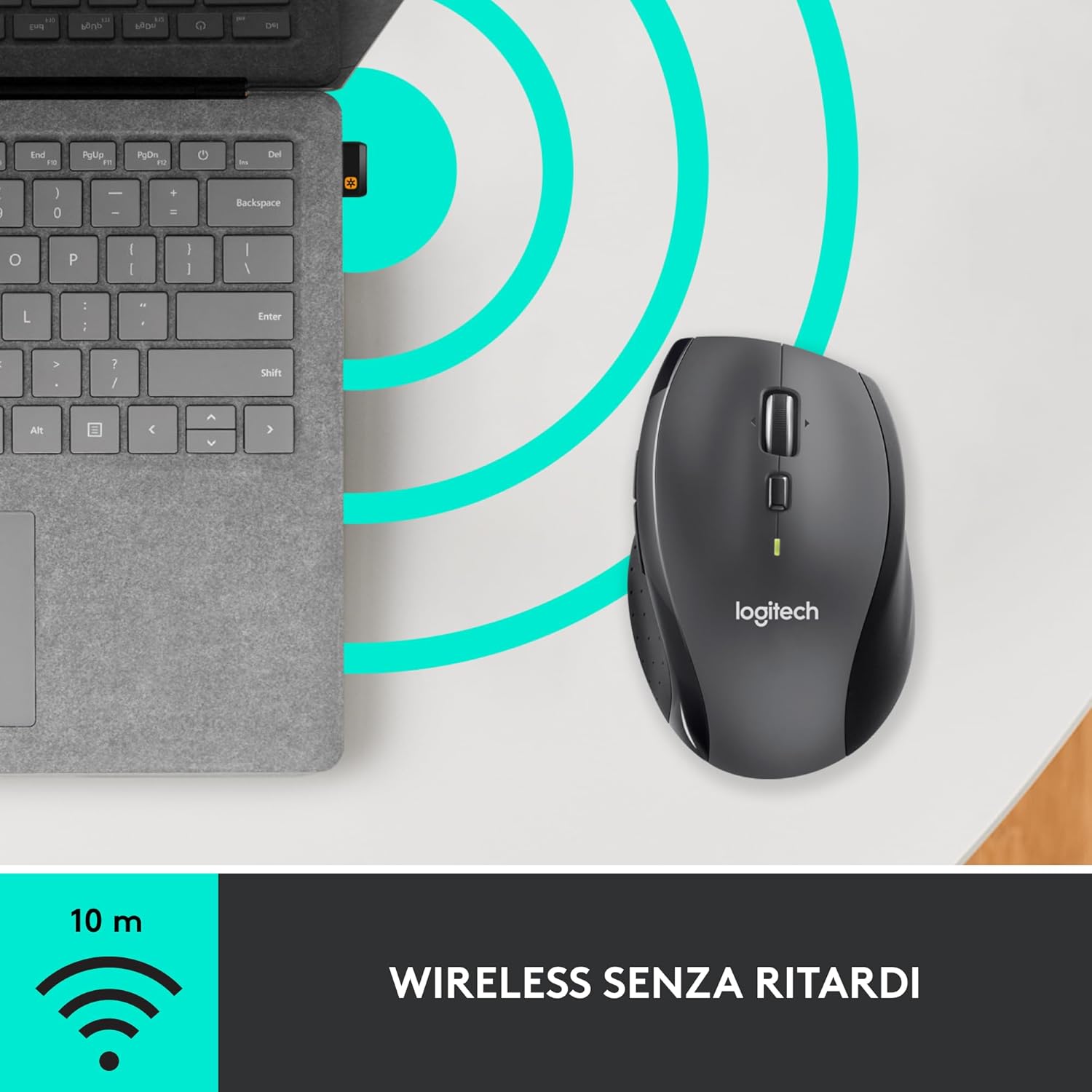
- פאראייניגנדיקער אויפנעמער: A small USB Unifying receiver connects up to six compatible Logitech devices, freeing up USB ports.
- ברייט קאַמפּאַטאַבילאַטי: Compatible with Windows, macOS, Chrome OS, and Linux operating systems.
פּעקל אינהאַלט
The Logitech M705 Marathon Wireless Mouse package typically includes:
- Logitech M705 ווירעלעסס מאַוס
- לאָגיטעטש יוניפייינג וסב ריסיווער
- 2 AA Alkaline Batteries (may vary by region/packaging)

3. סעטאַפּ אינסטרוקציעס
3.1. ינסטאָלינג באַטעריז
- Turn the mouse over and locate the battery compartment cover on the underside.
- Press the release button or slide the cover to open the compartment.
- אַרײַנשטעלן די צוויי AA באַטעריעס, און זיכער מאַכן אַז די פּאָלאַריטעט איז ריכטיק (+/-).
- פאַרבייַטן די דעקן פון די באַטאַרייע אָפּטייל.

3.2. פֿאַרבינדן דעם USB יוניפייינג ריסיווער
- Locate the small USB Unifying receiver. It may be stored inside the battery compartment of the mouse.
- צאַפּן די וסב ופנעמער אין אַ בנימצא וסב פּאָרט אויף דיין קאָמפּיוטער.
- צינדט אָן די מויז מיטן אָן/אויס קנעפּל וואָס געפינט זיך אויף דער אונטערשטער זייט.
- Your computer should automatically detect the mouse. If not, visit the Logitech support website for driver installation.
4. אַפּערייטינג ינסטרוקטיאָנס
4.1. Basic Mouse Functions
The M705 mouse features standard left and right-click buttons, a scroll wheel, and additional programmable buttons.

4.2. היפּער-שנעל סקראָלינג
The scroll wheel offers two modes:
- היפּער-שנעל מאָדע: Press the button directly below the scroll wheel to unlock it for smooth, rapid scrolling through long documents or web בלעטער.
- קליק-צו-קליק מאָדע: Press the button again to engage precise, stepped scrolling, ideal for navigating lists or image galleries.

4.3. פּראָגראַמירבאַרע קנעפּלעך
The M705 features five programmable buttons, including two thumb buttons and tilt-scroll functionality. These can be customized using the Logitech Options software.

5. קוסטאָמיזאַטיאָן
To unlock the full potential of your M705 mouse, download and install the Logitech Options software from the official Logitech webזייטל. די ווייכווארג ערלויבט אייך צו:
- Assign custom functions to the five programmable buttons.
- Adjust tracking speed (DPI).
- Configure application-specific settings.
- קוק די באַטאַרייע סטאַטוס.

6. וישאַלט
6.1. רייניקונג
צו רייניקן אייער מויז, ניצט א ווייכע, לינט-פֿרייע שטאָף. פֿאַר שווערע שמוץ, לייכט אָפּווישןampen the cloth with water. Avoid using harsh chemicals or abrasive materials, as these can damage the mouse surface or internal components.
6.2. באַטערי פאַרבייַט
When the battery indicator light on your mouse begins to flash or if performance degrades, it's time to replace the batteries. Follow the steps in Section 3.1 to replace the two AA batteries. Dispose of old batteries responsibly according to local regulations.
7. טראָובלעשאָאָטינג
7.1. מויז רעאַגירט נישט
- מאַכן זיכער אַז די מויז איז אויסגעדרייט אויף.
- Check the battery level and replace batteries if necessary.
- Verify the USB Unifying receiver is securely plugged into a working USB port.
- Try plugging the receiver into a different USB port or a different computer to isolate the issue.
- אויב איר ניצט אַ USB כאַב, פּרוּווט צו פאַרבינדן גלייך צום קאָמפּיוטער.
7.2. אומשטענדלעכע קורסאָר באַוועגונג
- רייניקט דעם אָפּטישן סענסאָר אויף דער אונטערשטער זײַט פֿון דער מויז.
- Ensure you are using the mouse on a suitable surface. Highly reflective or transparent surfaces may cause tracking issues. A mouse pad is recommended.
- Check for interference from other wireless devices. Move the mouse closer to the USB receiver.
7.3. Unifying Receiver Issues
If the mouse loses connection or you need to pair it with a new receiver, download the Logitech Unifying Software from the Logitech support website. This software guides you through the pairing process.
8. ספּעסאַפאַקיישאַנז
| שטריך | דעטאַל |
|---|---|
| סאָרט | Logitech |
| מאָדעל נאָמען | M705 |
| מאָדעל נומער | 910-001949 |
| קאַנעקטיוויטי טעכנאָלאָגיע | דראָטלאָז (2.4 GHz USB יוניפייינג ריסיווער) |
| באַוועגונג דעטעקשאַן טעכנאָלאָגיע | לייזער |
| באַוועגונג רעסאָלוטיאָן | 1000 DPI (up to 3200 DPI maximum resolution) |
| נומער פון קנעפּלעך | 5 פּראָגראַממאַבלע קנעפּלעך |
| מאַכט מקור | Battery (2 x AA Alkaline) |
| דורכשניטלעך באַטאַרייע לעבן | אַרויף צו 3 יאָר |
| ווירעלעסס ראַנגע | אַרויף צו 10 מעטער |
| פאָרם פאַקטאָר | Right-hand ergonomic |
| דימענסיעס (L X W X H) | 20 x 13 x 12 cm (Product packaging dimensions) |
| וואָג | 136 גראַמז |
| קאַמפּאַטאַבאַל אַפּערייטינג סיסטעמס | Windows 7, 8, 10; macOS 10.11 or later; Chrome OS; Linux |
9. וואָראַנטי און שטיצן
פֿאַר דעטאַלירטע וואָראַנטי אינפֿאָרמאַציע און טעכנישע שטיצע, ביטע זען די באַאַמטער לאָגיטעטש website or contact Logitech customer service. Keep your proof of purchase for warranty claims.