1. הקדמה
This user manual provides comprehensive instructions for the setup, operation, and maintenance of your new Microsoft Wired Keyboard, מאָדעל ANB-00021ביטע ליינט דעם מאַנואַל גרינטלעך איידער איר ניצט דעם פּראָדוקט צו ענשור אָפּטימאַל פאָרשטעלונג און לאַנגלעבעדיקייט.

Figure 1: Microsoft Wired Keyboard (Model ANB-00021)
This image displays the Microsoft Wired Keyboard from an angled perspective, showcasing its full layout, including the numeric keypad and special function keys. The keyboard is black with a standard QWERTY layout and a wired USB connection.
2. פּראָדוקט פֿעיִקייטן
The Microsoft Wired Keyboard is designed for efficiency and durability, offering a comfortable typing experience. Key features include:
- Black, English/International Layout: Standard QWERTY layout suitable for various regions.
- וסב קאַנעקטיוויטי: Simple and reliable wired connection.
- Ultra-Flat Design: שלאַנק פּראָfile for a modern aesthetic and comfortable wrist position.
- Short Key Travel: Responsive keys with a short actuation distance for efficient typing.
- שפּריצן-קעגנשטעליק: Designed to withstand minor spills, protecting internal components.
- דעדיקירטע הייסע שליסלען: Includes 5 special keys for quick access to common functions.
- קאַלקולאַטאָר שליסל: Instant access to the calculator application.
- Gently Inclined Key Block: Ergonomic design for reduced strain during extended use.
- Classic Keyboard Layout: Familiar and intuitive key arrangement.
- צאַפּן און שפּיל: No software installation required; simply connect and use.
3. סעטאַפּ
Setting up your Microsoft Wired Keyboard is a straightforward process due to its Plug and Play functionality.
- ופשליסן די קלאַוויאַטור: נעמט פֿאָרזיכטיק אַרויס די קלאַוויאַטור פֿון איר פּאַקעט.
- פאַרבינדן צו אַ USB פּאָרט: Locate an available USB port on your computer (desktop PC, laptop, or compatible device). Insert the USB connector of the keyboard firmly into the USB port.
- סיסטעם דערקענונג: Your operating system (Windows, macOS, Linux, etc.) will automatically detect and install the necessary drivers. This process usually takes a few seconds.
- גרייט פֿאַר נוצן: Once the drivers are installed, the keyboard is ready for immediate use. No additional software or configuration is typically required.
For optimal performance, ensure the USB cable is not kinked or strained.
4. אַפּערייטינג ינסטרוקטיאָנס
The Microsoft Wired Keyboard operates like any standard QWERTY keyboard, with additional convenience features.
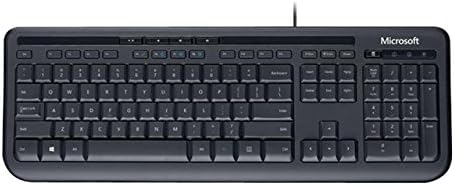
פיגור 2: פון אויבן אַראָפּ view of the keyboard layout
דאס בילד גיט א קלארע פון אויבן אראפ view of the Microsoft Wired Keyboard, highlighting the full QWERTY key layout, function keys, numeric keypad, and the row of special hotkeys located above the function keys.
Standard Key Functions
- אלפאנומערישע שליסלען: Used for typing letters, numbers, and symbols.
- פונקציע קנעפּלעך (F1-F12): Perform various tasks depending on the active application or operating system.
- נומעריק קיפּאַד: Located on the right, for efficient data entry.
- נאַוויגאַציע שליסלען: Arrow keys, Home, End, Page Up, Page Down for cursor movement and scrolling.
- Modifier Keys: Shift, Ctrl, Alt, Windows key for combination shortcuts.
Special Keys (Hotkeys)
The keyboard features a row of dedicated hotkeys above the function keys for quick access to multimedia and system functions:
- מעדיע קאָנטראָל קנעפּלעך: Play/Pause, Stop, Previous Track, Next Track.
- Volume Control Keys: שטום, באַנד אַראָפּ, באַנד אַרויף.
- קאַלקולאַטאָר שליסל: Instantly launches the system's calculator application.
- Other Programmable Keys: Some models may include additional keys that can be customized through operating system settings or Microsoft keyboard software (if available).
Familiarize yourself with these keys to enhance your productivity.
5. וישאַלט
Proper care and maintenance will extend the life of your Microsoft Wired Keyboard.
- רייניקונג:
- אָפּשטעקן די קלאַוויאַטור פֿון אייער קאָמפּיוטער איידער איר רייניקט.
- ניצן אַ ווייך, לינט-פֿרייַ שטאָף לייטלי דampגעוואשן מיט וואַסער אָדער אַ מילדער, נישט-אַברייזיווער רייניקונג לייזונג.
- Wipe the surface of the keys and the keyboard casing.
- פֿאַר שטויב און שמוץ צווישן שליסלען, ניצט קאָמפּרעסירטע לופט.
- דו זאלסט נישט immerse the keyboard in water or use harsh chemicals.
- Splash Resistance: While the keyboard is splash-resistant, it is not waterproof. Avoid exposing it to excessive liquids. In case of a spill, disconnect immediately, wipe dry, and allow to air dry completely before reconnecting.
- סטאָרידזש: ווען נישט אין באַנוץ פֿאַר לענגערע פּעריאָדן, זאָל מען האַלטן די קלאַוויאַטור אין אַ ריינער, טרוקענער סביבה, אַוועק פֿון עקסטרעמע טעמפּעראַטורן.
- קאַבלע זאָרגן: פֿאַרמײַדט שאַרפֿע בייגן אָדער קנייטשן אין דעם USB קאַבל צו פֿאַרמײַדן שאָדן.
6. טראָובלעשאָאָטינג
אויב איר טרעפט פּראָבלעמען מיט אייער קלאַוויאַטור, זעט די פאלגענדע געוויינטלעכע פּראָבלעמען און לייזונגען:
| פּראָבלעם | מעגלעך סיבה | לייזונג |
|---|---|---|
| קלאַוויאַטור ניט ריספּאַנדינג | Loose USB connection, incorrect USB port, driver issue. | Ensure the USB cable is securely plugged into a working USB port. Try a different USB port. Restart your computer. |
| ספּעציפֿישע קנעפּלעך אַרבעטן נישט | Debris under the key, key mechanism damage. | Use compressed air to clear debris. If the key is physically damaged, contact support. |
| Hotkeys not functioning | Software conflict, operating system settings. | Ensure your operating system is up to date. Check keyboard settings in your OS control panel. |
| Unexpected behavior after liquid exposure | Internal components affected by liquid. | Immediately disconnect the keyboard. Allow it to dry completely for at least 24-48 hours in a well-ventilated area before attempting to reconnect. If issues persist, the keyboard may be damaged. |
If the problem persists after trying these solutions, please refer to the Support section.
7. ספּעסאַפאַקיישאַנז
Detailed technical specifications for the Microsoft Wired Keyboard (Model ANB-00021):
| אַטריביוט | דעטאַל |
|---|---|
| מאָדעל נומער | ANB-00021 |
| סאָרט | מייקראָסאָפֿט |
| קאַנעקטיוויטי טעכנאָלאָגיע | USB (ווייערד) |
| קלאַוויאַטור באַשרייַבונג | Standard QWERTY, USB |
| ספּעציעלע שטריך | שפּריצן-קעגנשטעליק |
| קאָליר | שוואַרץ |
| נומער פון קיז | 600 (Note: This number is as per product specifications and may refer to total keypresses lifespan or a specific internal metric, not physical keys.) |
| קלאַוויאַטור באַקלייט | None (Single Color support listed, but typically implies no backlighting for this model) |
| סטייל | מאָדערן |
| מאַטעריאַל | פּלאַסטיק |
| פּראָדוקט דימענשאַנז (L x W x H) | 8.66 x 3.15 x 1.18 אינטשעס (22 x 8 x 3 ס״מ בערך) |
| פּונקט וואָג | 1.31 pounds (0.59 kg approx.) |
| קאַמפּאַטאַבאַל דעוויסעס | Laptop, PC, Tablet, Smartphone (via appropriate adapters if needed) |
| פאַבריקאַנט | מייקראָסאָפֿט |
| ערשטער דאַטע בנימצא | 9 מערץ 2011 |
8. וואָראַנטי און שטיצן
For warranty information and technical support regarding your Microsoft Wired Keyboard, please refer to the official Microsoft support channels.
- אָנליין שטיצן: Visit the official Microsoft Support webזייטל פֿאַר אָפֿט געשטעלטע פֿראַגעס, טראָובלעשווטינג גיידס, און דרייווער דאַונלאָודז.
- קאָנטאַקט שטיצן: For direct assistance, contact Microsoft customer service through their provided contact methods (phone, chat, email).
- דערווייַז פון קויפן: שטענדיק האַלטן דיין קויפן באַווייַז פֿאַר וואָראַנטי קליימז.
Specific warranty terms and conditions may vary by region and purchase date. Please consult the documentation included with your product or the Microsoft website for the most accurate and up-to-date warranty details.


