Microsoft Wireless Optical Desktop Executive Keyboard and Mouse Combo
באַניצער מאַנואַל
1. הקדמה
This manual provides comprehensive instructions for the Microsoft Wireless Optical Desktop Executive Keyboard and Mouse Combo. Please read this manual thoroughly before use to ensure proper setup and operation. This combo is designed for use with personal computers running Windows or Mac operating systems.
2. פּעקל אינהאַלט
- Microsoft Wireless Optical Desktop Executive Keyboard
- Microsoft Wireless Optical Desktop Executive Mouse
- וסב ווירעלעסס ופנעמער
- 4 AA Batteries (2 for keyboard, 2 for mouse)
- באַניצער גייד (דעם דאָקומענט)
3. סעטאַפּ
3.1 באַטאַרייע ייַנמאָנטירונג
- קלאַוויאַטור: Locate the battery compartment on the underside of the keyboard. Open the cover and insert two AA batteries, ensuring correct polarity (+/-). Close the cover.
- מויז: Locate the battery compartment on the underside of the mouse. Open the cover and insert two AA batteries, ensuring correct polarity (+/-). Close the cover.
3.2 פֿאַרבינדן דעם USB וויירלעס ריסיווער
- שטעקט אריין דעם USB ווייערלעס ריסיווער אין א פאראן USB פארט אויף אייער קאמפיוטער.
- אייער אָפּערירן סיסטעם זאָל אויטאָמאַטיש דעטעקטירן און אינסטאַלירן די נייטיקע דרייווערס. דער פּראָצעס קען נעמען אַ פּאָר מינוט.
- Once drivers are installed, the keyboard and mouse should be ready for use. If not, press the 'Connect' button on the receiver and then on the keyboard/mouse (if available) to establish a connection.
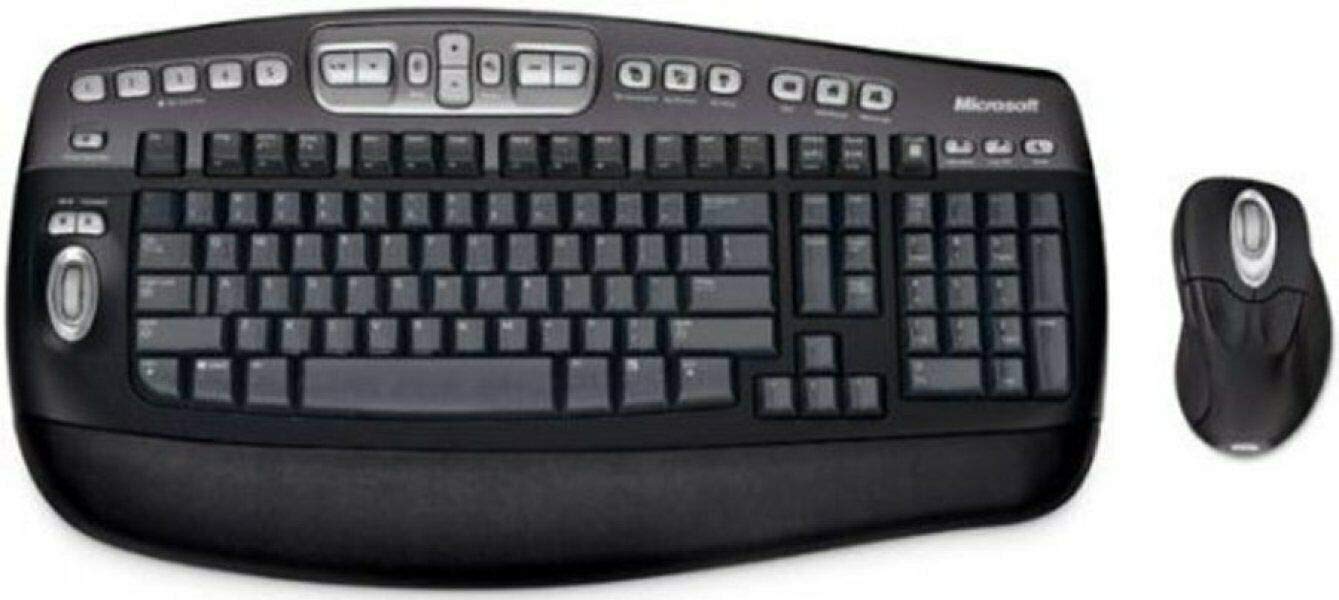
An image showing the Microsoft Wireless Optical Desktop Executive Keyboard and Mouse Combo, highlighting its ergonomic design and wireless components.
4. אָפּעראַציע
4.1 קלאַוויאַטור פֿעיִקייטן
- Wider Keys with Softer Edges: Designed for comfortable typing.
- הייסע קיז: Provides one-touch access to frequently used computer functions and files such as Mail, Web/Home, Messenger, My Documents, and My Pictures.
- 5 Programmable 'My Favorites' Keys: Customize these keys for one-touch access to your favorite webזייטלעך אָדער אַפּלאַקיישאַנז.
4.2 מויז פֿעיִטשערז
- High-Performance Optical Technology: Ensures precise control without the need for maintenance.
- ערגאָנאָמיק פּלאַן: Shaped for comfortable use during extended periods.
- Scroll Wheel with Application Switching: Push down on the scroll wheel to easily move between open windows.
- 5 פּראָגראַממאַבלע קנעפּלעך: Includes two side buttons for forward/back navigation in web browsers. All five buttons, including the wheel button, can be reassigned to various functions.
4.3 Customizing Keys and Buttons
To customize the programmable keys on the keyboard and buttons on the mouse, you may need to install Microsoft's IntelliType Pro and IntelliPoint software, respectively. These can typically be downloaded from the official Microsoft support website. Follow the on-screen instructions within the software to assign desired functions.
5. וישאַלט
5.1 רייניקונג
- קלאַוויאַטור: ניצן אַ ווייך, לינט-פֿרייַ שטאָף אַ ביסל דampגעוואשן מיט וואַסער אָדער אַ מילדער רייניקונג לייזונג. פאַרמייַדן איבעריקע נעץ. שפּריצט נישט רייניקונגסמיטלען גלייך אויף די קלאַוויאַטור.
- מויז: ריין די יקסטיריער מיט אַ ווייך, דamp cloth. For the optical sensor, use a dry cotton swab to gently remove any dust or debris.
5.2 באַטערי פאַרבייַט
Replace the AA batteries in both the keyboard and mouse when performance degrades or the low battery indicator (if present) illuminates. Always use fresh, high-quality AA alkaline batteries. Dispose of old batteries according to local regulations.
6. טראָובלעשאָאָטינג
6.1 קלאַוויאַטור אָדער מויז רעאַגירט נישט
- זיכער מאַכן אַז די באַטעריעס זענען ריכטיק אינסטאַלירט און נישט אויסגעשעפּט. טוישן אויב נייטיק.
- Verify the USB wireless receiver is securely plugged into a working USB port. Try a different USB port.
- Ensure the keyboard and mouse are within range of the receiver (typically up to 30 feet or 10 meters).
- Re-establish the connection: Press the 'Connect' button on the receiver, then on the keyboard and mouse.
- ריסטאַרט דיין קאָמפּיוטער.
6.2 Erratic Mouse Movement
- רייניקט דעם אָפּטישן סענסאָר אויף דער אונטערשטער זײַט פֿון דער מויז.
- זייט זיכער אז איר ניצט די מויז אויף א פאסיגע אויבערפלאך. שטארק רעפלעקטיווע אדער דורכזיכטיקע אויבערפלאכן קענען שאפן פראבלעמען. א מויז-פאד איז רעקאמענדירט.
- קוק פֿאַר ינטערפיראַנס פון אנדערע וויירליס דעוויסעס.
6.3 Hot Keys or Programmable Buttons Not Working
- Ensure Microsoft IntelliType Pro (for keyboard) and IntelliPoint (for mouse) software is installed and up to date.
- Check the software settings to confirm keys/buttons are assigned correctly.
7. ספּעסאַפאַקיישאַנז
| סאָרט | מייקראָסאָפֿט |
| מאָדעל | Wireless Optical Desktop Executive |
| קאַנעקטיוויטי טעכנאָלאָגיע | ראַדיאָ פרעקווענסי |
| ספּעציעלע שטריך | ערגאָנאָמיק פּלאַן |
| קאַמפּאַטאַבאַל דעוויסעס | Personal Computer (Windows/Mac) |
| באַטעריז | 4 אַאַ באַטעריז פארלאנגט (אַרייַנגערעכנט) |
| פּונקט וואָג | 4.75 פונט |
| פּעקל דימענשאַנז | 20.4 X 10.9 X 3.5 אינטשעס |
8. וואָראַנטי און שטיצן
8.1 וואָראַנטי אינפֿאָרמאַציע
For detailed warranty information, please refer to the documentation included with your product packaging or visit the official Microsoft support webזייטל. גאַראַנטיע טערמינען און באדינגונגען קענען זיין אַנדערש לויט געגנט און פּראָדוקט.
8.2 קונה שטיצן
For further assistance, technical support, or driver downloads, please visit the official Microsoft support website. You can typically find support resources by searching for your product model on their site.


