1. הקדמה
א דאנק פארן קויפןasing the NANAO FlexScan L767-R 19-inch Color LCD Display. This manual provides essential information for setting up, operating, and maintaining your monitor. Please read this manual thoroughly before use to ensure proper and safe operation.
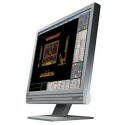
Figure 1: NANAO FlexScan L767-R LCD Monitor. This image shows the monitor from a slight angle, highlighting its slim bezel and adjustable stand.
2. פֿעיִקייטן
The FlexScan L767-R is designed for optimal visual performance and user convenience. Key features include:
- וויבראַנט קאָליר ווייַז: Supports approximately 16.77 million full colors for impressive color vibrancy.
- FineContrast Function: Easily adjust brightness and gamma settings to match content (text, images) for optimal viewing.
- Dual Input Support: Equipped with both analog and digital input terminals for versatile connectivity.
- ינאַגרייטיד אַודיאָ: Features built-in speakers for audio output.
- ערגאָנאָמיק שטיין: The stand allows for a 50mm vertical height adjustment, enhancing user comfort.
- נישט-גלער ייבערפלאַך: The screen surface is non-glare, reducing reflections and eye strain.
3. סעטאַפּ
Follow these steps to set up your FlexScan L767-R monitor:
- ופשליסן די מאָניטאָר: נעמט פֿאָרזיכטיק אַרויס דעם מאָניטאָר און אַלע אַקסעסאָריעס פֿון דער פּאַקאַדזשינג.
- שטעלט דעם מאָניטאָר: שטעלט דעם מאָניטאָר אויף אַ סטאַבילן, פלאַכן אויבערפלאַך. זאָרגט פֿאַר גענוג ווענטילאַציע אַרום דעם מאָניטאָר.
- קאָננעקט ווידעא קאַבלע:
- פֿאַר אַנאַלאָג קשר: Connect the D-Sub (VGA) cable from your computer's video output to the analog input port on the monitor.
- פֿאַר דיגיטאַל קאַנעקשאַן: Connect the DVI cable from your computer's video output to the digital input port on the monitor.
- Connect Audio Cable (Optional): If you wish to use the built-in speakers, connect an audio cable from your computer's audio output to the audio input port on the monitor.
- פאַרבינדן מאַכט קאַבלע: Plug the power cable into the monitor's power input, then plug the other end into a grounded electrical outlet.
- מאַכט אויף: Press the power button on the monitor. Power on your computer. The monitor should display your computer's screen.
4. אָפּערייטינג
This section describes the basic operation of your FlexScan L767-R monitor.
4.1. FineContrast Function
The FineContrast function allows you to quickly switch between different display modes optimized for various content types. Use the dedicated buttons on the monitor's front panel to cycle through modes such as Text, Picture, Movie, and Custom. Each mode adjusts brightness, gamma, and color temperature for the best viewינג דערפאַרונג.
4.2. Stand Adjustment
The monitor stand offers vertical height adjustment. Gently push or pull the monitor panel up or down to adjust its height within the 50mm range. Ensure the monitor is stable after adjustment.
4.3. אויף-סקרין ווייַז (אָסד) מעניו
Access the OSD menu using the control buttons on the front panel to fine-tune settings such as brightness, contrast, color balance, input selection, and more. Refer to the detailed OSD menu guide in the full manual for comprehensive options.
5. וישאַלט
געהעריגע אויפהאלטונג גאראנטירט די לאנגעוויטי און פאָרשטעלונג פון אייער מאָניטאָר.
- רייניקונג די פאַרשטעלן: ניצן אַ ווייך, לינט-פֿרייַ שטאָף אַ ביסל דampened with water or a non-abrasive, monitor-specific cleaning solution. Do not spray liquid directly onto the screen.
- רייניקונג פון די Casing: ווישט אויס דעם מאָניטאָר casing with a soft, dry cloth. Avoid using strong detergents or solvents.
- ווענטילאַטיאָן: זיכערט זיך אז די ווענטילאציע עפענונגען אויפן מאָניטאָר זענען נישט פארשטאפט צו פארמיידן איבערהיצונג.
- מאַכט אַוועק: שטענדיק אויסלעשן דעם מאָניטאָר און אַרויסציען עס פֿון דער עלעקטרישער אַוטלעט איידער איר רייניגט עס אָדער אויב עס וועט נישט ווערן גענוצט פֿאַר אַ לענגערע צייט.
6. טראָובלעשאָאָטינג
אויב איר טרעפט פּראָבלעמען מיט אייער מאָניטאָר, זעט די פאלגענדע געוויינטלעכע פּראָבלעמען און לייזונגען:
- קיין בילד אויף דעם עקראַן:
- קוק אויב די מאָניטאָר איז פּאַוערד אויף.
- Verify that the video cable is securely connected to both the monitor and the computer.
- Ensure the correct input source is selected on the monitor (Analog/Digital).
- Image is Distorted or Blurry:
- For analog connections, perform an auto-adjustment via the OSD menu.
- Check the display resolution settings on your computer. Ensure it matches the monitor's native resolution (1280x1024).
- קיין קלאַנג פֿון רעדנערס:
- Verify the audio cable is properly connected.
- קאָנטראָלירט די וואָלומען סעטטינגס אויף ביידע דעם מאָניטאָר און אייער קאָמפּיוטער.
If the problem persists after trying these solutions, please contact EIZO customer support or refer to the comprehensive troubleshooting guide in the full product manual.
7. ספּעסאַפאַקיישאַנז
| שטריך | באַשרייַבונג |
|---|---|
| סאָרט | EIZO |
| מאָדעל | L767-R |
| פאַרשטעלן גרייס | 19 אינטשעס |
| האַכלאָטע | 1280 X 1024 |
| באַשרייַבונג פון דער אויבערפלאַך פון דעם עקראַן | ניט-גלער |
| ברייטנאַס | 250 סי / מ² |
| דערפרישן קורס | 60 הז |
| באַקלייט טעכנאָלאָגיע | CCFL |
| HDMI אַרייַנשרייַב פּאָרץ | 0 |
| וסב פונקטיאָן | קיינער |
| געבויט-אין רעדנער | יא |
| טעלעוויזיע פֿונקציע | ניין |
| 3D Display Support | ניט געשטיצט |
| ריר פּאַנעל | ניט געשטיצט |
| פּונקט וואָג | 10 קילאָגראַמס |
| פּעקל דימענשאַנז | 56 X 53.5 X 22.5 סענטימעטער |
8. וואָראַנטי און שטיצן
For detailed warranty information, please refer to the warranty card included with your product or visit the official EIZO webזייטל. גאַראַנטיע טערמינען און באדינגונגען קענען זיין אַנדערש לויט געגנט.
For technical support, product inquiries, or service requests, please contact EIZO customer support through their official channels. Keep your product model number (L767-R) and serial number ready when contacting support.
EIZO Official Webפּלאַץ: www.eizo.com


