
1. הקדמה
This manual provides essential information for setting up, operating, maintaining, and troubleshooting your Lenovo IdeaCentre AIO 27 All-in-One Desktop PC. Please read this manual thoroughly before using your device to ensure proper functionality and to maximize its lifespan.

Figure 1: Lenovo IdeaCentre AIO 27 All-in-One Desktop PC
2. פּעקל אינהאַלט
באַשטעטיקן אַז אַלע זאכן זענען פאַראַן אין דיין פּראָדוקט פּאַקאַדזשינג:
- Lenovo IdeaCentre AIO 27 Desktop PC
- מאַכט אַדאַפּטער (90W)
- Keyboard (may be wired or wireless, depending on configuration)
- Mouse (may be wired or wireless, depending on configuration)
- דאָקומענטאַציע (שנעל אָנהייב גייד, וואָראַנטי אינפֿאָרמאַציע)
3. פּראָדוקט איבערview
3.1 שליסל קאַמפּאָונאַנץ
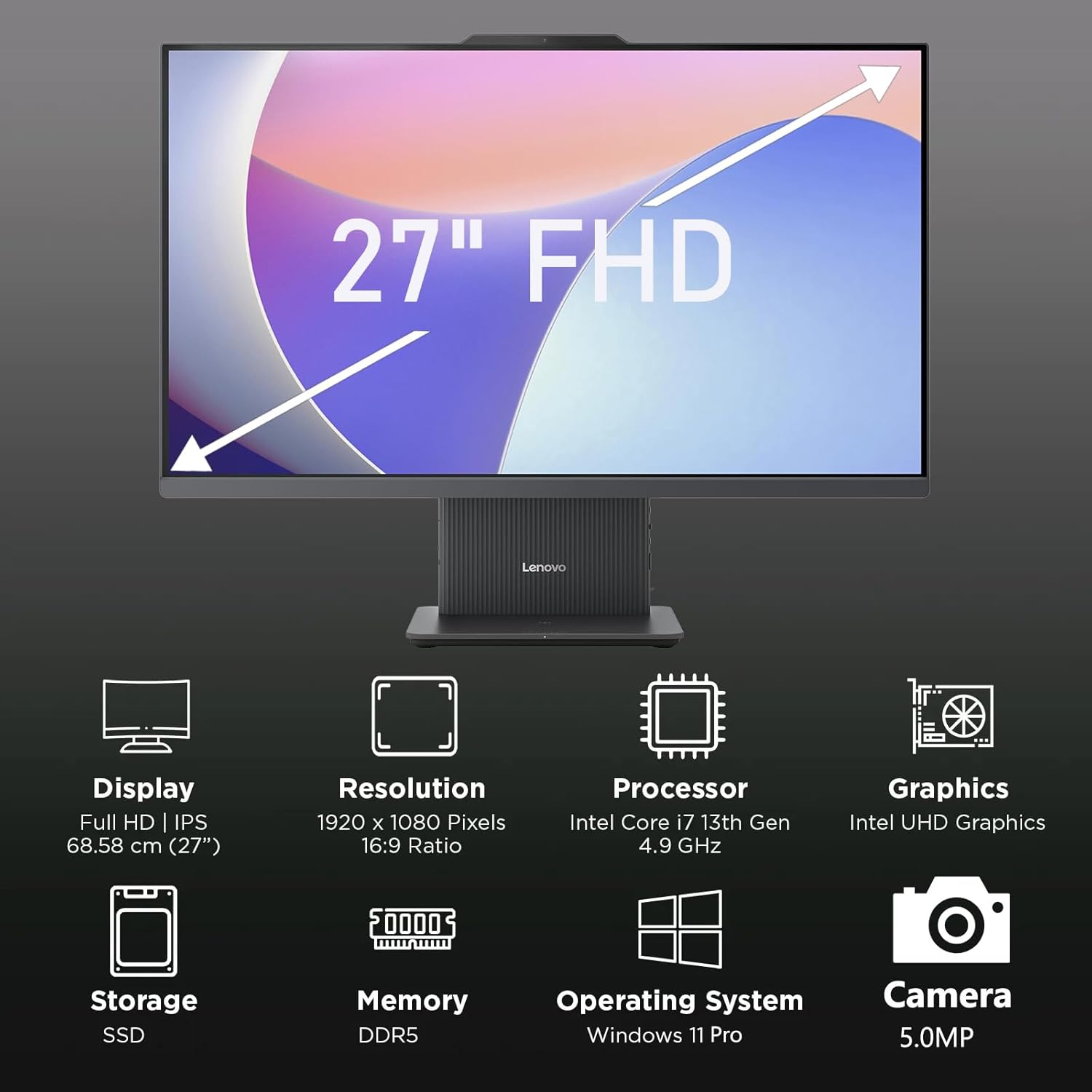
פיגורע 2: איבערview of key features including Display, Resolution, Processor, Graphics, Storage, Memory, Operating System, and Camera.
- ווייַז: 27-inch Full HD (1920x1080) IPS, 300 nits, anti-glare.
- Webקאַם: Integrated 5.0MP webcam with dual microphones.
- רעדנער: Integrated 3W x2 HARMAN speakers.
- פּראַסעסער: Intel Core i7-13620H.
- זכּרון: DDR5 RAM.
- סטאָרידזש: PCIe NVMe SSD.
3.2 פּאָרץ און קאַנעקטערז

Figure 3: Detailed diagram of ports and connectors on the Lenovo IdeaCentre AIO 27.
- E-shutter (for webcam privacy)
- מאַכט קנעפּל
- HDMI-אין 1.4
- מאַכט דק-אין
- USB-A 480Mbps (USB 2.0)
- עטהערנעט (RJ-45)
- USB-A 480Mbps (USB 2.0)
- USB-A 10Gbps (USB 3.2 Gen 2)
- HDMI-out 2.1 TMDS
- USB-C 10Gbps (data transfer only)
- Headphone / microphone combo jack
4. סעטאַפּ
4.1 אויספּאַקן און פּלאַצירונג
- Carefully remove the AIO PC and all accessories from the packaging.
- Place the AIO PC on a stable, flat surface with adequate ventilation around the device.
4.2 קאַנעקטינג מאַכט
- Connect the power adapter cable to the DC-in port (4) on the rear of the AIO PC.
- צאַפּן די מאַכט אַדאַפּטער אין אַ גראָונדעד עלעקטריקאַל ווענטיל.
4.3 קאַנעקטינג פּעריפעראַלס
- Connect your keyboard and mouse to the available USB-A ports (5, 7, 8) on the rear of the AIO PC.
- If using wired Ethernet, connect the cable to the RJ-45 port (6).
- For external displays, use the HDMI-out port (9). To use the AIO as a display for another device, use the HDMI-in port (3).
4.4 ערשטע בוט און ווינדאָוס סעטאַפּ
- Press the power button (2) to turn on the PC.
- פֿאָלגט די אינסטרוקציעס אויף דעם עקראַן צו פֿאַרענדיקן די ערשטע סעטאַפּ פֿון Windows 11 Pro, אַרייַנגערעכנט שפּראַך, ראַיאָן, נעץ פֿאַרבינדונג און שאַפונג פֿון באַניצער אַקאַונט.
4.5 צופּאַסן דעם שטאַנד

Figure 4: The AIO stand allows for ergonomic tilt adjustment.
The integrated stand allows for tilt adjustment from -5° to 15° to optimize your viewing angle and posture. Gently adjust the display to your preferred position.
5. אפערירן אייער קאמפיוטער
5.1 יקערדיק אָפּעראַציע
- מאַכט אויף / אַוועק: Press the power button (2) to turn on. To shut down, click Start > Power > Shut down in Windows.
- שלאָפן מאָדע: Press the power button briefly or select Sleep from the Start menu.
5.2 ניצן די Webקאַמעראַ און אַודיאָ

Figure 5: The 5MP webcam and Harman audio enhance video conferencing.
- Webקאַם: די אינטעגרירטע 5.0MP webcam is ideal for video conferencing and online communication. Use the E-shutter (1) to physically block the camera for privacy.
- מיקראָפאָן: Dual microphones provide clear audio input.
- רעדנער: HARMAN speakers deliver high-quality audio output.
5.3 קאַנעקטיוויטי
- Wi-Fi 6: פֿאַרבינדט זיך צו וויירלעס נעטוואָרקס פֿאַר הויך-גיכקייט אינטערנעט אַקסעס.
- בלועטאָאָטה 5.2: Pair with Bluetooth-enabled devices such as headphones, speakers, or mobile phones.
- וסב פּאָרץ: Utilize the various USB-A and USB-C ports for connecting external drives, printers, and other peripherals.
5.4 ווינדאָוס 11 פּראָ פֿעיִטשערז
Your AIO PC comes pre-installed with Windows 11 Pro, offering advanced features for productivity and security:
- ביטלאקער: For advanced data encryption.
- ווייַט דעסקטאָפּ: Access your PC from another device.
- Domain Join: אינטעגרירן אין קאָרפּאָראַטיווע נעטוואָרקס.
- ווינדאָוס העלא: Secure and fast login using facial recognition (if IR camera is present) or PIN.
6. וישאַלט
6.1 Cleaning Your PC
- ווייַז: ניצן אַ ווייך, לינט-פֿרייַ שטאָף אַ ביסל דampגעוואשן מיט וואַסער אָדער אַ נישט-אַבראַוויזיוו פאַרשטעלן רייניגער. שפּריצט נישט פליסיקייט גלייך אויף דעם פאַרשטעלן.
- שאַסי: Wipe with a soft, dry cloth. Avoid harsh chemicals or abrasive materials.
- ווענטילאַטיאָן: Ensure ventilation openings are clear of dust and obstructions to prevent overheating.
6.2 ווייכווארג דערהייַנטיקונגען
Regularly check for and install Windows updates and driver updates to ensure optimal performance and security. Go to Settings > Windows Update to check for updates.
6.3 דאַטאַ באַקקופּ
מאַכט פּעריִאָדיש באַקאַפּן פון אייערע וויכטיקע דאַטן צו אַן עקסטערנאַלן דרייוו אָדער וואָלקן סטאָרידזש צו פאַרמייַדן דאַטן אָנווער.
7. טראָובלעשאָאָטינג
This section addresses common issues you might encounter with your IdeaCentre AIO 27.
| פּראָבלעם | מעגלעך לייזונג |
|---|---|
| פּיסי גייט נישט אָן | Ensure the power adapter is securely connected to both the PC and a working electrical outlet. Test the outlet with another device. |
| ניט קיין אַרויסווייַזן אויף פאַרשטעלן | Check power connection. Ensure the PC is powered on. If using HDMI-in, verify the external device is on and correctly connected. |
| No internet connection (Wi-Fi) | Check if Wi-Fi is enabled in Windows settings. Verify your router is working. Reconnect to the Wi-Fi network. |
| קיין אַודיאָ | Check volume levels in Windows. Ensure speakers are not muted. Verify audio drivers are up to date. |
| Webקאַמעראַ אַרבעט נישט | Ensure the E-shutter (1) is open. Check privacy settings in Windows. Verify webcam drivers are installed and up to date. |
8. ספּעסאַפאַקיישאַנז

Figure 6: Details of the Intel Core i7-13620H processor.

Figure 7: The 27-inch FHD display offers comfortable viewing.
| שטריך | באַשרייַבונג |
|---|---|
| סאָרט | Lenovo |
| מאָדעל נאָמען | IdeaCentre AIO 27 |
| אָפּערייטינג סיסטעם | Windows 11 פּראָ |
| פּראַסעסער | אינטעל קאָר i7-13620H (10 קערנס, 16 פֿעדעם, ביז 4.9GHz) |
| גראַפיקס | ינטעגראַטעד ינטעל UHD גראַפיקס |
| ווייַז | 27-inch FHD (1920x1080) IPS, 300 nits, Anti-glare, 99% sRGB |
| זכּרון | 32GB DDR5 RAM (5200 MT/s) |
| סטאָרידזש | 1TB M.2 PCIe 4.0x4 NVMe SSD |
| אַודיאָ | High Definition (HD) Audio, Realtek ALC233-CG codec, 3W x2 HARMAN speakers |
| Webקאַם | 5.0MP with Dual Microphones |
| ווירעלעסס קאַנעקטיוויטי | Wi-Fi 6 (802.11ax 2x2), Bluetooth 5.2 |
| פּאָרטן (הינטן) | 1x USB-A 10Gbps, 2x USB-A 480Mbps, 1x HDMI-in 1.4, 1x HDMI-out 2.1 TMDS, 1x RJ-45, 1x Power Connector |
| פּאָרטן (לינקס) | 1x USB-C 10Gbps (data transfer only), 1x 3.5mm combo audio jack |
| זיכערהייט שפּאָן | פירמווער TPM 2.0 |
| מאַכט אַדאַפּטער | 90W 89% adapter |
| דימענשאַנז (ב x ד x ה) | 611.72 X 192 X 473.16 מם (24.08 X 7.55 X 18.62 אינטש) |
| וואָג | וועגן 7.1 קג (15.65 לבס) |
9. וואָראַנטי אינפֿאָרמאַציע
Your Lenovo IdeaCentre AIO 27 PC comes with a standard manufacturer's warranty. The specific terms and duration of your warranty may vary by region and purchase agreement. Please refer to the warranty documentation included in your product packaging or visit the official Lenovo support webפּלאַץ פֿאַר דיטיילד אינפֿאָרמאַציע.
Typically, the warranty covers defects in materials and workmanship under normal use. It does not cover damage caused by misuse, accidents, unauthorized modifications, or external factors.
10. שטיצן און קאָנטאַקט אינפֿאָרמאַציע
For technical support, service, or additional information, please contact Lenovo customer support through the following channels:
- לענאָוואָ סופּפּאָרט Webפּלאַץ: באַזוכן support.lenovo.com פֿאַר דרייווערס, מאַנואַלן, און טראָובלעשווטינג גיידס.
- טעלעפאָן שטיצן: Refer to your warranty card or the Lenovo support webפּלאַץ פֿאַר רעגיאָנאַל קאָנטאַקט נומערן.
- אָנליין שמועסן: Available on the Lenovo support webזייטל פֿאַר הילף אין רעאַל-צייט.
Please have your product's serial number ready when contacting support. The serial number is typically located on a label on the back or bottom of your AIO PC.