
1. הקדמה
The Next Cine800S GoogleTV Projector is designed to provide a versatile and immersive home entertainment experience. This manual offers essential information for the safe and efficient setup, operation, and maintenance of your projector. Please read this manual thoroughly before using the device.
2. זיכערקייַט אינפֿאָרמאַציע
- מאַכט צושטעלן: Use only the specified power adapter. Ensure the power cord is not damaged or pinched.
- ווענטילאַטיאָן: בלאָקירט נישט די ווענטילאַציע עפענונגען. האַלט גענוג פּלאַץ אַרום דעם פּראָיעקטאָר פֿאַר געהעריקן לופטפלוס צו פאַרמייַדן איבערהיצונג.
- אָרט: שטעלט דעם פּראָיעקטאָר אויף אַ סטאַבילער, גלייכער ייבערפלאַך. פֿאַרמייַדט עס צו שטעלן אין דירעקטער זון, לעבן היץ-קוואַלן, אָדער אין סביבות מיט הויכער פֿײַכטקייט אָדער שטויב.
- רייניקונג: טרענט אפ די עלעקטריציטעט איידער איר רייניגט. ניצט א ווייכע, טרוקענע שטאָף. ניצט נישט קיין פליסיקע אדער אייראזאל רייניגער.
- Lens Care: פֿאַרמײַדט צו אָנרירן די פּראָיעקטאָר לינז גלייך. ניצט אַ ווייכע, לינט-פֿרײַע שטאָף ספּעציעל דיזיינד פֿאַר אָפּטישע לינזן אויב רייניקונג איז נייטיק.
- סערוויס: פרובירט נישט צו פאררעכטן דעם פראיעקטאר אליין. לאָזט איבער אלע סערוויסעס צו קוואַליפֿיצירטע פּערסאָנעל.
3. פּראָדוקט איבערview
The Next Cine800S is a Full HD LED projector featuring Google TV. Below are key components and features.

פיגורע 3.1: פראָנט view of the Next Cine800S GoogleTV Projector, highlighting its design and key features like 800 ANSI Lumens and Google TV integration.
3.1. שליסל פֿעיִקייטן
- ווייַז האַכלאָטע: Full HD 1920x1080, supporting screen sizes from 40 to 200 inches.
- ברייטקייט: 800 ANSI Lumens.
- ווידעא פּראַסעסינג: Supports 4Kx2K @ 60fps encode/decode.
- Focus & Keystone: Automatic or Manual Focus, Automatic Keystone Correction.
- אַפּערייטינג סיסטעם: Google TV with Android 14.
- סטרימינג באַדינונגס: Netflix L1, Prime Video, YouTube, Disney+ with L1 DRM Certification.
- ווירעלעסס קאַנעקטיוויטי: Wi-Fi 802.11 a/b/g/n/ac (2.4G & 5G) and Bluetooth 5.0.
- זכּרון: 2GB LPDDR4 RAM / 8GB eMMC Storage.
- אַודיאָ: Integrated 12W (4W) Speaker.
- אָפּטיש סיסטעם: Dust-Sealed Optical Mechanism.
- סקרין שפּיגל: Air Screen and Google Cast for iOS & Android devices.
3.2. פּאָרטן און פֿאַרבינדונגען
Identify the various input and output ports on your projector.
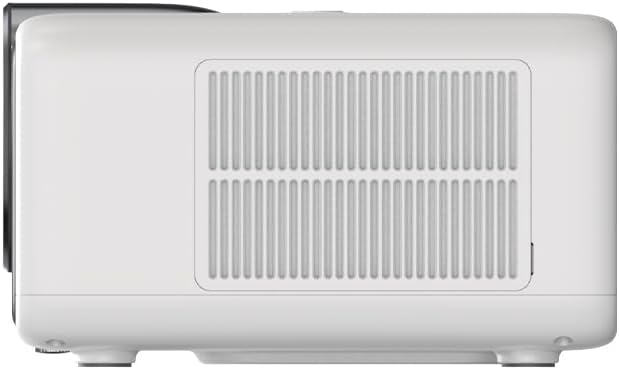
Figure 3.2: Rear panel of the projector, displaying available ports. Note: Actual ports may vary slightly by region or production batch. This model typically includes HDMI, USB, and a 2.5mm Audio Jack.
- הדמי: Connect to external video sources such as Blu-ray players, gaming consoles, or computers.
- וסב: פֿאַר פֿאַרבינדן USB סטאָרידזש דעוויסעס צו שפּילן מעדיע files.
- 2.5 מם אַודיאָ דזשאַק: פֿאַר פֿאַרבינדן עקסטערנע אַודיאָ דעוויסעס ווי כעדפאָונז אָדער רעדנער.
4. סעטאַפּ
4.1. אַנפּאַקקינג און ערשט דורכקוק
- נעמט פֿאָרזיכטיק אַרויס דעם פּראָיעקטאָר און אַלע אַקסעסאָריעס פֿון דער פּאַקאַדזשינג.
- Check for any signs of damage during transit. If damage is found, contact your retailer immediately.
- Ensure all listed accessories are present.
4.2. פּראָיעקטאָר פּלאַצירונג
אָפּטימאַלע פּלאַצירונג איז קריטיש פֿאַר דער בעסטער viewינג דערפאַרונג.

פיגורע 4.1: עקסample of projector placement and adjustable screen sizes (40" to 200").
- דיסטאַנסע: Position the projector at a suitable distance from the screen or wall to achieve your desired screen size (40 to 200 inches).
- הייך: Place the projector on a stable surface or mount it to project the image at the desired height.
- מאָונטינג: The projector includes a mounting point on its base. Ensure any tripod or mount used is compatible with the projector's screw size and weight. Note that some standard tripod screws may not fit.
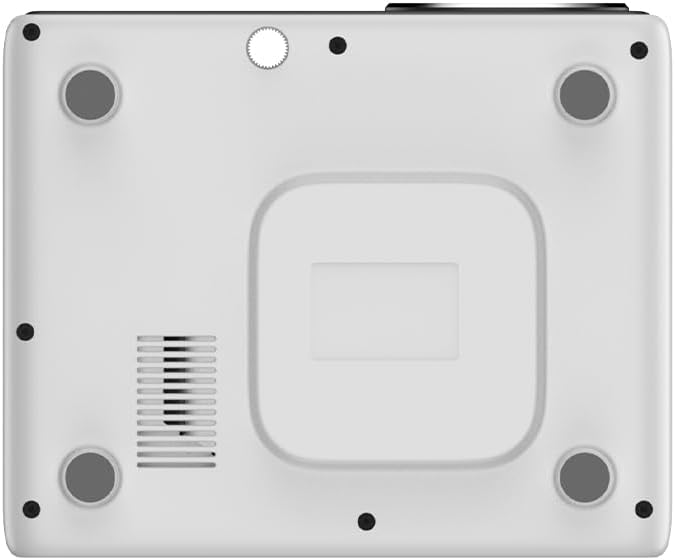
פיגורע 4.2: דנאָ view of the projector, indicating the mounting point and ventilation grilles.
4.3. מאַכט קאַנעקשאַן
- פֿאַרבינדט דעם מאַכט אַדאַפּטער צום פּראָיעקטאָר'ס מאַכט אַרייַנגאַנג פּאָרט.
- צאַפּן די מאַכט אַדאַפּטער אין אַ פּאַסיק עלעקטריקאַל ווענטיל.
- דריק דעם מאַכט קנעפּל אויף דעם פּראָיעקטאָר אָדער ווײַטקאָנטראָל צו עס אנצינדן.
4.4. ערשטע אויפשטעל און נעץ פארבינדונג
- Upon first power-on, the projector will guide you through the initial Google TV setup process.
- Follow the on-screen instructions to select your language, connect to a Wi-Fi network (2.4G or 5G), and log in with your Google account.
- The projector features automatic focus and keystone correction. If the image is not perfectly clear or rectangular, you can access manual adjustment options in the settings menu.
5. אַפּערייטינג ינסטרוקטיאָנס
5.1. נאַוויגירן גוגל טיווי
The projector runs on Google TV, providing a user-friendly interface for accessing content.

Figure 5.1: The Google TV interface on the Next Cine800S Projector, showing recommended content and installed applications.
- Use the remote control to navigate through menus, select apps, and control playback.
- The home screen provides personalized recommendations and quick access to your favorite streaming services.
5.2. סטרימינג אַפּליקאַציעס
Access popular streaming platforms directly from your projector.

Figure 5.2: Supported streaming applications and Google Play Store access.
- Pre-installed apps include Netflix, Prime Video, YouTube, and Disney+.
- דאַונלאָוד נאָך אַפּליקאַציעס פֿון גוגל פּליי סטאָר.
- Ensure you are logged into your respective service accounts to access content.
5.3. קאַנעקטינג פונדרויסנדיק דעוויסעס
- הדמי: Connect your device to an HDMI port. The projector will automatically detect the input or you can manually select it from the input source menu.
- וסב: Insert a USB drive into the USB port. The media player application will typically launch automatically, allowing you to browse and play supported media files (JPG, PNG, BMP, JPEG, MP3, M4A, MP2, WAV, FLAC, MP4, MOV, TS, DAT, F4V, 3GP).
5.4. פאַרשטעלן מירערינג
The projector supports Air Screen and Google Cast for mirroring content from your iOS or Android devices.
- זיכער מאַכן אַז אייער מאָביל מיטל און דער פּראָיעקטאָר זענען פארבונדן צו דער זעלבער Wi-Fi נעץ.
- On your mobile device, open the screen mirroring function (e.g., 'Screen Cast', 'Smart View', 'AirPlay').
- אויסקלייבן דעם פּראָיעקטאָר פֿון דער רשימה פֿון פֿאַראַן דעוויסעס.
6. וישאַלט
רעגולערע אויפהאלטונג גאראנטירט אפטימאלע פאָרשטעלונג און פארלענגערט די לעבנסדויער פון אייער פּראָיעקטאָר.
6.1. רייניקונג פון די לינז

Figure 6.1: Close-up of the projector lens, which requires careful cleaning.
- Use a soft, lint-free cloth or a lens cleaning brush to gently remove dust from the lens surface.
- For stubborn smudges, use a specialized lens cleaning solution applied to a microfiber cloth, not directly to the lens.
- Avoid abrasive materials or excessive force, which can scratch the lens.
6.2. Cleaning Ventilation Ports
- Periodically check the ventilation grilles for dust accumulation.
- Use a soft brush or a vacuum cleaner with a brush attachment to gently clean the grilles.
- דו זאלסט נישט אַרייַנלייגן קיין אַבדזשעקץ אין די ווענטאַליישאַן אָופּאַנינגז.
6.3. ווייכווארג דערהייַנטיקונגען
- Ensure your projector is connected to the internet.
- Navigate to the system settings to check for and install available software updates. Updates can improve performance and add new features.
7. טראָובלעשאָאָטינג
די סעקציע באהאנדלט אלגעמיינע פראבלעמען וואס איר קענט באגעגענען מיט אייער פראיעקטאר.
| פּראָבלעם | מעגלעך סיבה | לייזונג |
|---|---|---|
| קיין מאַכט | Power cord disconnected, power outlet issue | קאָנטראָלירט די פֿאַרבינדונג פֿון דער עלעקטרישער שנור. פּרוּווט אַן אַנדער עלעקטרישער אַוטלעט. |
| קיין בילד | Input source not selected, device not connected, lens cap on | Ensure input source is correctly selected. Check HDMI/USB connections. Remove lens cap. |
| די בילד איז בלערי | פאָקוס נישט אַדזשאַסטיד | Adjust focus manually using the projector's focus ring or through the settings menu if automatic focus is not sufficient. |
| Image is distorted/trapezoidal | Keystone not adjusted, projector not perpendicular to screen | The projector has automatic keystone correction. If the image is still distorted, access the manual keystone correction settings to fine-tune the image. |
| ניט געזונט אָדער נעבעך געזונט קוואַליטעט | Volume too low, external audio device not connected, speaker issue | Increase volume. Check external audio connections if used. If internal speaker sound is distorted at low volumes, consider connecting external speakers via the 2.5mm audio jack or Bluetooth. |
| ווי-פי קשר ישוז | Incorrect password, router issues, signal interference | Verify Wi-Fi password. Restart router. Ensure projector is within Wi-Fi range. |
| ווייַט קאָנטראָל נישט ארבעטן | Batteries low/dead, IR sensor blocked | Replace batteries. Ensure no obstructions between remote and projector's IR sensor. |
8. ספּעסאַפאַקיישאַנז
Detailed technical specifications for the Next Cine800S GoogleTV Projector.
| שטריך | באַשרייַבונג |
|---|---|
| מאָדעל | Cine800S |
| ווייַז טעכנאָלאָגיע | געפירט פּראַדזשעקטער |
| געבוירן האַכלאָטע | Full HD 1920x1080 |
| ברייטנאַס | 800 אַנסי לומענס |
| פּרויעקציע גרייס | 40" — 200" |
| ווידעא דיקאָודינג | 4Kx2K @ 60fps |
| פאָקוס | אָטאַמאַטיק אָדער מאַנואַל |
| קייסטאָנע קערעקשאַן | אָטאַמאַטיק |
| אָפּערייטינג סיסטעם | Google TV, Android 14 |
| DRM Certification | Netflix L1, Prime Video, YouTube, Disney+ L1 |
| ווי-פי | 802.11 a/b/g/n/ac (2.4G & 5G) |
| בלועטאָאָטה | 5.0 |
| באַראַן | 2 גיגאבייט LPDDR4 |
| אינערלעכער סטאָרידזש | 8GB eMMC |
| רעדנער רעזולטאַט | 12 וו (4 וו) |
| פּאָרץ | HDMI, 2.5mm Audio Jack, USB |
| שטיצט מעדיע פאָרמאַץ | JPG, PNG, BMP, JPEG, MP3, M4A, MP2, WAV, FLAC, MP4, MOV, TS, DAT, F4V, 3GP, FAT, NTFS |
| אָפּטיש מעקאַניזאַם | Dust-Sealed System |
| סקרין מירערינג | Air Screen, Google Cast (iOS & Android) |
9. וואָראַנטי און שטיצן
For warranty information, please refer to the documentation provided with your purchase or visit the official Next website. For technical support, product inquiries, or service requests, please contact Next customer service through their official channels.
האַלט אייער קויף קוויטל און פּראָדוקט סעריע נומער גרייט ווען איר קאָנטאַקטירט שטיצע.