
הקדמה
This user guide provides essential information for the HP OfficeJet Pro 8125e printer. It covers initial setup, connecting to networks, performing print, scan, and copy functions, routine maintenance, and troubleshooting common issues. Follow these instructions to ensure optimal performance and longevity of your device.
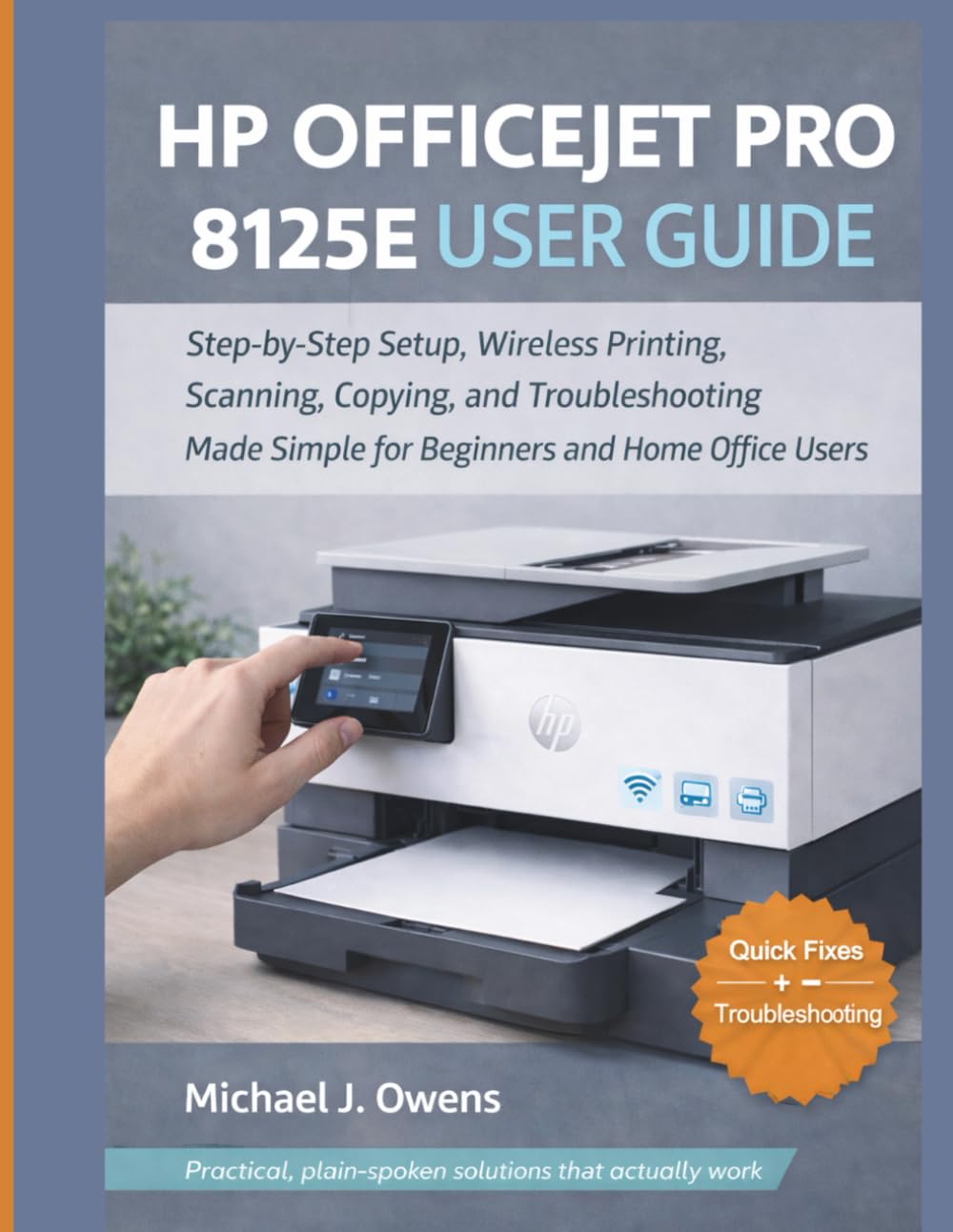
Image: Front cover of the HP OfficeJet Pro 8125e User Guide. This image represents the manual itself, designed to assist users with their printer.
1. סעטאַפּ
1.1 אויספּאַקן דעם קעסטל און ערשטן איינשטראָם
- קערפאַלי אַראָפּנעמען די דרוקער פון זייַן פּאַקקאַגינג.
- אַראָפּנעמען אַלע פּראַטעקטיוו טעיפּס און פּאַקינג מאַטעריאַלן פון די אויסערלעכע און אינעווייניקסטע זייט פון די דרוקער.
- פֿאַרבינדט דעם עלעקטרישן שנור צום דרוקער און דערנאָך צו אַ וואַנט אַוטלעט.
- דרוק די מאַכט קנעפּל צו קער אויף די דרוקער.
- Follow the on-screen prompts on the printer's control panel to select your language and region.
1.2 אינסטאַלירן טינט קאַרטרידזשעס
- עפענען די טינט פּאַטראָן אַקסעס טיר.
- וואַרט ביז דער דרוק־וואָגן זאָל זיך באַוועגן צום צענטער.
- Unpack the new ink cartridges.
- אַרײַנשטעלן יעדע קאַרטרידזש אין איר קאָרעספּאָנדירנדיקן שפּאַלט, און זיכער מאַכן אַז עס קליקט אַרײַן אין פּלאַץ.
- נאָענט די טינט פּאַטראָן אַקסעס טיר.
1.3 לאָודינג פּאַפּיר
- ציען אויס די אַרייַנשרייַב טאַץ.
- אַדזשאַסטירן די פּאַפּיר גיידס צו די ריכטיקע פּאַפּיר גרייס.
- Load a stack of plain white paper into the tray, print side down.
- שטופּ צוריק דעם אַרייַנשרייַב טאַץ אין דעם דרוקער.
- Confirm paper type and size on the printer's control panel if prompted.
1.4 קאַנעקטינג צו Wi-Fi
- אויף דעם דרוקער'ס קאָנטראָל פּאַנעל, נאַוויגירט צו די ווירעלעס סעטאַפּ וויזאַרד.
- סעלעקטירן דיין Wi-Fi נעץ פון דער רשימה פון בנימצא נעטוואָרקס.
- Enter the Wi-Fi password (WPA key) when prompted.
- באַשטעטיקט די פֿאַרבינדונג. די ווירעלעס ליכט אויף דעם דרוקער זאָל ווערן בלוי.
1.5 דרייווער ינסטאַלירונג
For Windows and Mac computers, download the latest drivers and HP Smart software from the official HP support webזייטל. גיי נאך די אינסטרוקציעס אויפן עקראן בעת די אינסטאלאציע.
2. אפערירן דעם דרוקער
2.1 דרוקן דאקומענטן
- פֿון אַ קאָמפּיוטער: Open the document, select "Print," choose your HP OfficeJet Pro 8125e, and adjust settings as needed before printing.
- From Mobile Devices (HP Smart App): Install the HP Smart app, add your printer, and use the app to print photos or documents directly from your smartphone or tablet.
- Email Print: If enabled, send documents to your printer's unique email address.
2.2 סקענען דאקומענטן
- לייגט דעם דאָקומענט מיטן פּנים אַראָפּ אויפן סקענער גלאָז, אָדער מיטן פּנים אַרויף אין דעם אויטאָמאַטישן דאָקומענט-פידער (ADF).
- On the printer's control panel or via the HP Smart app/software on your computer, select "Scan."
- Choose scan settings (e.g., color, resolution, destination).
- אָנהייבן דעם סקען.
2.3 קאפירן דאקומענטן
- לייגט דעם אריגינעלן דאקומענט אויפן סקענער גלאז אדער אין דעם ADF.
- On the printer's control panel, select "Copy."
- Adjust settings such as number of copies, color/black & white, and size.
- Press the "Start Copy" button.
3. וישאַלט
3.1 Cleaning the Print Heads
If print quality degrades (streaks, faded colors), perform a print head cleaning from the printer's control panel or the HP Smart software. This process uses ink, so only perform it when necessary.
3.2 אויסטוישן טינט קאַרטרידזשעס
When an ink cartridge is low or empty, the printer will notify you. Follow the steps in Section 1.2 to replace cartridges. Use genuine HP ink cartridges for best results.
3.3 אַלגעמיינע רייניקונג
ווישט אָפּ די אויסערלעכע זייט פון דעם דרוקער מיט אַ ווייכן, טרוקענעם שטאָף.amp, lint-free cloth. Clean the scanner glass regularly with a glass cleaner applied to a cloth (not directly to the glass) to prevent smudges from affecting scan quality.
4. טראָובלעשאָאָטינג
| פּראָבלעם | לייזונג |
|---|---|
| דרוקער אפליין מעסעדזש |
|
| פּאַפּיר דזשאַמז |
|
| נעבעך דרוק קוואַליטעט |
|
| HP Smart App Issues |
|
5. ספּעסאַפאַקיישאַנז
Note: The following specifications are typical for the HP OfficeJet Pro 8125e printer. For precise details, refer to the official HP product page or documentation.
- פאַנגקשאַנז: Print, Copy, Scan, Fax (optional, depending on region/model)
- דרוק טעכנאָלאָגיע: הפּ טערמאַל ינגקדזשעט
- דרוק גיכקייט (שוואַרץ): ביז 22 פּיפּיעם (ISO)
- Print Speed (Color): ביז 18 פּיפּיעם (ISO)
- Print Resolution (Best): Up to 4800 x 1200 optimized dpi color
- סקען רעזאָלוציע (אָפּטיש): אַרויף צו 1200 דפּי
- קאַנעקטיוויטי: Wi-Fi 802.11a/b/g/n, Ethernet, USB 2.0
- פּאַפּיר האַנדלינג: 250-sheet input tray, 60-sheet output tray, 35-sheet ADF
- דופּלעקס דרוק: אָטאַמאַטיק (נאָרמאַל)
- ווייַז: קאָליר טאָוטשסקרעען
6. וואָראַנטי און שטיצן
For warranty information, please refer to the documentation included with your printer or visit the official HP support website. HP provides various support resources, including online FAQs, driver downloads, and contact options for technical assistance.
Image: Back cover of the HP OfficeJet Pro 8125e User Guide. This image provides additional information and ISBN details for the manual.