
1. הקדמה
This manual provides detailed instructions for the setup, operation, and maintenance of your Eyoyo EYH2 Handheld USB 2D Barcode Scanner and Eyoyo EY-045 2-in-1 Wireless Mouse Barcode Scanner. Please read this manual thoroughly before using the devices to ensure proper functionality and to prevent damage.
2. פּראָדוקט איבערview
2.1 Eyoyo EY-H2 Handheld USB 2D Barcode Scanner
The Eyoyo EY-H2 is a wired USB 2D barcode scanner designed for efficient data capture. It offers plug-and-play functionality, requiring no software or driver installation. This scanner is suitable for various environments including retail, warehouses, libraries, and inventory management.

בילד 2.1.1: The Eyoyo EY-H2 2D Barcode Scanner demonstrates superior decoding capabilities compared to traditional laser scanners, accurately reading various 1D and 2D barcodes, including those with damage or complex formats.

בילד 2.1.2: The EY-H2 scanner offers plug-and-play connectivity via USB, compatible with Windows, macOS, Linux, and POS systems, requiring no additional drivers or software.

בילד 2.1.3: The EY-H2 scanner features adjustable sound settings, allowing users to turn the beep sound on or off as needed for different working environments.

בילד 2.1.4: The EY-H2 scanner is designed with drop resistance, capable of sustaining drops from up to 1.5 meters (5 feet) without damage.
2.2 Eyoyo EY-045 2-in-1 Wireless Mouse Barcode Scanner
The Eyoyo EY-045 combines the functionality of a high-precision optical mouse with a powerful 2D barcode scanner. This device aims to streamline workflows by integrating two essential tools into one, reducing desk clutter and improving efficiency. It supports multiple connection methods and features a long-lasting battery with a visual indicator.

בילד 2.2.1: The EY-045 offers a 2-in-1 design, functioning as both a wireless mouse for office tasks and a barcode scanner for data entry, activated by a dedicated button.

בילד 2.2.2: The mouse-style barcode scanner facilitates faster data entry, particularly in retail Point-of-Sale (POS) environments, by allowing seamless transition between mouse and scanning functions.

בילד 2.2.3: The EY-045 supports two wireless connection methods: Bluetooth Mode for laptops, tablets, and phones, and 2.4G Mode via a USB dongle for PCs.
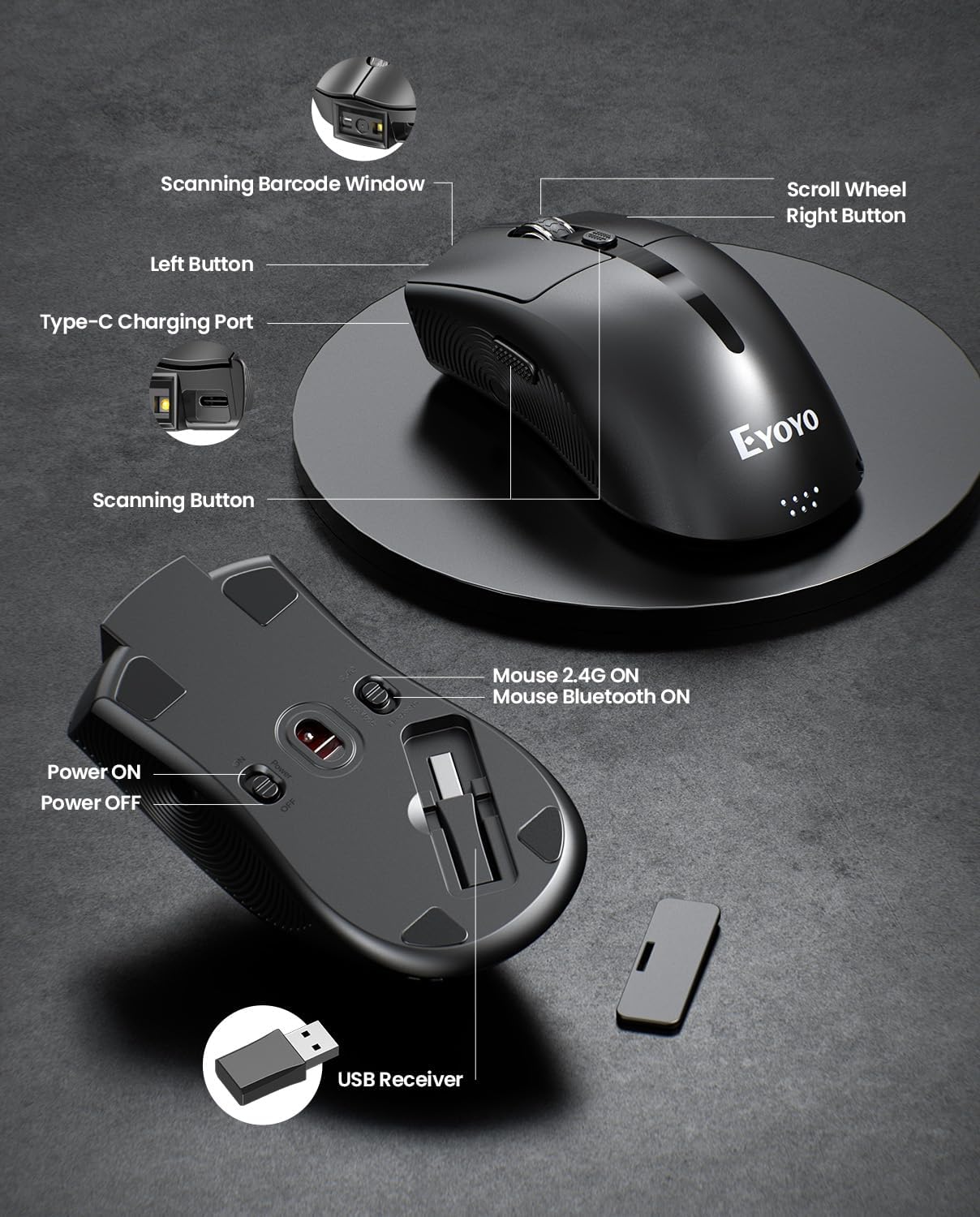
בילד 2.2.4: This diagram highlights the key components of the EY-045, including the Scanning Barcode Window, Scroll Wheel, Left/Right Buttons, Type-C Charging Port, Scanning Button, Power ON/OFF switch, Mouse 2.4G/Bluetooth ON switches, and the USB Receiver storage slot.
3. סעטאַפּ
3.1 Eyoyo EY-H2 Handheld Scanner Setup
- פאַרבינדן די וסב קאַבלע: Plug the USB cable from the EY-H2 scanner into an available USB port on your computer or POS system.
- סיסטעם דערקענונג: The operating system (Windows, macOS, Linux, or POS) will automatically detect and install the necessary drivers. No manual driver installation is required.
- גרייט פֿאַר נוצן: Once recognized, the scanner is ready to use. Open any application where you want to input scanned data (e.g., Notepad, Word, Excel, POS software).
3.2 Eyoyo EY-045 Mouse Scanner Setup
די EY-045 אָפפערט דריי פֿאַרבינדונג מעטאָדן:
3.2.1 2.4G Wireless Connection (for PC)
- צוריקקריגן USB ריסיווער: Locate the 2.4G USB receiver stored in the bottom slot of the EY-045 mouse.
- אַרײַנשטעלן דעם באַקומער: Plug the USB receiver into an available USB port on your PC.
- מאַכט אויף: Slide the power switch on the bottom of the EY-045 to the 'ON' position.
- Select 2.4G Mode: Ensure the mode switch on the bottom is set to 'Mouse 2.4G ON'. The device will automatically connect.
3.2.2 Bluetooth 5.0 Connection (for Laptops/Tablets/Phones)
- מאַכט אויף: Slide the power switch on the bottom of the EY-045 to the 'ON' position.
- אויסקלייַבן בלועטאָאָטה מאָדע: Ensure the mode switch on the bottom is set to 'Mouse Bluetooth ON'. The device will enter pairing mode (indicator light may flash).
- אַקטיווירן בלועטוט אויף האָסט מיטל: On your laptop, tablet, or phone, go to Bluetooth settings and turn Bluetooth on.
- פּאָר דיווייס: זוכן פֿאַר available devices and select 'Eyoyo EY-045' (or similar name) to pair.
3.2.3 USB-C Wired Connection (for Charging and Working)
- פאַרבינדן USB-C קאַבל: Plug the provided USB-C charging cable into the Type-C charging port on the front of the EY-045.
- פֿאַרבינדן זיך צום באַלעבאָס: Plug the other end of the USB-C cable into a USB port on your computer.
- פאַנגקשאַנאַליטי: The device will charge and function as a wired mouse and scanner simultaneously.
4. אַפּערייטינג ינסטרוקטיאָנס
4.1 Using the Eyoyo EY-H2 Handheld Scanner
- צילן און סקענען: Point the scanner's window at the barcode you wish to read.
- דריק טריגער: Press the trigger button on the handle. A red scanning line or light will appear.
- באַשטעטיקונג: A successful scan will typically be indicated by a beep sound (if enabled) and the data appearing in your active application.
- צופּאַסן קלאַנג: To adjust the sound, scan the appropriate configuration barcodes provided in the full user manual (e.g., 'Turn On Sound' or 'Turn Off Sound' barcodes).
4.2 Using the Eyoyo EY-045 Mouse Scanner
- מויז פונקציע: When connected, the EY-045 functions as a standard optical mouse for navigation and clicking.
- Switch to Scanner Mode: To scan a barcode, press the dedicated scanning button located on the side of the mouse. The scanning light will activate.
- סקענען באַרקאָד: Aim the scanning window at the barcode and press the scanning button. The scanned data will be transmitted to your connected device.
- באַטערי ינדיקאַטאָר: Monitor the 4-level LED power indicator (25%-50%-75%-100%) on the tail of the mouse to check the battery status. Recharge when the indicator shows low power.
- אָפפלינע סטאָרידזש: The EY-045 can store up to 100,000 barcodes when operating away from a computer. To upload stored data, connect the scanner to your computer and follow the instructions in the full user manual for data transfer.
5. וישאַלט
- רייניקונג: ניצט אַ ווייכע, טרוקענע שטאָף צו רייניקן די אויסערלעכע זייט פון דעם סקאַנער. פֿאַר דעם סקאַנינג פֿענצטער, ניצט אַ לינט-פֿרייע שטאָף וואָס איז לייכט געווישט.ampגעוואַשן מיט אַ מילדן, נישט-שרייַבנדיקן רייניגער. פֿאַרמייַדן שטרענגע כעמיקאַלן אָדער שרייַבנדיקע מאַטעריאַלן.
- סטאָרידזש: Store the scanners in a cool, dry place away from direct sunlight and extreme temperatures.
- קאַבלע זאָרגן: Avoid bending or twisting the USB cables excessively to prevent internal damage.
- Battery Care (EY-045): For optimal battery life, avoid fully discharging the battery frequently. Recharge the device regularly. If storing for an extended period, charge the battery to about 50% before storage.
6. טראָובלעשאָאָטינג
- סקאַנער לייענט נישט באַרקאָודז:
- זיכער מאַכן אַז דער באַרקאָד איז ריין און נישט צו שטאַרק געשעדיגט.
- קאָנטראָלירט די דיסטאַנץ און ווינקל פון דעם סקאַנער צום באַרקאָד.
- Verify that the scanner is properly connected (EY-H2: USB cable; EY-045: 2.4G dongle, Bluetooth, or USB-C cable).
- For EY-045, ensure it is in scanner mode by pressing the dedicated scan button.
- קיין דאַטן אַרויסגאַנג:
- Confirm the scanner is successfully connected to your device.
- Ensure an application (e.g., Notepad, Word, POS software) is open and active to receive input.
- Restart the computer and reconnect the scanner.
- EY-045 Not Connecting Wirelessly:
- Check if the EY-045 is powered on and the correct wireless mode (2.4G or Bluetooth) is selected.
- פֿאַר 2.4G, זאָרגט אַז דער USB ופנעמער איז זיכער אַרייַנגעשטעקט אין קאָמפּיוטער.
- For Bluetooth, ensure Bluetooth is enabled on your host device and the EY-045 is paired. Try unpairing and re-pairing if issues persist.
- פאַרזיכערן די באַטאַרייע איז באפוילן.
- EY-045 Battery Drains Quickly:
- פאַרזיכערן די מיטל איז אויסגעדרייט אַוועק ווען ניט אין נוצן.
- Check the battery indicator for its current level.
- לאָדט דאָס דעווייס גאָר אויף מיטן צוגעשטעלטן USB-C קאַבל.
7. ספּעסאַפאַקיישאַנז
7.1 Eyoyo EY-H2 Handheld USB 2D Barcode Scanner
- קאַנעקטיוויטי: ווייערד וסב
- דיקאָודינג פיייקייט: 1D and 2D barcodes (including QR codes)
- ייַנמאָנטירונג: צאַפּן און שפּיל, קיין דריווערס פארלאנגט
- קאַמפּאַטאַבילאַטי: Windows, macOS, Linux, POS systems
- געווער: Drop resistance up to 1.5m (5ft)
- קאַבלע לענג: 1.8 ם / 5.9 פט
- פֿעיִקייטן: Adjustable sound (on/off)
7.2 Eyoyo EY-045 2-in-1 Wireless Mouse Barcode Scanner
- פּלאַן: 2-in-1 (Optical Mouse + 2D Barcode Scanner)
- קאַנעקטיוויטי: Bluetooth 5.0, 2.4G Wireless (via USB dongle), USB-C Wired
- דיקאָודינג פיייקייט: 1D, 2D, and QR codes (including from digital screens)
- באַטערי: 1200 מאַה קריקאָנלאָדלעך באַטאַרייע
- באַטאַרייע לעבן: 10+ hours continuous scanning, 20 days daily mouse use
- באַטערי ינדיקאַטאָר: 4-level LED (25%-50%-75%-100%)
- אָפפלינע סטאָרידזש: Up to 100,000 barcodes
- קאַמפּאַטאַבילאַטי: Windows (XP/7/8/10/11), macOS, Android, iOS
- פֿעיִקייטן: Adjustable beep sounds, dedicated scan button
8. וואָראַנטי און שטיצן
Eyoyo products are designed for reliability and performance. For specific warranty information, please refer to the warranty card included with your product or visit the official Eyoyo website. For technical support, troubleshooting assistance, or further inquiries, please contact Eyoyo customer service through the contact information provided on the product packaging or the official webפּלאַץ.