
FUNYET NY-01
FUNYET 2026 14.1-inch Laptop User Manual
מאָדעל: NY-01
הקדמה
This manual provides essential information for setting up, operating, maintaining, and troubleshooting your FUNYET 2026 14.1-inch Laptop. Please read this manual thoroughly before using your device to ensure proper function and longevity.
וואָס איז אין די קעסטל
באַשטעטיקן אַז אַלע זאכן זענען פאַראַן אין פּעקל:
- FUNYET 2026 14.1-inch Laptop
- Power Adapter (12V2A DC)
- ינסטרוקטיאָן מאַנואַל (דעם דאָקומענט)
- וואָראַנטי קאַרד
פּראָדוקט איבערview
The FUNYET 2026 laptop is designed for productivity and entertainment, featuring a powerful processor and versatile connectivity.
שליסל פֿעיִקייטן
- אַפּערייטינג סיסטעם: Pre-installed Windows 11 Pro for enhanced multitasking and security.
- פּראַסעסער: Intel Celeron N5095 (4 cores, 4 threads, up to 2.9 GHz) for smooth performance.
- זכּרון און סטאָרידזש: 16GB LPDDR4 RAM and 512GB M.2 SSD, with support for up to 1TB TF Card expansion.
- ווייַז: 14.1-inch IPS Full HD (1920x1080) screen, offering clear and vibrant visuals, with a 180° foldable hinge for flexible viewing.
- קאַנעקטיוויטי: Dual-band 5G Wi-Fi and Bluetooth 5.0 for fast and stable wireless connections.
- פּאָרץ: Includes 2x USB 3.0, 1x 3.5mm Headphone Jack, 1x 3.5mm DC Adapter port, 1x Mini-HDMI, and 1x TF Card slot.
- באַטערי: Integrated 5000mAh battery providing 4-5 hours of normal use and over 50 hours of standby time.
- Camera & Audio: Built-in 0.3-megapixel front camera and dual microphones for video calls and online meetings.
קאָמפּאָנענט לעגיטימאַציע
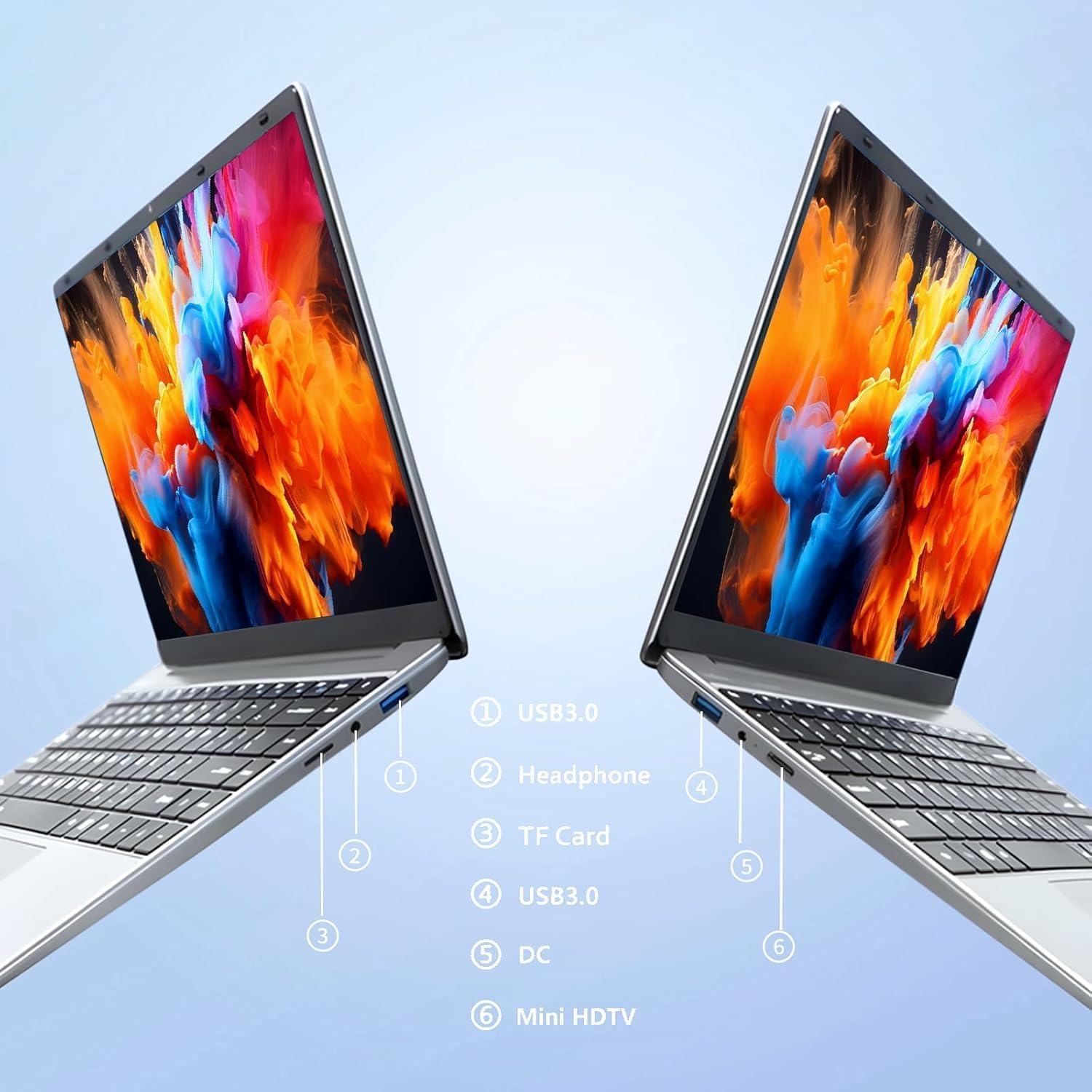
בילד: זייַט view of the laptop highlighting port locations.
This image illustrates the various ports available on the FUNYET 2026 laptop. On one side, you will find a USB 3.0 port, a 3.5mm headphone jack, and a TF Card slot. On the opposite side, there is another USB 3.0 port, the DC power input, and a Mini-HDMI port.

בילד: Laptop screen displaying its 14-inch Full HD IPS features.
The laptop features a 14-inch Full HD (1920x1080) IPS display with a 16:9 aspect ratio and ultra-narrow bezels, providing a wide perspective and vivid images.

בילד: Laptop demonstrating its 180-degree foldable hinge.
The laptop's hinge allows the screen to fold back 180 degrees, offering versatile viewing angles and usage modes.
סעטאַפּ גייד
1. ערשטע אויפלאָדונג
- Unpack the laptop and power adapter from the box.
- Connect the power adapter to the DC input port on the side of the laptop.
- צאַפּן די מאַכט אַדאַפּטער אין אַ וואַנט ווענטיל.
- Allow the laptop to charge for at least 30 minutes before first use, or until the battery indicator shows a sufficient charge.
2. ערשטער מאַכט אויף
- עפענען די לאַפּטאַפּ דעקל.
- Press the power button, usually located on the keyboard deck or side.
- פֿאָלגט די אינסטרוקציעס אויף דעם עקראַן צו פֿאַרענדיקן דעם Windows 11 Pro סעטאַפּ פּראָצעס, אַרייַנגערעכנט שפּראַך אויסוואַל, נעץ פֿאַרבינדונג, און באַניצער חשבון שאַפונג.
3. קאַנעקטינג צו ווי-פי
- During the initial Windows setup, you will be prompted to connect to a Wi-Fi network. Select your network from the list and enter the password.
- If setting up later, click the Wi-Fi icon in the taskbar, select your network, and click "Connect".
אַפּערייטינג ינסטראַקשאַנז
מאַכט מאַנאַגעמענט
- מאַכט אויף: דרוק די מאַכט קנעפּל.
- שלאָפן מאָדע: מאַכט צו דעם דעקל אָדער דריק קורץ דעם מאַכט קנעפּל.
- שאַט אַראָפּ: דריקט דעם אָנהייב קנעפּל, דערנאָך מאַכט, און דערנאָך שאַט דאַון.
- ריסטאַרט: דריקט דעם אָנהייב קנעפּל, דערנאָך מאַכט, און דערנאָך ריסטאַרט.
Using the Touchpad and Touchscreen
- טאָוטשפּאַד: Use gestures for navigation. Single tap for left-click, two-finger tap for right-click, two-finger scroll for scrolling.
- טאָוטשסקרעען: Tap to select, pinch to zoom, swipe to scroll.
פונדרויסנדיק ווייַז קאַנעקשאַן
To connect an external monitor or projector:
- Connect a Mini-HDMI cable from the laptop's Mini-HDMI port to the external display's HDMI input.
- If necessary, use a Mini-HDMI to HDMI adapter (not included).
- דרוק ווינדאָוס קנעפּל + פּ to open the Project menu and select your desired display mode (Duplicate, Extend, Second screen only).
Using TF Card Expansion
Insert a TF card into the designated slot for additional storage. The laptop supports up to 1TB TF card expansion.
זאָרגן און וישאַלט
- רייניקונג: ניצט אַ ווייכן, לינט-פֿרייע שטאָף צו רייניקן דעם עקראַן און שאַסי. פֿאַר שווערע פֿלעקן, אַ ביסל אָפּווישןampווישט דעם שטאָף מיט וואַסער אָדער אַ פאַרשטעלן רייניגער. פֿאַרמייַדט שטרענגע כעמיקאַליעס.
- באַטערי זאָרגן: כדי צו פארלענגערן די לעבן פון די באַטעריע, זאָלט איר נישט אָפט אויסלאָדן די באַטעריע. האַלט דעם לאַפּטאָפּ אין אַ קיל, טרוקן אָרט אויב איר ניצט עס נישט פֿאַר לענגערע צייטן.
- טעמפּעראַטור: Operate the laptop within a temperature range of 5°C to 35°C (41°F to 95°F). Avoid direct sunlight or extreme heat/cold.
- ווענטילאַטיאָן: Ensure the ventilation openings are not blocked to prevent overheating. Do not place the laptop on soft surfaces like beds or sofas during operation.
- ווייכווארג דערהייַנטיקונגען: Regularly update Windows and drivers to ensure optimal performance and security.
טראָובלעשאָאָטינג
פּראָסט ישוז און סאַלושאַנז
| פּראָבלעם | מעגלעך לייזונג |
|---|---|
| דער לאַפּטאָפּ גייט נישט אָן. | Ensure the power adapter is securely connected and plugged into a working outlet. Check if the battery is charged. Try holding the power button for 10-15 seconds for a hard reset. |
| Wi-Fi פֿאַרבינדונג פּראָבלעמען. | Check if Wi-Fi is enabled in Windows settings. Restart your router and the laptop. Ensure you are within range of the Wi-Fi signal. Verify the Wi-Fi password. |
| לאַנגזאַמע פאָרשטעלונג. | Close unnecessary applications. Check for background processes in Task Manager. Ensure Windows is updated. Consider running a disk cleanup. |
| עקסטערנער דיספּלעי נישט דעטעקטירט. | Ensure the Mini-HDMI cable is connected correctly. Check the input source on your external display. Press ווינדאָוס קנעפּל + פּ to cycle through display modes. |
| באַטאַרייע דריינז געשווינד. | Adjust screen brightness. Close power-intensive applications. Check power settings in Windows and select a power-saving plan. Disconnect external peripherals when not in use. |
טעכניש ספּעסאַפאַקיישאַנז
| סאָרט | FUNYET |
| מאָדעל נאָמען | NY-01 |
| פאַרשטעלן גרייס | 14.1 אינטשעס |
| האַכלאָטע | 1920 רענטגענ 1080 (פול הד) |
| סקרין טעכנאָלאָגיע | IPS LCD |
| פּראַסעסער | אינטעל סעלעראן N5095 (ביז 2.9 GHz) |
| באַראַן | 16 גיגאבייט LPDDR4 (2400 מעגהערץ) |
| סטאָרידזש | 512 GB M.2 SSD (expandable via TF Card up to 1TB) |
| אָפּערייטינג סיסטעם | Windows 11 פּראָ |
| גראַפיקס | ינטעגראַטעד ינטעל גראַפיקס |
| ווירעלעסס קאַנעקטיוויטי | 5G Wi-Fi (2.4 GHz, 5.8 GHz), Bluetooth 5.0 |
| פּאָרץ | 2x USB 3.0, 1x 3.5mm Headphone, 1x 3.5mm DC Adapter, 1x Mini-HDMI, 1x TF Card Slot |
| Webקאַם | 0.3 Megapixel Front Camera |
| באַטאַרייע קאַפּאַציטעט | 5000 מאַה / 38.5 ווה |
| דימענסיעס (L X W X H) | 32.2 X 21 X 2.1 סענטימעטער (12.68 X 8.27 X 0.83 אינטשעס) |
| וואָג | 1.4 קג (3.09 לבס) |
| ספּעציעלע שטריך | 180° Foldable Hinge |
וואָראַנטי און שטיצן
וואָראַנטי אינפֿאָרמאַציע
Your FUNYET 2026 laptop comes with a 2 יאָר וואָראַנטי from the date of purchase. Please retain your proof of purchase for warranty claims. The warranty covers manufacturing defects and malfunctions under normal use. It does not cover damage caused by misuse, accidents, unauthorized repairs, or normal wear and tear.
אין דערצו, אַ 6-month free exchange/return policy may apply, subject to the terms and conditions of your purchase platform.
קונה שטיצן
For any issues, questions, or technical assistance, please contact FUNYET customer support:
- אָנליין שטיצן: Available 24/7. You can typically find support by logging into your Amazon account, navigating to "Your Account" -> "Your orders", and selecting "Ask Product Question" for your FUNYET laptop.
- בליצפּאָסט: funyestore@outlook.com
- טעלעפאן: +49 800-000-7147 (Please note operating hours may vary)

בילד: Customer service contact details and warranty information.
This image provides a visual summary of the support options, including the 2-year warranty, 6-month exchange/return policy, and contact information for phone and email support.
Ask a question about this manual
Ask about setup, troubleshooting, compatibility, parts, safety, or missing instructions. Manuals+ will review the question and use this page’s manual context to help answer it.