
1. הקדמה
The Huawei OptiXstar K251a-21 is a sub-FTTR (Fiber to the Room) unit designed to extend the high-speed network provided by the Huawei FTTR OptiXstar F50 Plus main unit. This device supports ultra-Gigabit high-speed access via upstream fiber optic lines and delivers Ultra Gigabit dual-band Wi-Fi and ultra-Gigabit network ports to users. It integrates next-generation Wi-Fi 7 technology for higher speeds and lower latency, ensuring a superior home network experience.
2. זיכערקייַט אינפֿאָרמאַציע
Please read and understand all safety instructions before using this device. Failure to follow these instructions may result in injury, damage to the device, or property damage.
- ניצן בלויז די מאַכט אַדאַפּטער סאַפּלייד מיט די מיטל.
- שטעלט נישט אויס דעם אפאראט צו וואסער, פייכטקייט, אדער עקסטרעמע טעמפעראטורן.
- ויסמיידן פּלייסינג די מיטל לעבן היץ קוואלן אָדער אין דירעקט זונשייַן.
- פאַרזיכערן געהעריק ווענאַליישאַן צו פאַרמייַדן אָוווערכיטינג.
- פרובירט נישט צו עפענען אדער פאררעכטן דעם אפאראט אליין. קאנטאקטירט קוואליפיצירטע סערוויס פערסאנעל פאר הילף.
- האַלטן די מיטל אַוועק פון קינדער און פּעץ.
3. פּעקל אינהאַלט
באַשטעטיקן אַז אַלע זאכן זענען פאַראַן אין דיין פּעקל:
- Huawei OptiXstar K251a-21 Sub FTTR Device
- מאַכט קאַבלע
- שנעלע אָנהייב גייד (אויב אַרייַנגערעכנט)
4. פּראָדוקט איבערview
Familiarize yourself with the device's components and indicators.
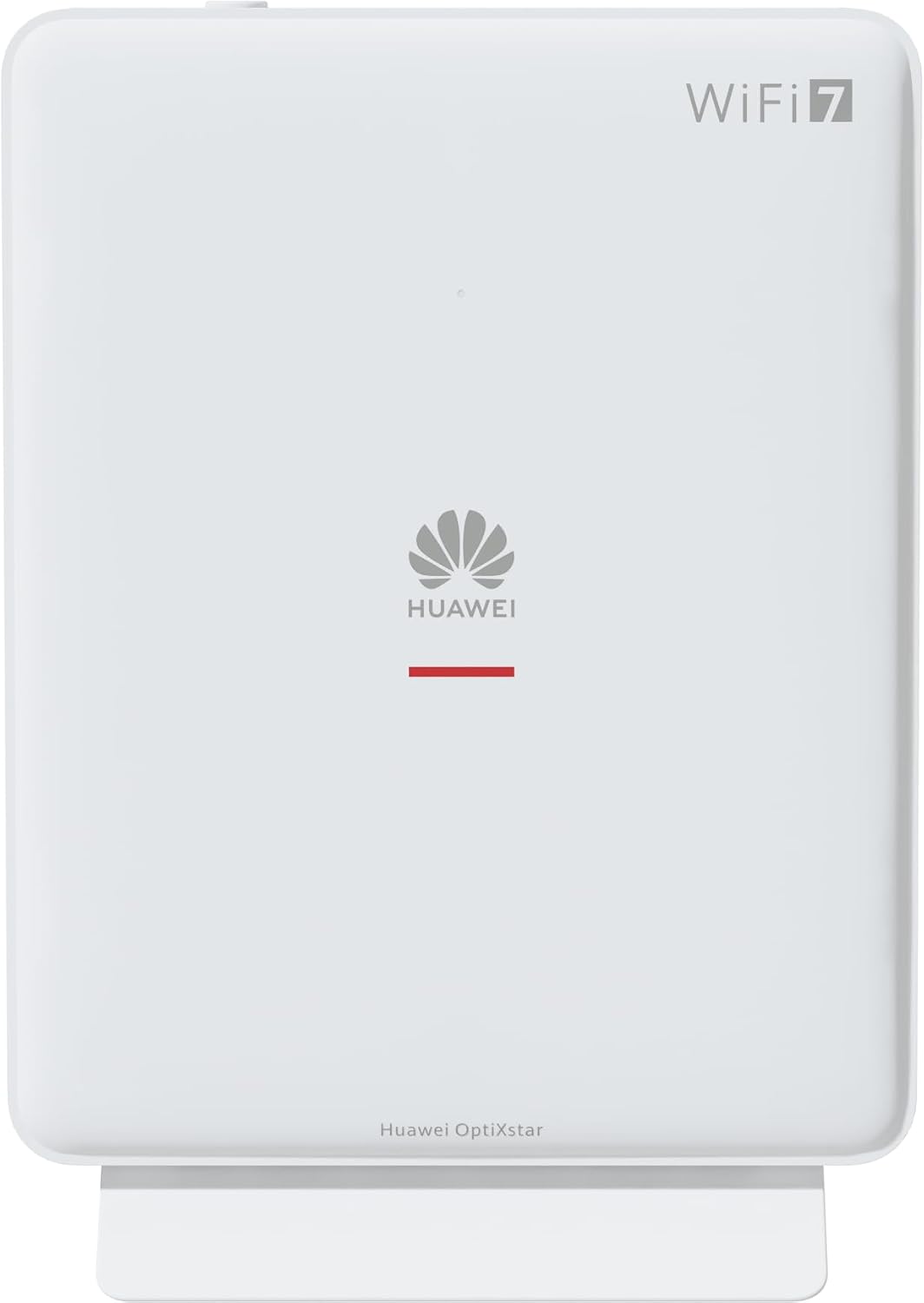
פיגורע 1: פראָנט view of the Huawei OptiXstar K251a-21 Sub FTTR device, showing the Huawei logo and "WiFi 7" branding.

Figure 2: Angled front-side view of the Huawei OptiXstar K251a-21 Sub FTTR, highlighting its sleek design and ventilation.

פיגורע 3: דערציען view of the Huawei OptiXstar K251a-21 Sub FTTR, displaying the ports (Reset, 2-GE, 1-2.5GE, Power, FTTR) and mounting options.

פיגור 4: זייט פּראָfile of the Huawei OptiXstar K251a-21 Sub FTTR, showing its slim form factor and ventilation grilles.

פיגור 5: געווינקלטע הינטערשטע view of the Huawei OptiXstar K251a-21 Sub FTTR, providing a clear look at the port labels and layout.

פיגורע 6: שפּיץ view of the Huawei OptiXstar K251a-21 Sub FTTR, featuring the WPS/LED button.
פּאָרץ און קנעפּלעך:
- FTTR Port: Connects to the main FTTR unit via a fiber optic cable.
- 1-2.5GE Port: Gigabit Ethernet port for high-speed wired connections.
- 2-GE Port: Gigabit Ethernet port for wired connections.
- מאַכט פּאָרט: קאַנעקץ צו די מאַכט אַדאַפּטער.
- באַשטעטיק קנעפּל: געניצט צו צוריקשטעלן די פאַבריק סעטטינגס (דריקן און האַלטן פֿאַר 5-10 סעקונדעס).
- WPS/LED Button: Initiates Wi-Fi Protected Setup (WPS) for easy device connection and controls LED indicators.
5. סעטאַפּ
Follow these steps to set up your Huawei OptiXstar K251a-21 Sub FTTR device:
- אָרט: Choose a central location in your home for optimal Wi-Fi coverage. The device is suitable for various installation scenarios, including vertical placement on a desk, wall-mounting, plugging into a power strip, or mounting in an 86mm junction box with a bracket.
- פאַרבינדן פיבער אָפּטיש קאַבל: Connect one end of the fiber optic cable to the FTTR port on the Sub FTTR unit and the other end to the corresponding FTTR port on your Huawei FTTR OptiXstar F50 Plus main unit or wall outlet. Ensure the connection is secure.
- פאַרבינדן מאַכט: Plug the power adapter into the Power port on the Sub FTTR unit, then plug the other end into a power outlet.
- מאַכט אויף: The device will automatically power on. Wait for the indicator lights to stabilize, typically indicating a successful connection to the main FTTR unit and active Wi-Fi.
- Wired Connections (Optional): For wired devices, connect an Ethernet cable from the 1-2.5GE or 2-GE ports on the Sub FTTR to your computer, gaming console, or other network devices.
6. אָפּערייטינג
Once set up, your OptiXstar K251a-21 provides seamless Wi-Fi 7 connectivity.
- Wi-Fi קאַנעקשאַן: זוכן פֿאַר the Wi-Fi network name (SSID) broadcast by your FTTR system on your devices (smartphones, laptops, etc.). Enter the Wi-Fi password. The system's unique SRCN (Seamless Roaming Coordinate Network) technology ensures seamless roaming throughout your home.
- C-WAN Architecture: The C-WAN architecture centrally controls and coordinates network-wide Wi-Fi resources via the Main FTTR, providing an ultra-Gigabit high-speed experience.
- IoT Casing: The device features an IoT casing designed to protect home network security and privacy.
- WPS פונקציע: Press the WPS/LED button briefly to use Wi-Fi Protected Setup (WPS) for quick connection of compatible devices without entering the password.
- LED ינדיקאַטאָרס: The LED indicators provide status information. Refer to the main FTTR unit's manual or the device's specific documentation for detailed LED status meanings.
7. וישאַלט
Regular maintenance helps ensure optimal performance and longevity of your device.
- רייניקונג: Gently wipe the device with a soft, dry cloth. Do not use liquid cleaners or abrasive materials.
- Firmware דערהייַנטיקונגען: Huawei periodically releases firmware updates to improve performance and security. These updates are typically managed through the main FTTR unit or a dedicated mobile application. Ensure your system is always running the latest firmware.
- ווענטילאַטיאָן: ענשור אַז די ווענטאַליישאַן אָופּאַנינגז זענען נישט אפגעשטעלט צו פאַרמייַדן אָוווערכיטינג.
- קאַבלע פאַרוואַלטונג: Keep fiber optic and power cables neatly organized and free from kinks or excessive bending.
8. טראָובלעשאָאָטינג
אויב איר טרעפן ישוז, פּרובירן די פאלגענדע טראָובלעשאָאָטינג סטעפּס:
- קיין מאַכט: Check if the power cable is securely connected to both the device and the power outlet. Try a different outlet.
- קיין אינטערנעט פֿאַרבינדונג:
- Verify that the fiber optic cable is correctly connected to the FTTR port.
- Check the status indicators on both the Sub FTTR and the main FTTR unit.
- Restart both the Sub FTTR and the main FTTR unit by unplugging them from power for 30 seconds and then plugging them back in.
- Ensure your main FTTR unit has an active internet connection.
- לאַנגזאַמע Wi-Fi גיכקייט:
- Ensure the device is placed optimally, away from obstructions and interference sources.
- Check if too many devices are connected to the network.
- Update the firmware of your FTTR system.
- Consider using a wired connection for bandwidth-intensive tasks.
- קענען ניט פאַרבינדן צו Wi-Fi:
- באַשטעטיקט אַז איר גיט אַרײַן דאָס ריכטיקע Wi-Fi פּאַראָל.
- Try using the WPS button to connect.
- Restart your device and the Sub FTTR unit.
- פאַבריק באַשטעטיק: If issues persist, you may need to perform a factory reset. With the device powered on, use a pointed object (like a paperclip) to press and hold the Reset button for 5-10 seconds until the indicators change. Note that this will erase all custom settings.
9. ספּעסאַפאַקיישאַנז
| שטריך | באַשרייַבונג |
|---|---|
| סאָרט | HUAWEI |
| מאָדעל נומער | K8M251a-21G02 |
| דימענשאַנז (פּאַקאַץ) | 24.5 X 23.7 X 7.4 סענטימעטער |
| וואָג (פּאַקעט) | 300 גראַמז |
| ספּעציעלע שטריך | אינטערנעט זיכערהייַט |
| אָפטקייַט באַנד קלאַס | צווייענדיק באַנד |
| ווירעלעסס קאָמוניקאַציע סטאַנדאַרד | 802.11ax (Wi-Fi 7 Generation) |
| קאַמפּאַטאַבאַל דעוויסעס | פערזענלעכע קאָמפּיוטער |
| רעקאָממענדעד ניצט | היים |
| אַרייַנגערעכנט קאַמפּאָונאַנץ | מאַכט קאַבלע |
| קאַנעקטיוויטי טעכנאָלאָגיע | Ethernet, FTTR, Wi-Fi, Fiberglass |
| קאָליר | ווייַס |
| נומער פון פּאָרץ | 4 (FTTR, 1-2.5GE, 2-GE, Power) |
| דאַטאַ אַריבערפירן קורס | 1 Gigabits per second |
| סמאַרט היים קאַמפּאַטאַבילאַטי | Compatible with smart home systems |
| אינטערנעט קאַנעקטיוויטי | יא |
| קאַנעקטיוויטי פּראָטאָקאָל | ווי-פי |
10. וואָראַנטי און שטיצן
פֿאַר וואָראַנטי אינפֿאָרמאַציע און טעכנישע שטיצע, ביטע זען די באַאַמטער Huawei website or contact your local Huawei customer service. Keep your purchase receipt for warranty claims.
אָנליין רעסורסן: Visit the official Huawei support webזייטל פֿאַר אָפֿט געשטעלטע פֿראַגעס, דערהייַנטיקטע מאַנואַלן, און ווייכווארג דאַונלאָודז.
קונה סערוויס: Contact details for customer support can typically be found on the Huawei website or in the documentation provided with your main FTTR unit.