
הקדמה
Thank you for choosing the Prechen 21.5 Inch Portable Touchscreen Monitor. This monitor is designed to provide a responsive multi-touch experience with a Full HD 1080p display, 75Hz refresh rate, and versatile connectivity options. This manual provides essential information for setting up, operating, and maintaining your monitor. Please read it thoroughly before use.
פּעקל אינהאַלט
ביטע טשעק די פּאַקעט פֿאַר די פאלגענדע זאכן:
- Prechen 21.5 Inch Portable Touchscreen Monitor
- מאַכט אַדאַפּטער
- HDMI קאַבלע
- וסב-C צו וסב-C קאַבלע
- וסב-א צו וסב-C קאַבלע
- באַניצער מאַנואַל
פּראָדוקט איבערview
Familiarize yourself with the ports and buttons on your monitor.
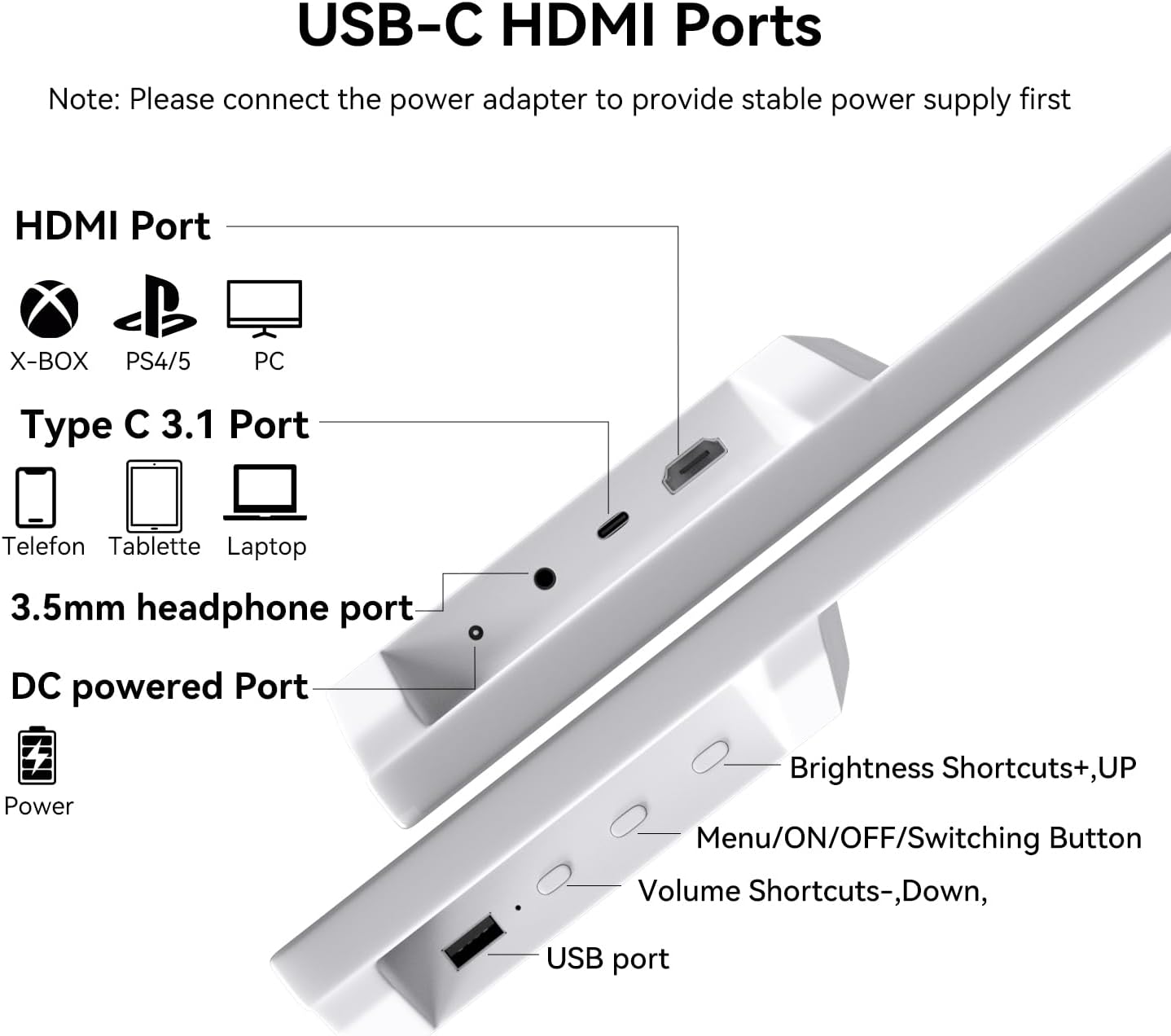
בילד: זייַט view of the monitor detailing the HDMI Port, Type C 3.1 Port, 3.5mm headphone port, DC powered Port, Brightness Shortcuts (+UP), Menu/ON/OFF/Switching Button, Volume Shortcuts (-Down), and USB port.
- הדמי פּאָרט: Connects to devices like X-BOX, PS4/5, and PCs for video and audio input.
- Type C 3.1 Port: Connects to phones, tablets, and laptops for video, audio, and touch signal transmission. Requires a full-featured USB-C port on the connected device.
- 3.5 מ״מ כעדפאָון פּאָרט: פֿאַר קאַנעקטינג פונדרויסנדיק אַודיאָ דעוויסעס.
- DC Powered Port: Connects to the power adapter for stable power supply. Always connect power here first.
- וסב פּאָרט: פֿאַר פֿאַרבינדן USB דעוויסעס.
- Brightness Shortcuts (+UP): אַדזשאַסץ אַרויסווייַזן ברייטנאַס.
- Menu/ON/OFF/Switching Button: Accesses the OSD menu, powers the monitor on/off, and switches input sources.
- Volume Shortcuts (-Down): אַדזשאַסטירט אַודיאָ באַנד.
סעטאַפּ אינסטרוקציעס
Follow these steps to set up your Prechen portable touchscreen monitor.
1. Power Connection (Important)
Due to the touchscreen's power requirements, it is crucial to connect the monitor to a power source via the DC input first, before connecting any signal cables (HDMI or USB-C). This ensures stable power delivery for full multi-touch functionality.
2. פֿאַרבינדן זיך צו דעוויסעס
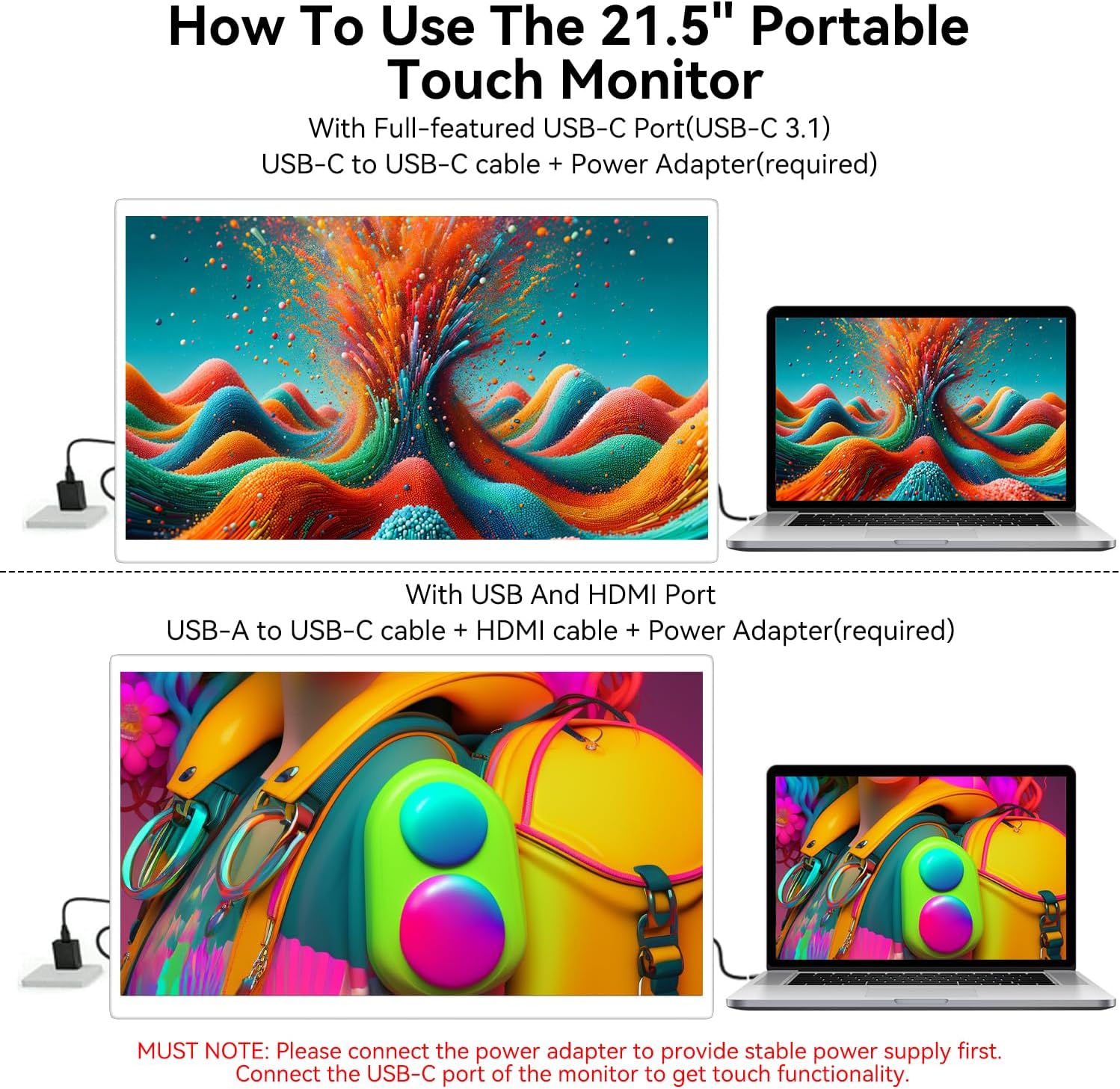
בילד: Connection methods for the monitor. Top: USB-C to USB-C with power adapter. Bottom: USB-A to USB-C, HDMI, and power adapter.
Option A: Full-featured USB-C Port (USB-C 3.1)
- Connect the power adapter to the monitor's DC powered port.
- Connect one end of the USB-C to USB-C cable to the monitor's Type C 3.1 Port.
- Connect the other end of the USB-C to USB-C cable to your device's full-featured USB-C port. This single cable will transmit video, audio, and touch signals.
Option B: HDMI and USB-A Port
- Connect the power adapter to the monitor's DC powered port.
- Connect one end of the HDMI cable to the monitor's HDMI Port.
- Connect the other end of the HDMI cable to your device's HDMI output.
- Connect one end of the USB-A to USB-C cable to the monitor's Type C 3.1 Port.
- Connect the USB-A end of the cable to your device's USB-A port to enable touch functionality.
3. Adjusting the Stand and VESA Mounting

בילד: The monitor's integrated stand allows for 0-90 degree adjustment, providing flexible viewינג אַנגלעס.
The monitor features an integrated stand that can be adjusted up to 90 degrees for optimal viewing angles. For alternative setups, the monitor is compatible with standard VESA mounts (75x75mm), allowing for wall or arm mounting.
אַפּערייטינג ינסטראַקשאַנז
1. מאַכט אויף / אויסגעלאשן
דרוק די Menu/ON/OFF/Switching Button located on the back of the monitor to power it on or off.
2. טאָוטשסקרין פאַנגקשאַנאַליטי
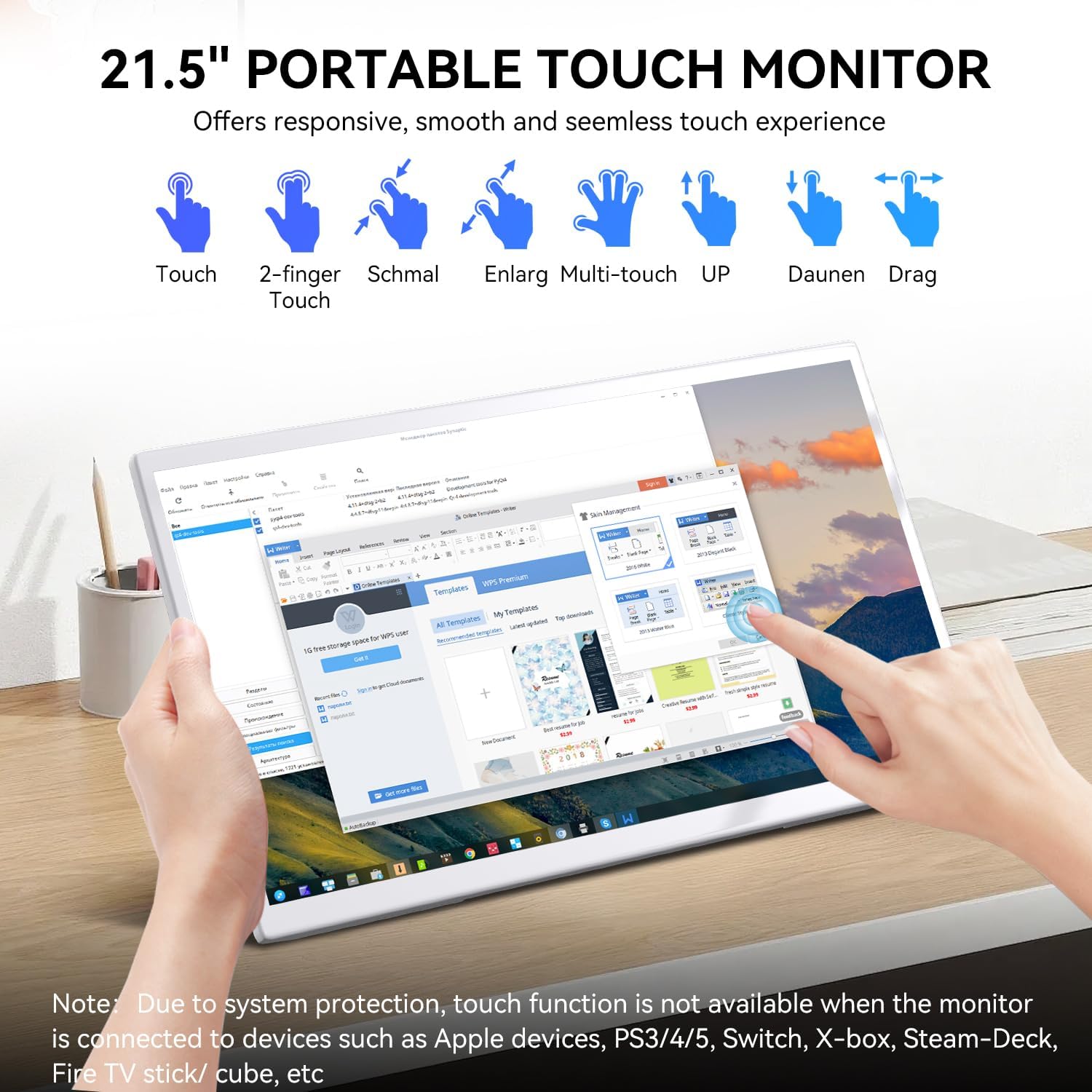
בילד: The monitor supports various touch gestures including single touch, two-finger touch, multi-touch, and drag operations.
The monitor supports responsive capacitive multi-touch. Use gestures such as touch, two-finger touch, and drag for interaction.
וויכטיקע קאָמפּאַטאַביליטי הערות:
- The touchscreen is ניט קאַמפּאַטאַבאַל with Linux-based and gaming devices (e.g., PS3/4/5, Switch, X-box, Steam-Deck).
- Apple devices (iOS/macOS) support single-point touch only due to system protection and operating system limitations.
3. אויף-סקרין ווייַז (אָסד) מעניו
דרוק די Menu/ON/OFF/Switching Button to access the OSD menu. Use the Brightness Shortcuts (+UP) and Volume Shortcuts (-Down) buttons to navigate and adjust settings within the menu.
4. אַודיאָ אָוטפּוט

בילד: The monitor features dual built-in speakers for clear and vivid sound.
The monitor includes dual built-in speakers for audio output. You can also connect external headphones or speakers via the 3.5mm headphone port.
וישאַלט
געהעריגע זאָרג גאַראַנטירט די לאַנגלעבעדיקייט פון דיין מאָניטאָר.
- רייניקונג די פאַרשטעלן: ווישט אָפּ דעם עקראַן מיט אַ ווייכן, לינט-פֿרײַעם שטאָף. פֿאַר שווערע פֿלעקן, דampווישט דעם שטאָף לײַכט מיט וואַסער אָדער אַ רייניקונג־לייזונג פֿאַרן עקראַן. פֿאַרמײַדט שאַרפֿע כעמיקאַלן אָדער אַברייסיוו מאַטעריאַלן.
- רייניקונג פון די Casing: ניצט אַ ווייכע, טרוקענע שטאָף צו ווישן דעם מאָניטאָרasing.
- סטאָרידזש: ווען נישט אין באַנוץ פֿאַר לענגערע פּעריאָדן, זאָל מען האַלטן דעם מאָניטאָר אין אַ קיל, טרוקן אָרט, אַוועק פֿון דירעקטער זון און עקסטרעמע טעמפּעראַטורן.
- ויסמיידן ליקווידס: Do not spray liquids directly onto the monitor or allow them to drip into openings.
טראָובלעשאָאָטינג
אויב איר טרעפט פּראָבלעמען, זעט די פאלגענדע געוויינטלעכע פּראָבלעמען און לייזונגען.
| פּראָבלעם | מעגלעך סיבה | לייזונג |
|---|---|---|
| No display/"No Signal" message | Loose cable connection, incorrect input source, device not outputting signal. | Ensure all cables (HDMI/USB-C) are securely connected. Press the Menu/ON/OFF/Switching Button to cycle through input sources. Verify your connected device is powered on and configured to output video. |
| טאָוטשסקרעען ריספּאַנד נישט | Insufficient power, incorrect cable connection, device incompatibility. | Always ensure the monitor is connected to its power adapter via the DC input first. For USB-C connections, ensure your device's USB-C port is full-featured (supports video, audio, and touch). If using HDMI, ensure the USB-A to USB-C cable is connected for touch. Remember, touchscreen is not compatible with Linux/gaming devices, and Apple devices support single-point touch only. |
| קיין אַודיאָ פֿון רעדנערס | Volume too low, mute enabled, audio source issue. | Increase volume using the Volume Shortcuts (-Down) button. Check your connected device's audio settings. Ensure no headphones are plugged into the 3.5mm jack if you want sound from the built-in speakers. |
| Buttons on back control brightness/volume inconsistently | Context-sensitive button functionality. | The Brightness Shortcuts (+UP) and Volume Shortcuts (-Down) buttons may have different functions depending on whether the OSD menu is active or not. When the OSD menu is not active, they typically control brightness and volume directly. When the OSD menu is open, they are used for navigation. |
| בילד איז פארשוואומען אדער פארדרייט | Incorrect resolution, cable quality. | Ensure your device's display settings are set to the monitor's native resolution (1920x1080). Try using a different HDMI or USB-C cable if available. |
ספּעסאַפאַקיישאַנז
Detailed technical specifications for the Prechen 21.5 Inch Portable Touchscreen Monitor.
| שטריך | דעטאַל |
|---|---|
| סאָרט | פּרעטשען |
| מאָדעל נומער | הד-215 |
| פאַרשטעלן גרייס | 21.5 אינטשעס |
| האַכלאָטע | FHD 1080p (1920 x 1080 pixels) |
| דערפרישן קורס | 75 הערץ |
| ווייַז טעכנאָלאָגיע | IPS געפירט |
| ברייטנאַס | 300 סי / מ² |
| קאַנטראַסט פאַרהעלטעניש | 1000:1 |
| ענטפער צייט | 3 מיליסעקאַנדז |
| באַשרייַבונג פון דער אויבערפלאַך פון דעם עקראַן | גלאָסי |
| נאָך פֿעיִקייטן | Touchscreen, Built-in Speakers, VESA Mount Compatible |
| קאַנעקטיוויטי טעכנאָלאָגיע | הדמי, וסב טיפּ- C |
| נומער דימענשאַנז (ד רענטגענ וו רענטגענ ה) | 19.68"ד רענטגענ 1.18"וו רענטגענ 11.81"ה |
| קאָליר | ווייַס |
| UPC | 753018887438 |
וואָראַנטי און שטיצן
וואָראַנטי אינפֿאָרמאַציע
This Prechen monitor comes with a 1-year limited warranty from the date of purchase. This warranty covers manufacturing defects and workmanship under normal use. It does not cover damage caused by misuse, accidents, unauthorized modifications, or external causes.
קונה שטיצן
For technical assistance, warranty claims, or any questions regarding your Prechen monitor, please contact our customer support team. Refer to the contact information provided on the product packaging or the official Prechen webזייטל פֿאַר די מערסט אַרויף-צו-דאַטע שטיצע דעטאַילס.
When contacting support, please have your model number (HD-215) and proof of purchase readily available.