
1. הקדמה
This manual provides detailed instructions for the Donner DEK-630 61-Key Electronic Keyboard. Please read this manual thoroughly before using the instrument to ensure proper operation and to maximize your musical experience. The DEK-630 is designed for beginners and music enthusiasts, featuring lighted keys, various tones and rhythms, and learning modes to support your musical journey.

Image 1.1: The Donner DEK-630 61-Key Electronic Keyboard Set, including the keyboard, Z-stand, and bench.
2. וואָס איז אין דער קעסטל
באַשטעטיקן אַז אַלע קאָמפּאָנענטן זענען פאַראַן אין דער פּאַקעט:
- Donner DEK-630 Electric Keyboard
- Z-shaped Stand
- פּיאַנע באַנק
- מוזיק רעסט
- נאטיץ סטיקערז
- מאַכט אַדאַפּטער
- ינסטרוקטיאָן מאַנואַל (דעם דאָקומענט)
3. סעטאַפּ
3.1 Assembling the Z-shaped Stand
- Unfold the main frame of the Z-stand.
- Attach the horizontal support bars to the vertical frames using the provided screws and knobs. Ensure they are securely tightened.
- Adjust the height of the stand to your preferred playing position using the adjustment knobs.
Video 3.1: Official Donner Music video demonstrating the assembly of the DEK-630 keyboard stand.
3.2 צוזאַמענשטעלן די פּיאַנע באַנק
- Unfold the legs of the piano bench.
- Ensure all locking mechanisms are engaged for stability.
3.3 Placing the Keyboard and Music Rest
- Carefully place the DEK-630 keyboard onto the assembled Z-stand. Ensure it is stable and centered.
- אַרײַנשטעלן די מוזיק־שטיצע אין די באַשטימטע סלאָץ אויף דער אויבערשטער טאַפֿליע פֿון דער קלאַוויאַטור.

Image 3.1: The Donner DEK-630 keyboard fully set up with the Z-stand and piano bench.
3.4 מאַכט קאַנעקשאַן
- Connect the provided power adapter to the DC 12V input jack (8) on the rear panel of the keyboard.
- צאַפּן די מאַכט אַדאַפּטער אין אַ נאָרמאַל עלעקטריקאַל ווענטיל.

Image 3.2: Close-up of the DEK-630's rear panel, highlighting the power adapter input and other connectivity options.
4. אַפּערייטינג ינסטרוקטיאָנס
4.1 מאַכט אויף / אַוועק
דרוק די מאַכט button located on the control panel to turn the keyboard on or off. The LCD display will illuminate upon power-on.
4.2 לקד ווייַז איבערview
The LCD display provides visual feedback on the current tone, rhythm, tempo, and learning mode status. Use the navigation buttons to browse through options.

Image 4.1: The DEK-630's LCD display, showing active settings for tones, rhythms, and learning modes.
4.3 Tone Selection (300 Tones)
To select a tone:
- דרוק די טאָן קנעפּל.
- ניצט דעם נומערן-טאוול אדער דעם +/- buttons to select from 300 available tones. The selected tone number and name will appear on the LCD.
4.4 Rhythm Selection (256 Rhythms)
To select a rhythm:
- דרוק די ריטם קנעפּל.
- ניצט דעם נומערן-טאוול אדער דעם +/- buttons to select from 256 available rhythms.
- דרוק אָנהייב / האַלטן צו אָנהייבן אָדער ענדיקן די ריטם ווידערשפּיל.
4.5 Demo Songs (40 Songs)
The keyboard includes 40 demo songs for listening and practice.
- דרוק די דעמאָ ליד קנעפּל.
- ניצן די +/- buttons to cycle through the demo songs.
- דרוק שפּיל to start the selected demo song.
4.6 Learning Modes
The DEK-630 offers built-in learning modes to assist beginners, including lighted keys, auto-chord, and metronome functions.
- ליגהטעד שליסלען: Keys illuminate to guide you during learning exercises.
- Auto-Chord: Automatically plays chords based on single key presses, simplifying accompaniment.
- מעטראָנאָמע: Provides a steady beat to help develop rhythm and timing. Activate by pressing the METRONOME קנעפּל.

Image 4.2: A user's hands playing the DEK-630, demonstrating the lighted key feature for learning.
4.7 רעקאָרדינג און פּלייבאַק
To record your performance:
- דרוק די REC button. The REC indicator will light up.
- שפּילט אייער געוואונטשענע מעלאָדיע.
- דרוק שפּיל to stop recording and listen to your recorded performance.
4.8 Dual Keyboard / Split Functions
- Dual Keyboard: Allows two different voices to be layered and played simultaneously.
- שפּאַלטן פונקציע: Divides the keyboard into two sections, each with its own tone, allowing two different instruments to be played at once. Refer to the full manual for detailed activation steps.
4.9 באַנד קאָנטראָל
אַדזשאַסטירן די הויפּט באַנד מיט די בעל באַנד knob or buttons on the control panel.
4.10 קאָנעקטיוויטי אָפּציעס
The DEK-630 offers various ports for expanded functionality:
- Sustain Pedal Jack (1): Connect an optional sustain pedal for expressive playing.
- MIDI Port (2): Connect to computers or other MIDI devices for music production and learning software.
- יו-עס-בי פּאָרט (3): For USB MIDI connectivity.
- Audio Input Line (4): Connect external audio sources (e.g., MP3 player) to play along.
- Output (L/R) (5): פאַרבינדן צו פונדרויסנדיק ampליפיערס אדער מיקסינג קאנסאלן.
- Mic Jack (6): Connect a microphone for vocal accompaniment.
- כעדפאָון דזשעק (7): Connect headphones for private practice. Headphones need to be purchased separately.
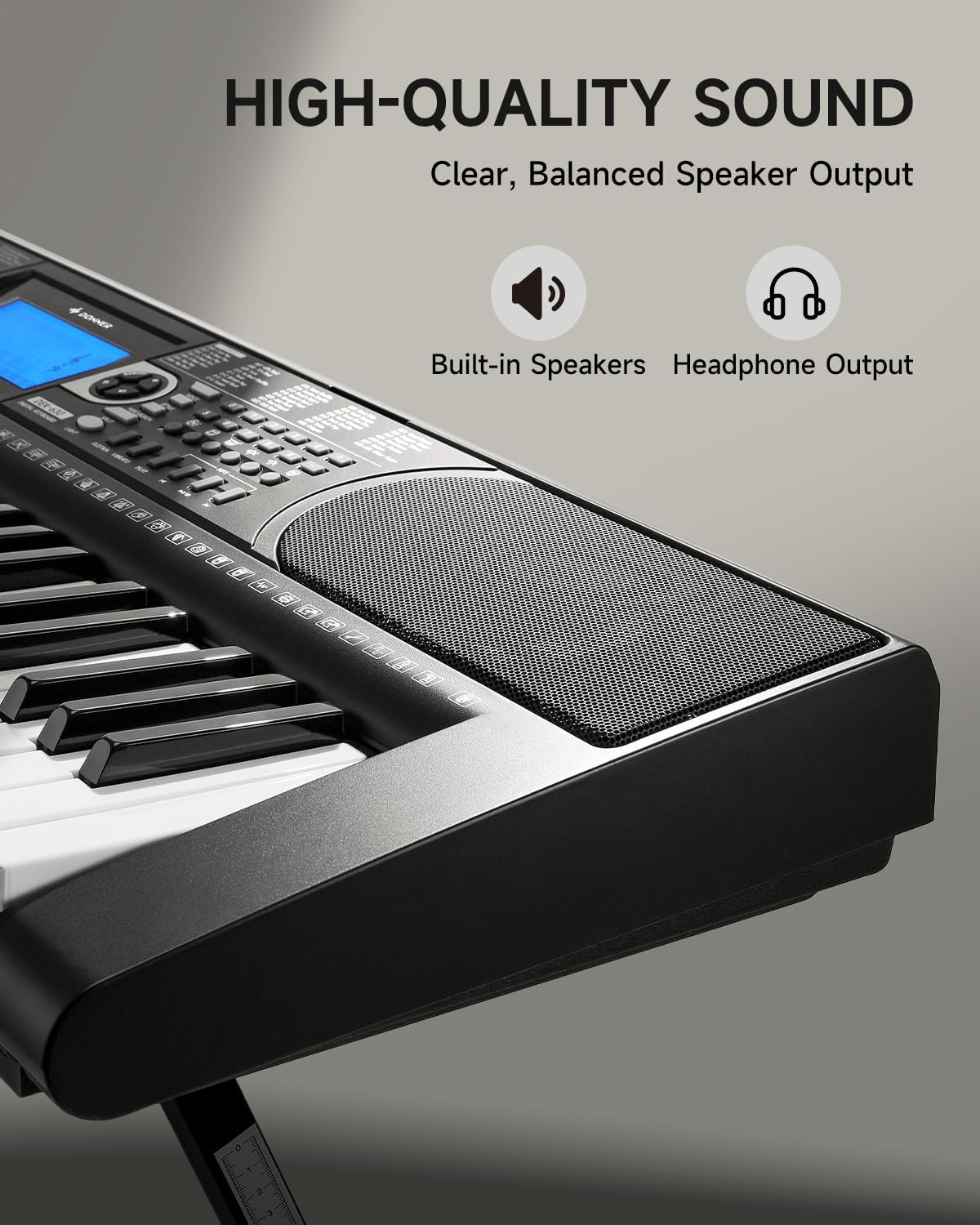
Image 4.3: The DEK-630's built-in speaker and headphone output for versatile sound options.
5. וישאַלט
5.1 רייניקונג
- Wipe the keyboard and stand with a soft, dry cloth.
- פֿאַר פאַרביסן שמוץ, נוצן אַ ביסל דamp שטאָף און דעמאָלט טרוקן ונ דורך.
- Avoid using abrasive cleaners, solvents, or waxes, as these can damage the finish.
5.2 סטאָרידזש
- האַלט די קלאַוויאַטור אין אַ קיל, טרוקן אָרט אַוועק פון דירעקט זונשייַן און עקסטרעמע טעמפּעראַטורן.
- If storing for an extended period, disconnect the power adapter.
6. טראָובלעשאָאָטינג
| פּראָבלעם | מעגלעך סיבה | לייזונג |
|---|---|---|
| קיין געזונט |
|
|
| שליסלען ריספּאַנד נישט |
|
|
| לקד אַרויסווייַזן איז ליידיק |
|
|
7. ספּעסאַפאַקיישאַנז
- מאָדעל: DEK-630
- נומער פון שליסלען: 61
- טאָנעס: 300
- ריטמס: 256
- דעמאָ לידער: 40
- ספּעציעלע פֿעיִקייטן: Built-In Speaker, Lighted Keys, Portable, LCD Display, Learning Modes (Auto-Chord, Metronome)
- קאַנעקטיוויטי: USB MIDI, Audio Input, Output (L/R), Mic Jack, Headphone Jack, Sustain Pedal Jack
- מאַכט: דק 12 וו מאַכט אַדאַפּטער
- Dimensions (Keyboard without stand): 37.80 X 11.81 X 3.54 אינטשעס (96 X 30 X 9 סענטימעטער)
- אַרייַנגערעכנט קאַמפּאָונאַנץ: Electric Keyboard, Z-shaped Stand, Piano Bench, Music Rest, Note Stickers
8. וואָראַנטי און שטיצן
8.1 וואָראַנטי אינפֿאָרמאַציע
The Donner DEK-630 Electronic Keyboard comes with a 2 יאָר וואָראַנטי פֿון דעם קויפֿדאַטום. די וואָראַנטי דעקט פֿאַבריקאַציע חסרונות און מאַלפאַנגקשאַנז אונטער נאָרמאַל נוצן. ביטע האַלטן דיין קויפֿבאַווייַז פֿאַר וואָראַנטי קליימז. די וואָראַנטי דעקט נישט שעדיקן געפֿירט דורך מיסברויך, אַקסאַדאַנץ, נישט-אָטעריזירטע מאָדיפֿיקאַציעס, אָדער נאָרמאַל טראָגן און טרער.
8.2 קונה שטיצן
For technical assistance, troubleshooting, or warranty inquiries, please contact Donner customer support. Visit the official Donner webזייטל פֿאַר קאָנטאַקט אינפֿאָרמאַציע און נאָך רעסורסן.
Donner Official Webפּלאַץ: www.donnerdeal.com