
הקדמה
This manual provides essential information for setting up, operating, maintaining, and troubleshooting your HP 17.3" Touchscreen Laptop, model 17-cp3602nr. Please read this guide thoroughly to ensure proper use and to maximize the lifespan of your device.
פּעקל אינהאַלט
באַשטעטיקן אַז אַלע זאכן זענען פאַראַן אין פּעקל:
- HP 17.3" Touchscreen Laptop (Model 17-cp3602nr)
- AC Power Adapter and Cord
- שנעלע אָנהייב גייד (אויב אַרייַנגערעכנט)

Image: The HP 17.3" Touchscreen Laptop and its included power adapter.
סעטאַפּ
1. ערשטע איינשטראָם און אויפלאָדן
- Connect the AC power adapter to the laptop's AC smart pin port and then to a power outlet.
- עפֿנט דעם דעקל פֿונעם לאַפּטאָפּ. דער לאַפּטאָפּ קען זיך אויטאָמאַטיש אָנצינדן, אָדער איר דאַרפֿט אפשר דריקן דעם "פּאַוער" קנעפּל אויפֿן קלאַוויאַטור.
- Allow the battery to charge fully before initial use, though you can begin setup while charging.
2. ווינדאָוס 11 סעטאַפּ
Follow the on-screen instructions to complete the Windows 11 Home setup. This typically includes:
- אויסקלייבן אייער ראיאן און קלאַוויאַטור אויסלייג.
- קאַנעקטינג צו אַ Wi-Fi נעץ.
- זיך אריינלאָגירן מיט אדער שאַפֿן אַ מייקראָסאָפֿט חשבון.
- אויפשטעלן א PIN אדער פּאַראָל.
- קאָנפיגורירן פּריוואַטקייט סעטטינגס.
3. פינגערפּרינט לייענער סעטאַפּ
During or after Windows setup, you can configure the fingerprint reader for secure login. Navigate to סעטטינגס > אַקאַונטס > לאָגין אָפּציעס and follow the prompts to add your fingerprint.

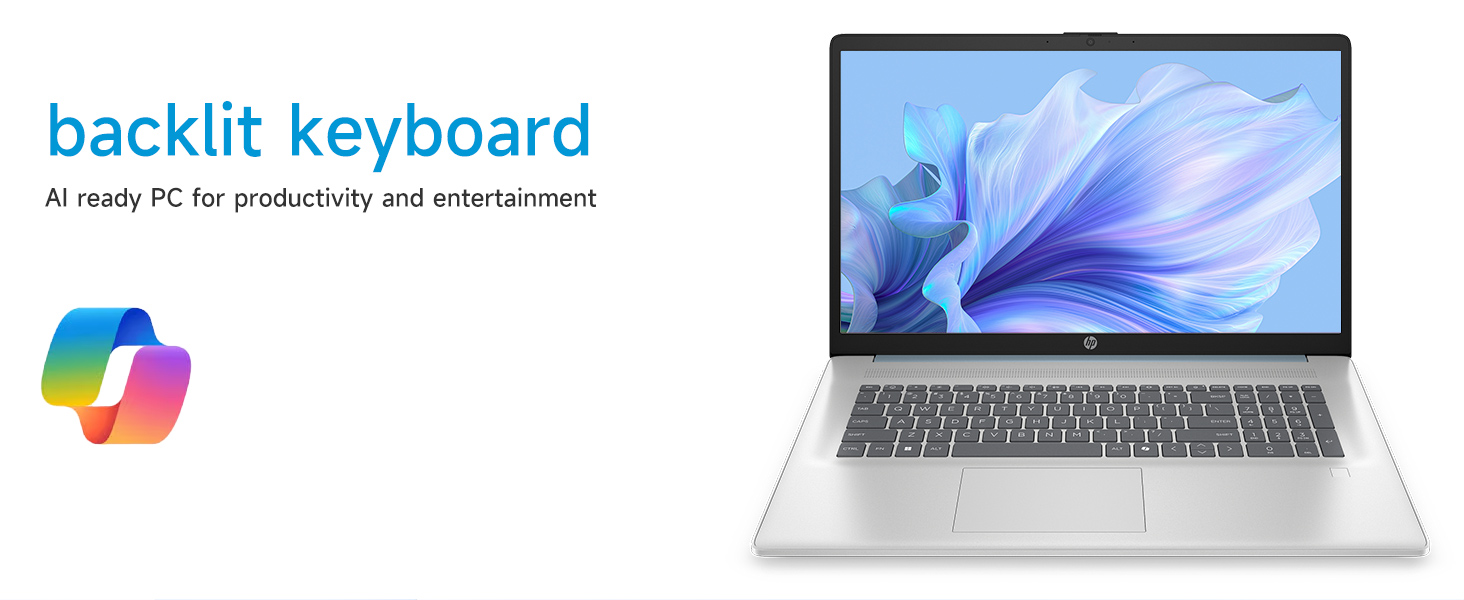
Image: Close-up of the backlit keyboard and the integrated fingerprint reader on the HP laptop.
אַפּערייטינג ינסטראַקשאַנז
ניצן דעם טאָוטשסקרין דיספּליי
The 17.3" HD+ (1600 x 900) display supports touch input. You can interact with Windows 11 and applications directly on the screen using gestures similar to a tablet or smartphone. Ensure your screen is clean for optimal touch responsiveness.
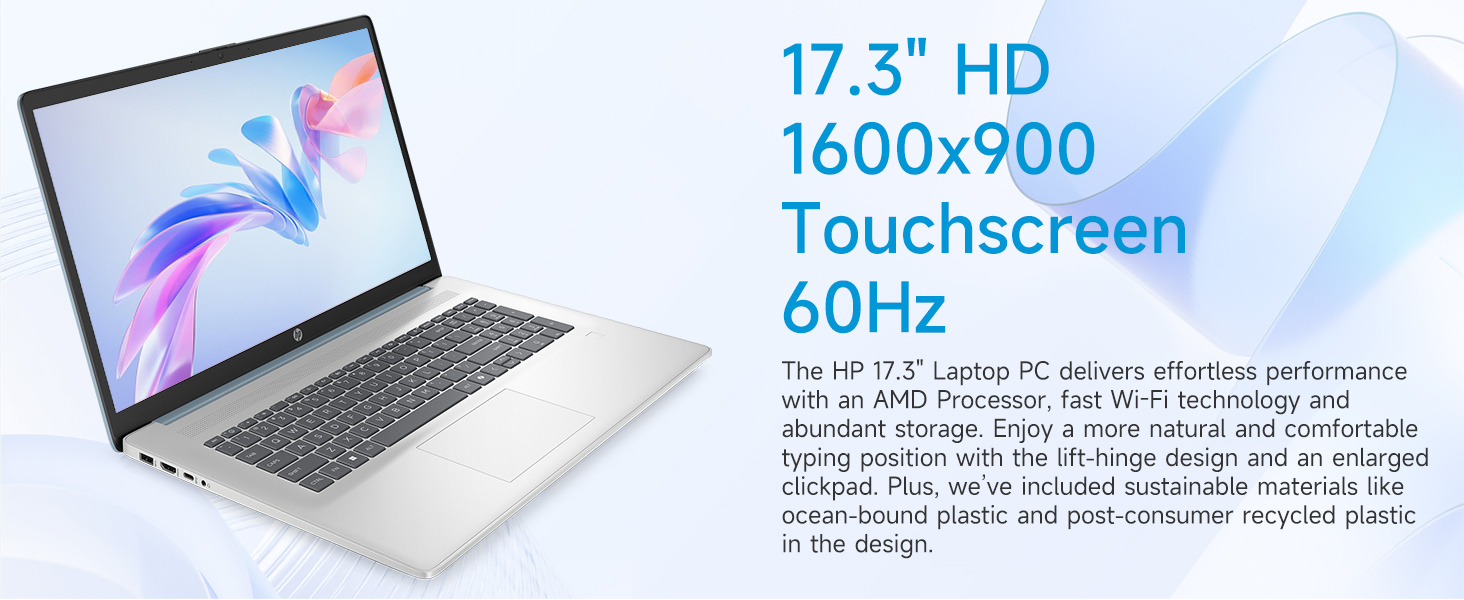
Image: The 17.3-inch touchscreen display of the HP laptop, illustrating its touch capabilities.
קלאַוויאַטור און טאָוטשפּאַד
- באַקלייט קלאַוויאַטור: דרוק די Fn + F5 (or similar function key with a keyboard backlight icon) to toggle the keyboard backlight on/off or adjust its brightness.
- נומעריק קיפּאַד: Utilize the dedicated numeric keypad for efficient data entry.
- טאָוטשפּאַד: The large click pad supports multi-touch gestures for navigation. Refer to Windows settings for customizing touchpad gestures.
Connecting External Devices (Ports)
Your laptop is equipped with various ports for connecting peripherals:
- יו-עס-בי טיפ-סי (5 גי-בי-עס סיגנאליזאציע ראטע): פֿאַר פֿאַרבינדן מאָדערנע USB-C דעוויסעס.
- יו-עס-בי טיפ-א (5 גי-בי-עס-בי סיגנאלינג ראטע): Two ports for standard USB devices like mice, keyboards, or external drives.
- HDMI 1.4b: פאַרבינדן צו עקסטערנע מאָניטאָרן אָדער טעלעוויזאָרס פֿאַר פֿאַרלענגערטע אַרויסווייַזן.
- כעדפאָון/מיקראָפאָן קאָמבאָ דזשעק: For audio input/output with a single jack.
- AC Smart Pin: פֿאַר קאַנעקטינג די מאַכט אַדאַפּטער.
בילד: דעטאַלירט view of the laptop's side ports, including USB-A, USB-C, HDMI, and audio jack.
Wi-Fi 6 קאָנעקטיוויטי
The laptop supports Wi-Fi 6 (802.11ax) for fast and reliable wireless internet connectivity. To connect, click the Wi-Fi icon in the taskbar, select your network, and enter the password.
וישאַלט
רייניקן דיין לאַפּטאָפּ
- פאַרשטעלן: ניצן אַ ווייך, לינט-פֿרייַ שטאָף אַ ביסל דampגעוואשן מיט וואַסער אָדער אַ פאַרשטעלן רייניגער. פֿאַרמייַדן שטרענגע כעמיקאַליעס.
- קלאַוויאַטור און שאַסי: ניצט אַ ווייכע, טרוקענע שטאָף. פֿאַר שווערע שמוץ, אַ ביסל טרוקןamp מען קען ניצן אַ שטאָף, און זיכער מאַכן אַז קיין פליסיקייט גייט נישט אַרײַן אין די עפענונגען.
- פּאָרץ: Keep ports free of dust and debris using compressed air if necessary.
ווייכווארג דערהייַנטיקונגען
קאָנטראָלירט און אינסטאַלירט רעגלמעסיק ווינדאָוס דערהייַנטיקונגען צו זיכער מאַכן אַז אייער סיסטעם האט די לעצטע זיכערהייט פּאַטשאַז און פאָרשטעלונג פֿאַרבעסערונגען. גייט צו סעטטינגס > ווינדאָוס אַפּדייט צו פאַרוואַלטן דערהייַנטיקונגען.
באַטערי קער
To prolong battery life, avoid extreme temperatures and fully discharging the battery frequently. For long-term storage, charge the battery to about 50%.
טראָובלעשאָאָטינג
די סעקציע באהאנדלט אלגעמיינע פראבלעמען וואס איר קענט באגעגענען.
לאַפּטאָפּ גייט נישט אָן
- זיכער מאַכן אַז דער AC אַדאַפּטער איז זיכער פארבונדן צו ביידע דעם לאַפּטאַפּ און אַ אַרבעטנדיקן עלעקטרישן ווענטיל.
- באַשטעטיקן אַז די עלעקטרישע ווענטיל אַרבעט דורך אַרײַנשטעקן אַן אַנדער דעוויס.
- אויב די באַטאַרייע איז גאָר אויסגעשעפּט, קען עס נעמען אַ פּאָר מינוט אויפלאָדן איידער דער לאַפּטאָפּ קען זיך אנצינדן.
Screen Remains Blank
- קוק צי דער לאַפּטאָפּ איז אנגעצונדן (מאַכט אינדיקאַטאָר ליכט).
- Try adjusting the screen brightness using the function keys (e.g., Fn + F2/F3).
- If an external monitor is connected, ensure it is properly configured in Windows display settings.
Wi-Fi קאָנעקטיוויטי פּראָבלעמען
- זייט זיכער אז Wi-Fi איז ענייבאַלד אין די Windows סעטטינגס.
- ריסטאַרט דיין ראַוטער און מאָדעם.
- פארגעסט דאס נעץ און פארבינדט זיך ווידער, נאכאמאל אריינשרייבנדיג דאס פאסווארט.
- Update Wi-Fi drivers via Device Manager.
System Restarts Unexpectedly
Unexpected restarts can be caused by software conflicts, outdated drivers, or hardware issues. Ensure all Windows updates are installed and drivers are current. If the issue persists, consider running Windows diagnostic tools or contacting HP Support.
ספּעסאַפאַקיישאַנז
| שטריך | דעטאַל |
|---|---|
| סאָרט | HP |
| מאָדעל נאָמען | 17-cp3602nr |
| פאַרשטעלן גרייס | 17.3 אינטשעס |
| ווייַז האַכלאָטע | HD+ (1600 x 900) |
| ווייַז פֿעיִקייטן | Touch, Anti-glare, 250 nits, 60% NTSC |
| פּראַסעסער | AMD Ryzen 5 7430U (6 קערנס, 12 פֿעדעם, ביז 4.3 GHz) |
| גראַפיקס | AMD Radeon גראַפיקס (אינטעגרירט) |
| באַראַן | 8 גיגאבייט DDR4 SDRAM (3200 MHz) |
| סטאָרידזש | 128 גיגאבייט פּי-סי-עי NVMe M.2 SSD |
| אָפּערייטינג סיסטעם | Windows 11 היים |
| פּאָרץ | 1x USB Type-C 5Gbps, 2x USB Type-A 5Gbps, 1x HDMI 1.4b, 1x Headphone/Microphone Combo, 1x AC Smart Pin |
| ווירעלעסס קאַנעקטיוויטי | Wi-Fi 6 (802.11 אַקס) |
| ספּעציעלע פֿעיִקייטן | Backlit Keyboard, Fingerprint Reader, Numeric Keypad, Webקאַם |
| Dimensions (L x W x Thickness) | 15.78"ל x 10.15"ברייט x 0.81"דיג |
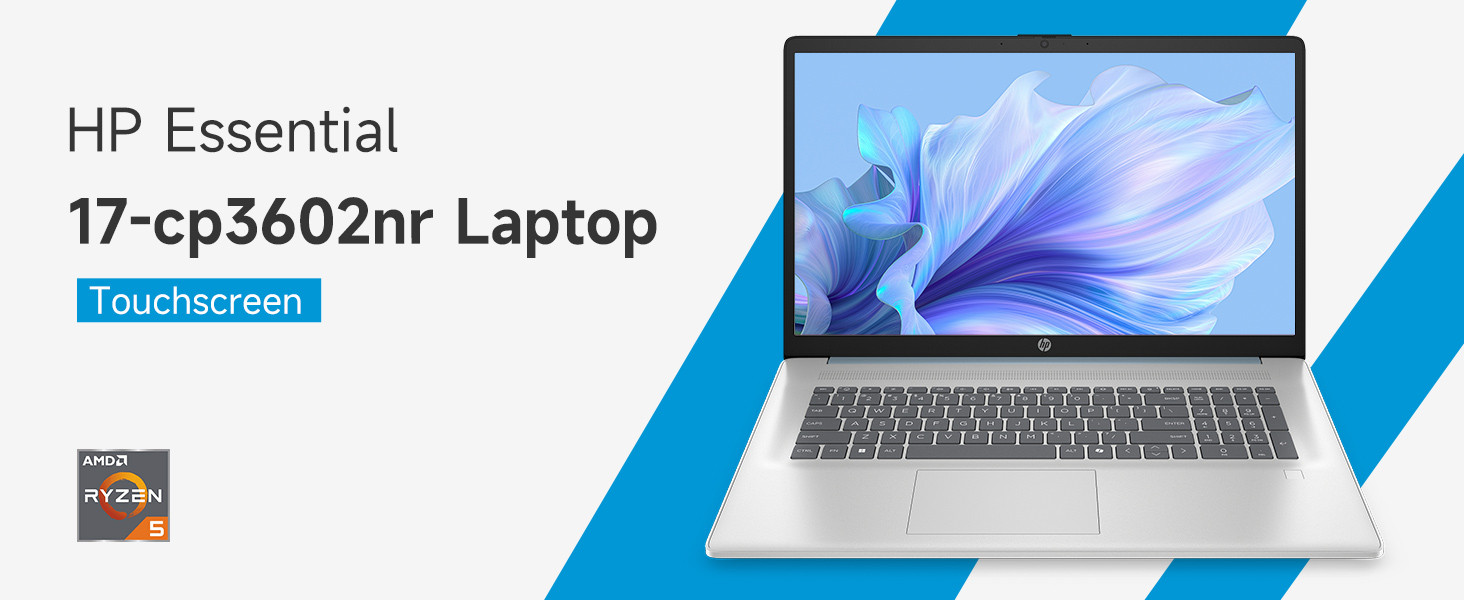
Image: An infographic highlighting key specifications such as the AMD Ryzen 5 processor, Windows 11 Home, storage, and connectivity options.
וואָראַנטי און שטיצן
פאַבריקאַנט'ס וואָראַנטי
Your HP laptop is covered by a standard manufacturer's warranty. For specific terms and conditions, please refer to the warranty documentation included with your product or visit the official HP support website. Warranty duration and coverage may vary by region.
טעכניש שטיצן
פֿאַר טעכנישע הילף, דרייווער דאַונלאָודז, אָדער ווייטערדיקע פּראָבלעם לייזונג, ביטע באַזוכט די אָפֿיציעלע HP שטיצע webפּלאַץ:
When contacting support, have your laptop's model number (17-cp3602nr) and serial number ready.