
1. סעטאַפּ
1.1 פּעקל אינהאַלט
איידער איר אַסעמבלט, ביטע זיכער מאַכן אַז אַלע קאָמפּאָנענטן זענען פאַראַן אין דער פּאַקעט:
- KTC H24F7 24 Inch 240Hz Monitor
- מאָניטאָר באַסע
- מאָניטאָר שטייט
- מאַכט אַדאַפּטער
- HDMI קאַבלע
- שנעל אָנהייב גייד (QSG)
1.2 פֿאַרזאַמלונג ינסטראַקשאַנז
גיי די סטעפּס צו אַסעמבאַל דיין מאָניטאָר:
- פֿאָרזיכטיק אַרויסנעמען דעם מאָניטאָר און אַלע קאָמפּאָנענטן פֿון דער פּאַקאַדזשינג.
- Attach the monitor stand to the monitor base. Ensure it clicks securely into place.
- Connect the assembled stand and base to the back of the monitor. The stand is designed for easy snap-in installation.
- שטעלן די מאָניטאָר אויף אַ סטאַביל, פלאַך ייבערפלאַך.

1.3 וועסאַ מאָונט אינסטאַלאַציע
The KTC H24F7 monitor supports VESA 100mm x 100mm mounting for alternative stand or wall mount solutions. Ensure you use M4-0.7 x 10mm screws (not included) for secure installation.

1.4 קאַנעקטינג צו דעוויסעס
פֿאַרבינדט אײַער קאָמפּיוטער אָדער אַנדערע דעווײַסעס צום מאָניטאָר מיט די פּאַסיקע קאַבלען.
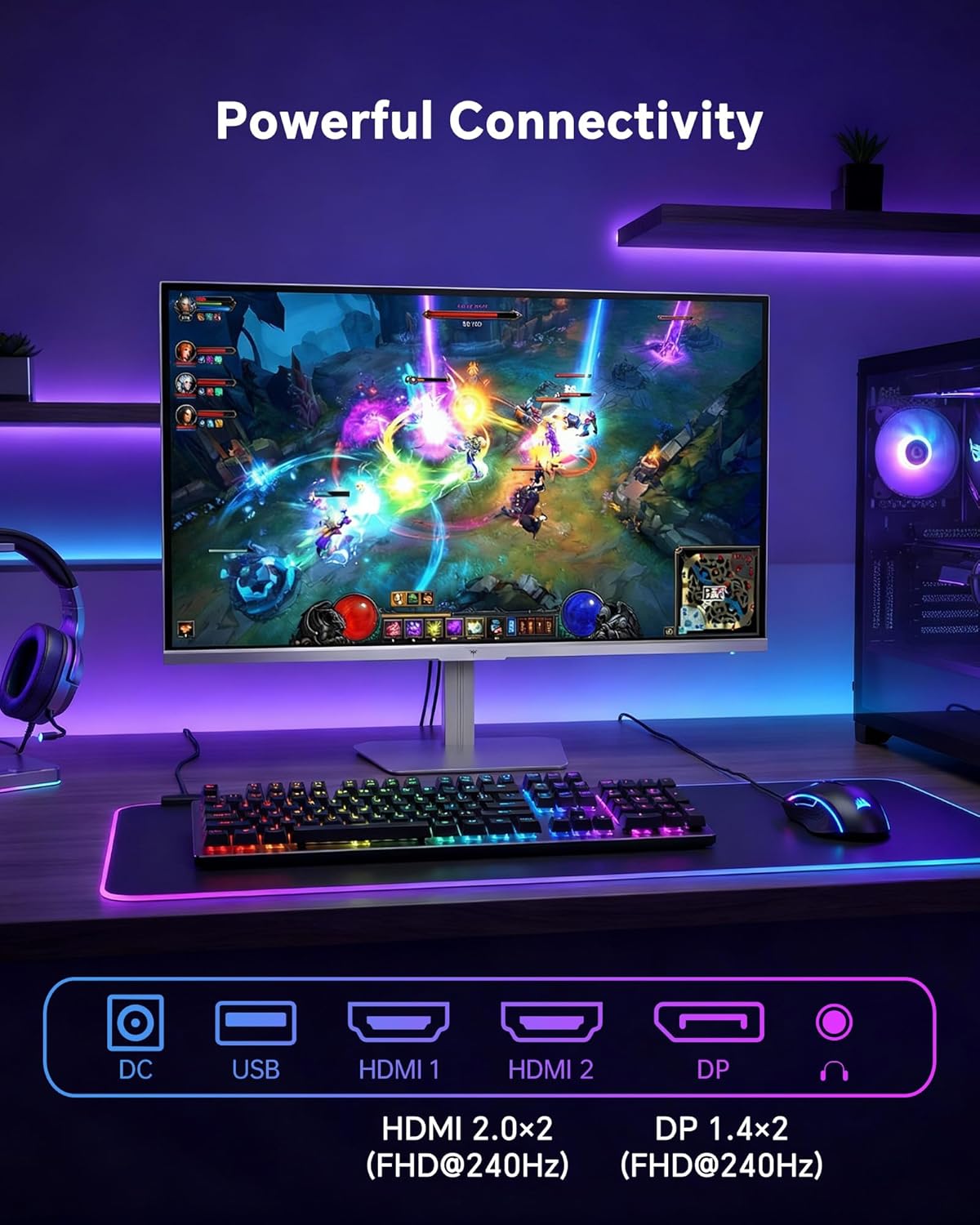
- הדמי: Use an HDMI cable to connect to devices with HDMI output. The monitor has two HDMI 2.0 ports, supporting FHD at 240Hz.
- DisplayPort: Use a DisplayPort cable for devices with DisplayPort output. The monitor has one DisplayPort 1.4, supporting FHD at 240Hz.
- מאַכט: Connect the power adaptor to the DC input on the monitor and then to a power outlet.
- וסב: A USB 2.0 port is available for connecting peripherals.
- אַודיאָ אָוט: A 3.5mm audio jack is available for connecting headphones or external speakers.
2. אַפּערייטינג ינסטרוקטיאָנס
2.1 מאַכט אויף / אַוועק
דריק דעם מאַכט קנעפּל וואָס געפינט זיך אויפן מאָניטאָר צו עס אנצינדן אָדער אויסלעשן. די מאַכט אינדיקאַטאָר ליכט וועט זיך אָנצינדן ווען דער מאָניטאָר איז אַקטיוו.
2.2 אויף-סקרין ווייַז (אָסד) מעניו
The OSD menu allows you to adjust various monitor settings. Use the control buttons (typically located on the back or bottom of the monitor) to navigate the menu and select options. Refer to the Quick Start Guide for specific button functions.
2.3 ווייַז סעטטינגס
אָפּטימיזירן דיין viewing experience by adjusting the following settings:
- דערפרישן קורס: The monitor supports a 240Hz refresh rate for smooth motion. Ensure your graphics card settings are configured to utilize this rate.

- אַדאַפּטיוו סינק: This technology synchronizes the monitor's refresh rate with your graphics card's frame rate to eliminate screen tearing and stuttering. Enable Adaptive Sync in the OSD menu and ensure it is also enabled in your graphics card control panel (FreeSync/G-Sync compatible).

- HDR 400: High Dynamic Range 400 provides enhanced contrast and color accuracy, delivering brighter highlights and deeper shadows. Activate HDR in the OSD menu and your operating system display settings for compatible content.

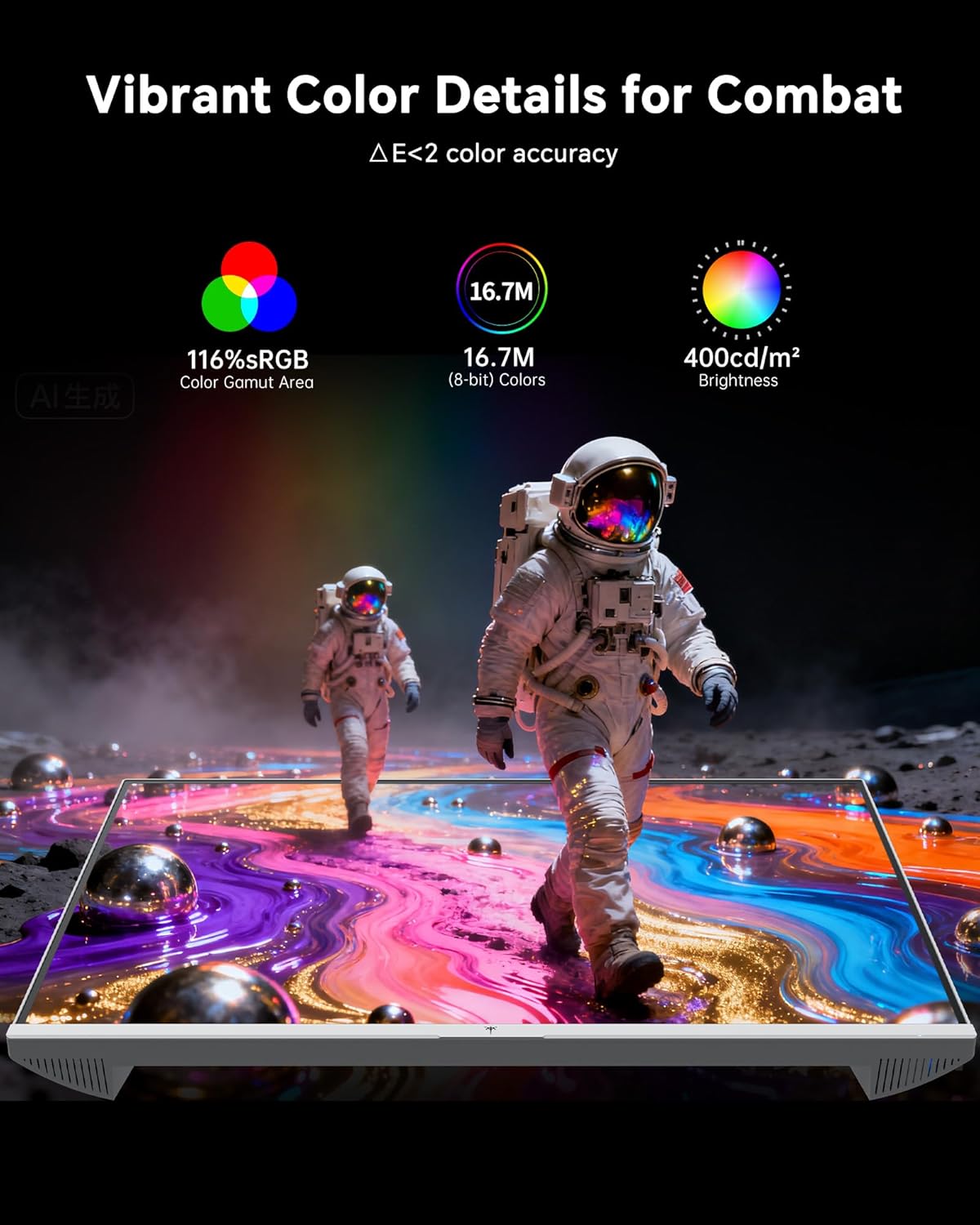
- קאָליר סעטטינגס: The monitor offers 116% sRGB color gamut and 16.7 million colors. Adjust brightness (up to 400 cd/m²) and color temperature through the OSD menu to suit your preference.
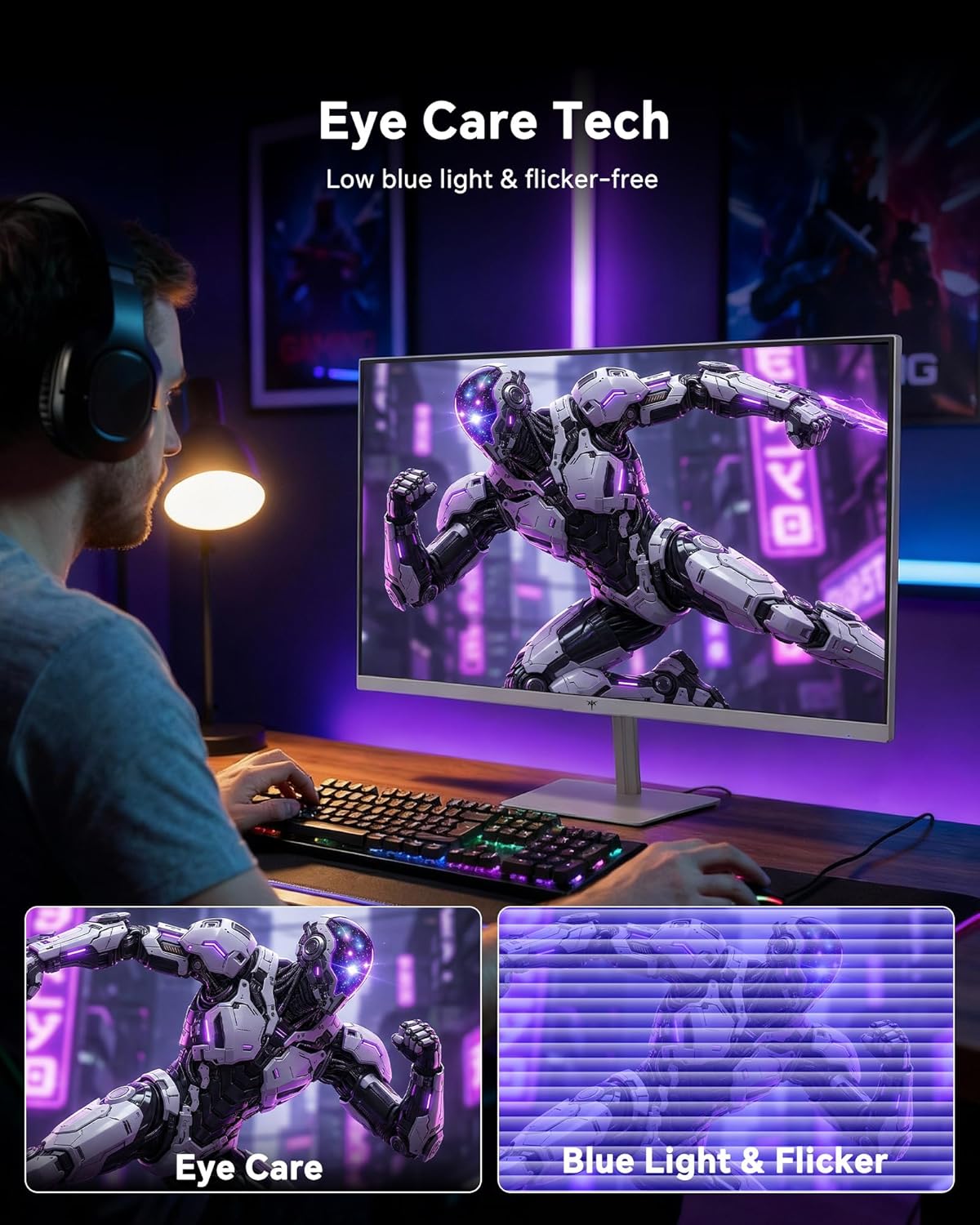
- אויג קער טעכנאָלאָגיע: The monitor features low blue light and flicker-free technology to reduce eye strain during prolonged use. These settings can typically be adjusted or enabled within the OSD menu.
2.4 Monitor Tilt Adjustment
The monitor supports tilt adjustment from -5° to 15° (±3°). Gently adjust the monitor panel to your desired viewינג ווינקל.
3. וישאַלט
3.1 רייניקונג די מאָניטאָר
צו רייניקן דעם מאָניטאָר עקראַן און casing:
- שטענדיק אויסלעשן דעם מאָניטאָר און אַרויסציען דעם עלעקטרישן שנור איידער איר רייניגט.
- ניצן אַ ווייך, לינט-פֿרייַ שטאָף אַ ביסל דampאָפּגעווישט מיט וואַסער אָדער אַ מילד, נישט-אַברייסיוו פאַרשטעלן רייניגער.
- ווישט דעם עקראַן לײַכט צו באַזײַטיקן שטויב און פֿלעקן. פֿאַרמײַדט צו אָנווענדן איבעריקן דרוק.
- פֿאַר די סיasing, use a dry, soft cloth. Do not use alcohol, ammonia, or abrasive cleaners, as these can damage the surface.
3.2 אַלגעמיינע קער
- פֿאַרמײַדט צו שטעלן שווערע זאַכן אויף דעם מאָניטאָר אָדער זײַנע קאַבלען.
- שטעלט נישט אויס דעם מאָניטאָר צו דירעקטער זון, איבערגעטריבענער היץ, אדער עקסטרעמער קעלט.
- האַלט דעם מאָניטאָר אַוועק פון פליסיקייטן און הויכער הומידיטי.
- פאַרזיכערן געהעריק ווענאַליישאַן אַרום די מאָניטאָר צו פאַרמייַדן אָוווערכיטינג.
4. טראָובלעשאָאָטינג
If you encounter issues with your KTC H24F7 monitor, refer to the following common problems and solutions:
| פּראָבלעם | מעגלעך סיבה | לייזונג |
|---|---|---|
| קיין בילד אויף פאַרשטעלן | Power cable disconnected; Video cable disconnected or loose; Incorrect input source selected; Monitor is off. | Ensure power cable is securely connected and monitor is on. Check video cable connections (HDMI/DisplayPort) at both the monitor and computer. Press the input source button on the monitor to cycle through inputs. |
| בילד פליקערט אדער רייסט | Adaptive Sync not enabled; Graphics card driver issues; Faulty video cable. | Enable Adaptive Sync in the OSD menu and your graphics card control panel. Update graphics card drivers. Try a different video cable. If using DisplayPort 1, try DisplayPort 2 or HDMI if available, as some units may experience issues with specific ports. |
| פארבן זעען אויס פאַלש אָדער אויסגעוואַשן | Color settings incorrect; HDR not properly configured; Faulty video cable. | Adjust color settings (brightness, contrast, color temperature) in the OSD menu. Ensure HDR is enabled in both the OSD and your operating system for HDR content. Try a different video cable. |
| מאָניטאָר דערגרייכט נישט 240 הערץ | Graphics card limitations; Incorrect display settings in OS; Cable bandwidth limitations. | Ensure your graphics card supports 240Hz at 1080p. Verify display settings in your operating system (e.g., Windows Display Settings or NVIDIA/AMD control panel) are set to 240Hz. Use the provided HDMI cable or a certified DisplayPort 1.4 cable. |
| Stuck or dead pixels | מאַנופאַקטורינג כיסאָרן. | A small number of stuck or dead pixels (typically 1-3) may be considered normal for LCD panels. If the issue is severe or persistent, contact customer support. |
5. ספּעסאַפאַקיישאַנז
| שטריך | דעטאַל |
|---|---|
| סאָרט | קטק |
| מאָדעל נומער | H24F7 |
| פאַרשטעלן גרייס | 24 אינטשעס |
| האַכלאָטע | FHD 1080p (1920 x 1080 פּיקסעלס) |
| טאַפליע טיפּ | שנעל IPS |
| דערפרישן קורס | 240 הז |
| ענטפער צייט | 1 מיליסעקונדע (MPRT) |
| אַספּעקט פאַרהעלטעניש | 16:9 |
| ברייטנאַס | 400 קאַנדעלאַ פּער קוואַדראַט מעטער |
| קאַנטראַסט פאַרהעלטעניש | 1000:1 |
| קאָליר גאַמע | 116% sRGB |
| HDR שטיצן | HDR 400 |
| אַדאַפּטיוו סינק | FreeSync, G-Sync Compatible |
| קאַנעקטיוויטי | 2x HDMI 2.0, 1x DisplayPort 1.4, 1x USB 2.0, 1x Audio Out (3.5mm) |
| אויג קער פֿעיִטשערז | Low Blue Light, Flicker-Free, Anti-Glare Screen |
| אַדזשאַסטמאַנץ | Tilt (-5° to 15°) |
| וועסאַ בארג | 100 מם X 100 מם |
| דימענשאַנז (די רענטגענ וו x ה) | 5.39"ד רענטגענ 21.25"וו רענטגענ 15.74"ה |
| פּונקט וואָג | 3.2 קילאָגראַמס |
| קאָליר | ווייַס |
6. וואָראַנטי & שטיצן
6.1 וואָראַנטי אינפֿאָרמאַציע
The KTC H24F7 monitor comes with a דריי־יאָריקע פאַבריקאַנט־גאַראַנטיע. די וואָראַנטי קאָווערס חסרונות אין מאַטעריאַלס און ווערקמאַנשיפּ אונטער נאָרמאַל נוצן.
ביטע האַלטן דיין דערווייַז פון קויפן פֿאַר וואָראַנטי קליימז.
6.2 קונה שטיצן
For technical assistance, warranty claims, or any questions regarding your KTC H24F7 monitor, please contact KTC customer support. KTC aims to provide responsive customer support and typically responds within 12 hours.
You can usually find contact information on the official KTC website or through the retailer where you purchased the product. When contacting support, please have your monitor model number (H24F7) and purchase details ready.