
1. פּראָדוקט איבערview
The MEETION K2000 is a wired ergonomic keyboard designed for comfort and enhanced typing experience. It features a translucent shell, split and curved key layout, integrated wrist rest, and customizable RGB backlighting. It offers broad compatibility with various operating systems via USB-A or USB-C connection.

בילד 1.1: The MEETION K2000 Ergonomic Wired RGB Keyboard, showcasing its split design and integrated wrist rest.
ווידעא 1.1: אַן איבערview of the MEETION K2000 Ergonomic Wired RGB Keyboard, highlighting its features and design.
2. סעטאַפּ
2.1 פּעקל אינהאַלט
- MEETION K2000 Ergonomic Wired RGB Keyboard
- וסב- א צו וסב- C אַדאַפּטער
- באַניצער מאַנואַל
2.2 פֿאַרבינדן די קלאַוויאַטור
- Locate an available USB port on your computer (PC, Laptop, Mac).
- Connect the keyboard's USB-A cable directly to a USB-A port on your computer.
- If your computer only has USB-C ports, attach the provided USB-A to USB-C adapter to the keyboard's USB-A cable, then plug the adapter into a USB-C port on your computer.
- The keyboard is plug-and-play; no additional drivers are required for most operating systems.

בילד 2.1: The keyboard's USB-A cable and the included USB-A to USB-C adapter for versatile connectivity.
2.3 אַדזשאַסטירן קלאַוויאַטור ווינקל
The keyboard features adjustable flip-out feet at the bottom to customize your typing angle for optimal comfort. You can choose between 2°, 4.07°, or 4.3° incline settings.

בילד 2.2: The adjustable feet on the underside of the keyboard allow for different typing angles.
3. אַפּערייטינג ינסטרוקטיאָנס
3.1 ערגאָנאָמישער פּלאַן און האַנטגעלענק רו
The keyboard's split, curved layout and integrated padded wrist rest are designed to promote a natural hand and wrist posture, reducing strain during extended use. The scissor-switch key design offers a quiet and comfortable typing experience.
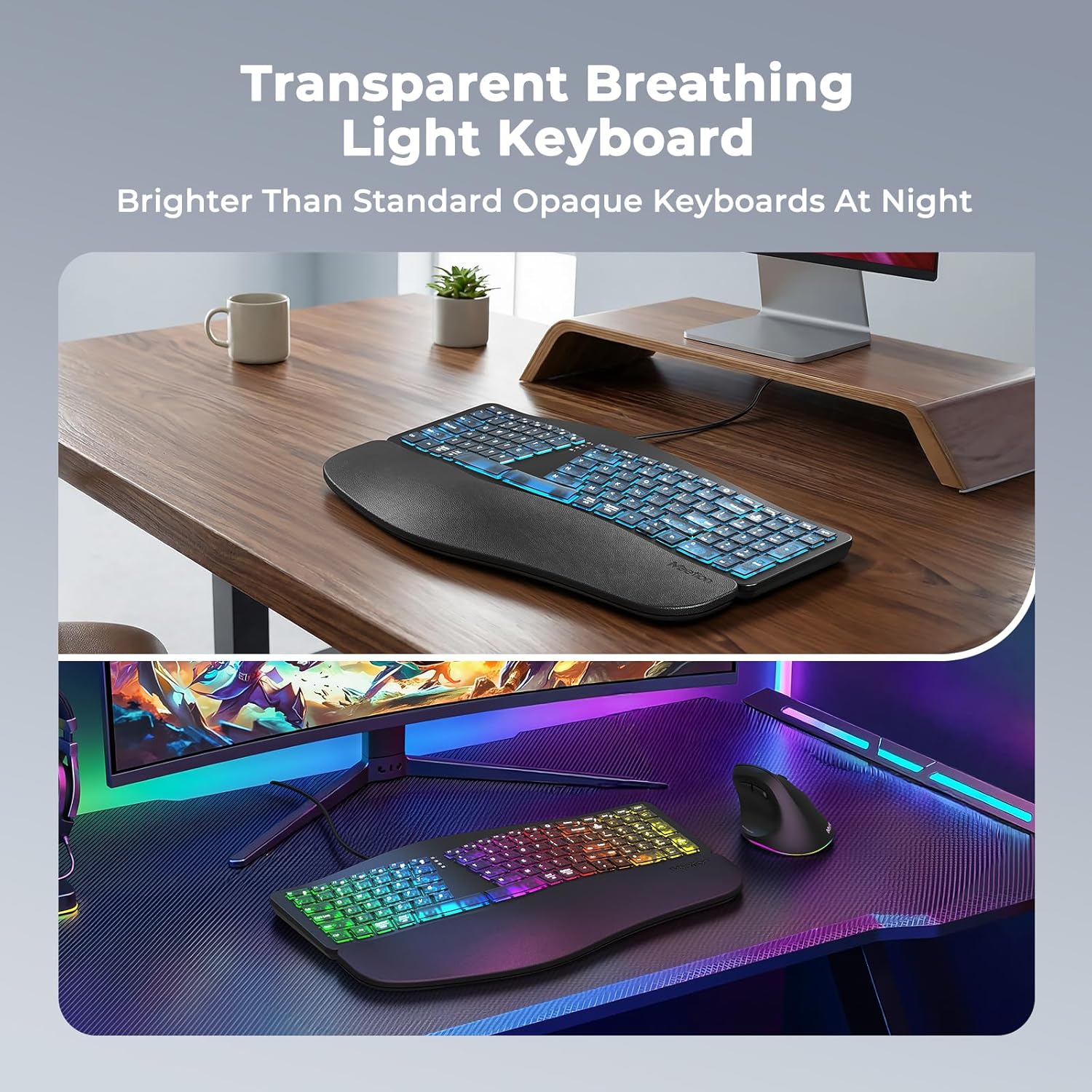
בילד 3.1: The split ergonomic design of the keyboard helps maintain a comfortable typing posture.
3.2 באַקלייט קאָנטראָל
The translucent keycaps allow for vibrant backlighting. You can customize the lighting effects and brightness levels:
- סטרויערן ברייטנאַס: דרוק Fn + רעכט שיפט repeatedly to cycle through 25%, 50%, 75%, 100% brightness, or turn the backlight off.
- טוישן באַקלייט מאָדע/קאָליר: דרוק Fn + Right Enter repeatedly to switch between different modes:
- RGB Breathing (dynamic color cycling)
- 7 Static Colors: Red, Green, Blue, White, Purple, Cyan, Yellow
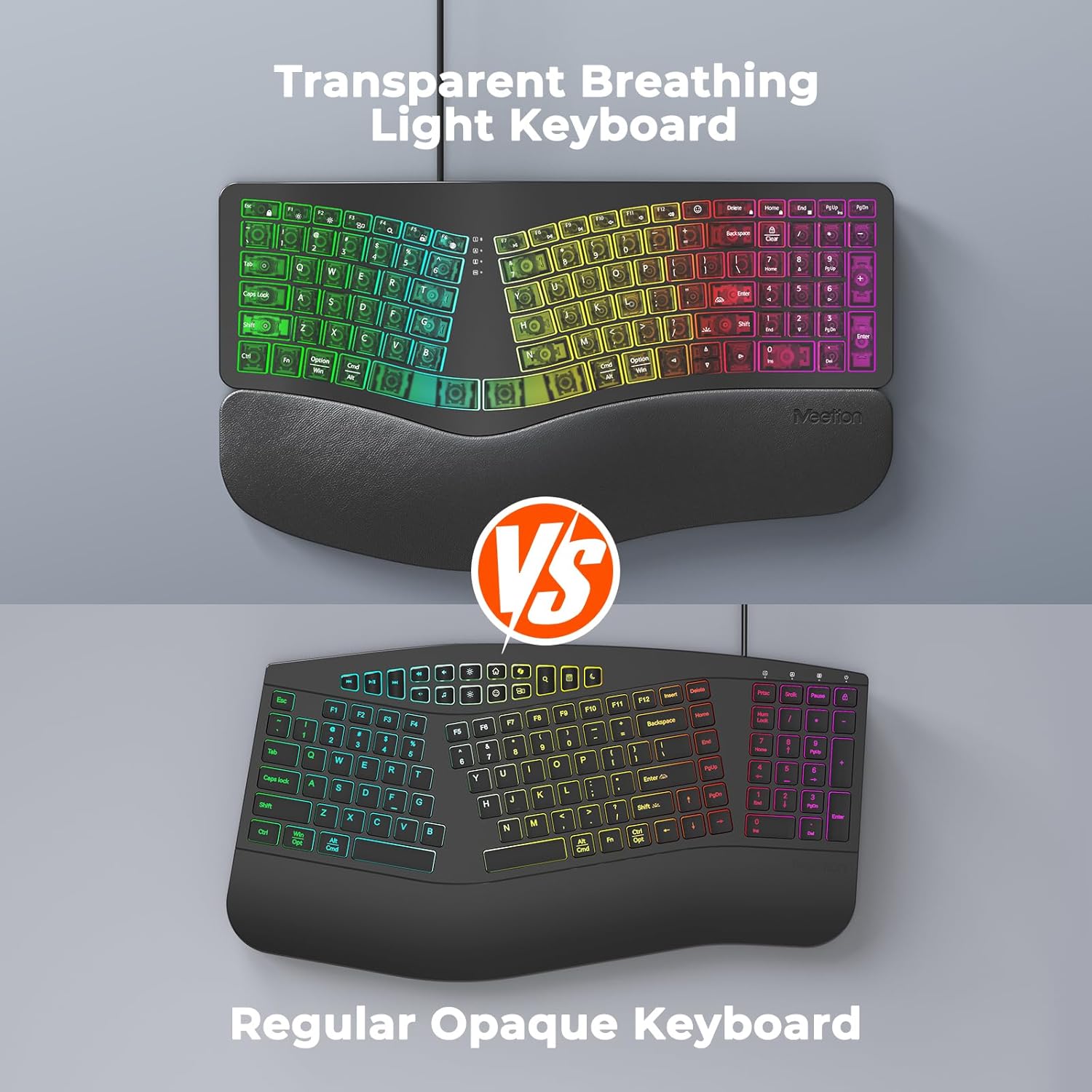
בילד 3.2: Instructions for adjusting backlight brightness and cycling through various color modes.
ווידעא 3.1: Demonstration of the K2000 keyboard's backlit features and color options.
3.3 System Layout Switching
The keyboard supports both Windows and Mac layouts. To switch between systems:
- פֿאַר Windows systems: Press Fn + Q
- פֿאַר מעק systems: Press פן + וו

בילד 3.3: The keyboard supports both Windows and Mac operating systems, with dedicated function keys for switching layouts.
3.4 Emoji Shortcuts
Access emoji shortcuts by pressing the dedicated Emoji key. This feature is compatible with Windows, MacOS, iPad (iPadOS), and Android Samsung devices. Please note that it does not support iPhone (iOS).

בילד 3.4: The dedicated emoji shortcut key for quick access to emojis on compatible devices.
4. וישאַלט
4.1 רייניקונג
- To clean the keyboard, gently wipe the surface with a soft, dry, or slightly damp שטאָף.
- Avoid using harsh chemicals, abrasive cleaners, or solvents, as these may damage the keyboard's finish or keycaps.
- פֿאַר רייניקונג צווישן שליסלען, ניצט קאָמפּרעסירטע לופט צו באַזייַטיקן שטויב און שמוץ.
4.2 קלאַוויאַטור זאָרג
- Ensure keycaps are firmly seated. If a keycap feels loose, gently press it down until it clicks into place.
- Avoid excessive force when pressing keys to prevent damage.
5. טראָובלעשאָאָטינג
5.1 קלאַוויאַטור רעאַגירט נישט
- Ensure the USB cable is securely plugged into your computer's USB port.
- פרובירט צו קאנעקטן די קלאַוויאַטור צו אַן אַנדער USB פּאָרט אויף אייער קאָמפּיוטער.
- If using the USB-C adapter, ensure it is firmly connected to both the keyboard cable and the computer's USB-C port.
- Test the keyboard on another computer to determine if the issue is with the keyboard or your computer's port/drivers.
5.2 פראבלעמען מיט הינטערליכט
- If the backlight is off, press Fn + רעכט שיפט צו פאַרגרעסערן ברייטנאַס.
- If the color is not desired, press Fn + Right Enter to cycle through different color modes.
- Ensure the keyboard is properly connected, as power issues can affect backlighting.
5.3 שליסלען רעגיסטרירן זיך נישט
- Gently press down on the affected keycap to ensure it is properly seated.
- Clean any debris or dust from under the keycap using compressed air.
- If the issue persists, try the troubleshooting steps for "Keyboard Not Responding".
6. ספּעסאַפאַקיישאַנז
| סאָרט | MEETION |
| מאָדעל נומער | K2000 |
| קאַנעקטיוויטי טעכנאָלאָגיע | וסב-א, וסב-C |
| קלאַוויאַטור באַשרייַבונג | Multimedia, Ergonomic, Backlit |
| ספּעציעלע פֿעיִקייטן | Backlit, Ergonomic, Wired, Wrist Rest |
| קאָליר | שוואַרץ |
| קלאַוויאַטור באַקלייטינג קאָליר סופּפּאָרט | RGB (7 static colors + breathing mode) |
| מאַטעריאַל | Acrylonitrile Butadiene Styrene, Thermoplastic Polyurethane (TPU) |
| קלאַוויאַטור אויסלייג | QWERTY |
| קאַמפּאַטאַבאַל דעוויסעס | Laptop, PC (Windows, Mac) |
7. וואָראַנטי און שטיצן
7.1 פאַבריקאַנט'ס גאַראַנטיע
The MEETION K2000 Ergonomic Wired RGB Keyboard comes with a 1-יאָר פאַבריקאַנט ס וואָראַנטי. די וואָראַנטי קאָווערס חסרונות אין מאַטעריאַלס און ווערקמאַנשיפּ אונטער נאָרמאַל נוצן.
7.2 טעכניש שטיצן
For technical assistance, troubleshooting, or warranty claims, please contact MEETION customer support. Refer to the product packaging or the official MEETION webזייטל פֿאַר די מערסט אַקטועלע קאָנטאַקט אינפֿאָרמאַציע.