
BOSGAME P4 Ultra
BOSGAME P4 Ultra Mini PC Ryzen 7 7730U Instruction Manual
מאָדעל: P4 אולטראַ
1. הקדמה
This manual provides detailed instructions for setting up, operating, and maintaining your BOSGAME P4 Ultra Mini PC. Please read this manual thoroughly before using the device to ensure optimal performance and longevity.
2. וואָס איז אין דער קעסטל
Upon unboxing your BOSGAME P4 Ultra Mini PC, you should find the following items:
- 1 × P4 Ultra Mini PC
- 1 × הדמי קאַבלע
- 1 × מאַכט אַדאַפּטער
- 1 × VESA Mount & Screws
- 1 × באַניצער מאַנואַל (דאָס דאָקומענט)


3. סעטאַפּ גייד
3.1 ערשט קאַנעקשאַן
- Place the Mini PC on a stable surface or mount it using the provided VESA mount.
- Connect your monitor(s) to the Mini PC using the HDMI, DisplayPort, or USB Type-C ports.
- פֿאַרבינדט אייער קלאַוויאַטור און מויז צו די פֿאַראַן USB פּאָרץ.
- Plug the power adapter into the Mini PC and then into a power outlet.
- Press the power button on the front of the Mini PC to turn it on.
3.2 Operating System Setup (Windows 11 Pro)
Your BOSGAME P4 Ultra Mini PC comes with Windows 11 Pro pre-installed. Follow the on-screen instructions to complete the initial setup.
- Select your country, region, and language.
- For the fastest and cleanest first-time setup, it is recommended to skip connecting to Wi-Fi during the initial setup. To do this, press שיפט + פ10 on your keyboard to open a command window. Type
oobe\bypassnroאון דריקן אַרייַן. The PC will restart. - Once restarted, you can proceed with the offline setup by selecting "I don't have internet" when prompted.
- שאַפֿן אַ באַניצער חשבון און פּאַראָל.
- Adjust privacy settings as desired.
The system is 100% clean, fast, and secure, with no bloatware.
4. אַפּערייטינג ינסטרוקטיאָנס
4.1 מאַכט אויף / אַוועק
- To power on, press the red power button on the front panel.
- To power off, click the Start menu in Windows and select "Power" then "Shut down." Alternatively, press and hold the power button for 5 seconds.
4.2 טריפל דיספּליי סעטאַפּ
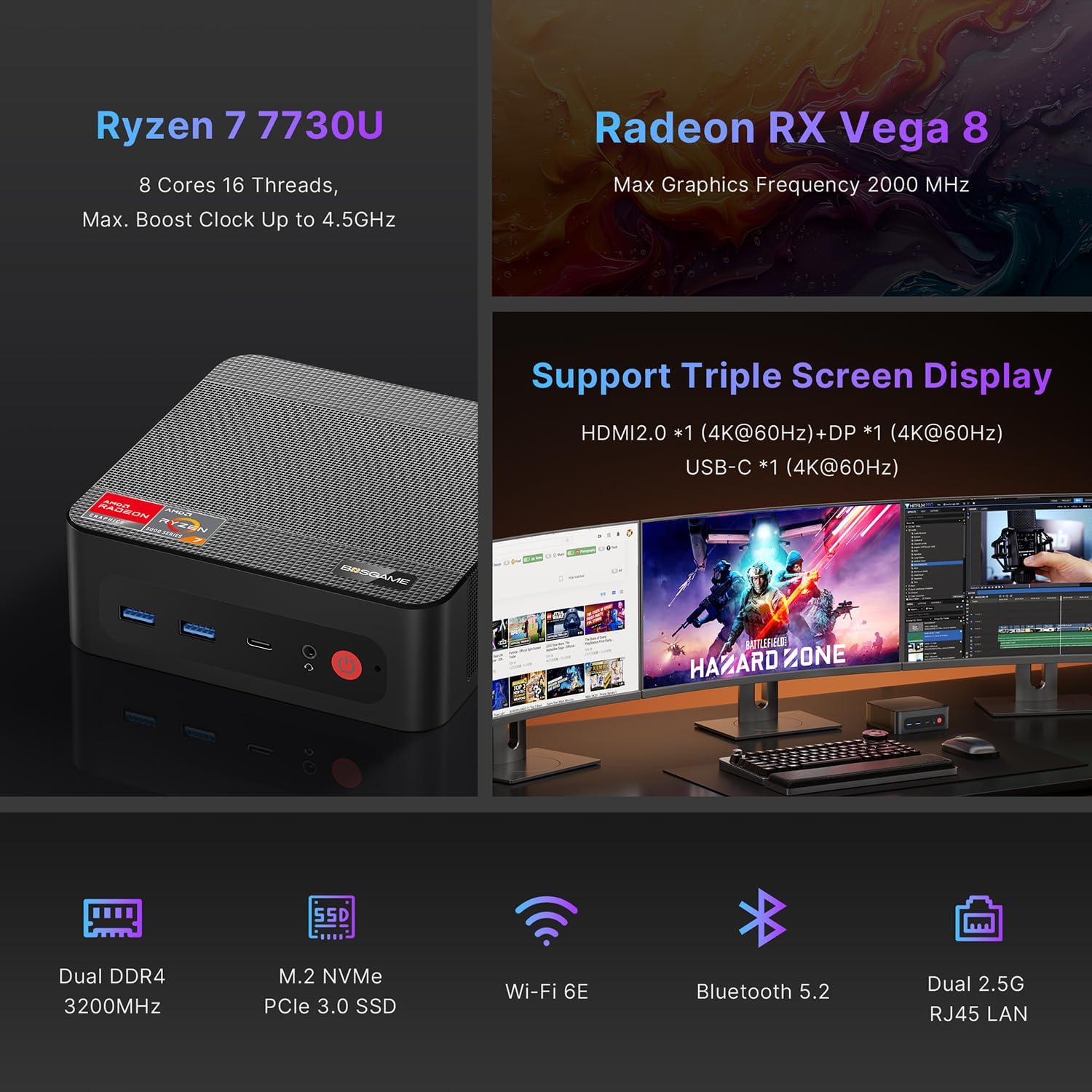
The BOSGAME P4 Ultra supports simultaneous output to three 4K monitors via HDMI 2.0, DisplayPort, and Full-Function USB Type-C.
- Connect the DisplayPort cable to the first monitor.
- Connect the HDMI cable to the second monitor.
- Connect the USB Type-C cable to the third monitor.
- Ensure all monitors are powered on and set to the correct input source.


5. קאַנעקטיוויטי
5.1 פּאָרץ איבערview
| צובינד | קוואַנטיטי | באַשרייַבונג |
|---|---|---|
| USB3.2 Gen2 (4K 60Hz) | 1 | Full-function USB Type-C for data, 4K video, and Power Delivery 3.0 |
| HDMI (2.0 @4K 60Hz) | 1 | ווידעא רעזולטאַט צו מאָניטאָר |
| USB3.2 Gen1 | 2 | הויך-גיכקייַט דאַטן אַריבערפירן |
| 5.5*2.5mm DC Jack | 1 | מאַכט אַרייַנשרייַב |
| USB2.0 | 2 | Standard USB ports |
| 3.5 מם קאָמבאָ דזשאַק | 1 | אַודיאָ אַרייַנשרייַב / רעזולטאַט |
| DP (4K 60Hz) | 1 | DisplayPort ווידעא רעזולטאַט |
| 2.5G RJ45 לאַן | 2 | Dual 2.5 Gigabit Ethernet ports |

5.2 ווירעלעסס קאַנעקטיוויטי
- Wi-Fi 6E: For high-speed, lag-free wireless internet.
- בלועטאָאָטה 5.2: For instant pairing with peripherals like keyboards, mice, and headphones.

6. Performance & Expansion
The BOSGAME P4 Ultra Mini PC is powered by an AMD Ryzen 7 7730U processor, offering robust performance for various tasks.
- פּראַסעסער: AMD Ryzen 7 7730U (8 Cores, 16 Threads, Max. Boost Clock up to 4.5GHz)
- גראַפיקס: Radeon RX Vega 8 (Max Graphics Frequency 2000 MHz)
- זכּרון: 16GB DDR4 3200MHz SODIMM (expandable up to 32GB)
- סטאָרידזש: 1TB NVMe PCIe 3.0 x4 SSD (expandable up to 4TB via additional M.2 2280 slot)

6.1 Storage and RAM Upgrade
You can upgrade the RAM and SSD to enhance performance or storage capacity.
- Remove the screws from the base plate.
- Carefully open the base plate.
- Move the system fan to access the RAM and SSD slots.
- Replace the RAM and/or SSD as needed.

6.2 Graphics Dock Expansion
The Mini PC supports graphics dock expansion via its full-featured USB Type-C port, allowing for enhanced graphics performance for demanding applications or gaming.
7. וישאַלט
7.1 קאָאָלינג סיסטעם
The Mini PC features an advanced thermal design and a low-noise fan system to ensure stable operation and efficient heat dissipation, even under load.


8. טראָובלעשאָאָטינג
8.1 בייאָוס סעטטינגס
To access and modify BIOS settings, press the ויסמעקן key repeatedly during boot-up.
- אַוטאָ מאַכט אויף: נאַוויגירן צו אַוואַנסירטע → אַוטאָ מאַכט אויף. דרוק אַרייַן, אויסקלייַבן מאַכט אויף, דעמאָלט דריקן F4 צו ראַטעווען.
- וועקן אויף לאַן: נאַוויגירן צו אַוואַנסירטע → וועקן אויף לאַן. דרוק אַרייַן, אויסקלייַבן ענייבאַלד, דעמאָלט דריקן F4 צו ראַטעווען.
- UMA Frame Buffer Size: נאַוויגירן צו אַוואַנסירטע → UMA ראַם באַפער גרייס. דרוק אַרייַן, select the desired size (e.g., 8G), און דריקן F4 to save. This allocates system memory to graphics for higher-level tasks.
- S5 RTC Wake Settings: נאַוויגירן צו אַוואַנסירטע → S5 RTC וועקן סעטטינגס. דרוק אַרייַן, אויסקלייַבן פאַרפעסטיקט צייט or דינאַמיש צייט, דעמאָלט דריקן F4 to save. This allows the system to wake from S5 (soft off) at a scheduled time.
וויכטיק: The BIOS is locked by default, and overclocking is not recommended as it may damage the computer. Please be aware.
9. ספּעסאַפאַקיישאַנז
| שטריך | דעטאַל |
|---|---|
| סאָרט | BOSGAME |
| מאָדעל נאָמען | P4 Ultra |
| אָפּערייטינג סיסטעם | Windows 11 Pro (pre-installed), compatible with Linux |
| קפּו מאָדעל | Ryzen 7 7730U |
| קפּו ספּיד | 2 GHz (Base), 4.5 GHz (Max Boost) |
| CPU קערנס/פֿעדעם | 8 Cores, 16 Threads |
| קאַש גרייס | 16 מב |
| גראַפיקס קאַרד | Integrated Radeon Graphics (Radeon RX Vega 8) |
| Graphics Frequency | 2000 מהז (מאַקס) |
| זכּרון (RAM) | 16 GB DDR4 3200MHz SODIMM (Max 32 GB) |
| סטאָרידזש | 1 TB NVMe PCIe 3.0 x4 SSD (Max 4 TB, 2x M.2 2280 slots) |
| ווידעא רעזולטאַט | HDMI (4K@60Hz), DisplayPort (4K@60Hz), USB Type-C (4K@60Hz) |
| לאַן | Dual 2.5G RJ45 Ethernet |
| ווירעלעסס קאַנעקטיוויטי | Wi-Fi 6E, בלועטוט 5.2 |
| וסב פּאָרץ | 2x USB 3.2 Gen1, 2x USB 2.0, 1x USB 3.2 Gen2 Type-C (Full-function) |
| אַודיאָ | 3.5 מם קאָמבאָ דזשאַק |
| מאַכט קאַנסאַמשאַן | 15 Watts (Default TDP) |
| דימענשאַנז | 5.12 X 4.72 X 1.73 אינטשעס (129 X 123 X 44 מם) |
| וואָג | 514 גראַמז (1.13 לבס) |
| קאָאָלינג אופֿן | פאָכער |
| וועסאַ בארג | אַרייַנגערעכנט |

10. וואָראַנטי & שטיצן
BOSGAME is committed to quality and customer satisfaction.
- וואָראַנטי: The BOSGAME P4 Ultra Mini PC comes with a 12-month warranty for the entire machine and a 3-year warranty for parts.
- קונה סערוויס: For any questions or support regarding your purchase, please contact BOSGAME customer service.
ווי צו קאָנטאַקט שטיצן:
- קאָנטאַקט אונדז אויף אַמאַזאָן: Log in to your Amazon buyer's account, find your order, click 'Get help'.
- Send E-mail to After-sales Support Team: You can also reach out via email for assistance.


Ask a question about this manual
Ask about setup, troubleshooting, compatibility, parts, safety, or missing instructions. Manuals+ will review the question and use this page’s manual context to help answer it.