
הקדמה
This manual provides essential information for setting up, operating, and maintaining your Fusion5 A7 N6 23.8-inch All-in-One PC. Please read these instructions carefully before use and retain them for future reference.
The Fusion5 A7 N6 is a 23.8-inch Full HD All-in-One PC designed for home offices, students, and everyday users. It features a 1920x1080 FHD IPS display, an Intel N150 processor, 16GB DDR4 RAM, and a 512GB SATA SSD, running on Windows 11 Home.
וואָס איז אין די קעסטל
- Fusion5 A7 N6 23.8" All-in-One PC
- ווירעלעסס קיבאָרד
- ווירעלעסס מאַוס
- Certified Power Adapter (12V/5A)
- באַניצער מאַנואַל (דעם דאָקומענט)
סעטאַפּ
- אויספּאַקן: Carefully remove all components from the packaging. Ensure all items listed in "What's in the Box" are present.
- אָרט: Place the All-in-One PC on a stable, flat surface. Ensure adequate ventilation around the device.
- מאַכט קשר: Connect the certified power adapter to the DC-in port on the back of the PC, then plug the adapter into a power outlet.
- Wireless Keyboard and Mouse Setup:
- Insert batteries (not included) into the wireless keyboard and mouse.
- Locate the USB receiver for the wireless keyboard and mouse. Plug it into an available USB port on the PC.
- The keyboard and mouse should automatically connect.
- ערשט מאַכט אויף: Press the power button, usually located on the side or back of the display.
- ווינדאָוס 11 סעטאַפּ: פֿאָלגט די אינסטרוקציעס אויף דעם עקראַן צו פֿאַרענדיקן די ערשטע Windows 11 Home סעטאַפּ, אַרייַנגערעכנט שפּראַך, ראַיאָן, נעץ פֿאַרבינדונג און שאַפונג פֿון באַניצער אַקאַונט.
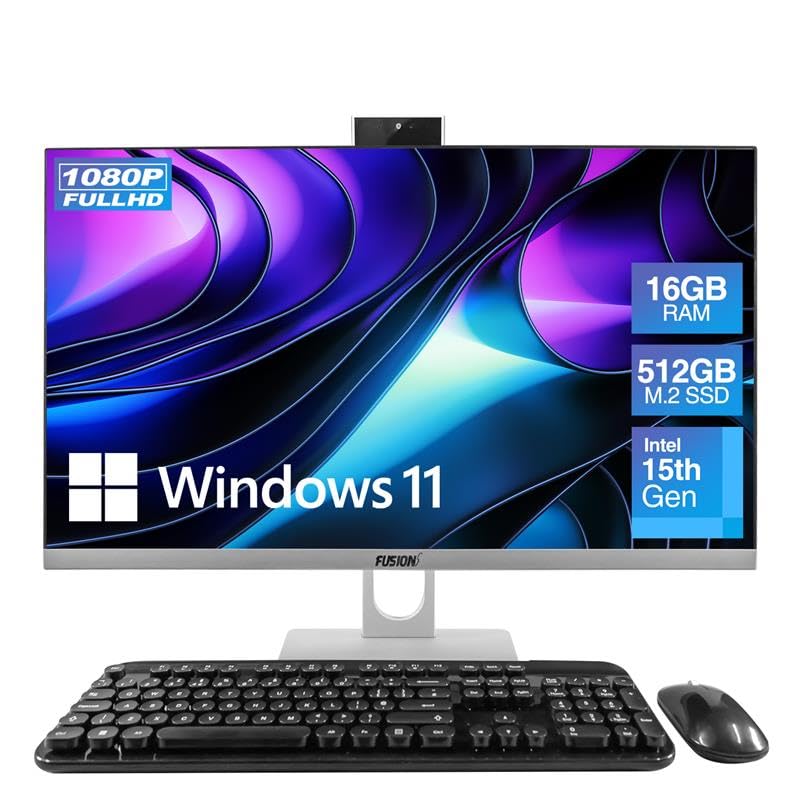
Image: The Fusion5 A7 N6 All-in-One PC with its included wireless keyboard and mouse, ready for setup.
אפערירן דיין קאמפיוטער
ווייַז פֿעיִקייטן
The 23.8-inch Full HD (1920x1080) IPS display offers crisp visuals and wide viewing angles. The screen is designed with a micro-edge display for an immersive viewing experience and can be tilted for optimal viewאין טרייסט.
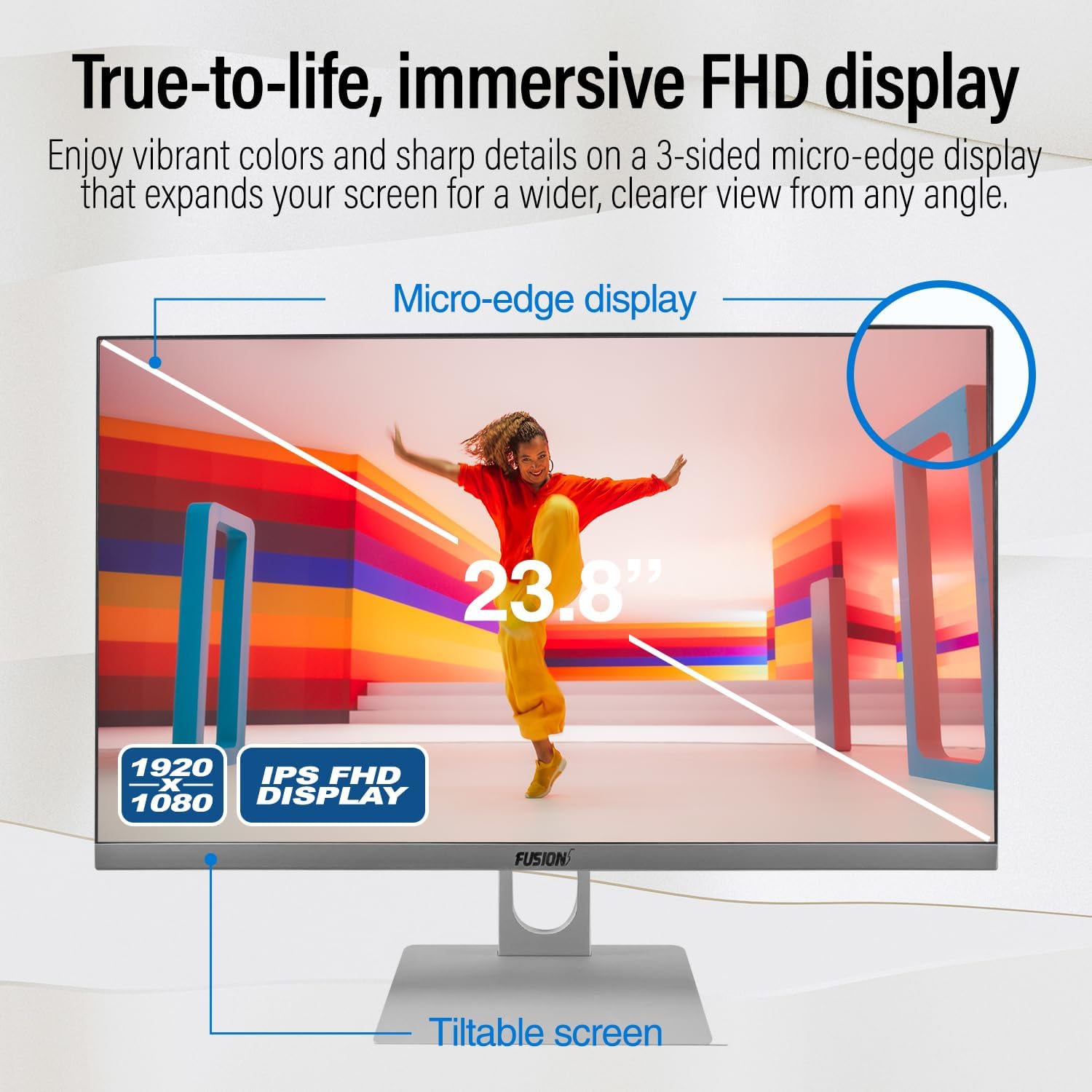
Image: Diagram highlighting the 23.8-inch FHD IPS display, micro-edge design, and tiltable screen functionality.
פאָרשטעלונג
Your PC is equipped with an Intel N150 processor (up to 3.60 GHz), 16GB LPDDR4 RAM, and a 512GB SATA SSD. This configuration ensures fast boot-ups, responsive multitasking, and efficient handling of daily tasks and applications.
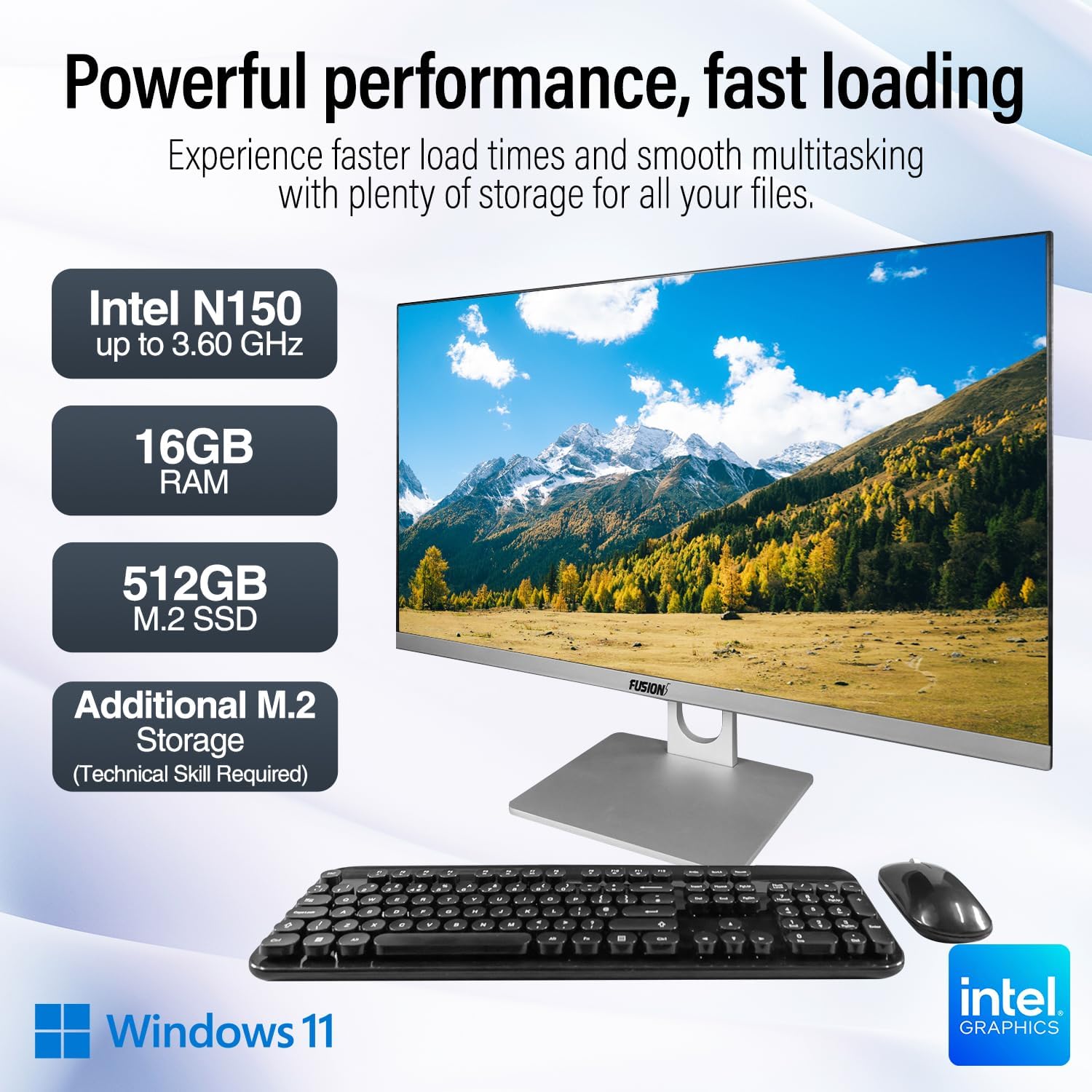
Image: Visual representation of the PC's core components: Intel N150 processor, 16GB RAM, 512GB M.2 SSD, and Windows 11 operating system.
קאַנעקטיוויטי
The PC offers various ports for connecting peripherals and external displays, along with wireless connectivity options. The rear view of the PC illustrates the physical layout of these ports.

בילד: הינטערשטע view of the Fusion5 A7 N6 All-in-One PC, displaying the arrangement of its various ports.
- וסב פּאָרץ: 2x USB 3.0, 4x USB 2.0 for connecting external devices like flash drives, printers, and other peripherals.
- הדמי פּאָרט: 1x HDMI for connecting an external monitor or TV.
- VGA פּאָרט: 1x VGA for connecting older external monitors.
- עטהערנעט פּאָרט: פֿאַר אַ דראָטיקער נעץ פֿאַרבינדונג.
- Headphone + Microphone Combo Jack: פֿאַר אַודיאָ אַרייַנגאַנג/אַרויסגאַנג.
- ווירעלעסס: Built-in AC Wi-Fi for internet access and Bluetooth 5.0 for connecting wireless accessories.
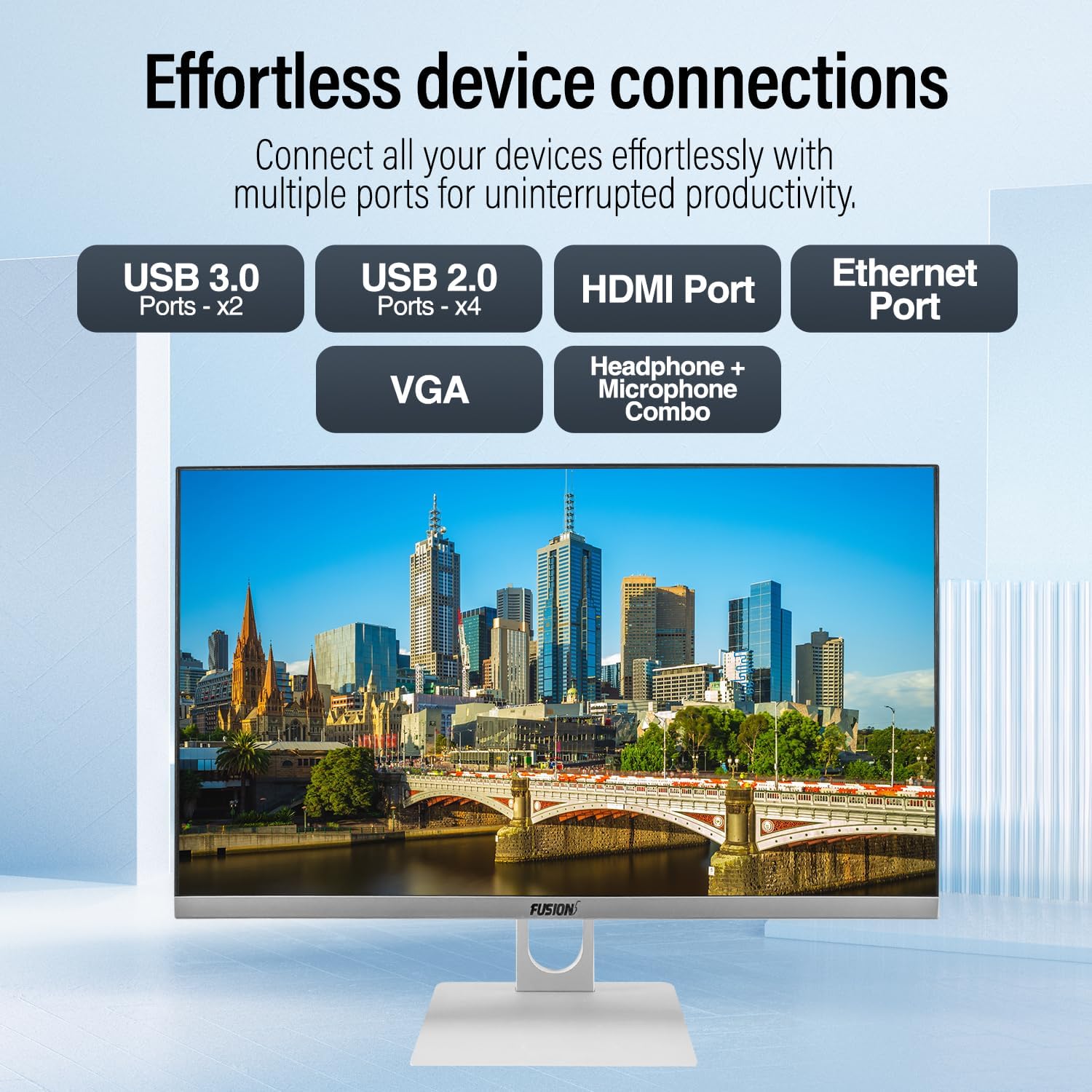
בילד: נאָענט-אַרויף view of the PC's rear ports, including USB 3.0, USB 2.0, HDMI, Ethernet, VGA, and the audio combo jack.
Webקאַמעראַ און אַודיאָ
The PC includes an integrated 3MP pop-up webcam, built-in microphones, and speakers, making it suitable for video conferencing and online communication.

Image: Illustration of the PC's integrated 3MP pop-up webcam, built-in microphones, and speakers, demonstrating its use for video calls.
זיכערהייַט
A Kensington Security Slot is provided for physical security, allowing you to secure your PC with a compatible lock (sold separately).
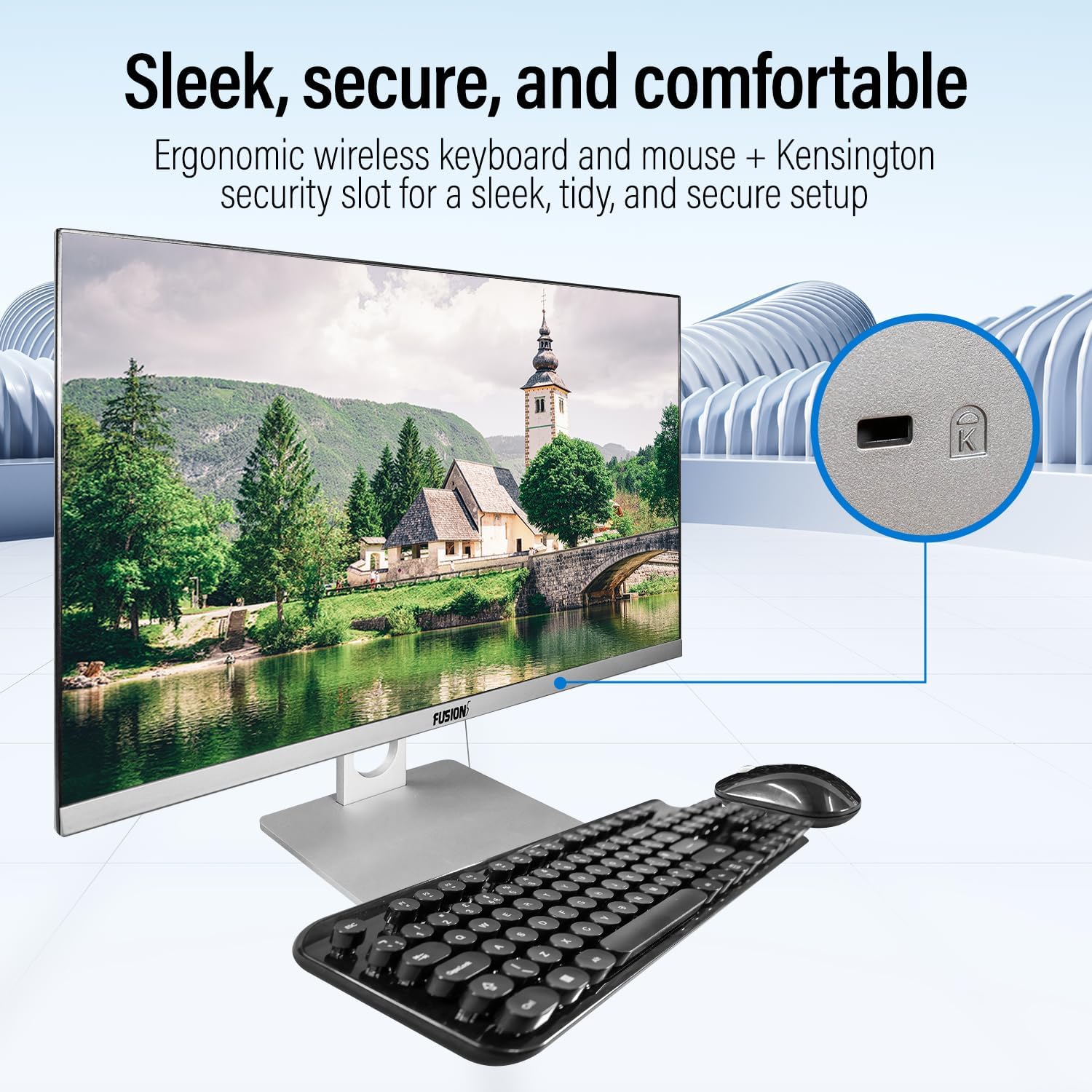
Image: Detail of the Kensington Security Slot located on the PC, designed for physical security.
וישאַלט
- רייניקונג די פאַרשטעלן: ניצט אַ ווייכע, לינט-פֿרייע שטאָף ספּעציעל דיזיינד פֿאַר עלעקטראָניק.ampen the cloth slightly with water or a screen cleaner solution (do not spray directly onto the screen).
- רייניקן דעם שאַסי: Wipe the exterior surfaces with a soft, dry cloth. Avoid abrasive cleaners or solvents.
- ווענטילאַטיאָן: זיכער מאַכן אַז די ווענטילאַציע עפענונגען זענען ריין פון שטויב און שטערונגען צו פאַרמייַדן איבערהיצונג.
- ווייכווארג דערהייַנטיקונגען: רעגולער אַפּדייט אייער Windows אָפּערייטינג סיסטעם און דרייווערס צו ענשור אָפּטימאַל פאָרשטעלונג און זיכערהייט.
סטאָרידזש אַפּגרייד
The Fusion5 A7 N6 supports M.2 SSD upgrades and the addition of a 2.5-inch SATA SSD/HDD. This procedure requires technical skill. If you are not comfortable performing this, seek professional assistance.
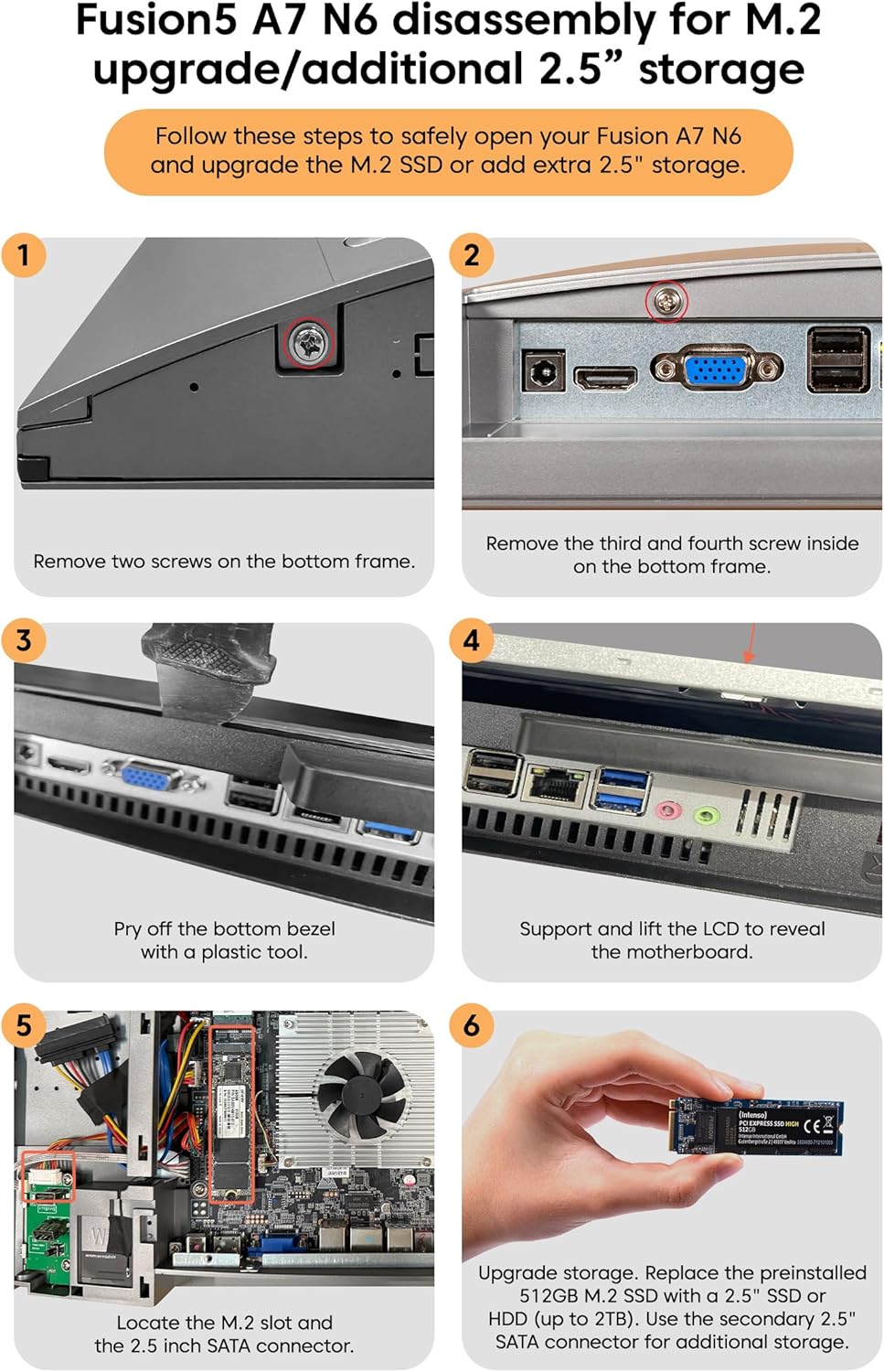
Image: Detailed visual instructions for disassembling the Fusion5 A7 N6 to upgrade the M.2 SSD or add a 2.5-inch storage drive.
- מאַכט אַוועק און דיסקאַנעקט: Ensure the PC is completely powered off and disconnected from the power adapter and all peripherals.
- אַראָפּנעמען סקרוז: Remove the two screws on the bottom frame of the PC.
- Remove Additional Screws: Remove the third and fourth screws located inside the bottom frame.
- Pry Off Bezel: Carefully pry off the bottom bezel using a plastic tool to avoid scratching the casing.
- Lift LCD: Gently support and lift the LCD panel to reveal the motherboard and internal components.
- געפינען סלאָץ: Identify the M.2 slot for SSD upgrades and the 2.5-inch SATA connector for additional storage.
- Install/Replace Storage:
- For M.2 SSD: Replace the preinstalled 512GB M.2 SSD with a new one if desired.
- For 2.5" Storage: Connect a 2.5-inch SSD or HDD (up to 2TB) to the SATA connector.
- ריאַסעמבאַלינג: Carefully reverse the steps to reassemble the PC, ensuring all connections are secure and screws are tightened.
טראָובלעשאָאָטינג
| פּראָבלעם | מעגלעך סיבה | לייזונג |
|---|---|---|
| דער פּיסי גייט נישט אָן. | Power cable not connected; power adapter faulty; power outlet issue. | Ensure power cable is securely connected. Test power adapter with another device or try a different outlet. |
| קיין אַרויסווייַזונג אויף דעם עקראַן. | PC is off; display settings issue; hardware fault. | Ensure PC is powered on. Try connecting an external monitor to check if the PC is functioning. Restart the PC. |
| Wireless keyboard/mouse not working. | Low batteries; USB receiver disconnected; driver issue. | Replace batteries. Ensure USB receiver is plugged into a working USB port. Reinstall drivers if necessary. |
| קיין אינטערנעט פֿאַרבינדונג (Wi-Fi). | Wi-Fi אויסגעלאָשן; אומרעכט פּאַראָל; ראַוטער פּראָבלעם. | Check Wi-Fi settings in Windows. Verify password. Restart your router. |
| לאַנגזאַמע פאָרשטעלונג. | Too many applications running; low storage space; outdated drivers. | שליסט אומנייטיקע אַפּליקאַציעס. מאַכט פריי דיסק פּלאַץ. דערהייַנטיקט ווינדאָוז און דרייווערס. |
ספּעסאַפאַקיישאַנז
| שטריך | דעטאַל |
|---|---|
| סאָרט | Fusion5 |
| מאָדעל נומער | A7 N6 16GB 512GB |
| ווייַז גרייס | 23.8 אינטשעס |
| ווייַז האַכלאָטע | 1920 רענטגענ 1080 (פול הד) |
| פּראַסעסער | אינטעל N150 (ביז 3.6 GHz) |
| באַראַן | 16 גיגאבייט DDR4 SDRAM |
| סטאָרידזש | 512 GB SSD (SATA) |
| גראַפיקס | ינטעגראַטעד ינטעל UHD גראַפיקס |
| אָפּערייטינג סיסטעם | Windows 11 היים |
| וסב 3.0 פּאָרץ | 2 |
| וסב 2.0 פּאָרץ | 4 |
| HDMI פּאָרץ | 1 |
| ווירעלעסס קאַנעקטיוויטי | Wi-Fi (AC), Bluetooth 5.0 |
| Webקאַם | 3MP Pop-up Web אַפּאַראַט |
| אַודיאָ | Built-in Microphones, Built-in Speakers |
| זיכערהייט שפּעלטל | קענסינגטאָן זיכערהייט שפּעלטל |
| דימענשאַנז (פּאַקאַץ) | 61 X 46.5 X 20.5 סענטימעטער |
| וואָג (פּאַקעט) | 4.2 קג |
וואָראַנטי און שטיצן
Your Fusion5 A7 N6 All-in-One PC comes with a standard manufacturer's warranty. Please refer to the warranty card included with your product for specific terms and conditions.
For technical support, troubleshooting assistance, or warranty claims, please contact Fusion5 customer service through their official website or the contact information provided in your product documentation. When contacting support, please have your model number (A7 N6 16GB 512GB) and purchase details ready.