
1. הקדמה
This manual provides essential information for setting up, operating, maintaining, and troubleshooting your CHUWI Hi10 X2 2-in-1 Laptop Tablet. Please read it thoroughly before using your device.
וואָס איז אין די קעסטל
- Hi10 X2 Tablet
- מאַגנעטיק קיבאָרד
- קאַסטן מיט שטיין
- טשאַרדזשער שטעלן
- באַניצער מאַנואַל (דעם דאָקומענט)

Image 1.1: CHUWI Hi10 X2 Tablet with Magnetic Keyboard and Case.
2. סעטאַפּ
2.1 ערשט טשאַרדזשינג
Before first use, fully charge your CHUWI Hi10 X2 tablet using the provided charger set. Connect the charger to the Type-C port on the tablet and plug it into a power outlet. The charging indicator light will illuminate.
2.2 Attaching the Magnetic Keyboard and Case
Align the tablet with the magnetic connectors on the keyboard. The magnets will secure the tablet in place. The case with stand can be adjusted to your preferred viewינג ווינקל.
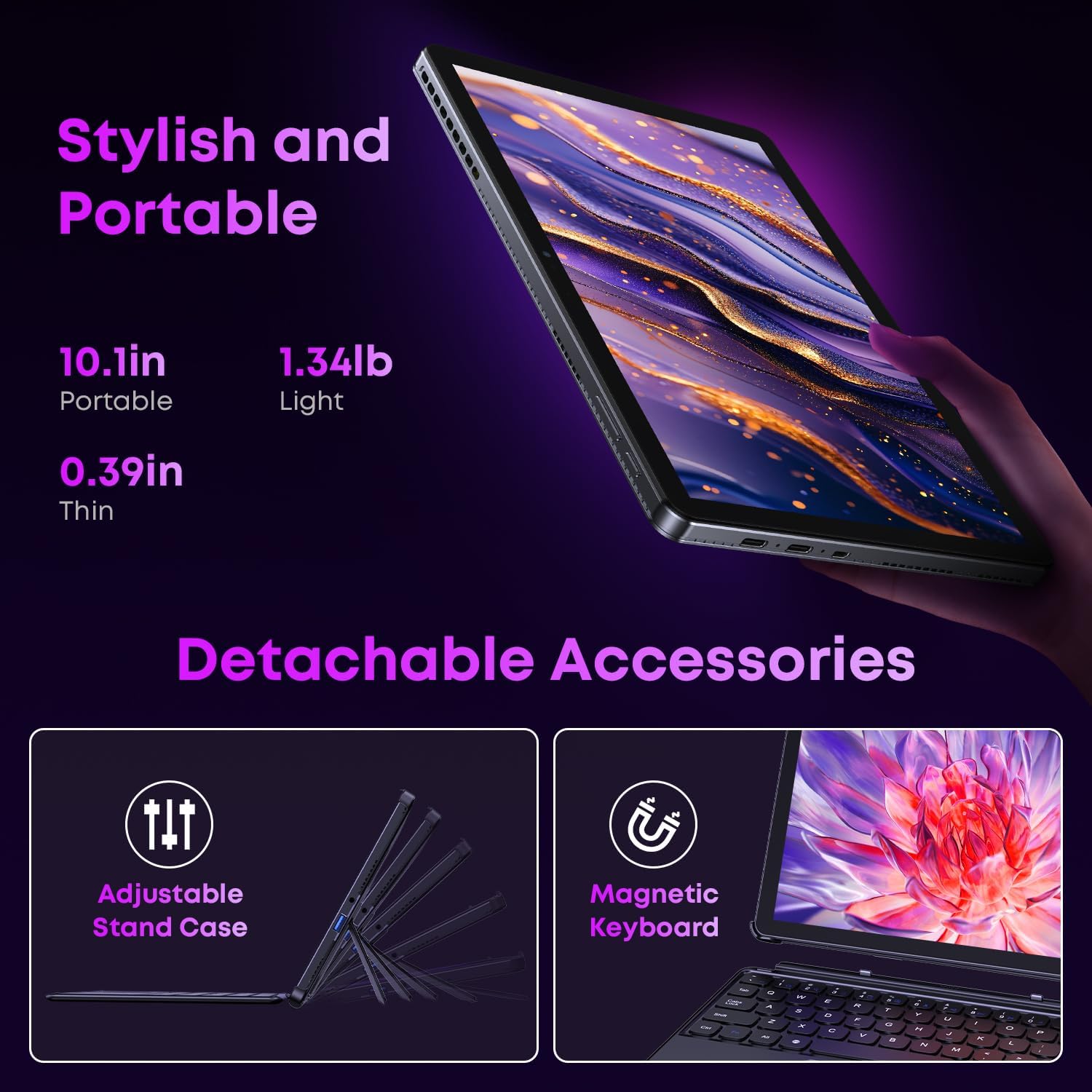
Image 2.1: Detachable accessories including the magnetic keyboard and adjustable stand case.
2.3 First Boot-Up and Windows Activation
Press and hold the power button until the screen turns on. Follow the on-screen instructions to complete the initial Windows 11 setup. If your Windows system arrives unactivated, please send the serial number (located on the back of the device) to CHUWI support via Amazon for your activation key.
2.4 קאַנעקטינג צו Wi-Fi
During setup, you will be prompted to connect to a Wi-Fi network. Select your network and enter the password. The device supports Wi-Fi 6 for fast and stable connections.
3. אַפּערייטינג ינסטרוקטיאָנס
3.1 אײַנשטעלן/אויסשטעלן און שלאָף מאָדע
- מאַכט אויף: דריק און האלט דעם מאַכט קנעפּל ביז דער עקראַן באַלויכטנט זיך.
- מאַכט אַוועק: From the Windows Start menu, select Power > Shut down.
- שלאָפן מאָדע: Briefly press the power button to enter or exit sleep mode.
3.2 ניצן די טאָוטשסקרעען
The 10.1-inch HD touchscreen supports 10-point multi-touch gestures. Use taps, swipes, and pinches for navigation and interaction with applications.

Image 3.1: The 10.1-inch HD touchscreen display.
3.3 לאַפּטאָפּ און טאַבלעט מאָדעס
The magnetic keyboard allows for seamless switching between laptop and tablet modes. Attach the keyboard for typing and productivity, or detach it for a pure tablet experience.
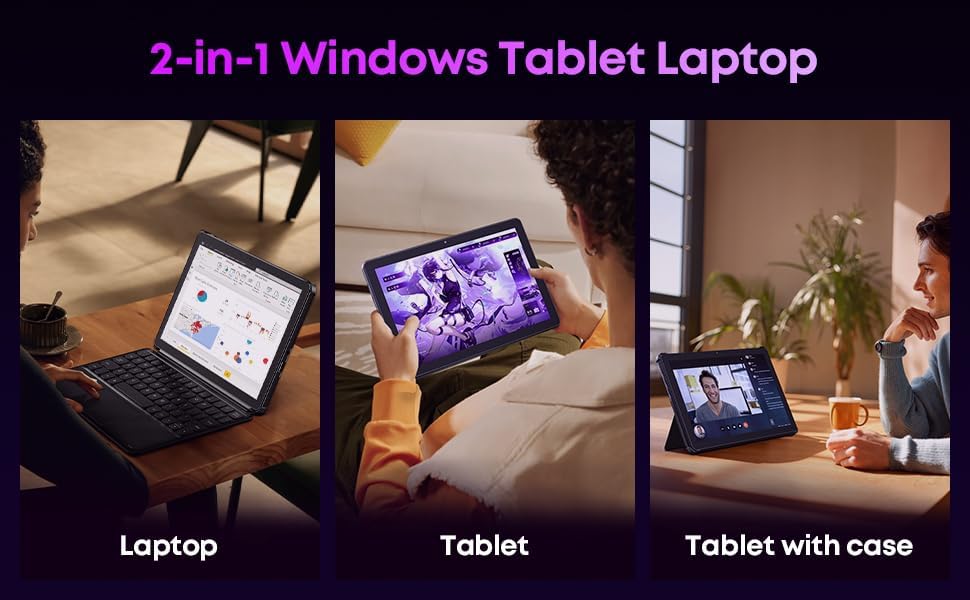
Image 3.2: Usage scenarios demonstrating laptop, tablet, and tablet with case modes.
3.4 קאַנעקטיוויטי
- וסב פּאָרץ: The tablet features a full-featured Type-C port and a USB 3.2 Gen1 port for data transfer and connecting peripherals.
- Micro HDMI: Connect to external monitors or TVs using the Micro HDMI port for extended display options, supporting up to 4K video output.
- בלועטאָאָטה 5.3: Pair with wireless headphones, mice, and other Bluetooth accessories.
- Wi-Fi 6: Enjoy high-speed internet connectivity for streaming and browsing.
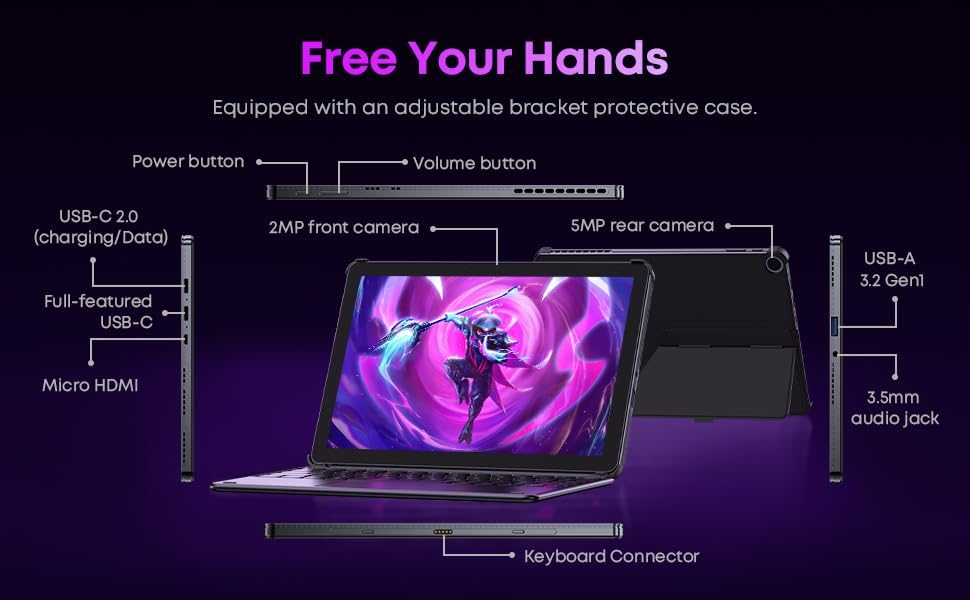
בילד 3.3: דעטאַלירט view of the tablet's ports and connectors.
3.5 קאַמעראַ באַניץ
The tablet is equipped with a 5MP autofocus rear camera for capturing photos and videos, and a 2MP front camera for video calls and selfies.

Image 3.4: Camera and wireless connectivity features.
3.6 Processor and Storage
Powered by a 10th Gen Intel Core i3 processor (up to 3.9GHz) and 8GB RAM, the tablet handles multitasking efficiently. The 256GB SSD provides ample storage and fast access to your files.

Image 3.5: Intel 10th Gen Core i3 Processor details.
3.7 פּראָדוקט איבערview ווידעא
ווידעא 3.6: אן איבערview of the CHUWI Hi10 X2 2-in-1 Laptop Tablet, highlighting its features and functionality.
4. וישאַלט
4.1 רייניקונג די מיטל
ניצט אַ ווייכע, לינט-פֿרייע שטאָף צו רייניקן דעם עקראַן און קערפּער פֿון דער טאַבלעט. פֿאַר שווערע פֿלעקן, ווישט אַ ביסלampווישט דעם שטאָף מיט וואַסער אָדער אַ רייניקונג לייזונג פֿאַרן עקראַן. פֿאַרמייַדט שטרענגע כעמיקאַלן אָדער אַברייסיוו מאַטעריאַלן.
4.2 באַטערי קער
To prolong battery life, avoid exposing the tablet to extreme temperatures. It is recommended to keep the battery charge between 20% and 80% for optimal longevity. Avoid fully discharging the battery frequently.
4.3 ווייכווארג דערהייַנטיקונגען
קאָנטראָלירט און אינסטאַלירט רעגולער ווינדאָוס דערהייַנטיקונגען צו זיכער מאַכן אַז אייער סיסטעם האט די לעצטע זיכערהייט פּאַטשאַז און פאָרשטעלונג פֿאַרבעסערונגען. גייט צו סעטטינגס > ווינדאָוס דערהייַנטיקונג.
4.4 סטאָרידזש פאַרוואַלטונג
פּיריאַדיקלי שייַעךview און אויסמעקן אומנייטיקע files and applications to free up storage space on the 256GB SSD. This helps maintain optimal device performance.
5. טראָובלעשאָאָטינג
5.1 דיווייס גייט נישט אן
- Ensure the device is fully charged. Connect the charger and wait a few minutes before attempting to power on.
- דריק און האלט דעם מאַכט קנעפּל פֿאַר 10-15 סעקונדעס צו דורכפירן אַ שווערן ריסעט.
5.2 Wi-Fi קאָנעקטיוויטי פּראָבלעמען
- ריסטאַרט דיין Wi-Fi ראַוטער און די טאַבלעט.
- קוק אויב אַנדערע דעוויסעס קענען זיך פֿאַרבינדן צו דער זעלבער Wi-Fi נעץ.
- Forget the network in Windows settings and reconnect.
5.3 Screen Not Responding to Touch
- ריסטאַרט די טאַבלעט.
- זיכער מאַכן אַז דער עקראַן איז ריין און פריי פון שמוץ.
5.4 Keyboard Not Working
- Ensure the tablet is correctly aligned and securely connected to the magnetic keyboard.
- ריסטאַרט די טאַבלעט.
פֿאַר ווייטערדיקע הילף, ביטע זעט די שטיצע אָפּטייל.
6. ספּעסאַפאַקיישאַנז
| שטריך | באַשרייַבונג |
|---|---|
| סאָרט | CHUWI |
| מאָדעל נאָמען | Hi10 X2 |
| פּראַסעסער | Intel Core i3 (10th Gen, up to 3.9 GHz) |
| אָפּערייטינג סיסטעם | Windows 11 היים |
| באַראַן | 8 גיגאבייט |
| סטאָרידזש | 256 גיגאבייט ססד |
| פאַרשטעלן גרייס | 10.1 אינטשעס |
| ווייַז האַכלאָטע | 1280x800 פּיקסעלס |
| קאַנעקטיוויטי | Wi-Fi 6, בלועטוט 5.3 |
| פּאָרץ | Full-featured Type-C, USB 3.2 Gen 1, Micro HDMI, 3.5mm Audio Jack |
| קאַמעראַס | 5MP Autofocus Rear, 2MP Front |
| וואָג | 1.3 פונט (אומגעפער 0.59 ק"ג) |
| דימענסיעס (L x B x H) | 9.6" x 6.49" x 0.39" |
| באַטאַרייע קאַפּאַציטעט | 3400 מאַה |
7. וואָראַנטי אינפֿאָרמאַציע
The CHUWI Hi10 X2 2-in-1 Laptop Tablet comes with a 1-יאָר לימיטעד וואָראַנטידי וואָראַנטי דעקט פאַבריקאַציע חסרונות און מאַלפאַנגקשאַנז אונטער נאָרמאַל נוצן. ביטע האַלטן דיין קויפן באַווייַז פֿאַר וואָראַנטי קליימז.
For detailed warranty terms and conditions, please refer to the official CHUWI webפּלאַץ אָדער קאָנטאַקט קונה שטיצן.
8. שטיצן
If you encounter any issues not covered in the Troubleshooting section, or require assistance with Windows activation, please contact CHUWI customer support. You can typically find support contact information on the official CHUWI website or through your purchase platform (e.g., Amazon seller messaging).
When contacting support, please have your device's serial number and proof of purchase readily available.