
הקדמה
Thank you for choosing the KAMRUI Hyper H2 Mini PC. This compact and powerful desktop computer is designed for a wide range of applications, from demanding office tasks and creative projects to home entertainment and light gaming. Equipped with an Intel Core i5-14450HX processor, 16GB DDR4 RAM, and a 512GB NVMe SSD, it offers robust performance and seamless multitasking capabilities. Its versatile connectivity options and triple 4K display support ensure a flexible and immersive user experience.
This manual provides essential information on setting up, operating, maintaining, and troubleshooting your KAMRUI Hyper H2 Mini PC. Please read it thoroughly to ensure optimal performance and longevity of your device.
וואָס איז אין די קעסטל
Upon opening your KAMRUI Hyper H2 Mini PC package, please verify that all the following items are included:
- 1 x KAMRUI Hyper H2 Mini PC
- 1 רענטגענ הדמי קאַבלע
- 1 x וועסאַ מאָונט מיט שרויפן
- 1 x מאַכט אַדאַפּטער
- 1 x באַניצער מאַנואַל

פּראָדוקט איבערview
The KAMRUI Hyper H2 Mini PC is engineered for efficiency and connectivity. Its compact chassis houses a powerful Intel Core i5-14450HX processor, supported by a robust cooling system to ensure stable performance even under heavy workloads.
פראָנט פּאַנעל פּאָרץ
- 1 x USB 3.2 Gen2 Type-C port (10Gbps data transfer, DisplayPort Alt Mode, 15W power delivery)
- 2 x USB 3.2 Gen2 Type-A ports (10Gbps)
- 1 x Audio Jack (3.5mm for headphones/microphone)
- 1 x מאַכט קנעפּל
דערציען פּאַנעל פּאָרץ
- 1 x HDMI 2.0 פּאָרט
- 1 x DisplayPort 1.4b
- 1 x RJ45 Gigabit Ethernet Port
- 4 x USB 3.2 Gen1 Type-A ports (5Gbps)
- 1 x גלייכשטראָם מאַכט אַרייַנגאַנג

סעטאַפּ גייד
Follow these steps for initial setup of your KAMRUI Hyper H2 Mini PC:
- פֿאַרבינדן דיספּליי: Connect your monitor(s) to the Mini PC using the HDMI, DisplayPort, or USB-C port. For triple display setup, utilize all three available video outputs.
- פאַרבינדן פּעריפעראַלס: שטעקט אריין אייער קלאַוויאַטור, מויז, און אַלע אַנדערע USB דעוויסעס אין די פאַראַן USB פּאָרץ.
- פאַרבינדן צו די נעץ: For wired internet, connect an Ethernet cable to the RJ45 Gigabit Ethernet port. For wireless, ensure your Wi-Fi 6 network is available after initial boot.
- פאַרבינדן מאַכט: Plug the power adapter into the DC input port on the Mini PC, then connect the adapter to a power outlet.
- מאַכט אויף: Press the power button on the front panel to turn on your Mini PC.
- ערשט קאַנפיגיעריישאַן: Follow the on-screen instructions to complete the Windows 11 Pro setup, including language, network, and user account settings.
VESA בארג ינסטאַלירונג
The included VESA mount allows you to attach the Mini PC to the back of a compatible monitor or TV, saving desk space and creating a clean setup.
- באַפעסטיקט די VESA מאָונט קלאַמער צו דער הינטערשטער טייל פון אייער מאָניטאָר מיט די צוגעשטעלטע שרויפן.
- Slide the KAMRUI Hyper H2 Mini PC onto the mounted bracket until it clicks securely into place.
אַפּערייטינג ינסטראַקשאַנז
יקערדיק אָפּעראַציע
- מאַכט אויף / אַוועק: Press the power button once to turn the device on or off. For a forced shutdown, press and hold the power button for 5-7 seconds.
- ריסטאַרט: Use the operating system's restart option for proper system reboots.
- שלאָפן מאָדע: The system will enter sleep mode after a period of inactivity or by selecting the sleep option in the OS.
מולטי-דיספּליי סעטאַפּ
The KAMRUI Hyper H2 supports up to three 4K@60Hz displays simultaneously, enhancing productivity and entertainment. Connect your displays to the HDMI, DisplayPort, and full-featured USB-C ports. Once connected, configure your display settings within the operating system (e.g., Extend, Duplicate, or Second screen only).

וישאַלט און אַפּגרעידס
קאָאָלינג סיסטעם
The KAMRUI Hyper H2 features a premium thermal design with a dual-fan cooling system, full copper heat pipes, and a dedicated aluminum SSD heatsink. This ensures the CPU and storage remain cool, even under sustained heavy workloads. To maintain optimal cooling performance:
- Ensure proper airflow by keeping the vents clear of obstructions.
- רעגולער רייניקט שטויב פון די ווענץ מיט קאמפרעסט לופט.

RAM and SSD Upgrades
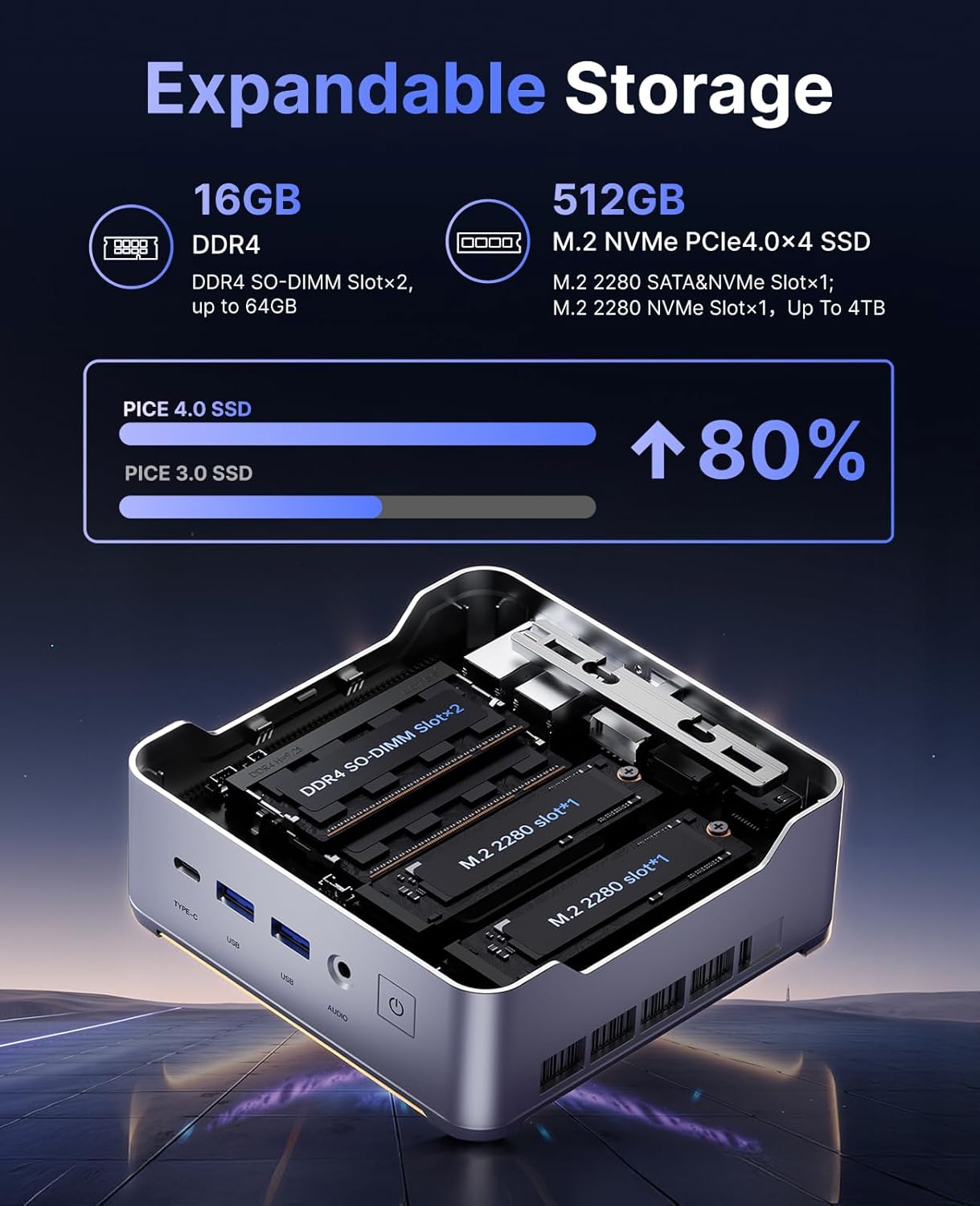
The KAMRUI Hyper H2 is designed for easy upgrades, allowing you to expand its memory and storage capacity. The Mini PC supports:
- באַראַן: Up to 2x 32GB DDR4 3200MHz/s SO-DIMM (total 64GB).
- SSD: Up to 2x 2TB NVMe SSD (M.2 2280 PCIe Gen4x4).
To access the RAM and SSD slots:
- Ensure the Mini PC is powered off and disconnected from all cables.
- Locate the small Phillips screw on the rear panel next to the lock/unlock switch. Remove this screw.
- Slide the lock switch to the unlock position. The top cover will lift slightly.
- קערפאַלי אַראָפּנעמען די שפּיץ דעקן.
- Unscrew the four Phillips screws holding the metal plate/cover.
- Gently lift the metal plate to reveal the RAM and NVMe SSD slots.
- Install or replace your RAM modules or NVMe SSDs as needed.
- Reassemble the Mini PC by reversing these steps, ensuring all screws are tightened and the cover is securely locked.
טראָובלעשאָאָטינג
If you encounter any issues with your KAMRUI Hyper H2 Mini PC, please refer to the following common solutions:
- קיין מאַכט:
- זיכער מאַכן אַז דער מאַכט אַדאַפּטער איז זיכער פארבונדן צו ביידע די מיני פּיסי און אַ אַרבעטנדיק מאַכט ווענטיל.
- באַשטעטיקן אַז די עלעקטרישע ווענטיל אַרבעט דורך אַרײַנשטעקן אַן אַנדער דעוויס.
- קיין ווייַז:
- Check all video cable connections (HDMI, DP, USB-C) between the Mini PC and your monitor(s).
- Ensure your monitor is powered on and set to the correct input source.
- Try connecting to a different display or using a different video cable.
- קיין אינטערנעט פֿאַרבינדונג:
- For wired connection, ensure the Ethernet cable is properly connected and your router/modem is working.
- For Wi-Fi, check if Wi-Fi is enabled in Windows settings and ensure you are connected to the correct network with the right password.
- Restart your router/modem and the Mini PC.
- פּאַמעלעך פאָרשטעלונג:
- שליסט אומנייטיקע אַפּליקאַציעס וואָס לויפן אין הינטערגרונט.
- זייט זיכער אז אייער אפערירן סיסטעם און דרייווערס זענען אפ טו דעיט.
- קוק פֿאַר מאַלוואַרע אָדער ווירוסן מיט אַ רעספּעקטאַבלן אַנטיווירוס ווייכווארג.
- Consider upgrading RAM or SSD if performance issues persist, especially with demanding tasks.
ספּעסאַפאַקיישאַנז
| שטריך | באַשרייַבונג |
|---|---|
| פּראַסעסער | Intel Core i5-14450HX (10 Cores/16 Threads, up to 4.8GHz) |
| גראַפיקס | Integrated UHD Graphics for 14th Gen Processors (max frequency 1.5GHz) |
| באַראַן | 16GB DDR4 (Expandable up to 64GB, 2x SO-DIMM slots) |
| סטאָרידזש | 512GB NVMe PCIe 4.0 SSD (Expandable up to 2x 2TB NVMe SSD) |
| ווידעא רעזולטאַט | Triple 4K@60Hz (HDMI 2.0, DP 1.4b, USB-C with DisplayPort Alt Mode) |
| ווירעלעסס קאַנעקטיוויטי | Wi-Fi 6 (802.11ax), בלועטוט 5.2 |
| ווייערד קאַנעקטיוויטי | 1 x RJ45 Gigabit Ethernet Port |
| וסב פּאָרץ | 1 x USB 3.2 Gen2 Type-C (10Gbps, DP Alt Mode, 15W PD) 2 x USB 3.2 דור 2 טיפ-A (10Gbps) 4 x USB 3.2 דור 1 טיפ-A (5Gbps) |
| אַודיאָ | 1 רענטגענ 3.5 מם אַודיאָ דזשאַק |
| אָפּערייטינג סיסטעם | OS PRO |
| דימענשאַנז | 6.46 x 6.42 x 4.53 אינטשעס (פּאַקעט) |
| פּונקט וואָג | 2.99 פונט |
וואָראַנטי און שטיצן
Your KAMRUI Hyper H2 Mini PC comes with a 12-חודש וואָראַנטי from the date of purchase, covering manufacturing defects and hardware malfunctions under normal use. For any technical assistance, troubleshooting, or warranty claims, please contact KAMRUI customer support.
KAMRUI offers 24-שעה קונה שטיצן to assist you with any queries or issues you may encounter. Please refer to the contact information provided in your product packaging or visit the official KAMRUI webפּלאַץ פֿאַר שטיצן דעטאַילס.
פֿאַר נאָך רעסורסן און פּראָדוקט אינפֿאָרמאַציע, באַזוכט די KAMRUI Store on Amazon.