
הקדמה
Thank you for choosing the Salange 2026 Mini Projector. This portable smart projector is designed to deliver a high-quality visual experience with its 4K support, Android 14 operating system, and advanced connectivity features like WiFi 6 and Bluetooth 5.4. This manual provides essential information for safe and efficient use of your device. Please read it thoroughly before operation and retain it for future reference.
זיכערקייַט אינפֿאָרמאַציע
- קוק נישט גלייך אריין אין די פּראָיעקטאָר לינז ווען די לamp איז אויף.
- פאַרזיכערן געהעריק ווענאַליישאַן אַרום די פּראַדזשעקטער צו פאַרמייַדן אָוווערכיטינג.
- ניצט נאָר דעם מאַכט אַדאַפּטער וואָס ווערט צוגעשטעלט מיטן פּראָיעקטאָר.
- האַלט דעם פּראָיעקטאָר אַוועק פון וואַסער, נעץ און ברענענדיקע מאַטעריאַלן.
- ויסמיידן פּלייסינג די פּראַדזשעקטער אויף אַנסטייבאַל סערפאַסיז.
- פרובירט נישט צו צענעמען אדער פאררעכטן דעם פראיעקטאר אליין. קאנטאקטירט קוואליפיצירטע סערוויס פערסאנעל.
סעטאַפּ
1. אויספּאַקן די קעסטל און ערשטע פּלאַצירונג
Carefully remove the projector and all accessories from the packaging. Place the projector on a stable, flat surface. For optimal viewing, position the projector perpendicular to the projection surface. The projector features a 270° rotatable design for flexible placement.
2. מאַכט קאַנעקשאַן
Connect the power cord to the projector's power input port and then plug it into a power outlet. The projector will typically power on automatically or can be turned on using the power button on the device or remote control.

בילד: הינטערשטע view of the Salange 2026 Mini Projector with power, HDMI, and USB ports.
3. פאָקוס און קיסטאָון אַדזשאַסטמענט
The Salange 2026 Mini Projector supports manual focus adjustment. Rotate the focus ring on the projector to achieve a sharp image. It also features automatic vertical keystone correction (±45°) to eliminate image distortion, ensuring a rectangular picture even when the projector is not perfectly aligned. For more precise adjustments, 4-point correction may be available in the settings.

Image: Automatic vertical keystone correction and manual focus adjustment.
4. Network Connection (WiFi 6)
Navigate to the settings menu on the projector. Select 'Network' or 'Wi-Fi' and choose your desired network from the list. Enter the password if prompted. The projector supports dual-band (2.4 GHz + 5 GHz) Wi-Fi 6 for stable and fast connections.
5. בלועטאָאָטה פּערינג
To connect Bluetooth audio devices, go to the settings menu and select 'Bluetooth'. Turn on Bluetooth and search for available devices. Select your device from the list to pair. This allows for wireless audio output to speakers or headphones.
אַפּערייטינג ינסטראַקשאַנז
1. מאַכט אויף / אויסגעלאשן
Press the power button on the projector or the remote control to turn the device on or off. A short press typically puts the projector into standby mode, while a long press performs a full shutdown.
2. Navigating the Android 14 Interface
The projector runs on Android 14.0, providing access to a wide range of applications. Use the remote control to navigate through the home screen, app drawer, and settings. The interface is similar to a smart TV, allowing for intuitive use.
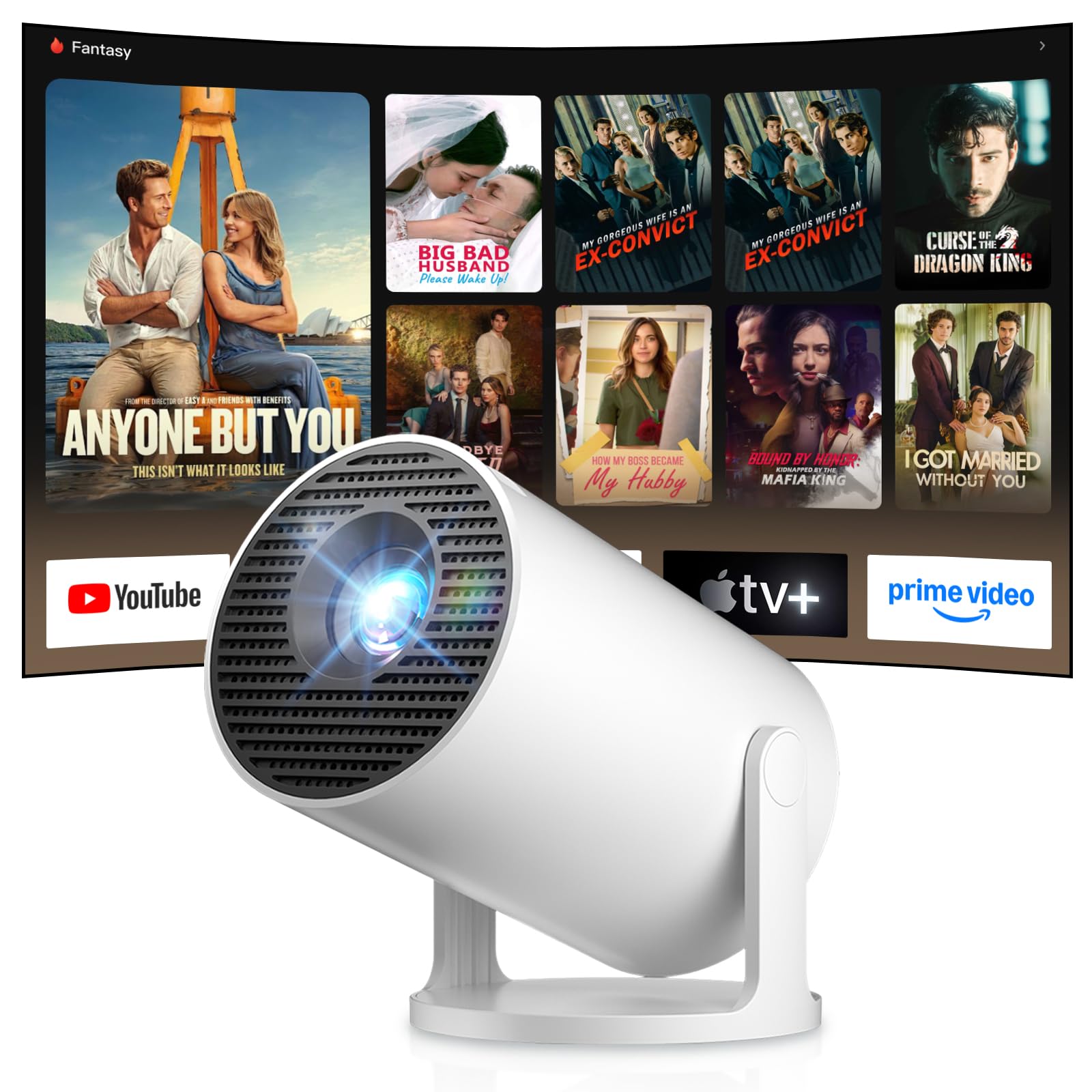
Image: Android TV 14.0 interface with streaming applications.
3. אַפּ ינסטאַללאַטיאָן
With Android 14, you can install over 8,000 applications directly onto the projector. Access the app store (e.g., Google Play Store) from the home screen, search for desired apps (video players, games, office software), and install them.
4. Screen Mirroring (iOS/Android)
The projector supports screen mirroring for both iOS and Android devices. Ensure your mobile device and the projector are connected to the same Wi-Fi network. On your mobile device, activate the screen mirroring function (e.g., AirPlay for iOS, Cast for Android) and select the projector from the list of available devices.

Image: Wireless casting from mobile devices to the projector.
5. Connecting External Devices (HDMI, USB)
Use the HDMI port to connect devices such as laptops, game consoles (PS5, Switch), or TV sticks. Use the USB port to connect USB drives for media playback or other peripherals. Select the appropriate input source from the projector's input menu.
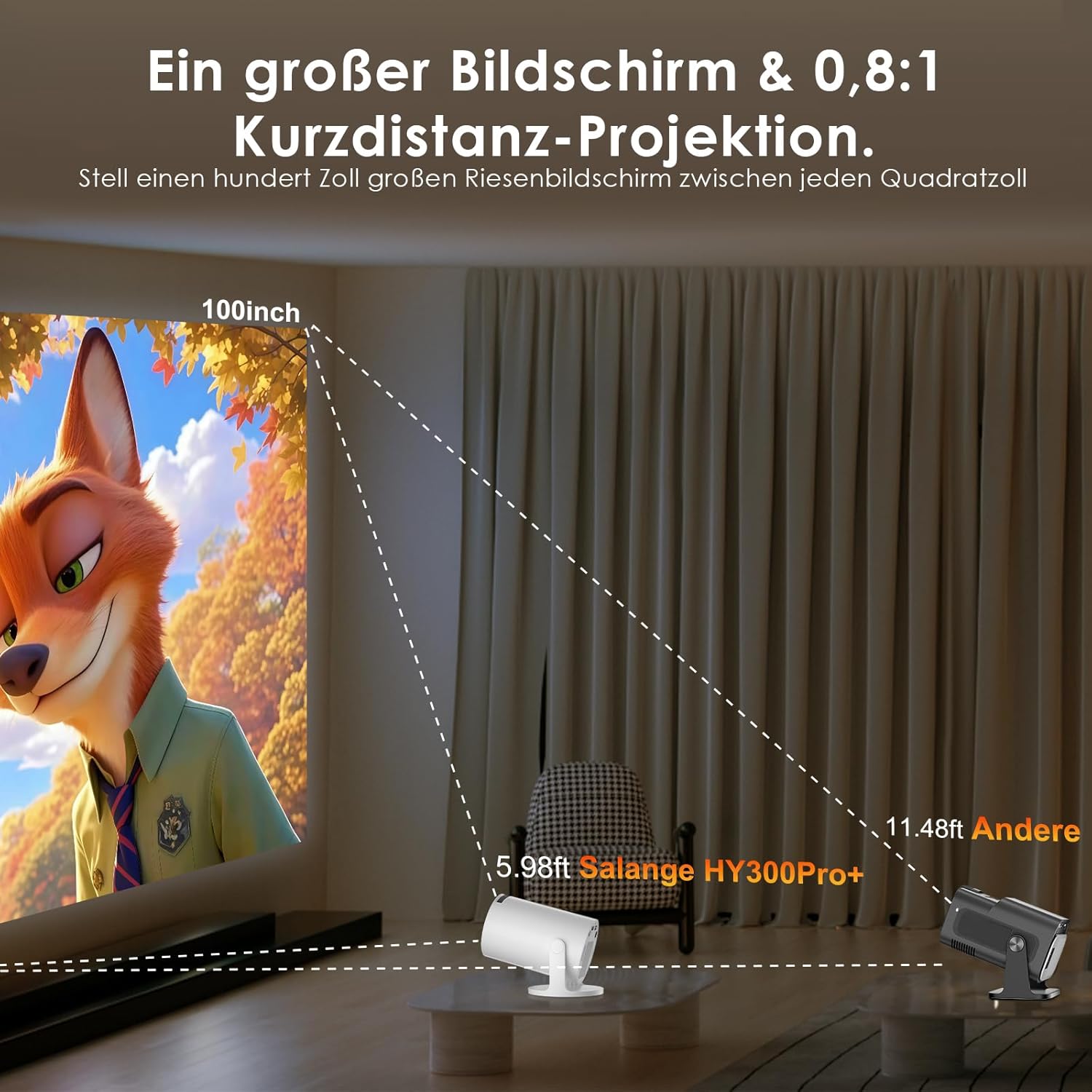
Image: Connectivity options for HDMI, Audio, and USB devices.
6. אַודיאָ אָוטפּוט
The projector has built-in speakers. For enhanced audio, connect external speakers or headphones via Bluetooth or the 3.5mm audio jack.
וישאַלט
1. רייניקונג פון די לינז
Use a soft, lint-free cloth specifically designed for optical lenses to gently wipe the projector lens. Avoid using abrasive cleaners or excessive pressure, which can scratch the lens.
2. רייניקונג די יקסטיריער
Wipe the projector's exterior with a soft, dry cloth. For stubborn dirt, a slightly damp cloth can be used, followed by a dry cloth. Do not use harsh chemicals or solvents.
3. סטאָרידזש
ווען נישט אין באַנוץ פֿאַר לענגערע פּעריאָדן, זאָל מען האַלטן דעם פּראָיעקטאָר אין אַ קיל, טרוקן און שטויב-פֿרייער סביבה. ניצט די אָריגינעלע פּאַקאַדזשינג אָדער אַ פּראַטעקטיוו קעסטל צו פֿאַרמייַדן שאָדן.
טראָובלעשאָאָטינג
- קיין מאַכט: זיכער מאַכן אַז די מאַכט שנור איז זיכער פארבונדן צו ביידע דעם פּראָיעקטאָר און די מאַכט אַוטלעט. פּרוּווט אַן אַנדער אַוטלעט.
- קיין בילד: Check if the projector is powered on. Verify the input source is correctly selected (e.g., HDMI 1, USB). Ensure the lens cap is removed.
- בלערד בילד: Adjust the manual focus ring until the image is sharp. Check if the projector is too close or too far from the screen.
- Image Distortion (Trapezoid): The projector has automatic keystone correction. If manual adjustment is needed, check the display settings for keystone correction options.
- קיין קול: Check the volume level on both the projector and the connected source device. Ensure external audio devices are correctly connected and selected as the output.
- Wi-Fi/בלוטוט קאנעקשאן פראבלעמען: Ensure the projector is within range of your router or Bluetooth device. Restart the projector and your network devices. Re-pair Bluetooth devices.
- רימאָוט קאָנטראָל ניט ריספּאַנדינג: קאָנטראָלירט די באַטעריעס אין דער ווײַטקאָנטראָל. מאַכט זיכער אַז עס זענען נישטאָ קיין שטערונגען צווישן דער ווײַטקאָנטראָל און דעם פּראָיעקטאָרס IR ופנעמער.
פּראָדוקט ספּעסאַפאַקיישאַנז
| שטריך | באַשרייַבונג |
|---|---|
| פאַבריקאַנט | סאַלאַנגע |
| ASIN | B0G43FF84L |
| לאַנד פון אָריגין | כינע |
| רעקאָממענדעד ניצט | Business, Home Cinema, Gaming, Education |
| ספּעציעלע פֿעיִקייטן | Wi-Fi Compatible, Digital Keystone Correction, Lightweight, Portable |
| קאַנעקטיוויטי טעכנאָלאָגיע | בלועטוט, HDMI, USB, Wi-Fi |
| געבוירן ווייַז האַכלאָטע | 1280 X 720 בילדצעלן |
| מאַקסימום ווייַז האַכלאָטע | 3840 x 2160 pixels (4K supported) |
| ווייַז טיפּ | לקד |
| פּראָדוקט דימענשאַנז (L x W x H) | 10.1 X 10.1 X 17 סענטימעטער |
| פאָרם פאַקטאָר | פּאָרטאַטיוו |
| מאַונטינג טיפּ | טיש בארג |
| ברייטנאַס | 8000 לומענס |
| קאָליר | ווייַס |
| קאַמפּאַטאַבאַל דעוויסעס | Game Console, Speaker, Laptop, Smartphone, Television |
| קאַנטראַסט פאַרהעלטעניש | 1500:1 |
| מאַקסימום בילד גרייס | 150 אינטשעס |
| מינימום בילד גרייס | 30 אינטשעס |
| ווידעא קאָדירונג | ה.265 |
| בילד ענכאַנסמאַנט טעכנאָלאָגיע | HDR |
| קעסטל אינהאַלט | 1 Projector, 1 Power Cord, 1 Remote Control, 1 User Manual |
וואָראַנטי אינפֿאָרמאַציע
The Salange 2026 Mini Projector comes with a standard manufacturer's warranty. Please refer to the warranty card included in your product packaging for specific terms, conditions, and duration. Keep your proof of purchase for warranty claims.
קונה שטיצן
For technical assistance, troubleshooting, or any questions regarding your Salange 2026 Mini Projector, please contact Salange customer support. Contact details can typically be found on the official Salange website or in the warranty information provided with your product.