
1. הקדמה
This manual provides essential information for setting up, operating, maintaining, and troubleshooting your Fusion5 FWIN232 PRO N5 10.1-inch Windows 11 Professional Tablet PC. Please read this guide thoroughly to ensure optimal performance and longevity of your device.

Image: The Fusion5 FWIN232 PRO N5 tablet, showcasinג זײַן גלאַטן דיזײַן און אַרויסווײַז.
2. אָנהייבן (סעטאַפּ)
2.1 אויספּאַקן די קעסטל און ערשטע דורכקוק
- קערפאַלי באַזייַטיקן אַלע קאַמפּאָונאַנץ פון די פּאַקקאַגינג.
- Verify that all included items are present: Fusion5 FWIN232 PRO N5 Tablet PC, 36W Fast Charger, and this Manual.
- Inspect the tablet for any physical damage. If damage is found, contact customer support immediately.
2.2 אויפלאָדן די טאַבלעט
- Connect the included 36W Type-C fast charger to the tablet's USB-C port.
- צאַפּן די טשאַרדזשער אין אַ מאַכט ווענטיל.
- לאָזט דעם טאַבלעט זיך גאָר אויפלאָדן איידער איר ניצט עס צום ערשטן מאָל. דער באַטעריע אינדיקאַטאָר אויפן עקראַן וועט ווײַזן דעם אויפלאָדן סטאַטוס.
2.3 אײַנצושאַלטן און ערשטע Windows 11 סעטאַפּ
- Press and hold the Power button until the Fusion5 logo appears.
- Follow the on-screen instructions to complete the Windows 11 Professional setup process. This includes selecting your language, region, connecting to a Wi-Fi network, and creating a user account.
2.4 וואָראַנטי פאַרשרייבונג
- Scan the QR code provided in the packaging or on the device to register your tablet. This activates your 2-year full warranty, including accidental damage cover.
ווידעא: אן איבערview of the Fusion5 Windows 11 Pro Tablet, highlighting its features and performance.
3. אפערירן אייער טאַבלעט
3.1 פיזישע קאָמפּאָנענטן
Familiarize yourself with the tablet's buttons and ports:
- מאַכט קנעפּל: געפינען זיך אויף דער זייט, גענוצט צו אנצינדן/אויסלעשן די טאַבלעט אדער עס אריינלייגן אין שלאף.
- באַנד קנעפּלעך: אַדזשאַסטירן אַודיאָ אַוטפּוט.
- מיקראָ סד שפּעלטל: צו פארברייטערן סטאָרידזש ביז 512 גיגאבייט.
- Micro HDMI Port: פֿאַרבינדן זיך צו עקסטערנע דיספּלייז.
- וסב 3.0 פּאָרט: פֿאַר פֿאַרבינדן USB-A דעוויסעס.
- וסב טיפּ-C פּאָרט: For charging and connecting USB-C peripherals.
- כעדפאָון דזשאַק (3.5 מם): פֿאַר אַודיאָ אַרויסגאַנג צו כעדפאָונז אָדער עקסטערנע רעדנערס.
- Dual FHD Cameras: Front and rear cameras for video calls and photography.
- צווייענדיק ספּיקערז: אינטעגרירט פֿאַר אַודיאָ אַרויסגאַנג.
בילד: זייט view of the Fusion5 FWIN232 PRO N5 tablet, illustrating the location of various ports and buttons.
3.2 Touchscreen Usage
The 10.1-inch Full HD IPS touchscreen supports multi-touch gestures. Use taps, swipes, and pinch-to-zoom for navigation and interaction with applications.
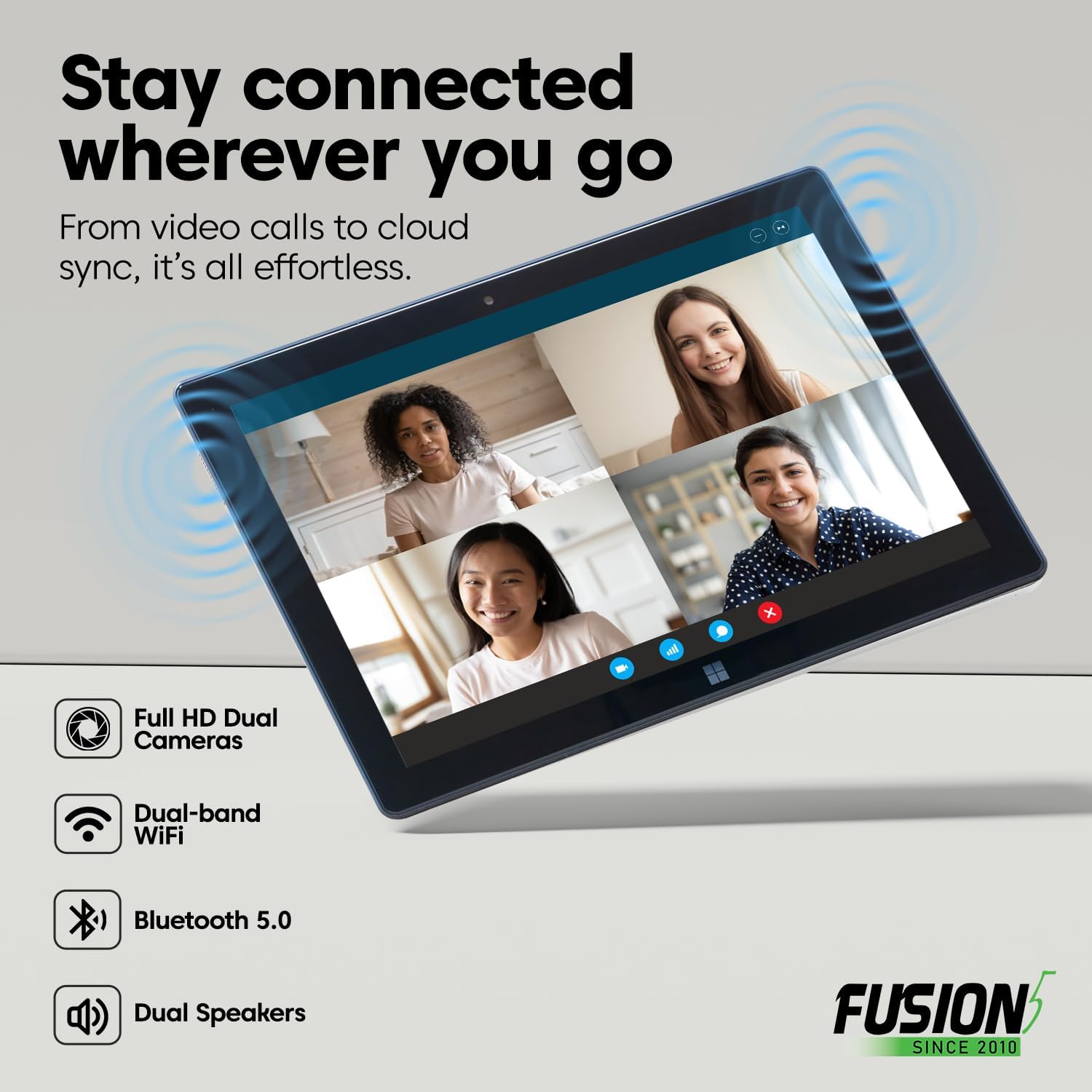
Image: A user interacting with the Fusion5 FWIN232 PRO N5 tablet's touchscreen display.
3.3 קאַנעקטיוויטי
- ווי-פי: Connect to 2.4GHz or 5GHz Wi-Fi networks for internet access. Navigate to Windows Settings > Network & Internet > Wi-Fi to manage connections.
- בלועטאָאָטה 5.0: Pair with Bluetooth-enabled devices such as keyboards, mice, and headphones. Go to Windows Settings > Bluetooth & devices to manage pairings.
- עקסטערנע דיספּלייז: Use the Micro HDMI port to connect your tablet to a monitor or TV.
- USB דעוויסעס: Connect USB-A and USB-C peripherals like flash drives, external hard drives, or docking stations.

Image: Diagram showing the various ports on the Fusion5 FWIN232 PRO N5 tablet, including USB-C, USB-A, and Micro HDMI.
3.4 אַפּערייטינג מאָדעס
- טאַבלעט מאָדע: Ideal for touch-based interaction, browsing, and media consumption.
- לאַפּטאָפּ מאָדע: Connect an optional docking keyboard (sold separately) to transform your tablet into a laptop for typing and multitasking.

Image: The Fusion5 FWIN232 PRO N5 tablet connected to an external keyboard, demonstrating laptop mode functionality.
4. וישאַלט און קער
4.1 רייניקן די טאַבלעט
- ניצט אַ ווייכן, לינט-פֿרייע שטאָף צו רייניקן דעם עקראַן און קערפּער.
- פֿאַר שווערע פֿלעקן, לײַכט דראַפֿטןampווישט דעם שטאָף מיט וואַסער אָדער אַ פאַרשטעלן-רייניקונג לייזונג.
- פֿאַרמײַדן ניצן שטרענגע כעמיקאַלן, אַברייסיוו מאַטעריאַלן, אָדער איבערגעטריבענע פֿײַכטקייט.
4.2 באַטערי קער
- כדי צו פארלענגערן די לעבן פון די באַטעריע, זאָל מען אויסמיידן עקסטרעמע טעמפּעראַטורן.
- לאָזט נישט די באַטאַרייע זיך אָפט גאָר אויסלאָדן.
- Use only the original 36W Type-C fast charger provided with the tablet.
4.3 ווייכווארג דערהייַנטיקונגען
- Regularly check for and install Windows updates to ensure optimal performance, security, and access to the latest features.
- Go to Windows Settings > Windows Update to manage updates.
4.4 סטאָרידזש פאַרוואַלטונג
- פּיריאַדיקלי שייַעךview און אויסמעקן אומנייטיקע fileס צו באַפרייַען סטאָרידזש פּלאַץ.
- Utilize the MicroSD card slot for additional storage of media and documents.
- Consider cloud storage solutions like OneDrive for backup and access across devices.
5. טראָובלעשאָאָטינג
אויב איר טרעפט פּראָבלעמען מיט אייער טאַבלעט, זעט די פאלגענדע געוויינטלעכע לייזונגען:
5.1 טאַבלעט טוט זיך נישט אָן
- זיכער מאַכן אַז די טאַבלעט איז אָנגעלאָדן. פֿאַרבינדט דעם טשאַרדזשער און וואַרט אַ פּאָר מינוט איידער איר פּרוּווט עס ווידער אָנצוצינדן.
- Press and hold the Power button for 10-15 seconds to perform a hard reset.
5.2 Wi-Fi קאָנעקטיוויטי פּראָבלעמען
- Check if Wi-Fi is enabled in Windows Settings.
- ריסטאַרט דיין Wi-Fi ראַוטער און די טאַבלעט.
- פארגעס דעם נעץ און פארבינד זיך ווידער
- זייט זיכער אז איר זענט אין דער רייך פון די Wi-Fi סיגנאַל.
5.3 לאַנגזאַמע פאָרשטעלונג
- שליסט אומנייטיקע אַפּליקאַציעס וואָס לויפן אין הינטערגרונט.
- קוקט נאָך און אינסטאַלירט אַלע וואַרטנדיקע ווינדאָוז דערהייַנטיקונגען.
- זיכער מאַכן אַז עס איז דאָ גענוג פֿרײַער סטאָרידזש פּלאַץ.
- ריסטאַרט די טאַבלעט.
5.4 טאָוטשסקרין רעאַגירט נישט
- ריסטאַרט די טאַבלעט.
- זיכער מאַכן אַז דער עקראַן איז ריין און פריי פון שמוץ אָדער נעץ.
- אויב די אַרויסגעבן בלייַבט, קאָנטאַקט קונה שטיצן.
6. ספּעסאַפאַקיישאַנז
Key technical specifications for the Fusion5 FWIN232 PRO N5 Tablet PC:
| שטריך | דעטאַל |
|---|---|
| מאָדעל נאָמען | FWIN232 PRO N5 |
| אָפּערייטינג סיסטעם | Windows 11 פּראַפעשאַנאַל |
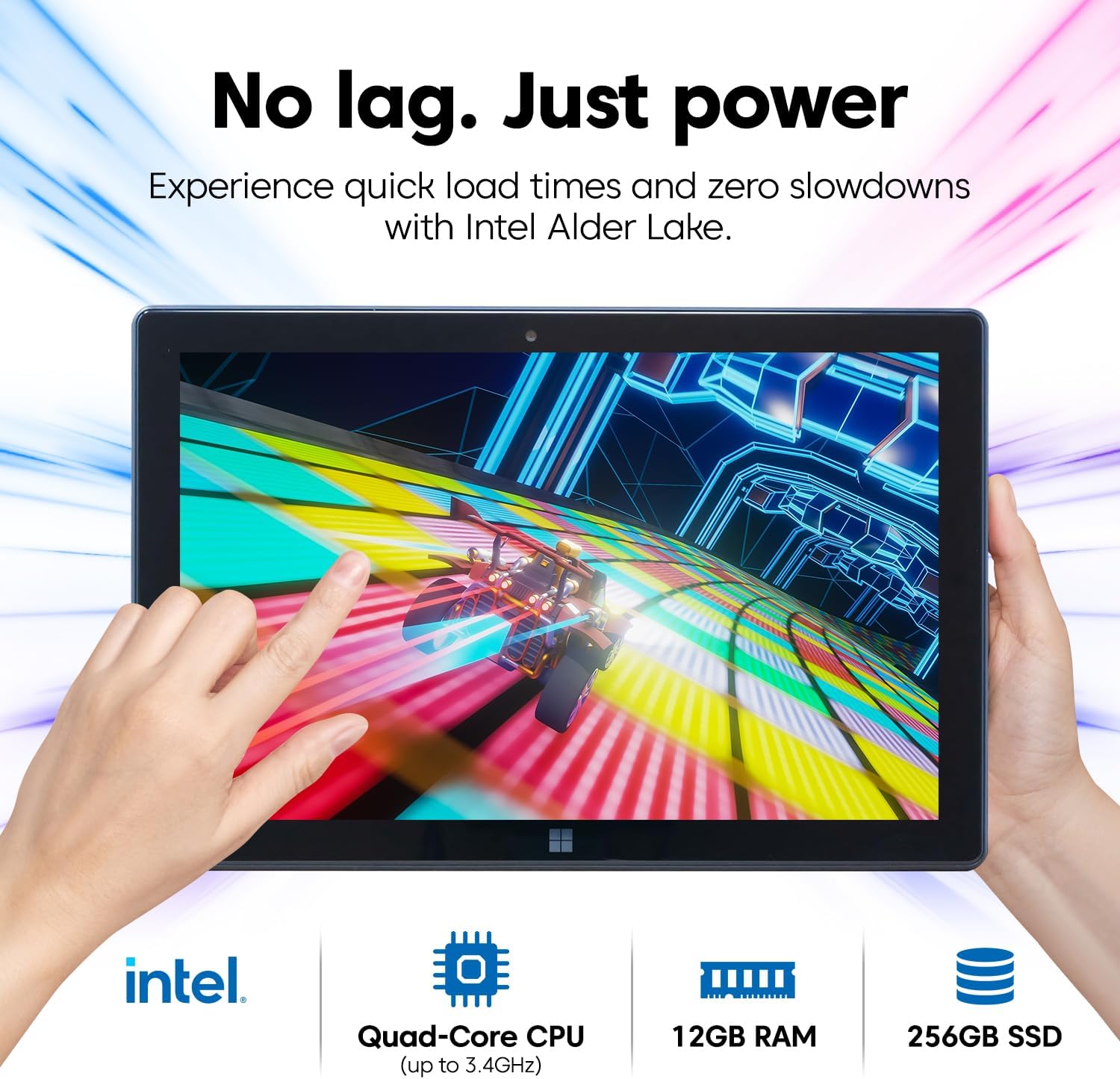
| פּראַסעסער | Intel Alder Lake 13th Gen N100 Quad-Core CPU (up to 3.4 GHz) |
| גראַפיקס | אינטעל UHD גראַפיקס (אינטעגרירט) |
| באַראַן | 12 גיגאבייט |
| סטאָרידזש | 256 גיגאבייט ססד |
| יקספּאַנדאַבאַל סטאָרידזש | MicroSD card slot (up to 512 GB) |
| פאַרשטעלן גרייס | 10.1 אינטשעס |
| ווייַז האַכלאָטע | 1920 x 1080 פּיקסעלס (פול HD IPS) |
| Maximum Display Brightness | 500 ניץ |
| קאַנעקטיוויטי | Dual-Band Wi-Fi (2.4GHz & 5GHz), Bluetooth 5.0 |
| פּאָרץ | USB-C, USB-A, Micro HDMI, 3.5mm Headphone Jack |
| קאַמעראַס | Dual FHD Cameras (Front & Rear 2MP) |
| באַטאַרייע קאַפּאַציטעט | 6000 mAh (ליטיום פּאָלימער) |
| וואָג | 636 ג (אומגעפער 23 אונסעס) |
| דימענסיעס (L x B x H) | 10.03" x 6.69" x 0.43" |

Image: A visual summary of the Fusion5 FWIN232 PRO N5 tablet's key specifications.
7. וואָראַנטי און שטיצן
7.1 2-Year Full Warranty with Accidental Damage Cover
Your Fusion5 FWIN232 PRO N5 tablet comes with a comprehensive 24-month full warranty. This includes protection for up to two (2) accidental damage incidents, covering issues such as drops and liquid spills. To activate your coverage, please register your device by scanning the QR code provided with your product.

Image: Details of the 2-year full coverage and accidental screen damage protection for the Fusion5 tablet.
7.2 קונה שטיצן
For technical assistance, warranty claims, or any other inquiries, please refer to the contact information provided during your warranty registration or visit the official Fusion5 support website. Scanning the QR code offers zero-contact support.

Image: Illustration emphasizing the tablet's assembly in the USA, highlighting quality and support.