
iFLYTEK AINOTE 2
iFLYTEK AINOTE 2 E-Ink Tablet User Manual
Model: AINOTE 2
1. הקדמה
The iFLYTEK AINOTE 2 is an advanced E-Ink tablet designed for productivity, learning, and creative tasks. It combines the natural writing experience of paper with powerful AI features, a large, eye-friendly display, and extensive app compatibility through Android 14 and Google Play. This manual provides essential information for setting up, operating, and maintaining your device.
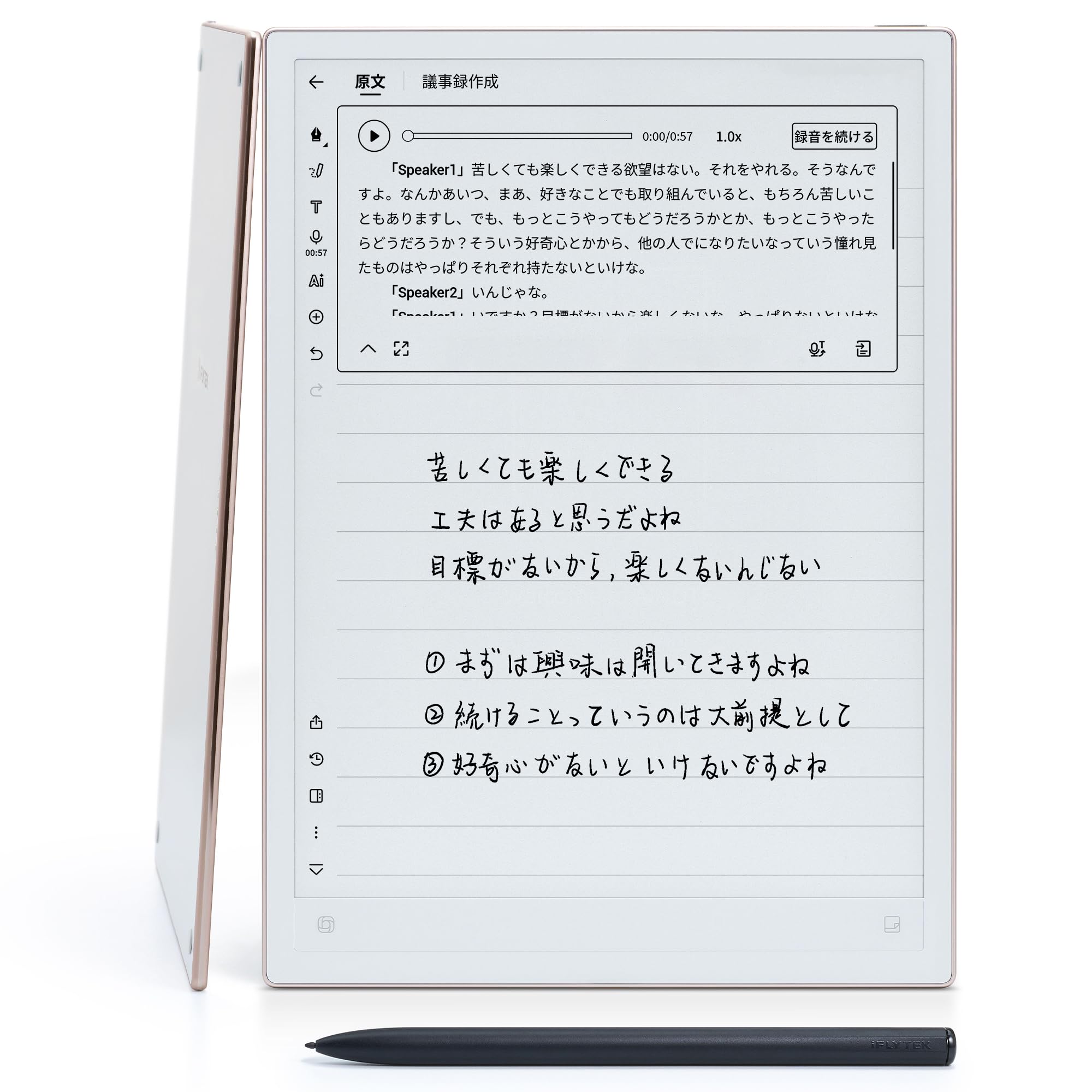
Image 1: The iFLYTEK AINOTE 2 E-Ink Tablet.
2. פּעקל אינהאַלט
באַשטעטיקט אַז אַלע זאכן זענען פאַראַן אין אייער פּראָדוקט פּאַקעט:
- iFLYTEK AINOTE 2 E-Ink Tablet
- סטילוס פּען
- טיפּ- C וסב קאַבלע
- באַניצער מאַנואַל (דעם דאָקומענט)
3. דיווייס איבערview
3.1 פיזיש פֿעיִקייטן
The AINOTE 2 features a minimalist design with a 10.65-inch E-Ink display. It is remarkably thin at 4.2mm and weighs approximately 295g, ensuring portability.

Image 2: The iFLYTEK AINOTE 2 highlighting its 4.2mm thinness and 10.65-inch display.
3.2 פּאָרטן און קנעפּלעך
- מאַכט קנעפּל: Located on the side/top edge. Press and hold to power on/off or restart.
- וסב טיפּ-C פּאָרט: פֿאַר טשאַרדזשינג און דאַטן אַריבערפירן.
- מיקראָפאָן: For voice recording and transcription.
- רעדנער: פֿאַר אַודיאָ ווידערשפּיל.
4. ערשט סעטאַפּ
4.1 טשאַרדזשינג די מיטל
Before first use, fully charge your AINOTE 2 using the provided Type-C cable and a compatible power adapter. The device has a 4000mAh battery, offering up to 2 weeks of typical use on a single charge.
4.2 פּאַוערינג אויף / אַוועק
- צו מאַכט אויף: דריקן און האַלטן די מאַכט קנעפּל ביז די פאַרשטעלן לייץ.
- צו מאַכט אַוועק: Press and hold the Power button, then select 'Power Off' from the options.
- צו ריסטאַרט: דריק און האלט דעם פּאַוער קנעפּל, און סעלעקטיר 'ריסטאַרט' פֿון די אָפּציעס.
4.3 ערשט קאַנפיגיעריישאַן
ביים ערשטן מאָל אנצינדן, פאָלגט די אינסטרוקציעס אויפן עקראַן צו:
- אויסקלייַבן דיין בילכער שפּראַך.
- פאַרבינדן צו אַ Wi-Fi נעץ.
- Log in with your Google account to access Google Play services.
5. אַפּערייטינג ינסטרוקטיאָנס
5.1 יקערדיק נאַוויגאַציע
The AINOTE 2 uses a touch-sensitive E-Ink display. Navigate by tapping, swiping, and pinching. The included stylus pen provides precise input for writing and drawing.
5.2 Note-Taking and Writing
The device offers a natural writing experience thanks to Wacom technology, featuring low latency and an optimized refresh rate. You can choose from various note templates and pen types.

Image 3: Demonstrating the smooth writing experience with the Wacom stylus.
5.3 קינסטלעכע אינטעליגענץ פֿעיִטשערס
The AINOTE 2 integrates advanced AI capabilities, including a GPT-5 model, to enhance your workflow:
- Automatic Transcription: Record meetings or lectures, and the device will automatically transcribe the audio into text. Supports 18 languages.
- רעאַל-צייט איבערזעצונג: Translate text in 14 languages bidirectionally.
- קינסטלעכע אינטעליגענץ אַסיסטאַנט: Use the dedicated AI button for instant Q&A, keyword search, and document creation.
- האנטשריפט דערקענונג: Convert handwritten notes into editable text, supporting 133 languages.

בילד 4: איבערview of AI features including ChatGPT integration, meeting minutes creation, AI Q&A, and AI search.

Image 5: The AINOTE 2's transcription and translation capabilities across multiple languages.
5.4 Reading E-books and Documents
The E-Ink display minimizes glare and blue light, making it ideal for extended reading sessions. You can annotate documents and e-books directly with the stylus.
5.5 Google Play and Android 14
Running on Android 14, the AINOTE 2 allows direct installation of applications from Google Play. This expands its functionality, enabling you to customize your workflow with your preferred productivity apps.
5.6 Schedule Management
Integrate your schedule with handwritten notes. The device can automatically extract To-Do items from your notes and sync with Google Calendar, helping you manage tasks and appointments efficiently.

Image 6: The AINOTE 2 displaying its schedule management interface, including Google Calendar integration.
5.7 Multi-Device Integration
The AINOTE Mobile app and PC version allow for automatic synchronization of your notes across all your devices, ensuring you always have access to your latest information.
6. וישאַלט
6.1 רייניקונג די מיטל
Use a soft, lint-free cloth to gently wipe the screen and body of the AINOTE 2. Do not use harsh chemicals or abrasive materials, as they may damage the E-Ink display or casing.
6.2 ווייכווארג דערהייַנטיקונגען
Regularly check for and install software updates to ensure optimal performance and access to the latest features. Updates can typically be found in the device's settings menu under 'System' or 'About device'.
6.3 באַטערי קער
To prolong battery life, avoid exposing the device to extreme temperatures. It is recommended to fully charge the device periodically, even if not in regular use.
7. טראָובלעשאָאָטינג
This section addresses common issues you might encounter with your AINOTE 2.
7.1 אַפּאַראַט טוט זיך נישט אָן
- Ensure the device is sufficiently charged. Connect it to a power source for at least 30 minutes.
- דריק און האלט דעם פּאַוער קנעפּל פֿאַר 10-15 סעקונדעס צו צווינגען אַ ריסטאַרט.
7.2 Stylus Not Responding
- Check if the stylus tip is worn out. Replace if necessary.
- Ensure the stylus is properly paired (if applicable, though Wacom EMR pens typically don't require pairing).
- Restart the AINOTE 2.
7.3 Wi-Fi קאָנעקטיוויטי פּראָבלעמען
- באַשטעטיקן אַז אייער Wi-Fi פּאַראָל איז ריכטיק.
- ריסטאַרט דיין Wi-Fi ראַוטער.
- Go to Settings > Network & Internet > Wi-Fi and try reconnecting.
7.4 Apps Not Installing from Google Play
- Ensure you are logged into your Google account.
- קוק דיין אינטערנעט פֿאַרבינדונג.
- Clear the cache and data for the Google Play Store app in Settings > Apps.
8. ספּעסאַפאַקיישאַנז
| שטריך | דעטאַל |
|---|---|
| סאָרט | אייפלייטעק |
| מאָדעל נאָמען | איינאָטע 2 |
| ווייַז גרייס | 10.65 אינטשעס |
| ווייַז טיפּ | E- ינק |
| מאַקסימום דיספּליי רעזאָלוציע | 1920 X 2560 בילדצעלן |
| אָפּערייטינג סיסטעם | אַנדרויד 14 |
| אינערלעכער סטאָרידזש | 64 גיגאבייט |
| באַראַן | 4 גיגאבייט |
| קפּו מאַנופאַקטורער | ראָקקטשיפּ |
| באַטאַרייע קאַפּאַציטעט | 4000mAh (9.88 Wh Lithium-ion) |
| ווירעלעסס קאַנעקטיוויטי | ווי-פי |
| דימענסיעס (L X W X H) | 24.7 X 17.8 X 0.4 סענטימעטער |
| אַרייַנגערעכנט קאַמפּאָונאַנץ | AINOTE 2, Type-C Cable, Stylus Pen, User Manual |
9. וואָראַנטי און שטיצן
9.1 פאַבריקאַנט'ס גאַראַנטיע
The iFLYTEK AINOTE 2 comes with a 1-year manufacturer's warranty from the date of purchase. This warranty covers defects in materials and workmanship under normal use. It does not cover damage caused by misuse, accidents, unauthorized modifications, or external causes.
9.2 קונה שטיצן
For technical assistance, warranty claims, or general inquiries, please contact iFLYTEK customer support. You can find contact information on the official iFLYTEK website or within the device's support menu.
The device includes an internal support menu. Navigate to Settings > Support to access online support resources and apply for after-sales service.

Image 7: The AINOTE 2's support and service interface, showing options for online support and after-sales service.
Ask a question about this manual
Ask about setup, troubleshooting, compatibility, parts, safety, or missing instructions. Manuals+ will review the question and use this page’s manual context to help answer it.