
1. סעטאַפּ
1.1 אויספּאַקן און פּאַקעט אינהאַלט
Carefully remove all items from the packaging. Ensure all components are present before proceeding with installation.
- Roku Select Series 55" 4K TV
- שטאַנדן און שרויפן
- ווייַט קאָנטראָל
- באַניצער מאַנואַל

Figure 1: Contents of the Roku Select Series 55-inch TV package.
1.2 גשמיות ינסטאַלירונג
The Roku Select Series TV can be installed using the included stands for table mounting or by using a compatible VESA wall mount (200 x 100 mm, sold separately).
טיש מאָונט ינסטאַלירונג:
- לייגט דעם טעלעוויזיע מיטן עקראַן אַראָפּ אויף אַ ווייכער, ריינער ייבערפלאַך צו פאַרמייַדן קראַצן.
- Attach the two TV stands to the designated slots on the bottom of the TV using the provided screws. Ensure they are securely fastened.
- הייב פֿאָרזיכטיק דעם טעלעוויזאָר און שטעל אים אויף אַ סטאַבילער, גלייכער ייבערפֿלאַך.
וואַנט בארג ינסטאַלירונג:
For wall mounting, refer to the instructions provided with your VESA 200 x 100 mm compatible wall mount kit. Ensure the wall can support the weight of the television (approximately 20.1 pounds without stand).

Figure 2: TV dimensions and package contents overview.
1.3 קאַנעקטינג פּעריפעראַלס
The TV features multiple ports for connecting external devices. Refer to the back panel diagram for port locations.

Figure 3: Rear panel connections including HDMI, USB, and network ports.
- HDMI פּאָרץ (3 אינגאנצן): Connect gaming consoles, Blu-ray players, soundbars, or other HDMI-enabled devices.
- USB פּאָרט (1 אינגאנצן): פֿאַרבינדט USB סטאָרידזש דעוויסעס פֿאַר מעדיע ווידערשפּיל.
- עטהערנעט (LAN) פּאָרט: פֿאַר אַ דראָטיקער אינטערנעט פֿאַרבינדונג.
- אַנטענע/קאַבל אַרייַנגאַנג: פֿאַרבינדט אַן אַנטענע פֿאַר איבער-די-לופֿט בראָדקאַסץ אָדער אַ קאַבל טעלעוויזיע פֿאַרבינדונג.
- Optical (S/PDIF) Output: פֿאַר דיגיטאַלער אַודיאָ אַרויסגאַנג צו אַ געזונט סיסטעם.
1.4 ערשטע איינשטראָם און נעץ פֿאַרבינדונג
- פאַרבינדן די מאַכט שנור צו די טעלעוויזיע און אַ מאַכט ווענטיל.
- דרוק די מאַכט קנעפּל אויף די ווייַט קאָנטראָל צו קער אויף די טעלעוויזיע.
- Follow the on-screen instructions to complete the initial setup, including language selection (English, Spanish, French, Portuguese are supported).
- Select your preferred network connection:
- ווי-פי: קלייַבט אייער Wi-Fi נעץ פֿון דער רשימה און גיט אַרײַן דאָס פּאַראָל.
- עטהערנעט: If an Ethernet cable is connected, the TV will automatically attempt to establish a wired connection.
- The TV will guide you through linking to a Roku account, which is necessary to access streaming channels and features.
2. אַפּערייטינג ינסטרוקטיאָנס
2.1 רימאָוט קאָנטראָל פאַנגקשאַנז
The included voice remote provides intuitive control over your TV. It operates via Bluetooth, eliminating the need for direct line-of-sight.

Figure 4: Roku Voice Remote layout and key functions.
- מאַכט קנעפּל: טורנס די טעלעוויזיע אויף אָדער אַוועק.
- Directional Pad (OK button in center): נאַוויגירט מעניוז און סעלעקטירט זאכן.
- באַנד אַרויף / אַראָפּ: אַדזשאַסץ טעלעוויזיע באַנד.
- שטיל קנעפּל: Mutes or unmutes TV audio.
- קול קנעפּל: Activates voice search and control.
- Instant Replay: שפּרינגט צוריק אַ פּאָר סעקונדעס אין ווידעאָ ווידערשפּיל.
- לייוו טעלעוויזיע קנעפל: Accesses the live TV channel guide.
- Quick Launch Buttons: Dedicated buttons for popular streaming apps (e.g., Netflix, Disney+, Apple TV, Prime Video). These can be customized for your favorite apps.
- פארלוירענער ווײַט־פֿינדער: If the remote is misplaced, use the Roku mobile app to activate an audible alert from the remote.
2.2 Home Screen Navigation and Streaming
The Roku home screen provides quick access to all your streaming channels, inputs, and settings.
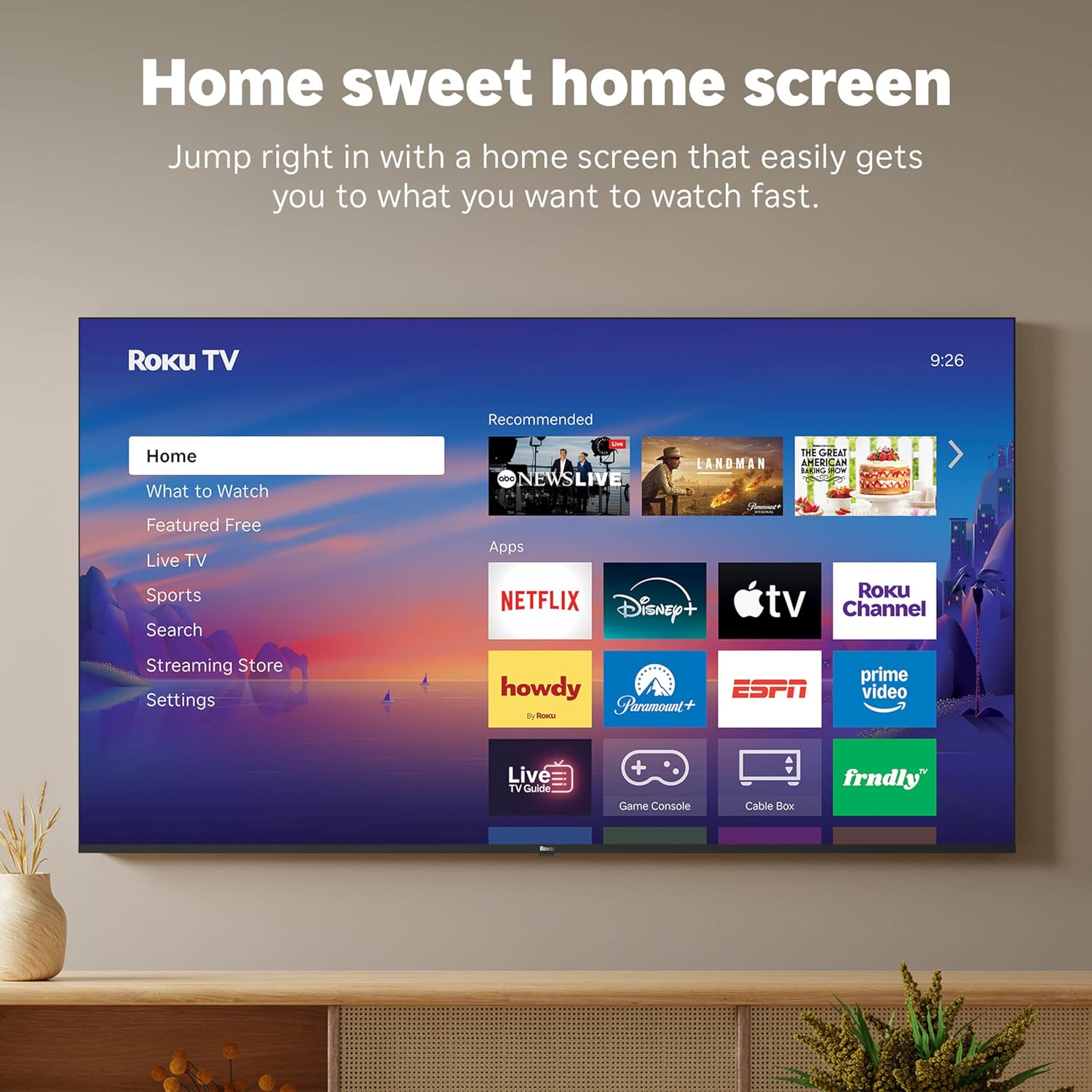
Figure 5: The Roku TV home screen interface.
- Use the directional pad on your remote to navigate through the menu options on the left side of the screen (Home, What to Watch, Live TV, Sports, Search, Streaming Store, Settings).
- Select an app icon from the main grid to launch your desired streaming service.
- The TV's fast Wi-Fi and optimized app launch ensure quick access to entertainment.
2.3 בילד און קלאַנג סעטטינגס
The Roku Select Series TV offers advanced picture and sound technologies for an enhanced viewינג דערפאַרונג.
- 4K QLED דיספּליי: Provides sharp 4K resolution and accurate colors.
- HDR10 שטיצן: Enhances contrast and color depth for compatible content.
- Roku Smart Picture: Automatically optimizes incoming TV signals and selects the appropriate picture mode for content.
- Dolby Audio: Delivers clear speech and enhanced sound quality through the integrated 2.1 channel speakers (20 Watts maximum output power).
- Bluetooth Headphone Mode: Connect Bluetooth headphones for private listening without disturbing others.
2.4 שטימע קאנטראל און קלוגע היים אינטעגראציע
Control your TV and integrate it into your smart home ecosystem.

Figure 6: Roku TV's smart home compatibility.
- Roku Voice: Use the voice button on your remote to search for content, launch apps, or control playback.
- Smart Assistant Compatibility: The TV is compatible with Siri, Alexa, and Google Assistant for voice control through external smart devices.
- עפּל עירפּליי: Share videos, photos, music, and more from your Apple devices directly to your TV.
2.5 Live TV Access
Access live television channels directly from the home screen.

Figure 7: Live TV channel guide interface.
- Connect an antenna to the TV's Antenna/Cable input.
- Use the 'Live TV' option on the home screen or the dedicated button on the remote to access the channel guide.
- The TV supports ATSC tuner type for digital broadcasts.
3. וישאַלט
3.1 רייניקן דעם טעלעוויזאר
- שטענדיק אויסשטעקן דעם טעלעוויזאר איידער איר רייניגט.
- ניצט אַ ווייכן, טרוקענעם, לינט-פֿרייעם שטאָף צו זאַכט ווישן דעם עקראַן און קאַבינעט.
- פֿאַר שווערע פֿלעקן, לײַכט דריקןampווישט דעם שטאָף מיט וואַסער אָדער אַ מילדן, נישט-אַבראַוויזיוון עקראַן רייניגער. שפּריצט נישט רייניגער גלייך אויף דעם עקראַן.
- פֿאַרמײַדט די נוצן פֿון שאַרפֿע כעמיקאַלן, אַברייסיוו פּאַדס, אָדער סאָלווענטן, ווײַל זיי קענען שאַטן די טעלעוויזיע'ס ענדיקונג.
3.2 ווייכווארג דערהייַנטיקונגען
The Roku TV receives automatic software updates to provide new features and improvements. Ensure your TV is connected to the internet to receive these updates.
4. טראָובלעשאָאָטינג
If you encounter issues with your Roku TV, consider the following basic troubleshooting steps:
- קיין מאַכט: זיכער מאַכן אַז די עלעקטרישע קאַבל איז זיכער אַרײַנגעשטעקט אין ביידע דעם טעלעוויזיע און אַן אַרבעטנדיקן עלעקטרישן אַוטלעט. פּרוּווט אַן אַנדער אַוטלעט.
- קיין בילד/קלאַנג: Verify that the correct input source is selected. Check all cable connections (HDMI, antenna, etc.) for looseness.
- ווייַט ניט ריספּאַנדינג: Replace the AAA batteries in the remote control. Ensure there are no obstructions between the remote and the TV (though Bluetooth reduces this issue). Re-pair the remote if necessary (refer to Roku support documentation).
- נעץ פֿאַרבינדונג פּראָבלעמען: גיין צו סעטטינגס > נעץ > קאָנטראָלירן פֿאַרבינדונג to diagnose network problems. Restart your router and modem.
- אַפּ לאָודט נישט/קראַשט נישט: Try restarting the app. If the issue persists, remove the app and reinstall it from the Streaming Store.
- שלעכטע בילד קוואַליטעט: Check your internet speed for streaming content. For broadcast TV, adjust your antenna. Ensure the TV's picture settings are appropriate for the content being viewעד.
For more detailed troubleshooting or persistent issues, visit the Roku support website or consult the full User Manual PDF available online.
5. ספּעסאַפאַקיישאַנז
| שטריך | דעטאַל |
|---|---|
| מאָדעל נאָמען | Roku 55" Select Series 4K |
| מאָדעל נומער | 55R5D5 |
| פאַרשטעלן גרייס | 55 אינטשעס |
| ווייַז טעכנאָלאָגיע | 4K UHD, LED, QLED |
| האַכלאָטע | 4K (3840 X 2160) |
| דערפרישן קורס | 60 הז |
| HDR פֿאָרמאַט שטיצט | HDR10, HDR10+, HLG |
| Picture Quality Enhancement | 4K, Roku Smart Picture |
| אַודיאָ רעזולטאַט מאַכט | 20 וואטס |
| Integrated Surround Sound | Dolby Audio |
| קאַנעקטיוויטי טעכנאָלאָגיע | Bluetooth, Ethernet, USB C, Wi-Fi |
| HDMI פּאָרץ | 3 |
| וסב פּאָרץ | 1 |
| אָפּערייטינג סיסטעם | ראָקו אַס |
| קול קאָנטראָל | Roku Voice, Siri, Alexa, Google Assistant |
| סקרין מירערינג | AirPlay 2, Miracast |
| פּראָדוקט דימענשאַנז (ד רענטגענ וו רענטגענ ה) | 12.7"ד רענטגענ 48.3"וו רענטגענ 30.5"ה |
| פּונקט וואָג | 20.5 פונט |
| וועסאַ מאָונט סטאַנדאַרט | 200 רענטגענ 100 מם |
| מאַכט קאַנסאַמשאַן | 160 וואטס |
| UPC | 829610009322 |
6. וואָראַנטי און שטיצן
6.1 לימיטעד וואָראַנטי
Roku warrants the hardware of this device against defects in materials and workmanship under normal use for a period of איין (1) יאָר from the date of purchase (“Warranty Period”), provided it is used in accordance with the provided documentation.
If Roku determines that the device’s hardware is defective during the Warranty Period, Roku’s sole obligation, and your exclusive remedy, will be to either repair or replace the unit with either a new or rebuilt device, at its option.
Important information about warranty returns and replacements is available on the Roku support site.
6.2 Product Returns
You may return a device for any reason, subject to the terms of the applicable return policy:
- Within thirty (30) days from the date of purchase from Roku.
- Within the applicable return period if purchased from an authorized reseller or distributor.
Additional details regarding product returns can be found on the Roku support site.
6.3 צוגעלייגטע שטיצע
For further assistance, including detailed guides and FAQs, please refer to the official Roku support website. A downloadable PDF version of the User Manual is also available for reference: באַניצער מאַנואַל (פּדף).