
1. הקדמה
This manual provides essential information for setting up, operating, maintaining, and troubleshooting your HP Pavilion 16-inch 2K Laptop. Please read this guide thoroughly to ensure optimal performance and longevity of your device.
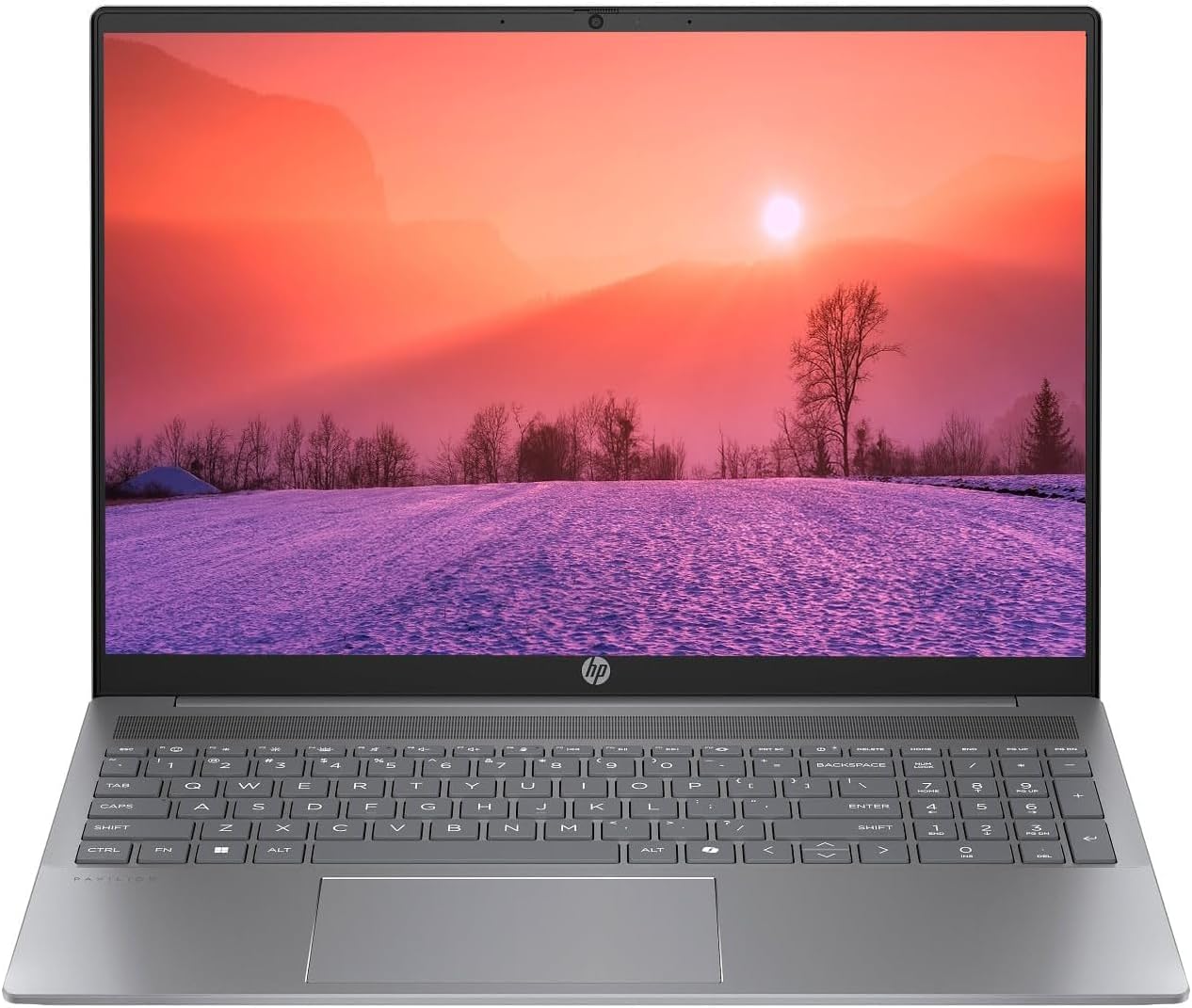
Figure 1.1: HP Pavilion 16-inch Laptop (Angled View)
This image displays the HP Pavilion 16-inch laptop in an open, angled position, highlighting its display and keyboard layout.
2. סעטאַפּ
2.1 אויספּאַקן און ערשטע דורכקוק
Carefully remove the laptop and all accessories from the packaging. Inspect for any signs of damage. If any components are missing or damaged, contact your retailer or HP support immediately.
2.2 קאַנעקטינג מאַכט
- Connect the AC adapter to the power connector on the side of your laptop.
- צאַפּן די מאַכט שנור אין אַן עלעקטריקאַל ווענטיל.
- Allow the laptop to charge for at least 30 minutes before initial use, especially if the battery is completely drained.
2.3 Initial Boot and Windows 11 Setup
Press the power button to turn on your laptop. Follow the on-screen instructions to complete the Windows 11 Home OS setup, including language selection, network connection, and user account creation.
2.4 קאַנעקטינג פּעריפעראַלס
אייער לאַפּטאַפּ פֿאַרמאָגט פֿאַרשידענע פּאָרטן פֿאַר פֿאַרבינדן עקסטערנע דעוויסעס:
- USB Type-C Ports (2): For data transfer, charging compatible devices, and video output.
- USB Type-A Ports (2): פֿאַר פֿאַרבינדן נאָרמאַלע USB דעוויסעס ווי מײַז, קלאַוויאַטורן אָדער עקסטערנע דרייווז.
- HDMI Port (1): פֿאַר פֿאַרבינדן צו עקסטערנע דיספּלייז אָדער פּראָיעקטאָרן.
- Headphone/Microphone Combo Jack (1): פֿאַר פֿאַרבינדן כעדפֿאָונז, עקסטערנע רעדנערס, צי אַ כעדסעט מיט אַ מיקראָפֿאָן.
3. אַפּערייטינג ינסטרוקטיאָנס
3.1 אײַנשטעלן/אויסשטעלן און שלאָף מאָדע
- מאַכט אויף: דריק דעם מאַכט קנעפּל וואָס געפינט זיך אויף דער קלאַוויאַטור דעק.
- שאַט אַראָפּ: דריקט דעם סטאַרט קנעפּל אין ווינדאָוס, און דערנאָך סעלעקטירט מאַכט > שאַט דאַון.
- שלאָפן מאָדע: מאַכט צו דעם דעקל פֿון לאַפּטאָפּ אָדער גיט אויף דעם "Start" קנעפּל, און דערנאָך אויסקלײַבט "Power" > "Sleep".
3.2 ניצן די קלאַוויאַטור און טאָוטשפּאַד
The laptop features a full-size keyboard and a precision touchpad.
- באַקלייט קלאַוויאַטור: To activate or adjust the keyboard backlight, use the dedicated function key (usually F5 or F4, look for a keyboard icon).
- טאָוטשפּאַד דזשעסטשערז: Refer to Windows 11 settings for customizable touchpad gestures (e.g., two-finger scroll, pinch-to-zoom).
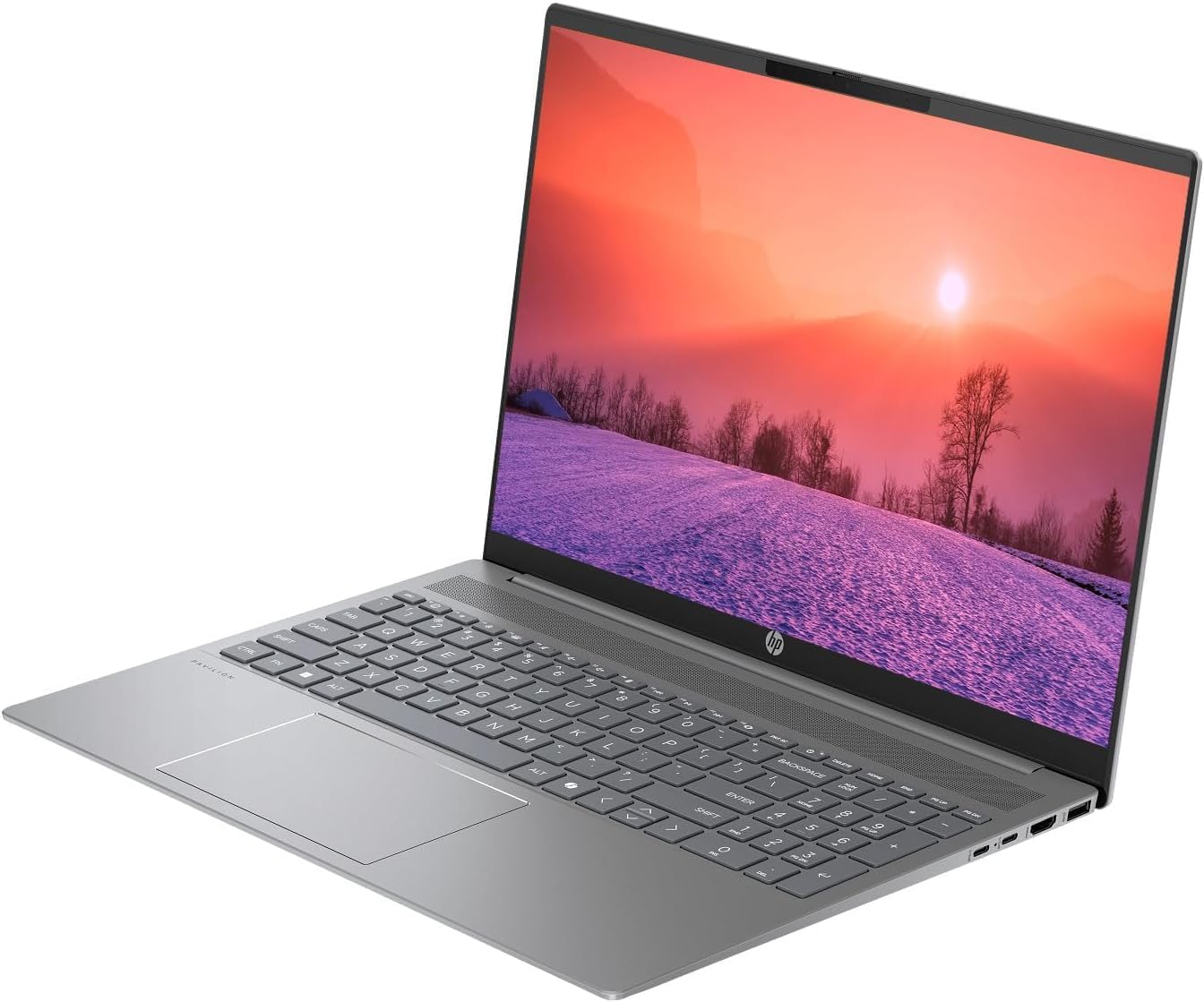
Figure 3.1: HP Pavilion 16-inch Laptop (Front View)
This image shows the HP Pavilion 16-inch laptop from a direct front view, highlighting the screen and keyboard.
3.3 ווירעלעסס קאַנעקטיוויטי
- Wi-Fi 6: To connect to a wireless network, click the Wi-Fi icon in the taskbar, select your network, and enter the password.
- בלועטאָאָטה: To pair Bluetooth devices, go to Windows Settings > Bluetooth & devices, and turn on Bluetooth.
3.4 ניצן די Webקאַם
די אינטעגרירטע HD webcam can be used for video calls and conferences. Access it through applications like Camera, Microsoft Teams, or Zoom.
4. וישאַלט
4.1 רייניקן דעם לאַפּטאָפּ
- ניצן אַ ווייך, לינט-פֿרייַ שטאָף אַ ביסל דampאפגעוואשן מיט וואַסער אדער אַ עקראַן רייניגער פֿאַר דעם עקראַן.
- פֿאַר דער קלאַוויאַטור און שאַסי, ניצט אַ ווייכע שטאָף. פֿאַרמייַדט שאַרפע כעמיקאַליעס.
- ניצט קאמפרעסט לופט צו רייניקן שטויב פון ווענץ פון צייט צו צייט.
4.2 באַטערי קער
- פֿאַרמײַדט אָפֿט גאָר אויסצוליידיקן די באַטעריע.
- האַלט דעם לאַפּטאָפּ אין אַ קיל, טרוקן אָרט אויב עס ווערט נישט גענוצט פֿאַר לענגערע צייטן.
- For optimal battery health, avoid continuous charging at 100% for prolonged durations.
4.3 ווייכווארג דערהייַנטיקונגען
Regularly check for and install Windows updates to ensure system stability, security, and performance. Go to Windows Settings > Windows Update.
4.4 סטאָרידזש פאַרוואַלטונג
פּעריִאָדיש רייניקן אויס נישט-נייטיקע files and applications to maintain optimal performance of the 512GB SSD. Use Windows built-in tools like Disk Cleanup or Storage Sense.
5. טראָובלעשאָאָטינג
This section addresses common issues you might encounter with your HP Pavilion laptop.
5.1 לאַפּטאָפּ גייט נישט אָן
- זיכער מאַכן אַז דער AC אַדאַפּטער איז זיכער פארבונדן צו ביידע דעם לאַפּטאַפּ און אַ אַרבעטנדיקן עלעקטרישן ווענטיל.
- באַשטעטיקן אַז די עלעקטרישע ווענטיל אַרבעט דורך אַרײַנשטעקן אַן אַנדער דעוויס.
- אויב די באַטאַרייע איז גאָר אויסגעשעפּט, לאָזט עס זיך אויפלאָדן פֿאַר לפּחות 30 מינוט איידער איר פּרוּווט עס אָנצוצינדן.
5.2 Wi-Fi פֿאַרבינדונג פּראָבלעמען
- קוק אויב Wi-Fi איז ענייבאַלד אין די ווינדאָוז סעטטינגס.
- ריסטאַרט דיין ראַוטער און מאָדעם.
- זייט זיכער אז איר זענט אין דער דערגרייכונג פון די Wi-Fi נעץ.
- Try forgetting the network and reconnecting.
5.3 קלאַוויאַטור באַקלייט אַרבעט נישט
- Press the dedicated keyboard backlight function key (e.g., F5 or F4) to toggle or adjust the brightness.
- Check Windows Mobility Center settings (search for it in the Start menu) for backlight options.
5.4 לאַנגזאַמע פאָרשטעלונג
- שליסט אומנייטיקע אַפּליקאַציעס וואָס לויפן אין הינטערגרונט.
- זייט זיכער אז ווינדאָוס איז אַרויף-צו-דאַטע.
- Run a disk cleanup and check for malware.
- Verify that the laptop is not overheating.
6. ספּעסאַפאַקיישאַנז
| שטריך | באַשרייַבונג |
|---|---|
| מאָדעל נאָמען | HP 16" Laptop |
| פּראַסעסער | AMD Ryzen 5 8540U (Up to 4.89GHz) |
| באַראַן | 8 גיגאבייט LPDDR5 |
| סטאָרידזש | 512GB SSD |
| ווייַז | 16-inch WUXGA 2K (1920 x 1200 pixels) LED |
| גראַפיקס | AMD Radeon Graphics (Dedicated) |
| אָפּערייטינג סיסטעם | Windows 11 Home OS |
| פּאָרץ | 2x USB טיפּ-C, 2x USB טיפּ-A, 1x HDMI, 1x כעדפאָון/מיקראָפאָן קאָמבאָ דזשעק |
| ווירעלעסס קאַנעקטיוויטי | Wi-Fi 6 (802.11ax), בלועטוט |
| קלאַוויאַטור | באַקלייט |
| Webקאַם | יא |
| דימענסיעס (L x B x H) | 14.17" x 9.2" x 0.7" |
| באַטערי | Lithium Ion, 4 Watt Hours |
| UPC | 197961359091 |
7. וואָראַנטי און שטיצן
7.1 וואָראַנטי אינפֿאָרמאַציע
This HP Pavilion laptop comes with a קסנומקס-טאָג וואָראַנטי. Please retain your proof of purchase for any warranty claims. The warranty covers manufacturing defects under normal use conditions.
7.2 קונה שטיצן
For further assistance, technical support, or warranty inquiries, please visit the official HP support website or contact their customer service. You can typically find contact information and support resources by searching for "HP Support" online.