
הקדמה
Welcome to the user manual for your new Hammer H Energy X2 5G Rugged Smartphone. This device is engineered for durability and performance, designed to withstand challenging environments while providing advanced smartphone functionalities. This manual will guide you through the setup, operation, maintenance, and troubleshooting of your device to ensure optimal use.
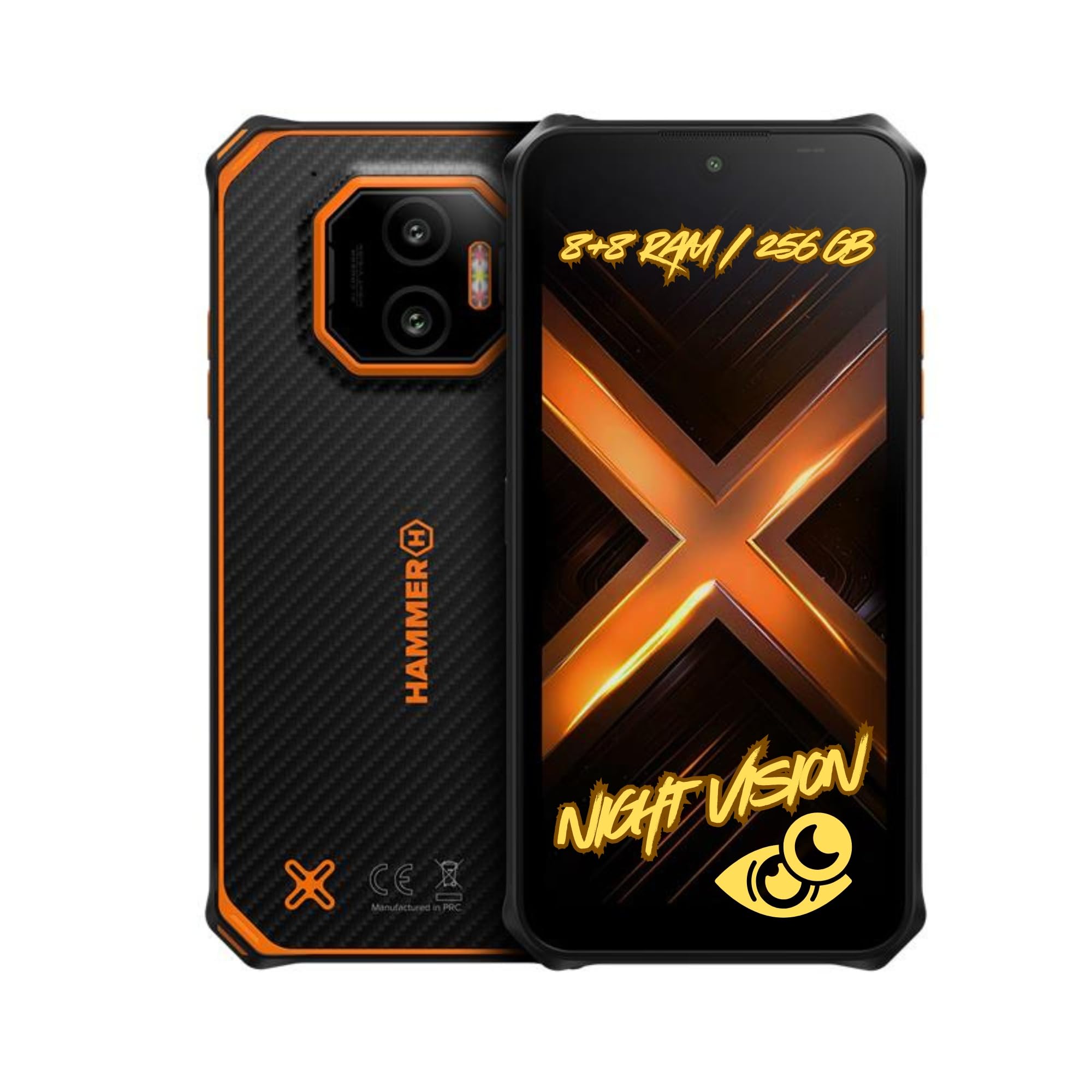
בילד: פאָרנט און הינטן view of the Hammer H Energy X2 5G Rugged Smartphone, showcasinג זײַן ראָבוסט דיזײַן.
סעטאַפּ
1. אויספּאַקן די קעסטל און ערשטע אָפּצאָל
Carefully unbox your Hammer H Energy X2 5G. The package typically includes the smartphone and a USB cable. Before first use, it is recommended to fully charge the device using the provided USB cable and a compatible power adapter (not included).
2. SIM Card and eSIM Installation
The Hammer H Energy X2 5G supports Dual SIM (Nano-SIM) and eSIM functionality. To install a physical Nano-SIM card, locate the SIM tray on the side of the device. Use the SIM ejector tool (if provided) or a small pin to open the tray. Insert your Nano-SIM card(s) into the designated slots. For eSIM activation, follow the instructions provided by your mobile carrier.

Image: A graphic representation of the eSIM feature, highlighting its digital convenience.
3. אײַנצושאַלטן און ערשטע קאָנפיגוראַציע
Press and hold the power button located on the side of the device until the Hammer H logo appears. Follow the on-screen prompts to select your language, connect to a Wi-Fi network, and set up your Google account. You can also configure security features like fingerprint unlock during this process.
אַפּערייטינג דיין מיטל
1. Basic Navigation and Features
Your Hammer H Energy X2 5G runs on Android 15, offering an intuitive user interface. Navigate through apps and settings using touch gestures. The 6.1-inch IPS display features protective glass and a glove mode for enhanced usability in various conditions.

Image: The Hammer H Energy X2 5G display, emphasizing its rugged clarity, protective glass, and glove mode for outdoor use.
2. קאַמעראַ פונקציעס
The device is equipped with a 50MP main camera and a 20MP night vision camera. Open the camera application to capture photos and videos. Switch between modes, including night vision, for optimal results in different lighting conditions. The night vision camera is particularly useful for low-light environments.

בילד: דעטאַלירט view of the Hammer H Energy X2 5G's rear camera setup, highlighting the 50MP main camera and 20MP night vision camera.

Image: A demonstration of the night vision camera in a dark environment, showing its capability to capture details in low light.
3. Battery Management and Charging
The 5000mAh battery provides extended usage time. To charge, connect the USB Type-C cable to the phone's port and a power source. The device also supports reverse wireless charging, allowing you to charge other compatible devices by placing them on the back of your smartphone.

Image: The Hammer H Energy X2 5G on a bedside table, symbolizing its reliable battery life for daily use.
4. קאָנעקטיוויטי און זיכערהייט
Benefit from 5G network speeds, Bluetooth, and NFC for seamless connectivity. The integrated fingerprint sensor provides quick and secure access to your device. NFC allows for contactless payments and quick pairing with other NFC-enabled devices.

Image: A close-up of the fingerprint sensor on the Hammer H Energy X2 5G, demonstrating its biometric security feature.

Image: A user performing a contactless payment with the Hammer H Energy X2 5G, illustrating the NFC functionality.
וישאַלט
1. רייניקן דיין דעווייס
To clean your Hammer H Energy X2 5G, use a soft, damp שטאָף. פֿאַרמײַדט שאַרפֿע כעמיקאַלן אָדער אַברייסיוו מאַטעריאַלן וואָס קענען שאַטן דעם עקראַן אָדערasing. Given its IP69 rating, the device can be rinsed under tap water if it gets dirty, but ensure all ports are securely closed before doing so.
2. וואַסער און שטויב קעגנשטעל
The Hammer H Energy X2 5G is IP69 certified, meaning it is highly resistant to dust and water ingress. It also meets the MIL-STD-810H military standard for shock resistance. While designed to be rugged, avoid intentional submersion in deep water or exposure to high-pressure water jets for prolonged periods. Always ensure the USB port cover is properly sealed.

Image: The Hammer H Energy X2 5G being held underwater, showcasing its robust water resistance.
3. באַטערי קער
To prolong battery life, avoid exposing the device to extreme temperatures. It is recommended to keep the battery charge between 20% and 80% for optimal long-term health. If the device will not be used for an extended period, store it with approximately 50% charge.
טראָובלעשאָאָטינג
1. דיווייס גייט נישט אן
- זיכער מאַכן אַז די באַטאַרייע איז גענוג אויפגעלאָדן. פֿאַרבינדט דעם מיטל צו אַ טשאַרדזשער פֿאַר לפּחות 30 מינוט.
- דריק און האלט דעם מאַכט קנעפּל פֿאַר 10-15 סעקונדעס צו דורכפירן אַ געצוואונגענע ריסטאַרט.
- אויב די אַרויסגעבן בלייַבט, קאָנטאַקט קונה שטיצן.
2. שלעכטע נעץ קאָנעקטיוויטי
- Check if your SIM card is properly inserted or if your eSIM is activated.
- אַקטיווירן און אויסלעשן די עראָפּלאַן מאָדע.
- ריסטאַרט די מיטל.
- Verify your mobile data settings with your carrier.
3. טאָוטשסקרין רעאַגירט נישט
- ריסטאַרט די מיטל.
- זיכער מאַכן אַז דער עקראַן איז ריין און טרוקן.
- אויב איר ניצט אַ פאַרשטעלן פּראָטעקטאָר, זאָרגט אַז עס איז ריכטיק אָנגעטראָגן און שטערט נישט די ריר סענסיטיוויטי.
4. אַפּפּס קראַשן אָדער פרירן
- רייניקט אויס דעם קעש און דאטן פאר דער פראבלעמאטישער אפליקאציע אין סעטינגס > אפליקאציעס.
- Update the app to its latest version.
- נעם אַוועק און ריינסטאַל די אַפּ.
- זיכער מאַכן אַז אייער מיטל'ס ווייכווארג איז אַרויף צו דאַטע.
ספּעסאַפאַקיישאַנז
| שטריך | באַשרייַבונג |
|---|---|
| סאָרט | Hammer H |
| מאָדעל נאָמען | Energy X2 5G 8/256 |
| אָפּערייטינג סיסטעם | אַנדרויד 15 |
| פאַרשטעלן גרייס | 6.1 אינטשעס |
| ווייַז טיפּ | לקד |
| מאַקסימום סקרין האַכלאָטע | 1560x720 פּיקסעלס |
| דערפרישן קורס | 60 הז |
| אינסטאַלירן באַראַן | 16 גיגאבייט (8 גיגאבייט + 8 גיגאבייט ווירטועל) |
| אינערלעכער סטאָרידזש קאַפּאַציטעט | 256 גיגאבייט |
| Max Flash Memory Supported | 1024 גיגאבייט (1 טב) |
| באַטאַרייע קאַפּאַציטעט | 5000 מאַה |
| טעלעפאָן רעדן צייט | 24 שעה |
| מאָביל טעכנאָלאָגיע | 5G |
| קאַנעקטיוויטי טעכנאָלאָגיע | בלועטאָאָטה, NFC |
| סים קאַרטל סלאָט צאָל | Dual SIM (Nano-SIM + eSIM) |
| טשאַרדזשינג פּאָרט טיפּ | וסב טיפּ-C |
| GPS and Geotagging | יא |
| ינגרעסס פּראַטעקשאַן (IP) שאַץ | IP69 |
| מיליטערישער סטאַנדאַרט | MIL-STD-810H |
| קעסטל אינהאַלט | וסב קאַבלע |
| מאָדעל יאָר | 2025 |
וואָראַנטי און שטיצן
1. פּראָדוקט וואָראַנטי
Your Hammer H Energy X2 5G smartphone comes with a 2-year manufacturer's warranty. This warranty covers defects in materials and workmanship under normal use. Please retain your proof of purchase for warranty claims. For specific terms and conditions, refer to the warranty card included in your product packaging or visit the official Hammer H webפּלאַץ.
2. קונה שטיצן
For technical assistance, troubleshooting, or service inquiries, please contact Hammer H customer support. You can usually find contact information on the manufacturer's website or in the documentation provided with your device. Online resources, FAQs, and software updates may also be available on the official support portal.