
1. הקדמה
א דאנק פארן קויפןasing the LG 27G411A UltraGear Gaming Monitor. This manual provides essential information for the safe and efficient use of your monitor. Please read it thoroughly before operating the product and retain it for future reference. This 27-inch Full HD (1920 x 1080) IPS display is designed for an immersive gaming experience, featuring a 144Hz refresh rate, 1ms Motion Blur Reduction (MBR), HDR10 support, and compatibility with NVIDIA G-Sync and AMD FreeSync technologies.
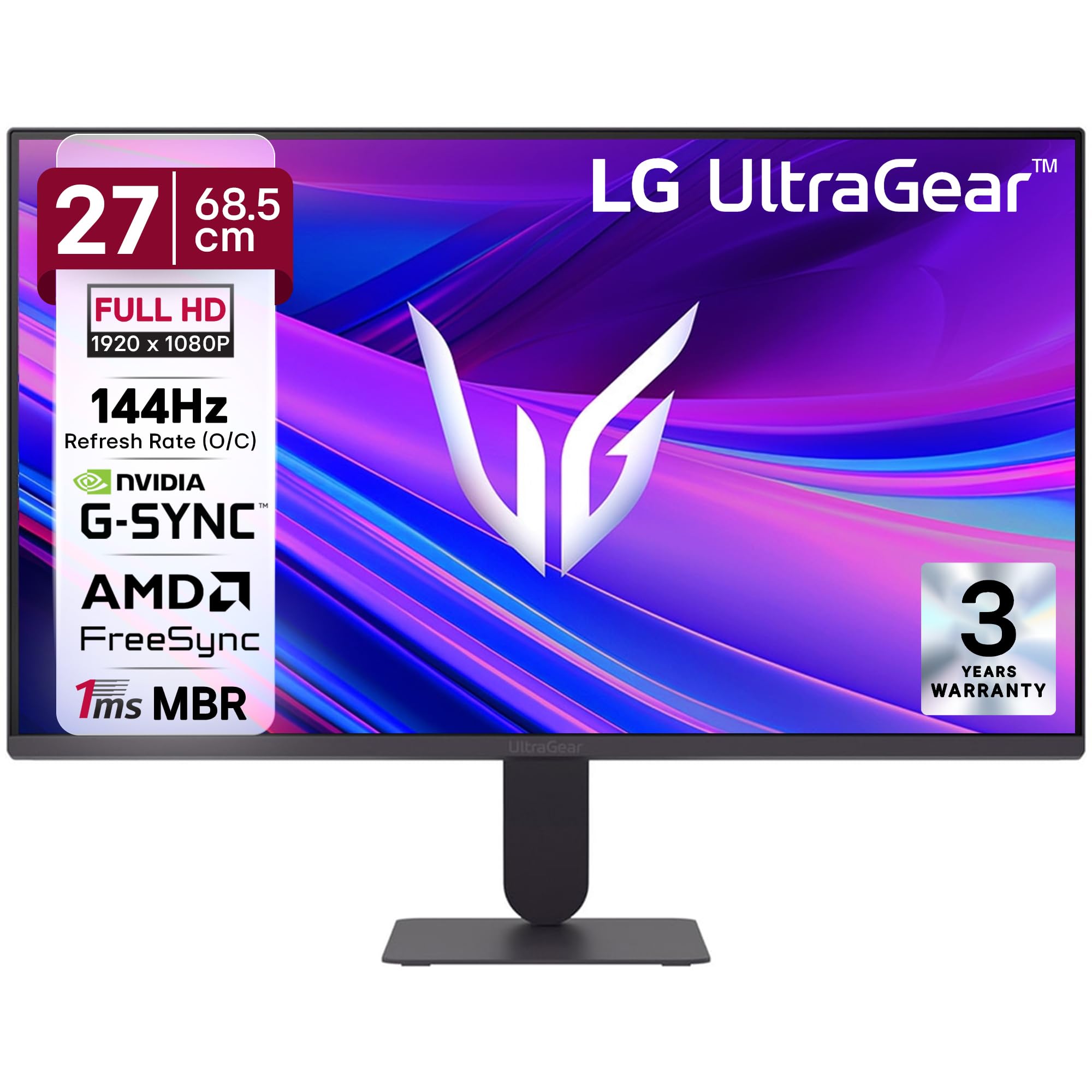
פיגורע 1: פראָנט view of the LG 27G411A UltraGear Gaming Monitor.
2. זיכערקייַט אינפֿאָרמאַציע
היט די פאלגענדע זיכערהייט מיטלען צו פאַרמייַדן שאָדן צו דעם פּראָדוקט אָדער שאָדן צו זיך און אַנדערע.
- מאַכט: Use only the power cord and adapter supplied with the monitor. Do not overload power outlets.
- אָרט: Place the monitor on a stable, level surface. Avoid direct sunlight, heat sources, and areas with high humidity or dust. Ensure adequate ventilation around the monitor.
- האַנדלינג: Do not drop the monitor or subject it to strong impacts. Avoid touching the screen with sharp objects.
- רייניקונג: טרענט אפ דעם עלעקטרישן שנור איידער איר רייניגט. ניצט א ווייכן, טרוקענעם טוך. ניצט נישט קיין פליסיקע רייניגער אדער אייראזאל שפריי.
- ריפּערז: דו זאלסט נישט פּרווון צו דינען דעם פּראָדוקט זיך. קאָנטאַקט אַלע קוואַלאַפייד סערוויס פּערסאַנעל.
3. פּעקל אינהאַלט
באַשטעטיקן אַז אַלע זאכן זענען פאַראַן אין דיין פּראָדוקט קעסטל:
- LG 27G411A UltraGear Monitor
- מאַכט קאַבלע
- HDMI קאַבלע
- מאָניטאָר שטאַנד (באַזע און האַלדז)
- באַניצער מאַנואַל (דעם דאָקומענט)
4. סעטאַפּ
4.1 מאָניטאָר פֿאַרזאַמלונג
Follow these steps to assemble the monitor stand and attach it to the display panel.
- Carefully place the monitor face down on a soft cloth or cushion to prevent scratches.
- Attach the stand neck to the base, securing it with the captive screw.
- Align the assembled stand with the mounting slot on the back of the monitor panel and push until it clicks into place.
- Alternatively, the monitor supports VESA 100x100mm wall mounting. Remove the stand if using a wall mount.

Figure 2: Illustration of the monitor's ultra-slim design, tilt adjustment, and VESA wall mount compatibility.
4.2 קאַנעקטינג די מאָניטאָר
פאַרבינדן דיין דעוויסעס צו די מאָניטאָר מיט די צונעמען קייבאַלז.
- מאַכט קשר: פֿאַרבינדט דעם מאַכט קאַבל צום מאָניטאָר'ס מאַכט אַרייַנגאַנג און דערנאָך צו אַ וואַנט אַוטלעט.
- HDMI קשר: Use the supplied HDMI cable to connect your computer or gaming console to the HDMI port on the monitor.
- DisplayPort קאַנעקשאַן: For optimal performance, especially for 144Hz refresh rate, connect your computer to the DisplayPort (DP) on the monitor using a DisplayPort cable (not always included).
- כעדפאָון אַרויס: Connect headphones or external speakers to the 3-pole headphone out port for audio output.

פיגורע 3: דערציען view of the monitor displaying the power input, HDMI, DisplayPort, and headphone out ports.

פיגורע 4: דעטאַילעד view of the DisplayPort (DP-IN), HDMI, and Headphone (HP) ports.
5. אַפּערייטינג ינסטרוקטיאָנס
5.1 מאַכט אויף / אַוועק
Press the joystick button located at the bottom center of the monitor to turn it on or off. A short press will bring up the OSD menu, while a long press will power off the monitor.
5.2 אויף-סקרין ווייַז (אָסד) מעניו
The OSD menu allows you to adjust various monitor settings. Use the joystick button to navigate:
- באַוועגט דעם דזשויסטיק אַרויף/אַראָפּ/לינקס/רעכטס צו נאַוויגירן דורך מעניו אָפּציעס.
- Press the joystick to select an option or confirm a setting.
5.3 בילד מאָדעס
The monitor offers several preset picture modes optimized for different content types:
- מנהג: Allows manual adjustment of all picture settings.
- Gamer1/Gamer2: User-configurable modes for gaming preferences.
- FPS/RTS: Optimized for First-Person Shooter and Real-Time Strategy games.
- לעבעדיק: Enhances color and contrast for general viewing.
- לייענער: Reduces blue light for comfortable reading.
- HDR ווירקונג: Simulates HDR content for non-HDR sources.
- קאָליר וויקנאַס: Adjusts color settings to assist users with color vision deficiency.
5.4 Gaming Enhancements
The LG 27G411A is equipped with features to enhance your gaming experience:
- 144Hz Refresh Rate & 1ms MBR: Experience fluid motion and reduced ghosting. The monitor supports a native 120Hz refresh rate and up to 144Hz in overclock mode via DisplayPort 1.4 (HDMI 2.0 supports up to 144Hz).
- AMD FreeSync & NVIDIA G-Sync Compatible: סינקראָניזירט דעם מאָניטאָר'ס רעפרעש קורס מיט דיין GPU'ס פריים קורס צו עלימינירן סקרין טיערינג און סטאַטערינג.
- שוואַרץ סטאַביליזער: פֿאַרלייכטעט טונקעלע געביטן צו העלפֿן אײַך דערקענען שונאים וואָס באַהאַלטן זיך אין שאָטנס.
- דינאמישע אקציע סינק (DAS): Minimizes input lag for real-time action.
- קראָסשאַיר: Places a fixed crosshair in the center of the screen for improved aiming in FPS games.
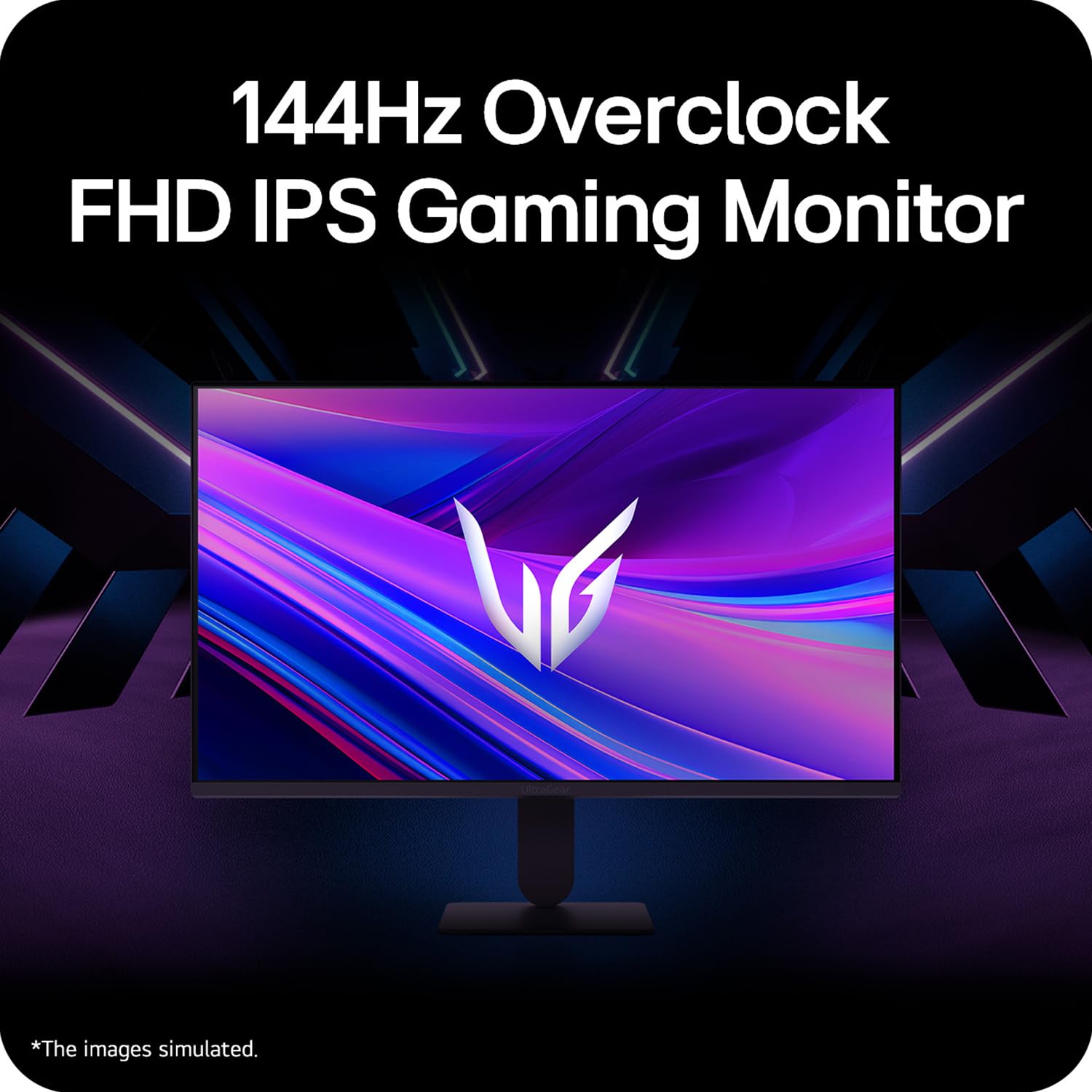
Figure 5: Visual representation of 144Hz overclock for fluid gaming motion.

Figure 6: Illustration of 1ms Motion Blur Reduction (MBR) for fast-paced gaming. Note: 1ms MBR causes lowered luminance and cannot be used with AMD FreeSync/DAS. Flicker may occur during 1ms MBR operation.

Figure 7: The monitor is certified compatible with NVIDIA G-Sync and AMD FreeSync technologies.

Figure 8: Precision Gaming Mode features: Dynamic Action Sync (DAS), Black Stabilizer, and Crosshair.
5.5 אויג-זאָרג פֿעיִטשערז
To reduce eye strain during prolonged use, the monitor includes:
- פליקער זיכער: Reduces screen flicker to minimize eye fatigue.
- לייענען מאָדע: Adjusts color temperature and brightness to simulate paper, making it easier on the eyes for reading tasks.
- קאָליר וויקנאַס: Provides color adjustments for users with color vision deficiencies.
5.6 Smart Convenience (LG Switch App)
The LG Switch app offers enhanced control and customization options for your monitor directly from your computer. Features include Dual mode, Smart screen split, Launch a video call, and Personalized Picture Wizard.

Figure 9: The LG Switch app provides smarter control and seamless switching between various display modes and settings.
6. וישאַלט
6.1 רייניקונג די מאָניטאָר
כדי צו אויפהאלטן דעם מאָניטאָר'ס אויסזען און פאָרשטעלונג:
- שטענדיק ארויסנעמען דעם מאָניטאָר פֿון דער עלעקטרישער אַוטלעט איידער איר רייניגט.
- ניצט אַ ווייכן, לינט-פֿרייע שטאָף צו זאַכט ווישן דעם עקראַן און די אויסערלעכע ייבערפֿלאַכן.
- פֿאַר שווערע פֿלעקן, לײַכט דריקןampווישט דעם שטאָף מיט וואַסער אָדער אַ מילדן, נישט-אַבראַוויזיוון עקראַן רייניגער. שפּריצט נישט פליסיקייט גלייך אויפן עקראַן.
- Avoid using benzene, alcohol, or other volatile solvents, as they may damage the monitor.
7. טראָובלעשאָאָטינג
אויב איר טרעפט פּראָבלעמען מיט אייער מאָניטאָר, באַציעט זיך צו די פאלגענדע געוויינטלעכע לייזונגען:
| פּראָבלעם | מעגלעך סיבה / לייזונג |
|---|---|
| קיין מאַכט | Ensure the power cable is securely connected to the monitor and a working power outlet. Check if the power outlet is functional. |
| קיין סיגנאַל / ליידיקער עקראַן | Verify that the video cable (HDMI or DisplayPort) is securely connected to both the monitor and your computer/device. Ensure the correct input source is selected in the OSD menu. Check if the computer is powered on and not in sleep mode. |
| פליקערנדיק אָדער פאַרדרייט בילד | Check the video cable for damage or loose connections. Try a different video cable or port. Adjust the refresh rate settings on your computer. Disable 1ms MBR if flicker is observed. |
| Backlight leakage on corners | Minor backlight leakage can be a characteristic of IPS panels, especially visible on a completely black screen in a dark environment. This is generally not considered a defect unless it significantly impacts normal viewing. |
| Monitor not recognized by PC | Update your graphics card drivers. Restart your computer. |
8. ספּעסאַפאַקיישאַנז
Key technical specifications for the LG 27G411A UltraGear Gaming Monitor:
- פאַרשטעלן גרייס: 27 אינטשעס (68.5 סענטימעטער)
- טאַפליע טיפּ: IPS
- רעזאלוציע: FHD (1920 X 1080)
- אַספּעקט פאַרהעלטעניש: 16:9
- דערפרישן קורס: 144 Hz (Overclock)
- ענטפער צייט: 1ms MBR (5ms GTG)
- ברייטקייט: 250 סי / מ² (טיפּיש)
- קאַנטראַסט פאַרהעלטעניש: 1500:1
- קאָליר גאַמע: sRGB 99%
- HDR שטיצן: HDR10
- אַדאַפּטיוו סינק: NVIDIA G-Sync Compatible, AMD FreeSync
- Viewאין ווינקל: 178° (H/V)
- קאַנעקטיוויטי: 1 x HDMI, 1 x DisplayPort, 1 x כעדפאָון אויסגאַנג
- Dimensions (with stand, WxHxD): 61.2 X 45.2 X 22 סענטימעטער (24.07 X 17.81 X 8.66 אינטשעס)
- וואָג (מיט שטיין): 3.8 קג
- מאַכט קאַנסאַמשאַן: 20 וו (טיפּיש)
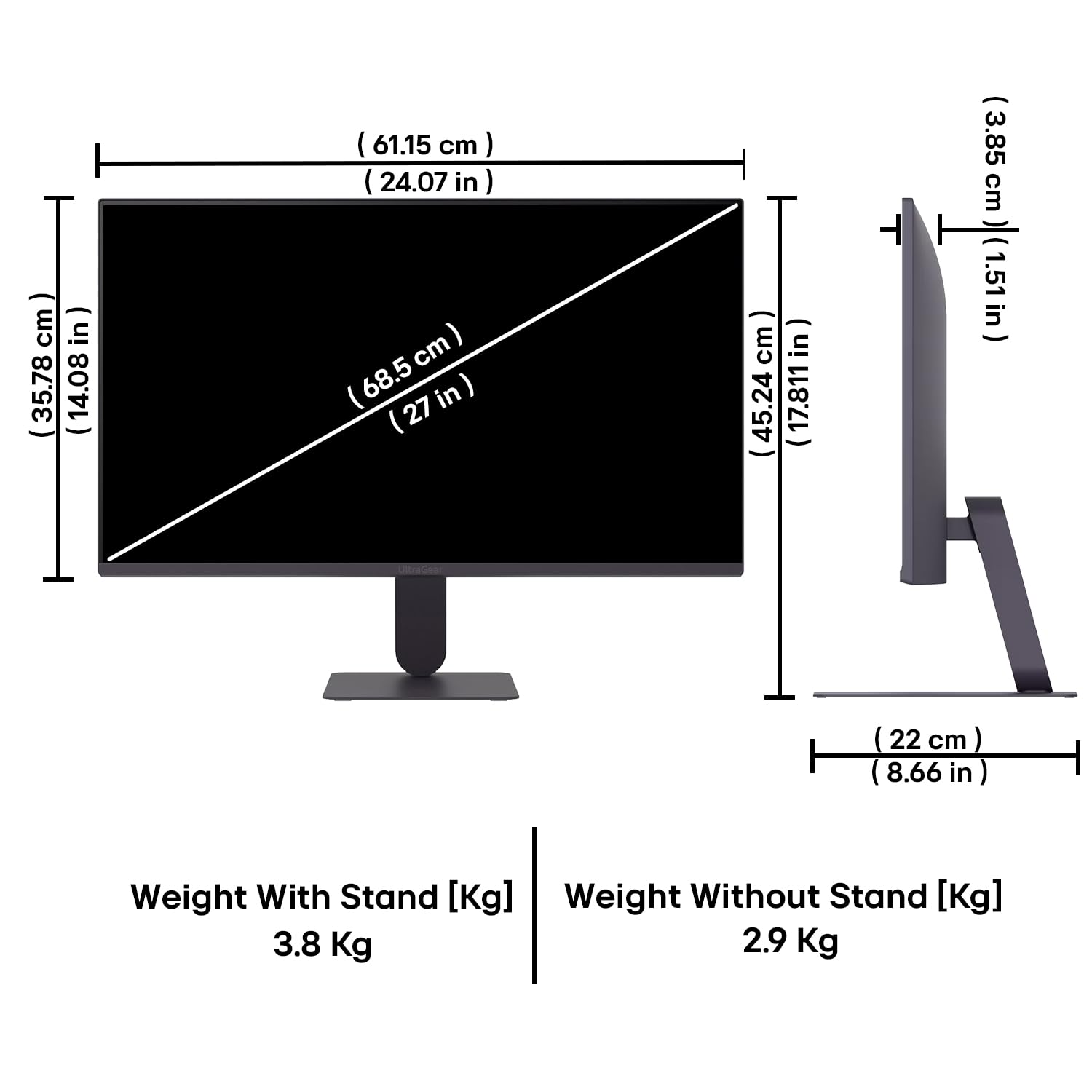
Figure 10: Physical dimensions and weight of the LG 27G411A monitor with and without the stand.
9. וואָראַנטי אינפֿאָרמאַציע
This LG 27G411A UltraGear Gaming Monitor comes with a 3 יאָר פאַבריקאַנט וואָראַנטי covering parts and labor. Please retain your proof of purchase for warranty claims. For detailed terms and conditions, refer to the warranty card included in your product packaging or visit the official LG webפּלאַץ.
10. קונה שטיצן
פֿאַר ווייטערדיקע הילף, טעכנישע שטיצע, אדער סערוויס אָנפֿראַגעס, ביטע קאָנטאַקטירן LG קונה סערוויס. איר קענט געפֿינען קאָנטאַקט אינפֿאָרמאַציע אויף דער באַאַמטער LG וועבזייטל. webוועבזייטל אדער אין דער דאקומענטאציע וואס איז צוגעשטעלט געווארן מיט אייער מאָניטאָר.
LG Electronics India Pvt. לטד.
PLOT NO. A-5, MIDC RANJANGAON.
TALUKA SHIRUR, PUNE, MAHRASHTRA (INDIA), 412220