
הקדמה
This manual provides essential information for setting up, operating, maintaining, and troubleshooting your ADREAMER WinsPad 10 Pro 2-in-1 Tablet Laptop. Please read this guide thoroughly to ensure optimal performance and longevity of your device.
וואָס איז אין די קעסטל
באַשטעטיקן אַז אַלע זאכן זענען פאַראַן אין פּעקל:
- ADREAMER WinsPad 10 Pro Tablet
- דעטאַטשאַבלע קיבאָרד
- טיפּ-C קאַבלע
- מאַכט אַדאַפּטער
סעטאַפּ
1. ערשטע איינשאַלטונג
- Connect the power adapter to the tablet's Type-C port and plug it into a power outlet.
- דריק און האלט דעם מאַכט קנעפּל וואָס געפינט זיך אויף דער זייט פון דער טאַבלעט ביז דער עקראַן באַלויכטנט זיך.
- Follow the on-screen instructions to complete the Windows 11 initial setup, including language, region, and user account creation.
2. Connecting the Detachable Keyboard
The keyboard connects magnetically to the bottom edge of the tablet. Align the magnetic connectors on the keyboard with the corresponding pins on the tablet until it snaps into place. The keyboard will be automatically recognized by the system.

Image: The ADREAMER WinsPad 10 Pro tablet with its detachable keyboard connected, illustrating its use as a laptop.
3. נעץ קאַנעקשאַן
צו פאַרבינדן צו אַ Wi-Fi נעץ:
- גיין צו סעטטינגס > נעץ און אינטערנעט > ווי-פי.
- אַקטיווירן Wi-Fi און אויסקלײַבן די נעץ וואָס איר ווילט פֿון דער רשימה.
- אַרייַן די נעץ פּאַראָל אויב געבעטן און גיט אויף פאַרבינדן.
For Bluetooth device pairing:
- גיין צו סעטטינגס > בלועטאָאָטה און דעוויסעס.
- Turn on Bluetooth and click לייג מיטל.
- Select the type of device you want to add and follow the pairing instructions.
אַפּערייטינג דיין מיטל
1. Tablet and Laptop Modes
The ADREAMER WinsPad 10 Pro functions as both a tablet and a laptop. Simply attach the detachable keyboard to switch to laptop mode for typing and productivity. Detach the keyboard for a full tablet experience, ideal for touch-based applications and media consumption.
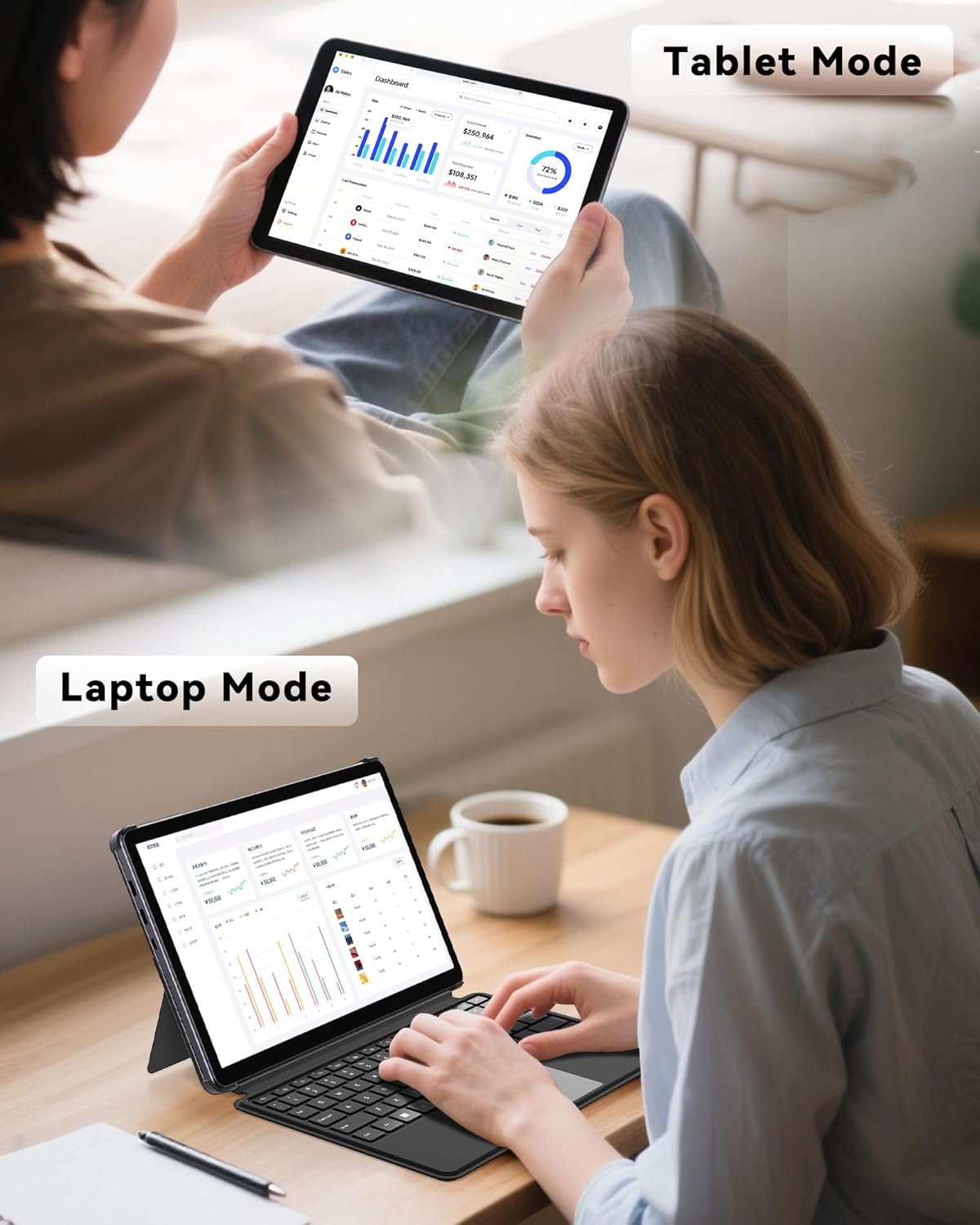
Image: The ADREAMER WinsPad 10 Pro demonstrating its versatility in both tablet and laptop configurations.
2. פאָרשטעלונג און סטאָרידזש
Your device is equipped with a 12th Gen Intel N150 processor, 8GB LPDDR5 RAM, and a 256GB SSD. This configuration ensures smooth multitasking, quick application loading, and efficient handling of various tasks from office work to entertainment.

בילד: דעטאַלירט view of the Intel N150 processor specifications and performance comparison.
3. אַרויסווייַז און אַודיאָ
The 10.1-inch HD IPS touchscreen (1280x800 resolution, 300 nits brightness) provides clear and vibrant visuals. Dual cameras (5MP front, 8MP rear) are integrated for video calls and photography. Dual speakers deliver immersive audio for media playback.
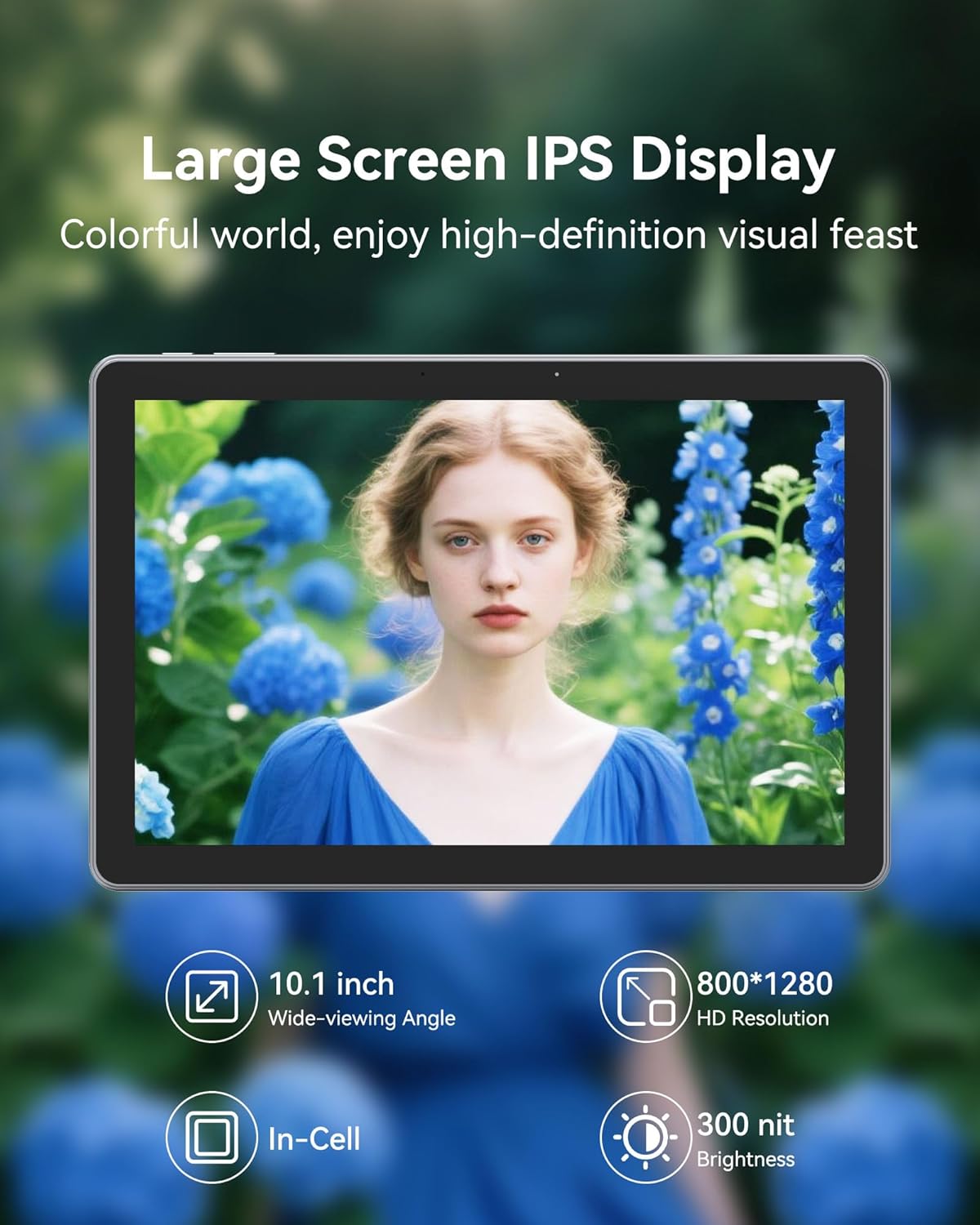
בילד: די טאַבלעט'ס אַרויסווייַזונגasing its high-definition capabilities.
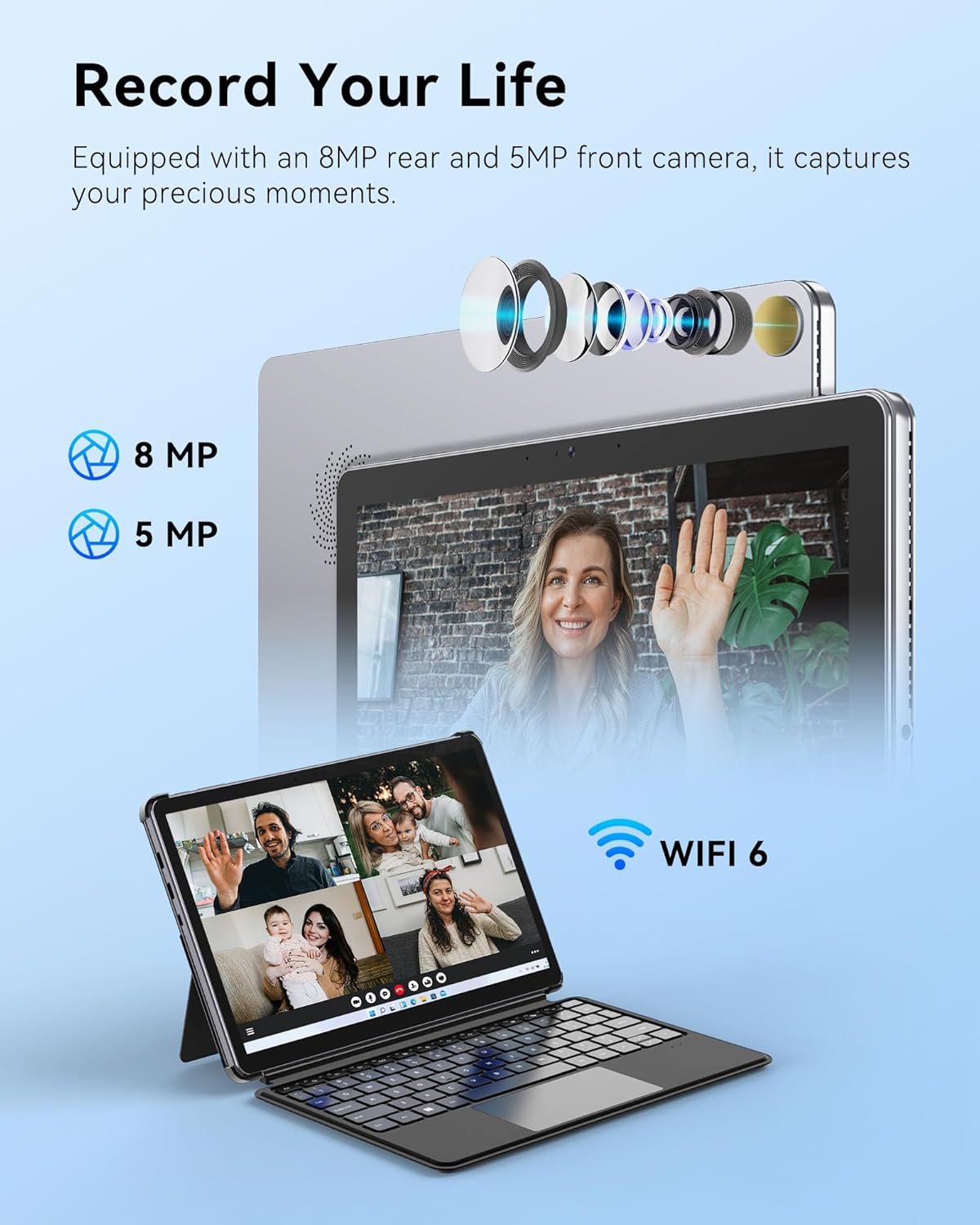
Image: The tablet's camera features for capturing moments and video calls.
4. קאַנעקטיוויטי
The tablet includes multiple functional interfaces: two full-function Type-C ports, one Micro HDMI port, one USB 3.0 port, and a 3.5mm headphone jack. It supports WiFi 6 for fast wireless internet and Bluetooth 5.2 for connecting peripherals.

בילד: די זייט view of the tablet showing its various ports and sleek design.
5. באַטאַרייע און טשאַרדזשינג
The 4500mAh battery provides up to 6 hours of typical use. The device supports 30W PD fast charging, allowing a full charge in approximately 2 hours.

Image: Information on the tablet's battery life and fast charging capabilities.
6. פּראָדוקט איבערview ווידעא
ווידעא: אן אפיציעלע איבערview of the ADREAMER 10.1" Win 11 Tablet, showcasing its features and 2-in-1 functionality.
וישאַלט
1. באַטערי קער
- פֿאַרמײַדט אָפֿט פֿולשטענדיק אויסצולאָדן די באַטעריע.
- דו זאלסט נישט ויסשטעלן די מיטל צו עקסטרעם טעמפּעראַטורעס.
- If storing the device for an extended period, charge it to approximately 50% and power it off.
2. רייניקונג די מיטל
- ניצט אַ ווייכן, לינט-פֿרייע שטאָף צו רייניקן דעם עקראַן און קערפּער.
- פֿאַר שווערע פֿלעקן, אַ ביסל דampווישט דעם שטאָף מיט וואַסער אָדער אַ פאַרשטעלן-רייניקונג לייזונג.
- פֿאַרמײַדן ניצן שטרענגע כעמיקאַלן, אַברייסיוו מאַטעריאַלן, אָדער איבערגעטריבענע פֿײַכטקייט.
טראָובלעשאָאָטינג
פּראָסט ישוז און סאַלושאַנז
- Keyboard Disconnection: If the detachable keyboard frequently disconnects, ensure the magnetic connectors are clean and fully engaged. Avoid lifting or moving the tablet by the keyboard alone. If issues persist, gently clean the connector pins on both the tablet and keyboard.
- טשאַרדזשינג ישוז: Ensure you are using the original ADREAMER power adapter and Type-C cable provided with your device. Some third-party chargers may not provide sufficient power or be compatible, leading to slow or no charging. Verify the charging port is free of debris.
- מיטל נישט פּאַוערינג אויף: Connect the tablet to the power adapter and allow it to charge for at least 30 minutes. Then, attempt to power it on again. If it still doesn't turn on, perform a hard reset by holding the power button for 10-15 seconds.
- פּאַמעלעך פאָרשטעלונג: Close unnecessary applications running in the background. Check for available Windows updates and install them. Consider running a disk cleanup to free up storage space.
ספּעסאַפאַקיישאַנז
| שטריך | באַשרייַבונג |
|---|---|
| סאָרט | ADREAMER |
| מאָדעל נאָמען | WinsPad 10 Pro |
| פּראַסעסער | Intel N150 (4 cores, up to 3.6GHz) |
| גראַפיקס קאָופּראַסעסער | אינטעל UHD גראַפיקס (1000MHz) |
| באַראַן זכּרון | 8 גיגאבייט LPDDR5 |
| שווער פאָר גרייס | 256 גיגאבייט ססד |
| אָפּערייטינג סיסטעם | Win11 היים |
| פאַרשטעלן גרייס | 10.1 אינטשעס |
| ווייַז האַכלאָטע | 1280 x 800 Pixels (HD IPS Touchscreen) |
| Maximum Display Brightness | 300 ניט |
| קאַנעקטיוויטי טעכנאָלאָגיע | Bluetooth 5.2, Micro HDMI, USB 3.0, Dual Type-C, Wi-Fi 6 (802.11ax) |
| באַטאַרייע קאַפּאַציטעט | 4500 מאַה |
| באַטערי דורכשניטלעך לעבן | אַרויף צו 6 שעה |
| פראָנט אַפּאַראַט | 5 מפּ |
| דערציען אַפּאַראַט | 8 מפּ |
| פּונקט וואָג | 2.5 פונט |
| נומער דימענשאַנז (L x W x גרעב) | 9.7"ל x 6.5"ברייט x 0.37"דיג |
| קאָליר | גרוי |
וואָראַנטי און שטיצן
וואָראַנטי אינפֿאָרמאַציע
Your ADREAMER WinsPad 10 Pro comes with a 1-יאָר פאַבריקאַנט ס לימיטעד וואָראַנטידי וואָראַנטי דעקט חסרונות אין מאַטעריאַלן און אַרבעט אונטער נאָרמאַל נוצן. ביטע האַלטן דיין קויפן באַווייַז פֿאַר וואָראַנטי קליימז.
קונה שטיצן
For technical assistance, warranty service, or any questions regarding your device, please contact ADREAMER customer support. Refer to the contact information provided in your product packaging or visit the official ADREAMER webפּלאַץ פֿאַר שטיצן רעסורסן.