
1. הקדמה
This manual provides detailed instructions for the installation, operation, and maintenance of your GOHHDL Android 15 Car Radio Stereo. This unit is specifically designed for Ford Fusion Mondeo models from 2013 to 2019, offering advanced features such as Wireless CarPlay, Android Auto, GPS navigation, Bluetooth connectivity, FM/RDS radio, DSP EQ, Steering Wheel Control (SWC), and support for a backup camera.
Please read this manual thoroughly before installation and use to ensure proper function and to maximize your driving experience.
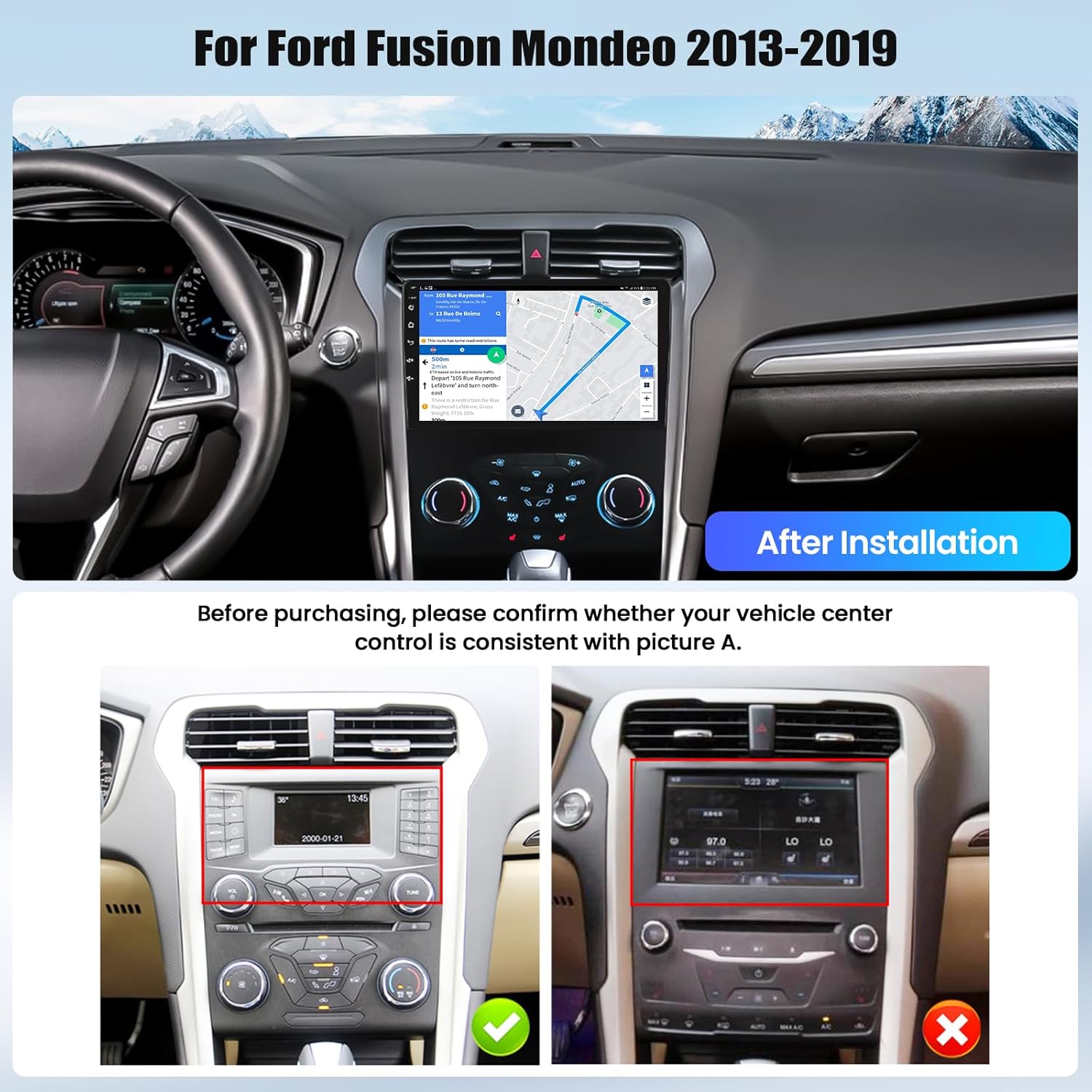
Image 1.1: GOHHDL Android 15 Car Radio Stereo installed in a Ford Fusion Mondeo dashboard, showing the integrated display and controls.
2. אויפשטעלן און אינסטאַלירן
2.1 קאָמפּאַטאַביליטי קאָנטראָל
Before proceeding with installation, verify that your vehicle's center console matches the compatible configuration. This unit is designed for Ford Fusion Mondeo models manufactured between 2013 and 2019.
Image 2.1: Visual guide for checking vehicle center control consistency before installation. Ensure your vehicle's original setup matches the 'Before Installation' image for proper fitment.
2.2 פּאַקינג רשימה
זיכער מאַכן אַז אַלע קאָמפּאָנענטן זענען פאַראַן איידער איר הייבט אָן די אינסטאַלאַציע:
- Main Head Unit (Car Radio Stereo)
- מאַכט קאַבלע
- RCA אינפוט/אויטפוט קייבלס
- ריווערסינג קאַמעראַ אַרייַנגאַנג קאַבל
- USB Cables (multiple)
- גפּס אַנטענע
- ראַדיאָ אַנטענע
- Canbus Decoder
- מיקראָפאָן
- Rear Camera (AHD Backup Camera)
- ייַנמאָנטירונג טול
- באַניצער מאַנואַל
- מאָונטינג פּאַרץ

בילד 2.2: דעטאַלירט view of the car radio dimensions and a comprehensive list of included accessories for installation.
2.3 אַלגעמיינע אינסטאַלאַציע אנווייזונגען
Installation typically involves removing the original car radio, connecting the new unit using the provided wiring harnesses, and securing it in place. Due to the complexity of automotive electronics, professional installation is highly recommended. Incorrect wiring can damage the unit or your vehicle's electrical system.
באַמערקונג: Some vehicle models may require specific adapters or modifications for full functionality, especially concerning OEM cameras or steering wheel controls. If you encounter difficulties with the original car's circuit board or connections, consult a professional installer or GOHHDL technical support.
3. אַפּערייטינג ינסטרוקטיאָנס
3.1 וויירלעס קאַרפּליי און אַנדרויד אויטאָ
The unit supports both Wireless CarPlay for iOS devices and Wireless Android Auto for Android devices. This allows seamless integration of your smartphone's key features, including navigation, music, and messaging, directly onto the car stereo display.
- קשר: Connect your smartphone via Bluetooth and WiFi to enable wireless CarPlay or Android Auto.
- קול קאָנטראָל: Utilize voice commands (Siri or Google Assistant) to operate apps and control the stereo.
- Android Auto App: For Android phones, ensure the Android Auto application is installed on your device.

Image 3.1: Display showing the user interface for Wireless CarPlay, Android Auto, and Mirror Link, enabling smartphone integration.
3.2 GPS Navigation and WiFi/Hotspot
The car stereo features a built-in GPS module for navigation. It comes with Google Maps pre-installed, and you can download other navigation apps from the Play Store.
- Online Navigation: Connect to WiFi or a mobile hotspot to access real-time traffic conditions and online maps.
- Offline Navigation: Download map data for offline use, allowing navigation without an internet connection.
- אַפּ ינסטאַלירונג: Use the WiFi/Hotspot connection to download and install various applications like Spotify and YouTube.
- שפּאַלטן פאַרשטעלן: Utilize the split-screen function to run two applications simultaneously, such as navigation and music.

Image 3.2: Demonstrates the GPS navigation capabilities, including online map access and offline map downloads, alongside WiFi hotspot functionality for app downloads and online browsing.
3.3 Bluetooth and FM/RDS Radio
Enjoy hands-free communication and high-quality audio with the integrated Bluetooth and FM/RDS radio features.
- בלועטאָאָטה: Built-in Bluetooth with microphone supports hands-free calls, music streaming, and automatic phone book loading.
- FM/RDS Radio: High-quality FM/RDS radio with automatic channel search. Frequencies range from 87.5-108 FM. You can preset up to 18 favorite stations for quick access to news, traffic, and music.

Image 3.3: User interfaces for Bluetooth connectivity, including hands-free calling, and the FM/RDS radio tuner with station presets.
3.4 DSP EQ (Digital Sound Processor Equalizer)
Customize your audio experience with the built-in DSP tuning technology and customizable EQ settings.
- געזונט אַדזשאַסטמאַנט: Adjust frequency, AE, and choose from 32-band or 10-band EQ settings to enhance your listening experience.
- סאָונד עפפעקץ: Select various popular sound effects to achieve optimal car audio quality.

Image 3.4: The DSP EQ interface, illustrating the range of sound customization options available to fine-tune audio output.
3.5 Reversing Display and Backup Camera
Enhance safety and convenience with the reversing display and included AHD backup camera.
- אָטאַמאַטיק ווייַז: When the vehicle is shifted into reverse gear, the stereo automatically displays the backup camera feed.
- ברייט ווינקל: The included backup camera provides a 170° wide-angle view.
- 360° Panoramic Imaging: The unit supports 360° panoramic imaging (requires dedicated cameras, not included) to eliminate blind spots and provide seamless visibility.

Image 3.5: The reversing display showing the backup camera view with parking guidelines, and an illustration of steering wheel control buttons.
3.6 שטייער ראָד קאָנטראָל (SWC)
The unit supports integration with your vehicle's original steering wheel buttons, allowing for convenient control of the car audio system without taking your hands off the wheel.
- פאַנגקשאַנאַליטי: Control volume, track skipping, answer/end calls, and switch functions directly from your steering wheel.
- סעטאַפּ: Refer to the unit's settings menu for configuring steering wheel controls if they do not function automatically after installation.

Image 3.6: A visual guide demonstrating the process of setting up and utilizing steering wheel controls for the car stereo.
4. ספּעסאַפאַקיישאַנז
| שטריך | באַשרייַבונג |
|---|---|
| סאָרט | GOHHDL |
| מאָדעל נאָמען | GOHHDL Car Radio Stereo |
| פאַרשטעלן גרייס | 9 אינטשעס |
| אָפּערייטינג סיסטעם | אַנדרויד 15 |
| פּראַסעסער | 8-קאָר |
| זכּרון (RAM) | 6 גיגאבייט |
| סטאָרידזש (ראַם) | 128 גיגאבייט |
| קאַנעקטיוויטי טעכנאָלאָגיע | בלועטאָאָטה, וויפי |
| ספּעציעלע פֿעיִקייטן | Wireless CarPlay, Android Auto, GPS, Mirror Link, FM RDS, DSP EQ, SWC, Backup Camera Support |
| מאַפּע טיפּ | Worldwide (Google Maps pre-installed) |
| מענטש-ינטערפאַסע אַרייַנשרייַב | מיקראָפאָן, טאָוטשסקרין |
| קאָנטראָל מעטאָד | אַפּ, ריר, קול |
| פּונקט וואָג | 2.04 קילאָגראַמס |
5. טראָובלעשאָאָטינג
This section addresses common issues you might encounter with your car radio stereo.
5.1 קיין קלאַנג אָדער שלעכטע אַודיאָ קוואַליטעט
- טשעק קאַנעקשאַנז: Ensure all audio cables (RCA, speaker wires) are securely connected.
- EQ סעטטינגס: Verify DSP EQ settings are not configured to an extreme or muted state.
- באַנד לעוועלס: Confirm volume is not set to minimum on both the unit and your connected device.
5.2 Unit Freezes or Becomes Unresponsive
- soft reset: Press and hold the power button for 10-15 seconds until the unit restarts.
- פאַבריק באַשטעטיק: If soft reset fails, a factory reset may resolve persistent freezing. Navigate to System Settings > Factory Settings (password: 8888) > Factory Reset. Note: This will erase all user data and settings.
5.3 OEM Camera Not Working
- וויירינג: Ensure the backup camera input cable is correctly connected.
- סעטטינגס: Access the factory settings (password: 8888) to change the backup camera source if needed.
- אַדאַפּטער: Some OEM cameras may require a specific adapter harness not included with the unit. Consult a professional installer.
5.4 Steering Wheel Controls Not Functioning
- קאַנבוס פֿאַרבינדונג: Verify the Canbus decoder is correctly installed and connected.
- פּראָגראַממינג: Access the SWC learning function in the unit's settings to program the buttons.
5.5 Radio Antenna Issues / No Reception
- אַנטענע קשר: Ensure the radio antenna is securely connected to the unit.
- אַדאַפּטער: Confirm that any necessary antenna adapters are correctly installed and compatible.
6. וישאַלט
Proper maintenance ensures the longevity and optimal performance of your GOHHDL car radio stereo.
- רייניקונג די פאַרשטעלן: Use a soft, lint-free cloth to gently wipe the touchscreen. Avoid abrasive cleaners or harsh chemicals that could damage the display.
- ווייכווארג דערהייַנטיקונגען: Periodically check for available software updates through the unit's system settings or the manufacturer's website. Updates can improve performance, add features, and fix bugs.
- ינווייראַנמענאַל טנאָים: פֿאַרמײַדט אויסשטעלן דעם אַפּאַראַט צו עקסטרעמע טעמפּעראַטורן, דירעקטע זונשײַן פֿאַר פֿאַרלענגערטע פּעריאָדן, אָדער איבערגעטריבענע פֿײַכטקייט.
- קאַבלע פאַרוואַלטונג: Ensure all cables are neatly routed and secured to prevent damage from vibration or accidental snagging.
7. וואָראַנטי און שטיצן
GOHHDL is committed to providing quality products and customer satisfaction.
- וואָראַנטי: דער פּראָדוקט קומט מיט אַ 12-חודש פאַרבייַט וואָראַנטי פון די דאַטע פון קויפן.
- געלט-צוריק גאַראַנטירן: A 30-טאָג געלט-צוריק גאַראַנטירן ווערט געפֿינט פֿאַר אייער שלום פֿון גייַסט.
- טעכניש שטיצן: GOHHDL provides לעבן טעכניש שטיצן for all its products.
- קאָנטאַקט שטיצן: For technical assistance or warranty claims, please contact GOHHDL technical support via email at gohhdltechsupport@yeah.net. Online replies are typically provided within 18 hours.

Image 7.1: GOHHDL customer support is available to assist with any product-related inquiries or issues.