
הקדמה
This manual provides comprehensive instructions for the installation, operation, and maintenance of your Fenvi FU-AX900BT Wi-Fi 6 USB Adapter with Bluetooth 5.2. Please read this manual carefully before using the device to ensure proper functionality and to maximize its performance. The FU-AX900BT is designed to provide high-speed Wi-Fi 6 (802.11ax) connectivity and Bluetooth 5.2 capabilities to your desktop or laptop computer.

בילד 1: Fenvi FU-AX900BT Wi-Fi 6 USB Adapter. This image shows the compact USB adapter with its high-gain external antenna attached, ready for connection to a computer's USB port.
פּעקל אינהאַלט
באַשטעטיקן אַז אַלע זאכן זענען פאַראַן אין פּעקל:
- Fenvi FU-AX900BT Wireless USB Adapter
- ינסטרוקטיאָן מאַנואַל (דעם דאָקומענט)
שליסל פֿעיִקייטן
The Fenvi FU-AX900BT offers the following key features:
- פונדרויסנדיק אַנטענע מיט הויך געווינס: Provides stronger signal reception and extended range, beneficial for systems located further from the router or in environments with obstacles.
- 2-in-1 Combo: Integrates both Wi-Fi 6 (802.11ax) AX900 and Bluetooth 5.2 connectivity.
- צוויי-באַנד גיכקייטן: Supports up to 600 Mbps on the 5 GHz band and 287 Mbps on the 2.4 GHz band for efficient data transfer.
- MU-MIMO און OFDMA: Enhances network efficiency and performance, especially in busy network environments with multiple devices.
- WPA3 זיכערהייט: Provides advanced encryption for secure wireless connections.
- USB 3.0 צובינד: Ensures high throughput for optimal Wi-Fi and Bluetooth performance.
- ברייט קאַמפּאַטאַבילאַטי: קאָמפּאַטיבל מיט Windows 11 און Windows 10 אָפּערייטינג סיסטעמען.

בילד 2: איבערview of Fenvi FU-AX900BT features. This graphic highlights Wi-Fi 6 (802.11ax) upgrade, dual-band speeds (900 Mbps total), high-gain antenna, 3-year warranty, Bluetooth 5.3 (note: product description states 5.2), WPA3 security, and OFDMA technology.

בילד 3: Wi-Fi 6 Performance with OFDMA and MU-MIMO. This illustration compares Wi-Fi 5 and Wi-Fi 6 data transmission, showing how OFDMA and MU-MIMO improve efficiency by allowing multiple devices to communicate simultaneously without waiting.
סיסטעם רעקווירעמענץ
- אַפּערייטינג סיסטעם: Windows 11 or Windows 10 (64-bit recommended).
- וסב פּאָרט: Available USB 3.0 port (backward compatible with USB 2.0, but USB 3.0 is recommended for optimal performance).
- פּראַסעסער: Intel Core i3 / AMD Ryzen 3 or higher recommended.
- באַראַן: 4 גיגאבייט אָדער מער.
סעטאַפּ אינסטרוקציעס
1. גשמיות ייַנמאָנטירונג
- ופשליסן די אַדאַפּטער: Carefully remove the Fenvi FU-AX900BT USB adapter from its packaging.
- Identify a USB 3.0 Port: Locate an available USB 3.0 port on your desktop or laptop computer. USB 3.0 ports are typically blue internally or marked with a "SS" (SuperSpeed) symbol.
- אַרייַנלייגן די אַדאַפּטער: Gently insert the FU-AX900BT adapter into the chosen USB 3.0 port. Ensure it is fully seated.
- סטרויערן די אַנטענע: Position the high-gain external antenna for optimal signal reception. The antenna can typically be rotated 180 degrees and tilted 90 degrees to find the best orientation.

בילד 4: Antenna Benefits and Adjustment. This image illustrates the benefits of the external antenna, including stronger signal, wider coverage, faster data transfer, and better penetration, along with showing its multi-directional adjustment capabilities (180° rotation, 90° tilt).
2. דרייווער ינסטאַלירונג
For Windows 11/10, the operating system may automatically detect and install the necessary drivers. If automatic installation does not occur or if you experience issues, manual driver installation is required.
- טשעק דיווייס מענעדזשער:
- Right-click on the Start button and select "Device Manager".
- Look for "Network adapters" and "Bluetooth" sections. If you see an unrecognized device or a device with a yellow exclamation mark, drivers need to be installed.
- דאַונלאָוד דרייווערס: Visit the official Fenvi support website (refer to the product packaging or Fenvi's main webוועבזייטל פאר די גענויע URL) and download the latest drivers for the FU-AX900BT model.
- ינסטאַלירן דריווערס:
- Extract the downloaded driver file (if it's a compressed archive).
- Run the setup executable (e.g., "setup.exe" or "install.exe") and follow the on-screen instructions.
- ריסטאַרט דיין קאָמפּיוטער אויב געבעטן.
- באַשטעטיקן ינסטאַלירונג: After restarting, check Device Manager again. The Fenvi FU-AX900BT should now appear correctly under "Network adapters" and "Bluetooth".
אַפּערייטינג ינסטראַקשאַנז
1. קאַנעקטינג צו ווי-פי
- צוטריט נעץ סעטטינגס: Click on the Wi-Fi icon in the system tray (usually in the bottom-right corner of your screen).
- אויסקלייבן אייער נעץ: א ליסטע פון פאראן Wi-Fi נעטוואָרקס וועט דערשייַנען. אויסקלייבן אייער געוואונטשענע נעטוואָרק (SSID).
- אַרייַן פּאַראָל: אויב געבעטן, אַרייַן די Wi-Fi פּאַראָל (זיכערהייט שליסל) פֿאַר דיין נעץ.
- פאַרבינדן: Click "Connect". Your computer should now be connected to the Wi-Fi network.
2. צוזאמענשטעלן בלוטוט דעווייסעס
The FU-AX900BT supports Bluetooth 5.2, allowing you to connect various Bluetooth peripherals.
- געבן בלועטאָאָטה:
- גיין צו סעטטינגס > בלועטאָאָטה און דעוויסעס (ווינדאָוז 11) אָדער סעטטינגס > דיווייסאַז > בלועטאָאָטה און אנדערע דעוויסעס (Windows 10).
- זיכער מאַכן אַז בלועטוט איז אַקטיוויזירט "אויף".
- שטעלן דעם מיטל אין פּערינג מאָדע: Refer to your Bluetooth device's manual to put it into pairing mode. This usually involves holding a button until an indicator light flashes.
- לייג דיווייס:
- In Windows Bluetooth settings, click "Add device" or "Add Bluetooth or other device".
- Select "Bluetooth" from the options.
- Your computer will scan for nearby Bluetooth devices. Select your device from the list.
- גאַנץ פּאָרינג: Follow any on-screen prompts or enter a PIN if required by your device. Once paired, the device will appear in your list of connected Bluetooth devices.

בילד 5: Bluetooth 5.3 Connectivity. This graphic illustrates the Fenvi adapter connecting to various Bluetooth devices such as headphones, mobile phones, gaming consoles, and wireless mice, highlighting improved connection stability over longer distances.
וישאַלט
- האַלטן ריין: רייניקן דעם אַדאַפּטער פּעריִאָדיש מיט אַ ווייכן, טרוקענעם שטאָף. פֿאַרמייַדן ניצן פֿליסיקע רייניגער אָדער סאָלווענטן.
- ויסמיידן אַבסטראַקשאַנז: Ensure the antenna is not obstructed by other objects to maintain optimal signal strength.
- פעסט קשר: Ensure the adapter is always firmly seated in the USB port.
- ווייכווארג דערהייַנטיקונגען: Regularly check the Fenvi official webזייטל פֿאַר דערהייַנטיקטע דרייווערס צו ענשור קאָמפּאַטאַבילאַטי און פאָרשטעלונג פֿאַרבעסערונגען.
טראָובלעשאָאָטינג
| פּראָבלעם | מעגלעך לייזונג |
|---|---|
| No Wi-Fi connection or slow speeds. |
|
| Bluetooth devices cannot pair or connect. |
|
| Adapter not recognized by the computer. |
|
ספּעסאַפאַקיישאַנז
| מאָדעל | FU-AX900BT |
| סאָרט | פֿענווי |
| ווי-פי סטאַנדאַרד | IEEE 802.11ax (Wi-Fi 6) |
| בלועטאָאָטה ווערסיע | 5.2 |
| צובינד | וסב 3.0 |
| דאַטן טראַנספער קורס (Wi-Fi) | ביז 600 Mbps (5 GHz), ביז 287 Mbps (2.4 GHz) |
| זיכערהייַט | WPA3 |
| פֿעיִקייטן | MU-MIMO, OFDMA, High-Gain External Antenna |
| אַס קאַמפּאַטאַבילאַטי | Windows 11, Windows 10 |
| פּראָדוקט דימענשאַנז | 10 X 2 X 2 סענטימעטער |
| פּונקט וואָג | 60 ג |
| לאַנד פון אָריגין | כינע |
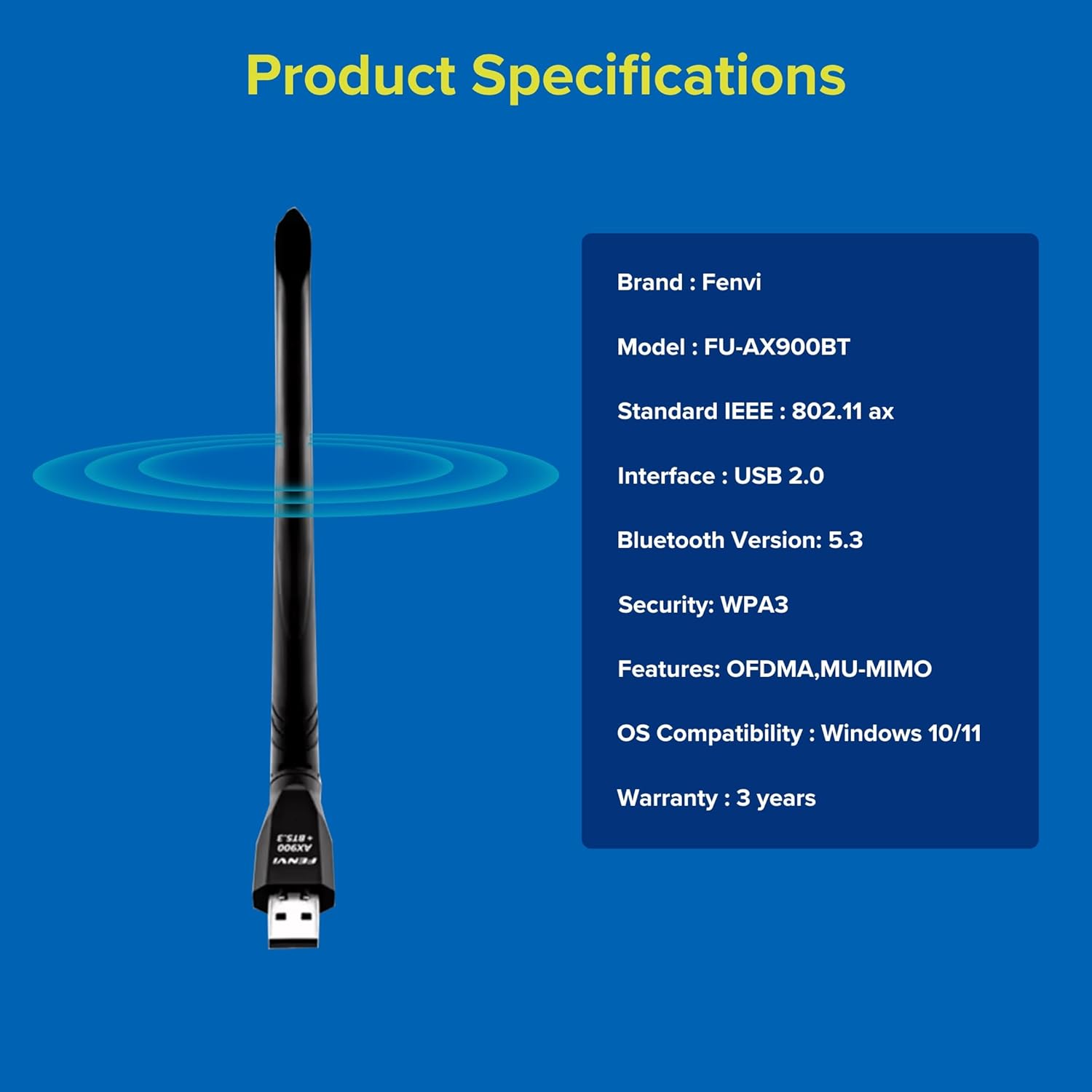
בילד 6: Fenvi FU-AX900BT Product Specifications. This graphic summarizes key specifications such as brand, model, Wi-Fi standard, interface, Bluetooth version, security, features, OS compatibility, and warranty.
וואָראַנטי און שטיצן
The Fenvi FU-AX900BT comes with a 3-Year India Warranty. For technical support, warranty claims, or further assistance, please contact Fenvi customer support through their official webפּלאַץ אָדער די זיצער ווו די פּראָדוקט איז פּערטשאַסט.
ביטע באַהאַלטן אייער קויף קוויטל ווי אַ באַווייַז פון קויפן פֿאַר גאַראַנטיע צוועקן.