
1. הקדמה
This manual provides detailed instructions for the installation, operation, and maintenance of your GIGABYTE X870E AORUS ELITE X3D Motherboard. Designed for high-performance computing, this motherboard supports AMD Ryzen 9000 series processors and features advanced power delivery, high-speed memory support, and extensive connectivity options. Please read this manual thoroughly before proceeding with installation to ensure proper setup and optimal performance.
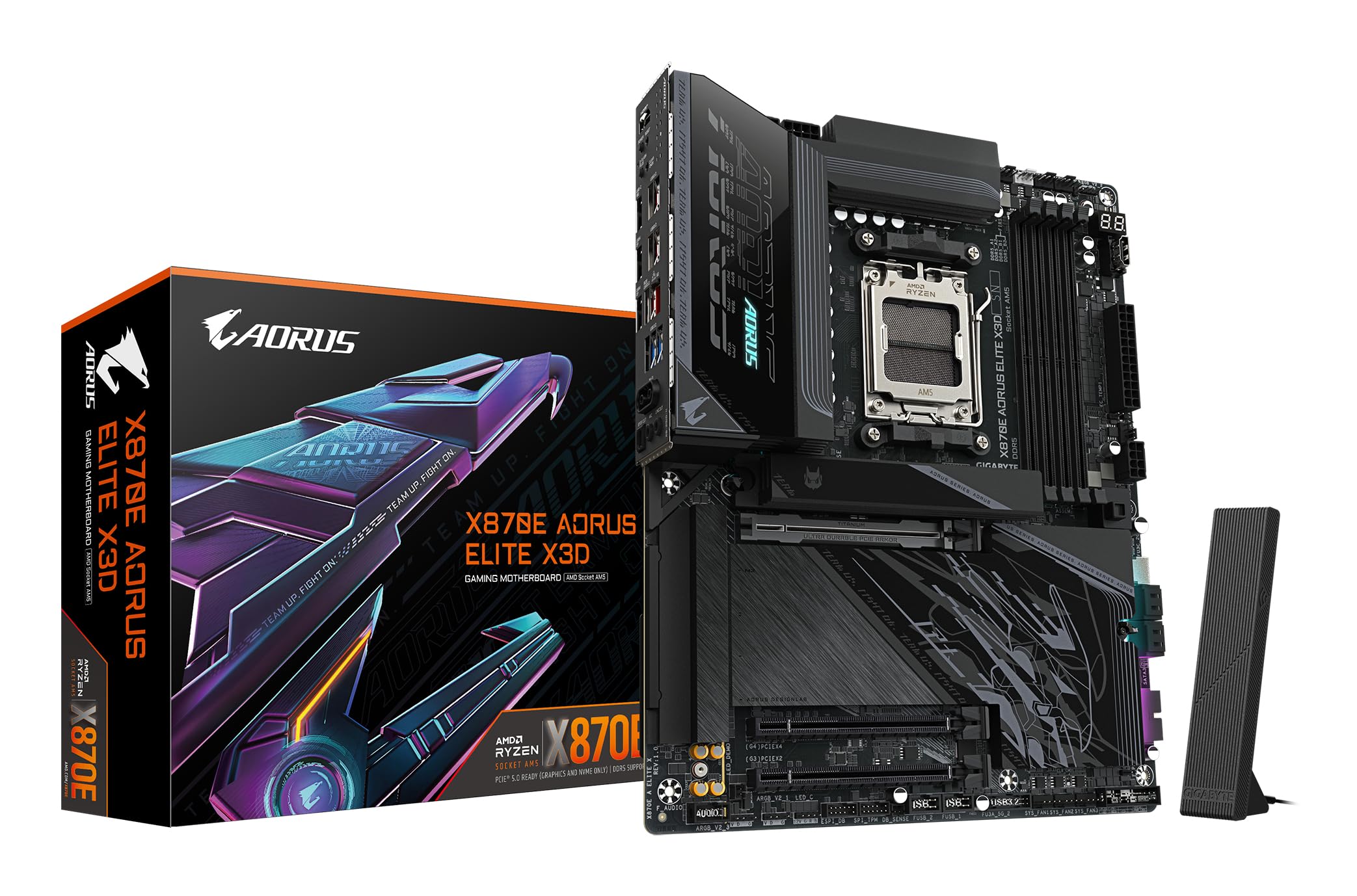
Figure 1: GIGABYTE X870E AORUS ELITE X3D Motherboard - Top View
2. סעטאַפּ און ייַנמאָנטירונג
איידער איר הייבט אן די אינסטאַלאַציע, זאָרגט אַז אייער סיסטעם איז אויסגעלאָשן און אָפּגעטיילט פֿון דער מאַכט-מקור. האַלט אָן די מוטערבאָרד ביי די ברעגן צו פֿאַרמייַדן סטאַטישע אָפּלאָד.
2.1 CPU אינסטאַלאַציע (סאָקעט AM5)
- געפינט די AM5 CPU סאָקעט אויף די מאַדערבאָרד.
- עפֿנט דעם CPU ריטענשאַן לעווער.
- Carefully align the CPU with the socket, ensuring the triangular markers match. Do not force the CPU into the socket.
- Gently lower the CPU into place.
- פֿאַרמאַכט דעם ריטענשאַן לעווער צו פֿעסטשטעלן די סי-פּי-יו.

Figure 2: AMD Ryzen 3D Processor for Socket AM5
2.2 ראַם אינסטאַלאַציע (DDR5)
- עפֿנט די קליפּס אויף ביידע ענדס פֿון די DDR5 זכּרון סלאָץ.
- גלייכט אויס דעם זכּרון מאָדול מיטן שפּאַלט, און מאַכט זיכער אַז דער קערב אויפן מאָדול פּאַסט צום שליסל אין שפּאַלט.
- דריק פעסט אַראָפּ אויף ביידע עקן פון די זכּרון מאָדול ביז די קליפס קליקן אין פּלאַץ.
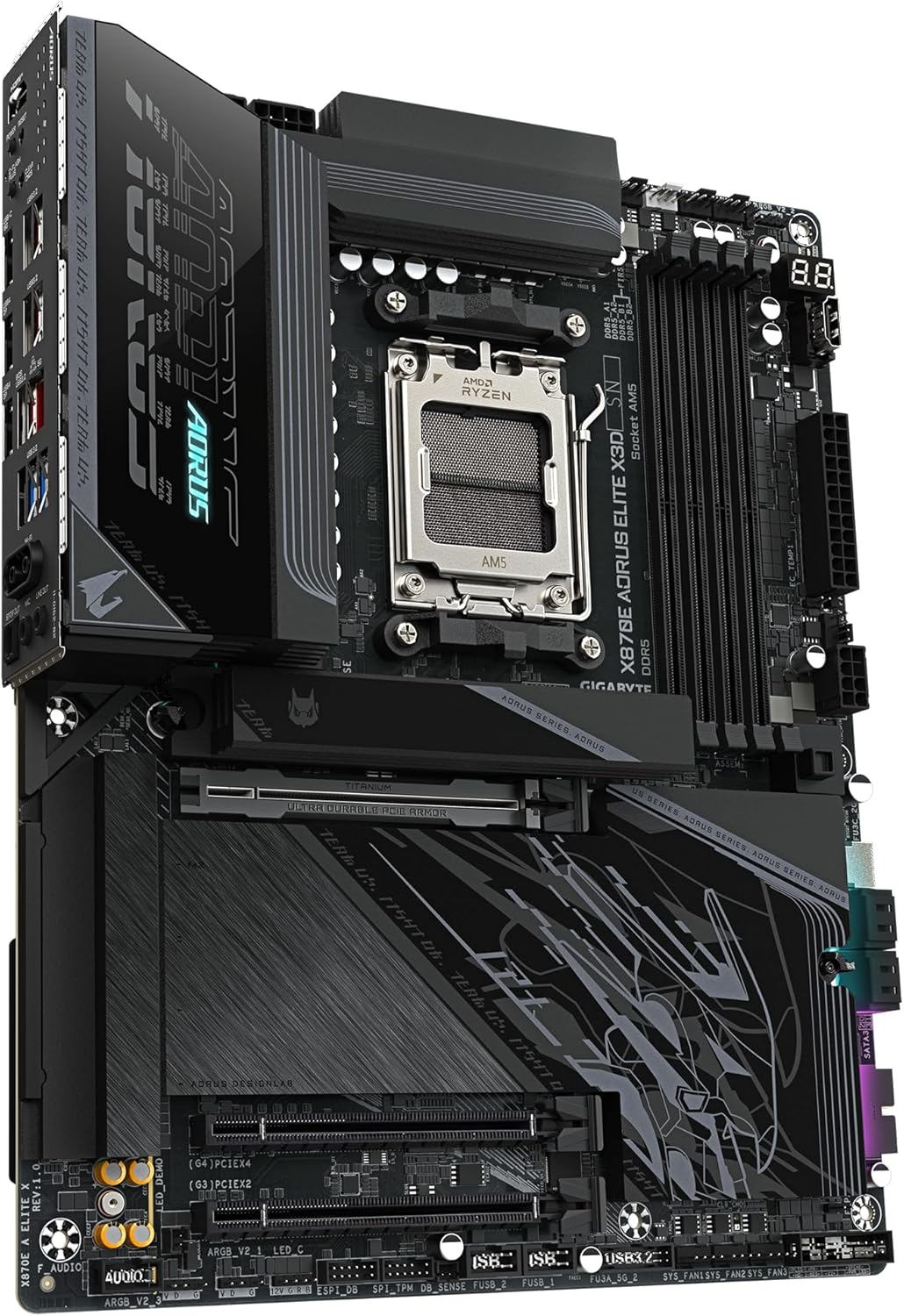
Figure 3: DDR5 Memory Slots
2.3 M.2 SSD Installation (EZ-Latch Click & Plus)
The motherboard features M.2 EZ-Latch Click & Plus for tool-less installation of M.2 SSDs and their heatsinks.
- Locate an M.2 slot and remove the protective film from the thermal pad on the M.2 heatsink.
- שטעל אַרײַן דעם M.2 SSD אין דעם סלאָט אין אַ ווינקל.
- Gently push down the M.2 SSD and secure it using the EZ-Latch mechanism.
- Place the M.2 heatsink over the SSD and secure it using the EZ-Latch Plus mechanism.

Figure 4: EZ DIY Features for M.2 and PCIe Installation
2.4 PCIe קאַרטל אינסטאַלאַציע
Insert your graphics card or other PCIe expansion cards into the appropriate PCIe 5.0 or PCIe 4.0 slots. Ensure the card is fully seated and secured with the case's retention mechanism.
2.5 Wi-Fi Antenna Installation (EZ-Plug)
Attach the included Wi-Fi antenna to the designated connectors on the rear I/O panel. The EZ-Plug design ensures a quick and easy connection.
2.6 מאַכט קאַנעקשאַנז
פֿאַרבינדט דעם 24-פּין ATX הויפּט מאַכט קאַנעקטאָר און דעם 8-פּין (אָדער 4+4-פּין) CPU מאַכט קאַנעקטאָר פֿון אייער מאַכט צושטעל צום מוטערבאָרד.
2.7 Rear I/O Panel Overview

Figure 5: Rear I/O Panel Connectivity
The rear I/O panel provides a range of connectivity options including HDMI, Dual USB4 Type-C with DP-Alt, multiple USB 3.2 ports, 5GbE LAN, and Wi-Fi 7 antenna connectors.
3. אַפּערייטינג ינסטרוקטיאָנס
3.1 ערשטע בוט און בייאָס/UEFI צוטריט
Upon first power-on, the system will perform a Power-On Self-Test (POST). To access the BIOS/UEFI setup, press the DEL key repeatedly during the POST process. The BIOS allows you to configure system settings, boot order, and advanced features.
3.2 X3D Turbo Mode 2.0
The GIGABYTE X870E AORUS ELITE X3D motherboard features X3D Turbo Mode 2.0, an AI-driven technology designed to optimize performance for AMD Ryzen X3D processors. This mode intelligently adjusts CPU parameters to maximize gaming and application performance. This feature can typically be enabled or configured within the BIOS/UEFI settings under the 'Tweaker' or 'Performance' sections.

Figure 6: AI-Driven Performance Optimization
3.3 Memory Overclocking (AMD EXPO)
This motherboard supports AMD EXPO for easy DDR5 memory overclocking up to 9000MT/s. To enable EXPO profiles, navigate to the BIOS/UEFI settings, usually under the 'Tweaker' or 'Memory' section, and select the desired EXPO profile for your memory modules.
3.4 דרייווער ינסטאַלירונג
After installing your operating system, install the necessary drivers for the motherboard components. These typically include chipset drivers, LAN drivers, Wi-Fi drivers, and audio drivers. Drivers can be found on the GIGABYTE official website for your specific motherboard model. It is recommended to download the latest drivers for optimal compatibility and performance.
4. וישאַלט
רעגולערע אויפהאלטונג העלפט זיכער מאכן די לאנגעוויטי און סטאבילן אפעראציע פון אייער מאדערבאארד און קאמפיוטער סיסטעם.
- באַזייַטיקונג פון שטויב: Periodically clean dust from inside your PC case, especially from heatsinks and fans, using compressed air. Ensure the system is powered off and unplugged before cleaning.
- קשר טשעקס: Occasionally check all power and data cable connections to ensure they are secure.
- בייאָוס/UEFI דערהייַנטיקונגען: Keep your BIOS/UEFI firmware updated to benefit from performance improvements, bug fixes, and support for new hardware. Refer to the GIGABYTE website for update procedures and files.
- ווייכווארג דערהייַנטיקונגען: זייט זיכער אז אייער אפערירן סיסטעם און דרייווערס זענען אפ-טו-דייט.

Figure 7: Motherboard Thermal Design
5. טראָובלעשאָאָטינג
אויב איר טרעפט פּראָבלעמען, זעט די פאלגענדע געוויינטלעכע טראָובלעשווטינג טריט:
- קיין מאַכט / קיין פּאָסט:
- Verify all power cables (24-pin ATX, CPU power) are securely connected.
- Ensure RAM modules are correctly seated in their slots. Try reseating them or testing with one module at a time.
- Check CPU installation and ensure the CPU cooler is properly installed.
- Clear CMOS by removing the CMOS battery for a few minutes or using the Clear CMOS jumper/button (refer to motherboard diagram).
- קיין ווייַז:
- Ensure your monitor is connected to the correct graphics output (either dedicated GPU or motherboard's integrated graphics port).
- Reseat your graphics card.
- פּרובירט מיט אַן אַנדערן דיספּליי קאַבל אָדער מאָניטאָר אויב מעגלעך.
- Network Connectivity Issues (LAN/Wi-Fi):
- Ensure LAN cable is properly connected or Wi-Fi antennas are securely attached.
- Verify that the correct LAN and Wi-Fi drivers are installed. If not, download them from the GIGABYTE website using another device and transfer them via USB.
- קאָנטראָלירט נעץ סעטטינגס אין אייער אָפּערייטינג סיסטעם.
- M.2 SSD נישט דעטעקטירט:
- Ensure the M.2 SSD is fully inserted into its slot and secured.
- קאָנטראָלירט די בייאָוס/UEFI סעטטינגס צו זיכער מאַכן אַז די M.2 סלאָט איז ענייבאַלד און קאָנפיגורירט ריכטיק.
- Some M.2 slots may share bandwidth with SATA ports; ensure no conflicts exist (refer to the full motherboard manual for details).
6. ספּעסאַפאַקיישאַנז
| שטריך | דעטאַל |
|---|---|
| סאָרט | גיגאבייט |
| מאָדעל נאָמען | X870E A ELITE X |
| קפּו סאָקקעט | כאָלעל AM5 |
| קאָמפּאַטיבלע פּראַסעסאָרן | AMD Ryzen 9000 / 8000 / 7000 Series |
| טשיפּסעט טיפּ | אַמד X870E |
| ראַם טעכנאָלאָגיע | דדר5 |
| זכּרון ספּיד | ביז 9000 MHz (OC) |
| זכּרון סלאָץ | 4 (צווייענדיק טשאַננעל) |
| Max RAM Size | 256 גיגאבייט |
| VRM דיזיין | 16+2+2 Phase Digital |
| PCIe Slots | 2 x PCIe 5.0, 2 x PCIe 4.0 (Total 3 physical slots) |
| מ.2 סלאָץ | 4 (including PCIe 5.0 x4 support) |
| SATA פּאָרץ | 4 |
| לאַן | 5 GbE LAN |
| ווירעלעסס קאַנעקטיוויטי | Wi-Fi 7 |
| וסב פּאָרץ | 11 (including Dual USB4 Type-C with DP-Alt, QC-USB 65W front) |
| HDMI פּאָרץ | 1 |
| הויפּט מאַכט קאַנעקטער | 24 שפּילקע |
| דימענשאַנז (LxWxH) | 30.5 ל רענטגענ 24.4 וו רענטגענ 3.5 ה סענטימעטער |
| וואָג | 2980 גראַמז |
7. וואָראַנטי און שטיצן
7.1 פּראָדוקט וואָראַנטי
The GIGABYTE X870E AORUS ELITE X3D Motherboard comes with a 3-יאָר פאַבריקאַנט ס וואָראַנטי. Please retain your proof of purchase for warranty claims. The warranty covers defects in materials and workmanship under normal use. It does not cover damage caused by improper installation, accidents, misuse, abuse, natural disasters, or unauthorized modifications.
7.2 טעכניש שטיצן
For technical assistance, driver downloads, BIOS updates, or further information, please visit the official GIGABYTE website. You can find support resources, FAQs, and contact information for customer service there.
גיגאבייט אפיציעל Webפּלאַץ: www.gigabyte.com