
הקדמה
The Rapoo M308 is a versatile multi-mode wireless mouse designed for efficiency and comfort. It features an ambidextrous design, allowing comfortable use for both right-handed and left-handed individuals. With its dual connectivity options, Bluetooth 5.0 and 2.4 GHz wireless, you can seamlessly connect to up to three devices and switch between them with ease. The mouse is engineered for long-lasting performance, offering a battery life of up to 12 months.
פּעקל אינהאַלט
- Rapoo M308 Multi-mode Wireless Mouse
- וסב ופנעמער (סטאָרד אין די מויז)
- 2 אַאַ באַטעריז
- שנעל אָנהייב גייד (דעם מאַנואַל)
פּראָדוקט איבערview
Familiarize yourself with the components of your Rapoo M308 mouse.
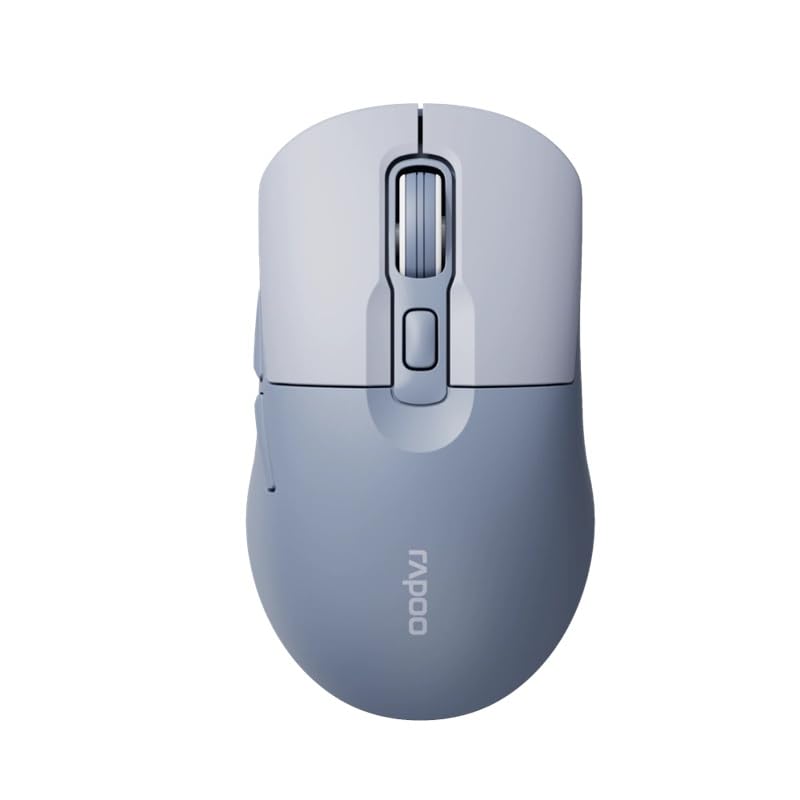
Image: The Rapoo M308 Multi-mode Wireless Mouse in blue, showcasing its ergonomic, ambidextrous design with a scroll wheel and multiple buttons.
- לינקס קנעפּל: נאָרמאַלע לינקס-קליק פונקציע.
- רעכט קנעפּל: נאָרמאַלע רעכט-קליק פונקציע.
- סקראָל ראָד: פֿאַר סקראָלן און מיטל-קליק פונקציע.
- DPI קנעפּל: אַדזשאַסטירט קורסאָר סענסיטיוויטי (DPI).
- Mode Switch Button/Indicator: Switches between connected devices (2.4G, Bluetooth 1, Bluetooth 2) and indicates current mode.
- זייַט קנעפּלעך: Forward/Backward navigation (programmable).
- באַטערי אָפּטייל: Located on the underside, holds 2 AA batteries.
- יו-עס-בי ופנעמער סלאָט: Located inside the battery compartment for storage.
סעטאַפּ
1. באַטאַרייע ייַנמאָנטירונג
- עפֿנט דעם דעקל פֿונעם באַטעריע־אָפּטייל אויף דער אונטערשטער זײַט פֿון דער מויז.
- אַרײַנשטעלן די צוויי AA באַטעריעס, און זיכער מאַכן אַז די פּאָלאַריטעט איז ריכטיק (+/-).
- נאָענט די דעקן פון די באַטאַרייע אָפּטייל.
2. פֿאַרבינדן דורך 2.4 GHz ווירעלעס
- Remove the USB receiver from its storage slot inside the battery compartment.
- צאַפּן די וסב ופנעמער אין אַ בנימצא וסב פּאָרט אויף דיין קאָמפּיוטער.
- Turn on the mouse. The mouse should automatically connect to your computer. The mode indicator light will show a steady green light for a few seconds.
3. קאַנעקטינג דורך בלועטאָאָטה
The M308 mouse supports two Bluetooth connections (BT1 and BT2).
- קער אויף די מויז.
- Press the mode switch button to select either Bluetooth 1 (blue light flashes slowly) or Bluetooth 2 (blue light flashes slowly).
- Press and hold the mode switch button for 3 seconds until the blue light starts flashing rapidly. This indicates the mouse is in pairing mode.
- אויף אייער קאָמפּיוטער אָדער מיטל, גייט צו בלועטוט סעטטינגס און זוכט פֿאַר נייע דעוויסעס.
- Select "Rapoo M308" from the list of available devices to pair.
- Once paired, the blue light will become steady for a few seconds and then turn off.
אַפּערייטינג ינסטראַקשאַנז
באַשטימען צווישן דיווייסאַז
The Rapoo M308 allows you to connect to up to three devices (one 2.4G wireless and two Bluetooth devices) and switch between them.
- Briefly press the mode switch button to cycle through the connected devices: 2.4G (green light), Bluetooth 1 (blue light), Bluetooth 2 (blue light).
- The indicator light will briefly illuminate in the corresponding color to confirm the selected mode.
דפּי אַדזשאַסטמאַנט
Press the DPI button (usually located behind the scroll wheel) to cycle through different DPI settings. This changes the cursor speed and sensitivity. The indicator light may flash to show the current DPI level (e.g., one flash for low DPI, two for medium, etc.).
וישאַלט
- רייניקונג: ניצט אַ ווייכע, טרוקענע שטאָף צו רייניקן די מויז. פֿאַר שווערע שמוץ, אַ ביסל טרוקןamp מען קען ניצן אַ שטאָף, אָבער זאָרגט זיך אַז קיין נאַס זאָל נישט אַרײַנגיין אין דעם אַפּאַראַט.
- באַטערי פאַרבייַט: When the mouse performance degrades or the indicator light signals low battery, replace the two AA batteries following the installation steps.
- סטאָרידזש: When not in use for extended periods, turn off the mouse to conserve battery life. Store the USB receiver inside the mouse to prevent loss.
טראָובלעשאָאָטינג
- מויז ענטפערט נישט:
- Check if the mouse is turned on.
- זיכער מאַכן אַז די באַטעריעס זענען ריכטיק אינסטאַלירט און נישט אויסגעשעפּט. טוישן אויב נייטיק.
- For 2.4G connection, ensure the USB receiver is securely plugged into a working USB port. Try a different USB port.
- For Bluetooth connection, ensure the mouse is in the correct Bluetooth mode (BT1 or BT2) and successfully paired with your device. Re-pair if needed.
- קורסאָר באַוועגונג איז נישט סטאַביל אָדער פּאַמעלעך:
- רייניקט דעם אָפּטישן סענסאָר אויף דער אונטערשטער זײַט פֿון דער מויז.
- זייט זיכער אַז איר ניצט די מויז אויף אַ פּאַסיקער ייבערפלאַך (נישט-רעפלעקטיוו, נישט-טראַנספּאַרענט).
- אַדזשאַסטירן די DPI סעטינג מיטן DPI קנעפּל.
- קען נישט טוישן צווישן דעווייסעס:
- Ensure all devices are properly connected (2.4G receiver plugged in, Bluetooth devices paired).
- Briefly press the mode switch button to cycle through modes. A long press will initiate Bluetooth pairing mode.
ספּעסאַפאַקיישאַנז
| סאָרט נאָמען | Rapoo |
| מאָדעל | M308 |
| קאַנעקטיוויטי טעכנאָלאָגיע | Bluetooth 5.0, 2.4 GHz Radio Frequency |
| ספּעציעלע פֿעיִקייטן | לייטווייט |
| באַוועגונג דעטעקשאַן | אָפּטיש |
| קנעפּל קוואַנטיטעט | 4 |
| האַנט אָריענטירונג | אַמבידעקסטראַס |
| רעקאָממענדעד ניצט | אָפיס |
| קאַמפּאַטאַבאַל דעוויסעס | פערזענלעכער קאמפיוטער, לעפטאפ |
| פּונקט וואָג | 50 גראַמז |
| אָפּערייטינג סיסטעם | Linux, Mac, Windows |
| באַטערי לעבן | 12 חדשים |
| נומער פון באַטעריז | 2 אַאַ (אַרייַנגערעכנט) |
| מאַכט מקור | באַטאַרייע פּאַוערד |
| מינימום אַס פארלאנגט | Mac OS 14 Sonoma, Windows 11 |
| מאַטעריאַל | פּלאַסטיק |
| לאַנד פון אָריגין | כינע |
| אַרייַנגערעכנט קאַמפּאָונאַנץ | מויז |
וואָראַנטי און שטיצן
The Rapoo M308 Multi-mode Wireless Mouse comes with a 2 יאָר וואָראַנטי פֿון דעם קויפֿדאַטום. די וואָראַנטי דעקט פֿאַבריקאַציע חסרונות און מאַלפאַנגקשאַנז אונטער נאָרמאַל נוצן.
For technical support, warranty claims, or further assistance, please refer to the contact information provided on the Rapoo official website or your local distributor's support channels. Please retain your proof of purchase for warranty validation.