
הקדמה
Thank you for choosing the INPHIC Wireless Rechargeable Mouse. This manual provides detailed instructions for setting up, operating, and maintaining your mouse to ensure optimal performance and longevity. This mouse features a visible battery indicator, silent buttons, an ergonomic design, and adjustable DPI settings for a comfortable and efficient user experience.
סעטאַפּ
1. פּעקל אינהאַלט
- INPHIC Wireless Rechargeable Mouse
- USB ריסיווער (געהאַלטן אין דער מויז)
- וסב-C טשאַרדזשינג קאַבלע
- באַניצער מאַנואַל
2. ערשטע אויפלאָדונג
Before first use, fully charge the mouse for approximately 1 hour. Connect the provided USB-C charging cable to the mouse's charging port and the other end to a USB power source (e.g., computer USB port, USB wall adapter). The visible battery indicator on the top of the mouse will show charging status and remaining battery level.

Image: The mouse connected via USB-C cable for charging, highlighting the charging port and the visible battery level indicator.
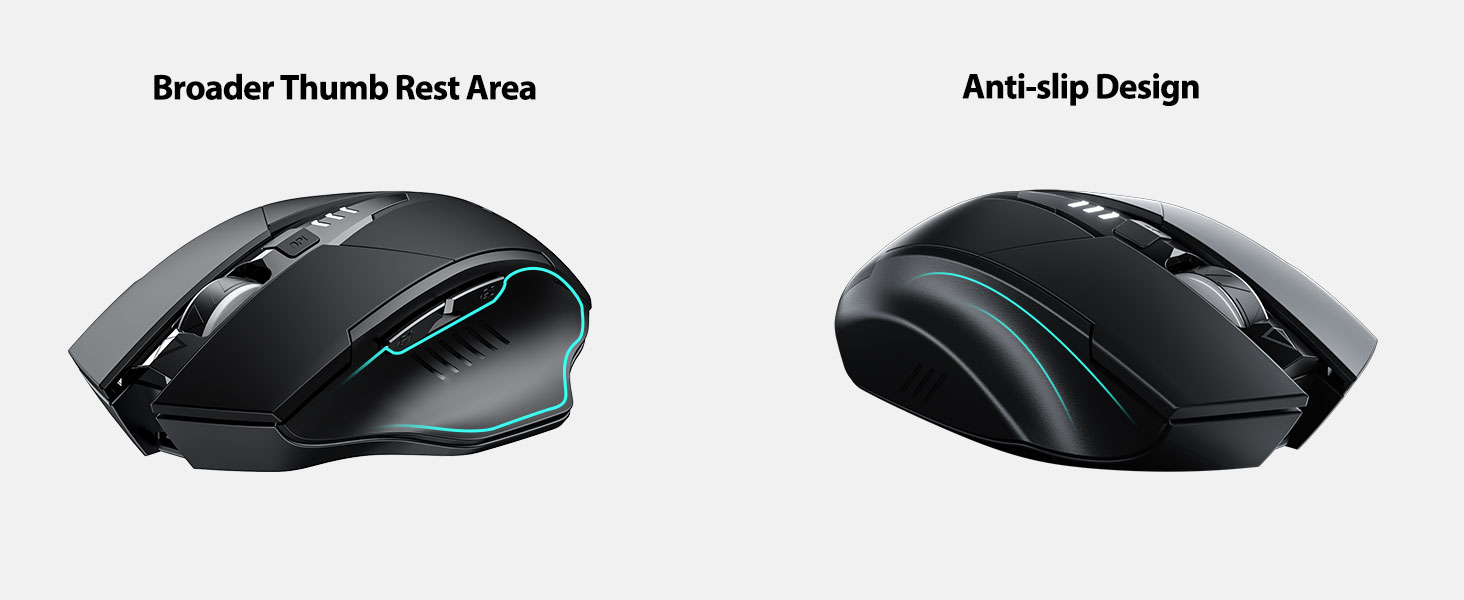
Image: A close-up of the mouse's top surface, showing the illuminated battery indicator displaying the current charge level.
3. Connecting the USB Receiver (2.4G Mode)
- געפינט דעם USB ופנעמער וואָס געפינט זיך אין דעם אָפּטייל אויף דער אונטערשטער טייל פון דער מויז.
- אַראָפּנעמען די וסב ופנעמער.
- Insert the USB receiver into an available USB port on your computer or laptop.
- קער אויף די מויז ניצן די מאַכט באַשטימען אויף די דנאָ.
- אייער קאָמפּיוטער זאָל אויטאָמאַטיש דעטעקטירן און אינסטאַלירן די נויטיקע דרייווערס. די מויז איז גרייט פֿאַר באַנוץ.

Image: The underside of the mouse, illustrating the storage compartment for the USB receiver.

Image: The mouse in use on a desk, demonstrating its reliable 2.4G wireless connection with a laptop.
4. קאַמפּאַטאַבילאַטי
The 2.4G USB connected mode is compatible with any USB-enabled device and supports a wide range of operating systems, including:
- Windows 7/8/10/XP, Vista
- מעק אַס סיסטעם
- אַנדרויד
- קראָום אַס
- לינוקס קערן 2.6+

Image: The mouse positioned alongside icons representing Windows, Chrome OS, and Linux, illustrating its broad compatibility.
אַפּערייטינג ינסטראַקשאַנז
1. אײַנשאַלטן/אויסלעשן און שלאָף מאָדע
Use the power switch on the bottom of the mouse to turn it on or off. To conserve battery, the mouse will automatically enter sleep mode after 5 minutes of inactivity. Click any button to wake it up.
2. דפּי אַדזשאַסטמאַנט
The mouse features 4 adjustable DPI levels: 800, 1200, 1600, and 2400. Press the DPI button located behind the scroll wheel to cycle through these settings. Each press will change the cursor speed, allowing you to select the sensitivity that best suits your task.
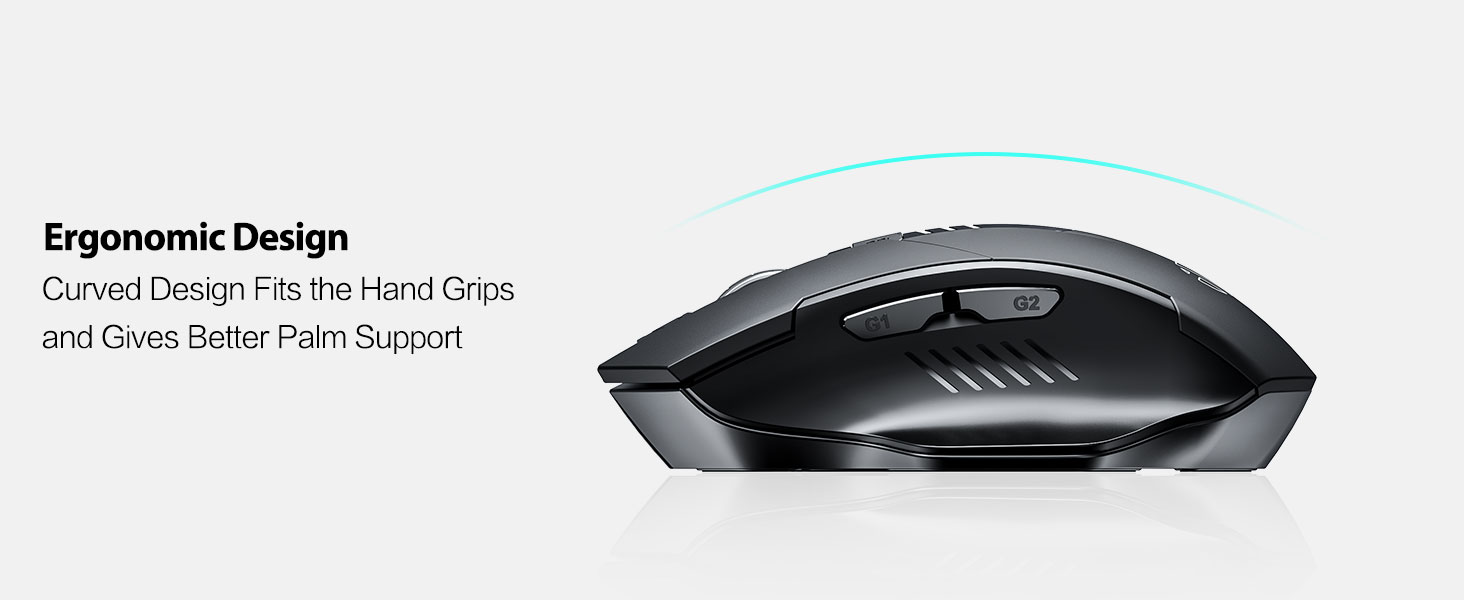
Image: An illustration showing the mouse and a graphic representing the adjustable DPI settings from 800 to 2400.

בילד: א נאָענטע בילד view of the DPI controller button located on the top of the mouse.
3. קנעפּל פאַנגקשאַנז
The mouse is equipped with 6 efficient buttons:
- לינקער קליק קנעפל: Primary function, silent operation.
- רעכט קליק קנעפל: Secondary function, silent operation.
- סקראָל ראָד: פֿאַר ווערטיקאַל סקראָלן. קען אויך געדריקט ווערן פֿאַר מיטל-קליק פֿונקציאָנאַליטעט.
- DPI קנעפּל: Adjusts cursor sensitivity (800/1200/1600/2400 DPI).
- זייט קנעפּלעך (G1, G2): Typically function as 'Forward' and 'Back' in web בראַוזערז און file עקספּלאָרערס.

Image: The mouse on a desk, emphasizing its quiet left and right click buttons for reduced noise.

בילד: א נאָענטע בילד view of the smooth scrolling wheel on the mouse.
4. ערגאָנאָמיק פּלאַן
The mouse is designed for right-handed users with a curved shape and a broader thumb rest area to provide optimal support for the entire palm and fingers. This design aims to reduce pressure and tension during extended use.
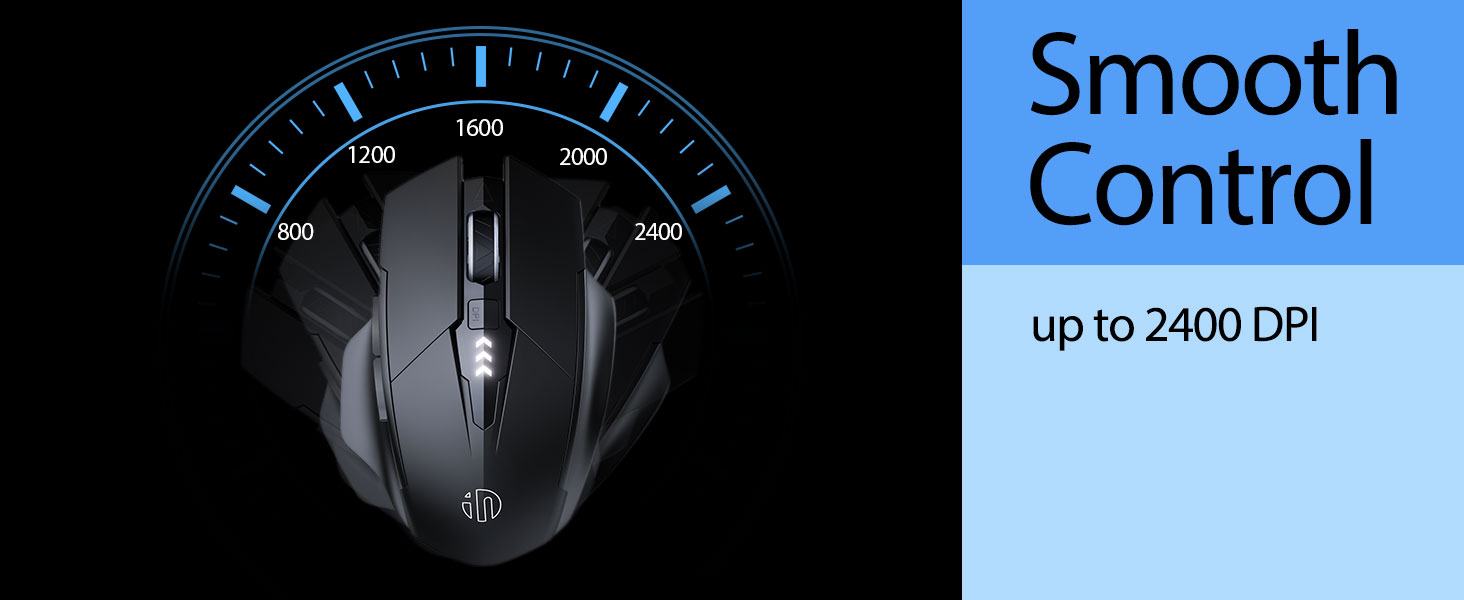
Image: An illustration demonstrating the ergonomic curve of the mouse, designed to fit the hand comfortably.

בילד: צוויי views of the mouse, highlighting its broader thumb rest area and anti-slip design for improved grip and comfort.
וישאַלט
1. רייניקונג
צו רייניקן אייער מויז, ווישט אָפּ די ייבערפלאַך מיט אַ ווייכן, טרוקענעם שטאָף.amp שטאָף. פֿאַרמײַדט ניצן שאַרפֿע כעמיקאַלן אָדער אַברייסיוו מאַטעריאַלן, ווײַל די קענען שאַטן די ענדיקונג. זאָרגט אַז קיין פֿליסיקייט גייט נישט אַרײַן אין די אינעווייניקסטע קאָמפּאָנענטן.
2. סטאָרידזש
When not in use for extended periods, store the mouse in a cool, dry place. It is recommended to turn off the mouse to preserve battery life. The USB receiver can be stored in its dedicated compartment on the mouse's underside.
3. באַטערי קער
The built-in 400mAh rechargeable battery is designed for long-lasting performance. For optimal battery health, avoid completely draining the battery frequently. Recharge the mouse when the visible indicator shows a low battery level. Do not expose the mouse to extreme temperatures.
טראָובלעשאָאָטינג
| פּראָבלעם | מעגלעך סיבה | לייזונג |
|---|---|---|
| מויז ניט ריספּאַנדינג | Low battery; USB receiver disconnected; Mouse power off. | Charge the mouse; Re-insert USB receiver; Turn on the mouse. |
| קורסאָר באַוועגונג איז נישט סטאַביל אָדער פּאַמעלעך | Incorrect DPI setting; Dirty optical sensor; Unsuitable surface. | Adjust DPI using the DPI button; Clean the optical sensor; Use on a clean, non-reflective surface. |
| מויז לאָדט זיך נישט אויף | Faulty USB-C cable or power source. | Try a different USB-C cable or USB port/power adapter. |
| Side buttons (G1/G2) not working | Application does not support side button functions. | Ensure the application (e.g., web browser) is active and supports 'back'/'forward' commands. |
ספּעסאַפאַקיישאַנז
- מאָדעל: B0FQCCP1VH
- פּראָדוקט דימענשאַנז: 4.7 X 3.1 X 0.1 אינטשעס
- נומער וואָג: 4.2 אונסעס
- באַטערי: 1 Nonstandard Battery (400mAh, included)
- קאַנעקטיוויטי טעכנאָלאָגיע: 2.4G ווירעלעס (USB ריסיווער)
- באַוועגונג דעטעקשאַן טעכנאָלאָגיע: אָפּטיש
- דפּי לעוועלס: 800 / 1200 / 1600 / 2400 (אַדזשאַסטאַבאַל)
- קנעפּלעך: 6 (Left, Right, Scroll Wheel, DPI, G1, G2)
- ספּעציעלע פֿעיִקייטן: Ergonomic Design, LED Battery Level Display, Rechargeable, Silent Clicks (Left & Right Buttons)
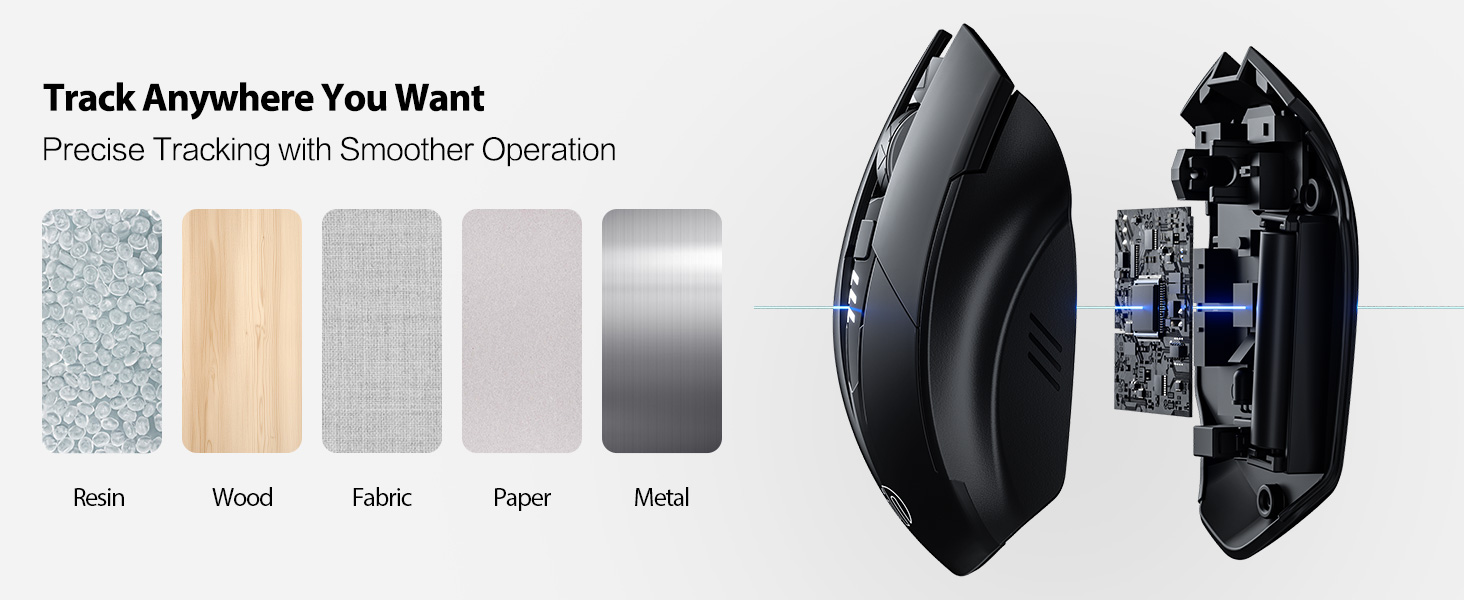
Image: A diagram illustrating the physical dimensions of the INPHIC Wireless Mouse.
פּראָדוקט ווידעא
ווידעא: אן איבערview of the INPHIC Wireless Rechargeable Mouse, demonstrating its features and ergonomic design.
וואָראַנטי און שטיצן
For warranty information or technical support, please refer to the product packaging or contact the manufacturer directly. Keep your purchase receipt as proof of purchase.


