
1. הקדמה
Thank you for choosing the FMOUSE M235 PRO Gaming Wireless Mouse. This tri-mode mouse offers versatile connectivity options (2.4G wireless, Bluetooth, and wired Type-C), high-performance features like 4800 DPI and 1000Hz polling rate, and customizable RGB lighting. This manual provides detailed instructions for setup, operation, and maintenance to ensure optimal performance.
2. פּעקל אינהאַלט
- FMOUSE M235 PRO Gaming Wireless Mouse
- 2.4G וסב ופנעמער
- טיפ-C טשאַרדזשינג/דאַטן קאַבל
- באַניצער מאַנואַל
- סטאָרידזש באַג
3. פּראָדוקט איבערview
The FMOUSE M235 PRO features an ergonomic hollow design for reduced hand fatigue and a lightweight build (approximately 65g). It includes multiple buttons for enhanced functionality and customizable RGB lighting.
בילד: אויבן view of the FMOUSE M235 PRO Gaming Wireless Mouse.

Image: Lightweight design of the FMOUSE M235 PRO mouse.
קנעפּל פאַנגקשאַנז:
- לינקס קנעפּל: נאָרמאַלע קליק פונקציע.
- רעכט קנעפּל: נאָרמאַלע רעכט-קליק פונקציע.
- סקראָל ראָד: סקראָלן אַרויף/אַראָפּ, מיטעלער קליק.
- DPI קנעפּל: גייט דורך די DPI לעוועלס.
- פֿאָרווערטס קנעפּל: נאַוויגירט פאָרווערטס אין בראַוזערז/אַפּליקאַציעס.
- צוריק קנעפּל: נאַוויגירט צוריק אין בראַוזערז/אַפּליקאַציעס.
- Mode Switch (Bottom): Switches between 2.4G, Bluetooth, and Wired modes.
- ON/OFF Switch (Bottom): מאַכט אָן אָדער אויס די מויז.

בילד: אונטן view of the FMOUSE M235 PRO mouse with labeled components.
4. סעטאַפּ
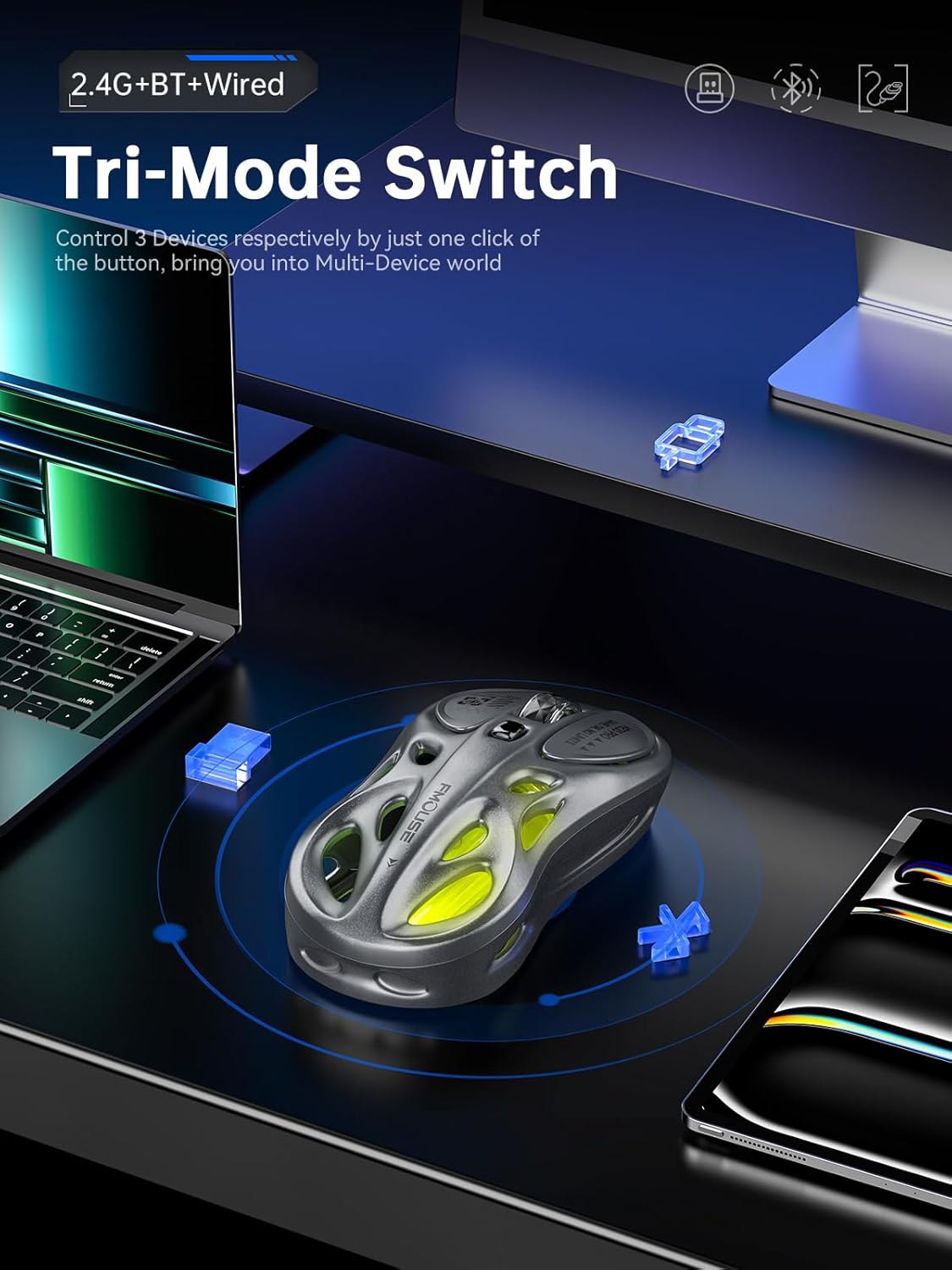
The FMOUSE M235 PRO supports three connection modes: Wired, 2.4G Wireless, and Bluetooth. You can seamlessly switch between up to 3 devices.
4.1 ווייערד קאַנעקשאַן
- Connect the Type-C end of the charging/data cable to the mouse.
- פֿאַרבינדט דעם USB-A עק פֿונעם קאַבל צו אייער קאָמפּיוטער'ס USB פּאָרט.
- Ensure the mouse's ON/OFF switch is in the 'ON' position. The mouse will automatically switch to wired mode.
4.2 2.4G וויירלעס פֿאַרבינדונג
- געפינט דעם 2.4G USB ריסיווער אין דעם פּעקל.
- שטעקט אריין דעם 2.4G USB ריסיווער אין א פאראן USB פארט אויף אייער קאמפיוטער.
- Flip the mouse's ON/OFF switch to 'ON'.
- Press the 'MODE' switch button on the bottom of the mouse until the indicator light turns גרין. This indicates 2.4G mode.
- The mouse should now be connected.
4.3 בלועטאָאָטה קאַנעקשאַן
- Flip the mouse's ON/OFF switch to 'ON'.
- Press the 'MODE' switch button on the bottom of the mouse until the indicator light turns בלוי (for Bluetooth 1) or רויט (for Bluetooth 2).
- On your device (computer, laptop, iPad, etc.), go to Bluetooth settings and enable Bluetooth.
- זוכן פֿאַר new devices. The mouse should appear as "BT Mouse" or similar.
- Select the mouse to pair. The indicator light will stop flashing once successfully paired.
- To switch between two paired Bluetooth devices, press the 'MODE' switch button to toggle between blue and red indicator lights.
Video: Demonstrates the tri-mode connection process (wired, 2.4G, Bluetooth) for the FMOUSE M235 PRO Gaming Wireless Mouse. Shows how to plug in the data cable, insert the 2.4G USB receiver, and pair via Bluetooth with different devices.
5. אַפּערייטינג ינסטרוקטיאָנס
5.1 דפּי אַדזשאַסטמאַנט
The mouse features 5 adjustable DPI levels (800-4800) for precise control. Press the DPI button located on the top of the mouse to cycle through the available DPI settings. Each DPI level may correspond to a different RGB color indicator for easy identification.

Image: Illustration of 5-level adjustable DPI settings.
5.2 RGB לייטינג קאָנטראָל
The mouse features customizable RGB backlighting. Long press the DPI button to switch between multiple lighting modes and effects. Experience dynamic RGB track synchronization.
5.3 Customization and Macro Programming
For advanced customization, including button remapping, macro programming, and detailed lighting effects, download the official FMOUSE software (FMOUSE Futura) from the official website. The software allows you to adjust various parameters to personalize your mouse for specific tasks or games.

Image: Screenshot of the FMOUSE software for macro programming and customization.
6. טשאַרדזשינג
The FMOUSE M235 PRO is equipped with a 500mAh rechargeable lithium-ion battery. Use the provided Type-C cable to charge the mouse.
- Connect the Type-C end of the cable to the mouse's charging port.
- Connect the USB-A end to a power source (e.g., computer USB port, USB wall adapter).
- The mouse's indicator light will typically show charging status (e.g., pulsing green).
- א פול אָפּצאָל נעמט בעערעך 2 שעה.

Image: Type-C charging illustration.
7. וישאַלט
- רייניקונג: ניצט אַ ווייכע, טרוקענע שטאָף צו רייניקן די מויז. פֿאַרמייַדט ניצן שטרענגע כעמיקאַלן אָדער שרײַבנדיקע מאַטעריאַלן.
- סטאָרידזש: האַלט די מויז אין אַ קיל, טרוקן אָרט אַוועק פון דירעקט זונשייַן און עקסטרעמע טעמפּעראַטורן.
- באַטערי זאָרגן: To prolong battery life, avoid fully discharging the mouse frequently. Charge it regularly.
- ופנעמער סטאָרידזש: When not in use, store the 2.4G USB receiver in a safe place to prevent loss. Note that there is no dedicated storage slot on the mouse itself.
8. טראָובלעשאָאָטינג
| אַרויסגעבן | מעגלעך לייזונג |
|---|---|
| Mouse not responding in 2.4G mode | Ensure the 2.4G USB receiver is securely plugged in. Check if the mouse is switched to 2.4G mode (green indicator light). Try plugging the receiver into a different USB port. |
| Mouse not pairing via Bluetooth | Ensure the mouse is in Bluetooth pairing mode (blue or red indicator light flashing). Make sure Bluetooth is enabled on your device and it's discoverable. Try restarting both the mouse and your device. |
| פאַרהאַלטונג אָדער ינטערמיטאַנט פֿאַרבינדונג | Reduce distance between mouse and receiver/device. Avoid interference from other wireless devices. Ensure the mouse is fully charged. |
| RGB לייטינג טוט נישט אַרבעטן | Ensure the mouse is powered on. Long press the DPI button to cycle through lighting modes. Check software settings if applicable. |
| DPI טוישט זיך נישט | Press the DPI button firmly. If using custom software, ensure DPI settings are correctly configured and applied. |
| מויז לאָדט זיך נישט אויף | Verify the Type-C cable is properly connected to both the mouse and the power source. Try a different cable or USB port/charger. |
9. ספּעסאַפאַקיישאַנז
| שטריך | דעטאַל |
|---|---|
| מאָדעל נומער | M235 PRO |
| קאַנעקטיוויטי טעכנאָלאָגיע | 2.4GHz USB / Dual Bluetooth / Wired (Type-C) |
| באַוועגונג דעטעקשאַן טעכנאָלאָגיע | Optical (PixArt PAW3212DB-TJDT chip) |
| דפּי לעוועלס | 5 adjustable levels, up to 4800 DPI |
| פּאָללינג קורס | 1000 הז |
| באַטערי | 500mAh ליטהיום יאָן (ריטשאַרדזשאַבאַל) |
| פּונקט וואָג | 6.7 אונסעס (אומגעפער 65 גראַם) |
| דימענשאַנז | 4.7 X 2.4 X 1.3 אינטשעס (119 X 62 X 33 מם) |
| ספּעציעלע פֿעיִקייטן | RGB backlight, Customizable buttons, Macro programming, Ergonomic hollow design |
| קאַמפּאַטאַבילאַטי | Windows, Mac, Android (Laptops, iPads, MacBooks) |
10. וואָראַנטי און שטיצן
For warranty information and technical support, please refer to the documentation included with your purchase or visit the official FMOUSE webזייטל. איר קענט טיפּיש געפֿינען דרייווערס, אָפֿט געשטעלטע פֿראַגעס, און קאָנטאַקט אינפֿאָרמאַציע פֿאַר קונה סערוויס דאָרט.
Official FMOUSE Webפּלאַץ: www.fmouse.com