
1. הקדמה
This manual provides detailed instructions for the installation, configuration, and operation of the D-Link Guardian 700 Pro Multi-Gig Business Router (DBR-700). The DBR-700 is designed to provide enterprise-level networking capabilities for small and medium businesses, offering high-speed connectivity, robust security features, and simplified management.
Key features include a 2.5GbE WAN port, six 2.5GbE LAN ports, a 2.5GbE SFP uplink for flexible fiber connections, Multi-WAN failover, SPI Firewall, VPN support (IPSec, WireGuard, OpenVPN), and centralized management for up to 15 D-Link Guardian Wi-Fi 6 Smart Access Points (DBR-X3000-AP, sold separately).

Image: The D-Link Guardian 700 Pro Multi-Gig Router (DBR-700) designed for small and medium business environments.
2. פּעקל אינהאַלט
באַשטעטיקן אַז דיין פּעקל כּולל די פאלגענדע זאכן:
- D-Link Guardian 700 Pro Multi-Gig Business Router (DBR-700)
- מאַכט אַדאַפּטער
- שנעל ינסטאַללאַטיאָן גייד (QIG)
אויב עס פעלט אדער זענען געשעדיגט עפעס, ביטע קאנטאקטירט אייער לאקאלן די-לינק פארקויפער.
3. ייַזנוואַרג איבערview
3.1. פראָנט פּאַנעל
The front panel of the DBR-700 features status indicators and network ports.

בילד: פראָנט view of the DBR-700 router, showing LED indicators, Console port, LAN ports, WAN port, and LAN/WAN SFP port.
- SYS LED: ינדיקייץ סיסטעם סטאַטוס.
- SFP LED: Indicates status of the SFP port.
- באַשטעטיק קנעפּל: Used to reset the device or restore factory defaults.
- קאַנסאָול פּאָרט: For command-line interface access.
- לאַן פּאָרץ (1-6): Six 2.5GbE LAN ports for connecting local network devices.
- לאַן/וואַן פּאָרט: A 2.5GbE port configurable as either a LAN or WAN interface.
- וואַן פּאָרט: A dedicated 2.5GbE WAN port for internet connectivity.
- LAN/WAN SFP Port: A 2.5GbE/1GbE SFP port for fiber or copper connections, configurable as LAN or WAN.
3.2. דערציען פּאַנעל
The rear panel includes the power input and power switch.

בילד: הינטערשטע view of the DBR-700 router, showing the DC 12V/2A power input and On/Off switch.
- גלייכשטראָם 12V/2A: מאַכט אַרייַנגאַנג קאַנעקטער.
- אָנ / אַוועק באַשטימען: מאַכט קאָנטראָל פֿאַר די מיטל.
4. ינסטאַלירונג
Follow these steps for the initial setup of your DBR-700 router:
- מאַכט קשר: Connect the provided power adapter to the DC 12V/2A port on the rear panel of the router and plug it into a power outlet. Turn on the router using the On/Off switch.
- WAN פֿאַרבינדונג: Connect your internet service provider's modem or main network line to the וואַן port on the router using an Ethernet cable. If using fiber, insert the SFP module (sold separately) into the LAN/WAN SFP port and connect the fiber cable.
- לאַן קאַנעקשאַן: Connect your local network devices (e.g., computers, switches, access points) to the לאַן ports (1-6) or the configurable לאַן / וואַן port using Ethernet cables.
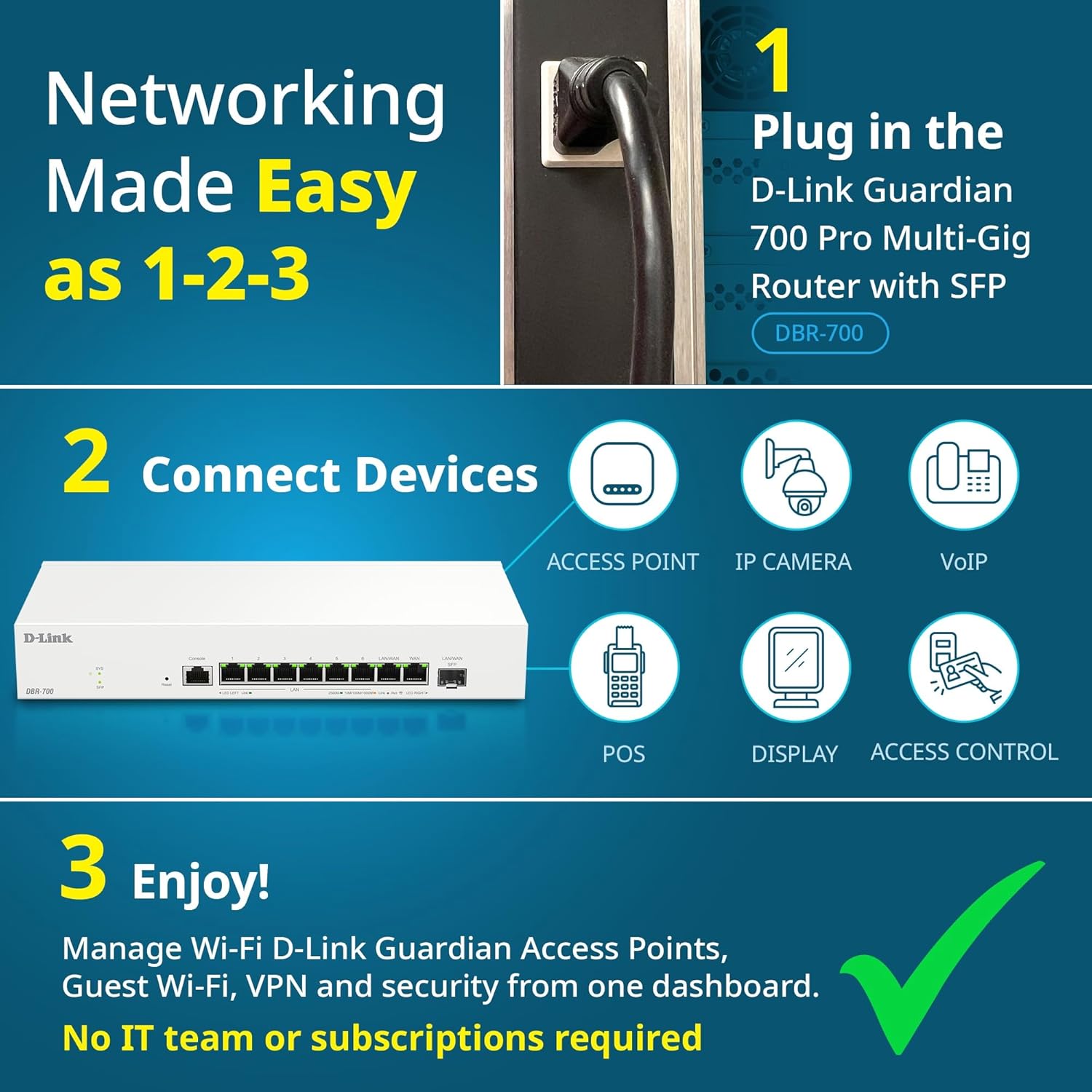
Image: Visual guide for router installation: 1. Plug in the DBR-700 router. 2. Connect devices like access points, IP cameras, VoIP, POS, displays, and access control. 3. Enjoy managed Wi-Fi, Guest Wi-Fi, VPN, and security from one dashboard.
5. קאָנפיגוראַטיאָן
5.1. אַקסעס די Web צובינד
To configure the DBR-700, access its web- באזירט פאַרוואַלטונג צובינד:
- Ensure your computer is connected to one of the router's LAN ports.
- עפענען א web בראַוזער (למשל, קראָום, פייערפאָקס, עדזש).
- Enter the router's default IP address (typically
192.168.1.1or similar, refer to the Quick Installation Guide for the exact address) into the address bar and press Enter. - Enter the default username and password when prompted. (Refer to the Quick Installation Guide for default credentials).
5.2. Basic Network Settings
Once logged in, you can configure basic network settings:
- WAN סעטטינגס: Configure your internet connection type (e.g., DHCP, Static IP, PPPoE) as provided by your ISP.
- לאַן סעטטינגס: Adjust the router's internal IP address, subnet mask, and DHCP server settings for your local network.
- צייט סעטטינגס: Set the correct time zone and synchronize the router's clock.
6. אַוואַנסירטע פֿעיִקייטן
6.1. Multi-WAN Failover
The DBR-700 supports Multi-WAN with intelligent failover, ensuring business continuity by providing redundant internet connections. If the primary WAN link fails, the router automatically switches to a secondary WAN link.

Image: The DBR-700's ports, illustrating the Primary 2.5GbE WAN, Secondary 2.5GbE LAN/WAN, and SFP Uplink for Multi-WAN failover capabilities.
6.2. VPN Configuration
The router includes built-in VPN support for IPSec, WireGuard, and OpenVPN, enabling secure remote access for employees and branch office connectivity. It supports up to 100 VPN tunnels.
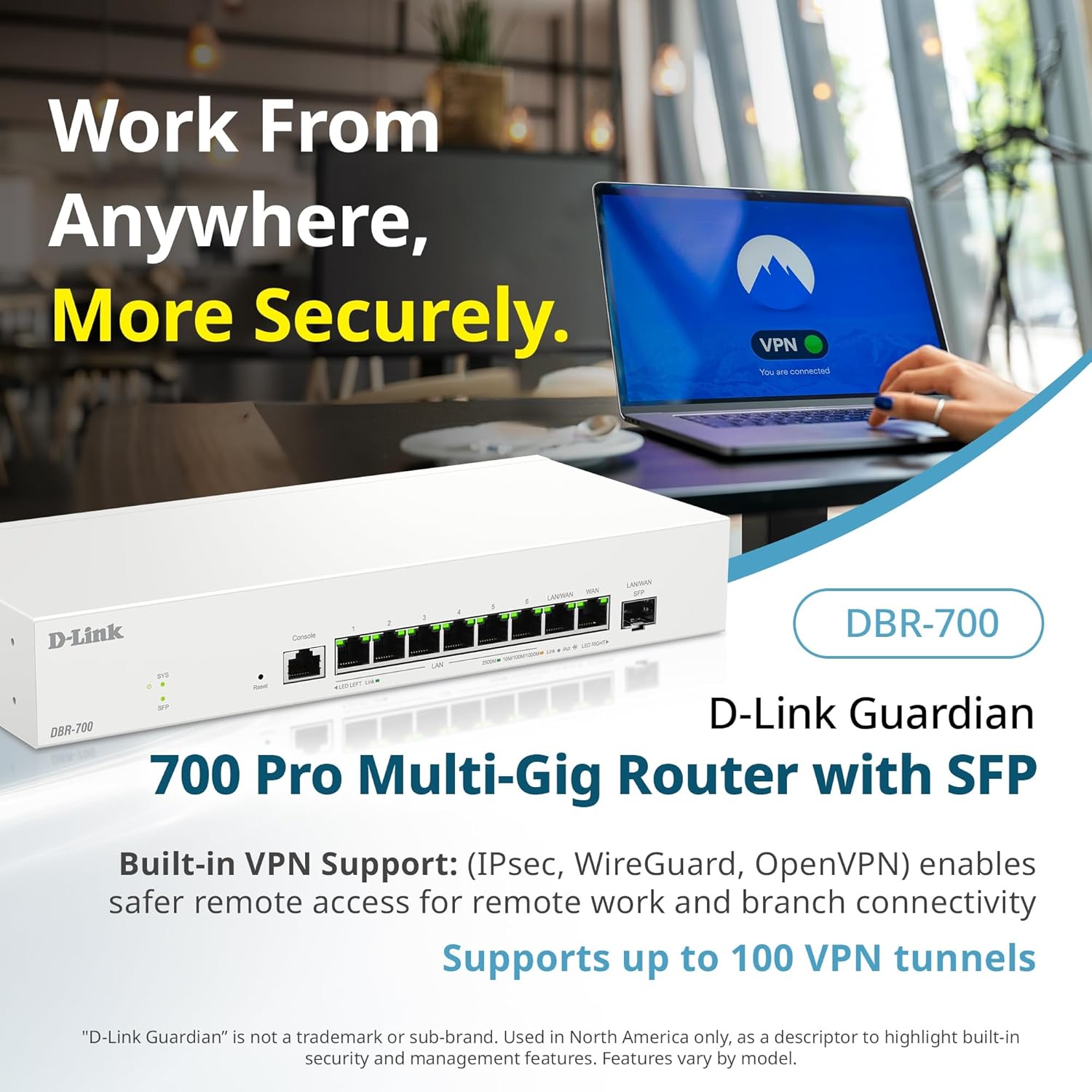
Image: A laptop displaying a 'VPN Connected' status, with the DBR-700 router in the foreground, illustrating secure remote access.
6.3. Centralized Access Point Management
The DBR-700 can discover and manage up to 15 D-Link Guardian Wi-Fi 6 Smart Access Points (DBR-X3000-AP, sold separately) from a single intuitive dashboard. This simplifies Wi-Fi network deployment and management.

Image: A tablet showing the D-Link Wi-Fi management dashboard, demonstrating centralized control over D-Link Guardian Access Points, with the DBR-700 router and a DBR-X3000-AP in the background.
6.4. Guest Wi-Fi Management
Set up and manage guest Wi-Fi networks with a Captive Portal. This allows for branded sign-in pages for guests while keeping business systems separate and secure. Configuration and management are done from the router dashboard.

Image: A smartphone screen showing a customizable guest Wi-Fi login portal, highlighting the DBR-700's ability to manage and customize guest networks.
7. וישאַלט
7.1. פירמוואַרע דערהייַנטיקונגען
קאָנטראָלירט און אינסטאַלירט רעגלמעסיק פירמווער דערהייַנטיקונגען צו זיכער מאַכן אָפּטימאַלע פאָרשטעלונג, זיכערהייט און צוטריט צו נייע פֿעיִקייטן. פירמווער דערהייַנטיקונגען קענען טיפּיש געפֿונען ווערן אויף די די-לינק שטיצע וועבזייטל. webוועבזייטל פֿאַר דיין ספּעציפֿישן מאָדעל.
7.2. פאַבריק באַשטעטיק
If you encounter persistent issues or wish to clear all configurations, you can perform a factory reset. To do this, locate the Reset button on the front panel. With the router powered on, use a paperclip or similar pointed object to press and hold the Reset button for approximately 5-10 seconds until the SYS LED blinks. Release the button, and the router will restart with factory default settings.
8. טראָובלעשאָאָטינג
This section addresses common issues you might encounter with your DBR-700 router.
8.1. קיין אינטערנעט קאַנעקשאַן
- טשעק קאַבלעס: Ensure all Ethernet cables are securely connected to the correct ports (WAN, LAN).
- מאָדעם סטאַטוס: Verify that your internet service provider's modem is working correctly and has an active internet connection.
- WAN קאַנפיגיעריישאַן: קלאָץ אין צו די ראַוטער web interface and verify that the WAN settings (e.g., IP address, DNS) are correctly configured according to your ISP's requirements.
- ריסטאַרט דעוויסעס: שליסט איין אייער מאָדעם, דערנאך דעם ראַוטער, און דערנאך אייערע פארבונדענע דעווייסעס.
8.2. קען נישט צוטריטן Web צובינד
- IP אַדרעס: Ensure your computer is configured to obtain an IP address automatically (DHCP) or has a static IP address within the router's subnet.
- ראָוטער יפּ: Double-check the router's default IP address. It might be printed on a label on the router itself or in the Quick Installation Guide.
- פיירוואַל/אַנטיוויירוס: צייטווייליג אויסלעשן יעדע פיירוואַל אדער אנטי-ווירוס ווייכווארג אויף אייער קאמפיוטער וואס קען בלאקירן צוטריט.
- בראַוזער קאַש: רייניק דיין web בראַוזער'ס קאַש און קיכלעך, אָדער פּרוּווט אַן אַנדער בראַוזער.
8.3. Slow Network Speeds
- קאַבלע קוואַליטעט: Ensure you are using high-quality Ethernet cables (Cat5e or Cat6) for multi-gig connections.
- דיווייס קאַמפּאַטאַבילאַטי: Verify that connected devices and network adapters support 2.5GbE speeds.
- ISP Speed: Confirm your internet service plan provides the expected speeds.
- טראפיק פאַרוואַלטונג: Check router settings for any Quality of Service (QoS) or bandwidth limits that might be affecting performance.
9. טעכניש ספּעסאַפאַקיישאַנז
| שטריך | באַשרייַבונג |
|---|---|
| סאָרט | ד-לינק |
| מאָדעל נומער | DBR-700 |
| וואַן פּאָרץ | 1x 2.5GbE WAN, 1x 2.5GbE/1GbE SFP (configurable as WAN) |
| לאַן פּאָרץ | 6x 2.5GbE LAN, 1x 2.5GbE (configurable as LAN) |
| VPN סופּפּאָרט | IPSec, WireGuard, OpenVPN (up to 100 tunnels) |
| אַפּ מאַנאַגעמענט | Manages up to 15 D-Link Guardian Wi-Fi 6 Smart Access Points |
| זיכערהייַט פֿעיִקייטן | SPI Firewall, WPA3 encryption, VLANs |
| דימענשאַנז (LxWxH) | 11.02 X 1.73 X 4.96 אינטשעס |
| פּונקט וואָג | 2 פונט |
| Voltage | 120 וואלטס (AC) |
| קאָליר | ווייַס |
10. וואָראַנטי און שטיצן
פֿאַר דעטאַלירטע וואָראַנטי אינפֿאָרמאַציע, טעכנישע שטיצע, און נאָך רעסורסן, ביטע באַזוכט די אָפֿיציעלע ד-לינק website. You can find product registration, FAQs, firmware downloads, and contact information for customer service.
די-לינק אפיציעל Webפּלאַץ: www.dlink.com
Please have your product model number (DBR-700) and serial number ready when contacting support.