
1. הקדמה
Thank you for choosing the Amzfast AMZG27C1 27-inch 200Hz Curved Gaming Monitor. This manual provides essential information for setting up, operating, and maintaining your new monitor. Please read it thoroughly before use to ensure optimal performance and longevity of your device.
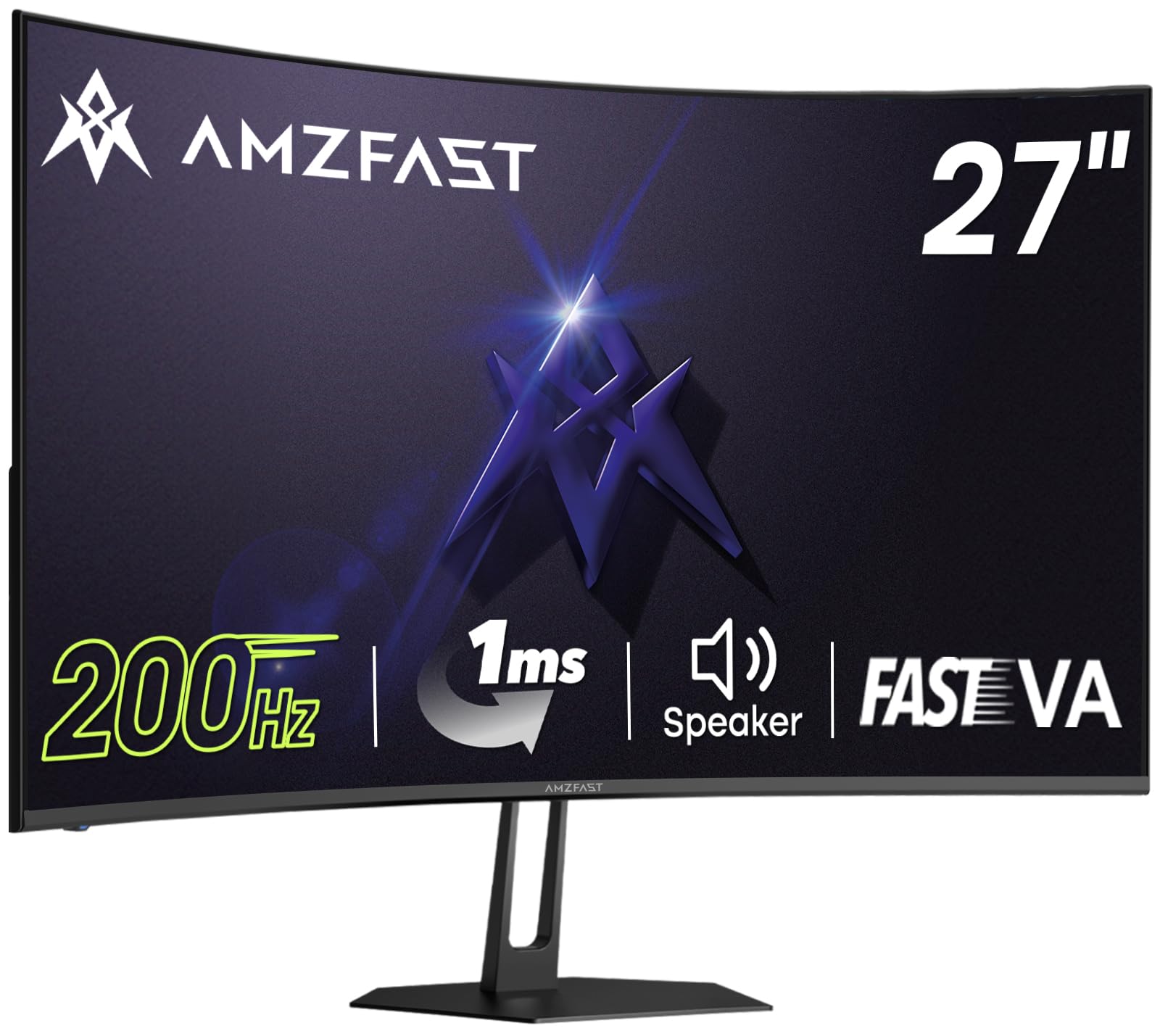
Image 1: Amzfast AMZG27C1 27-inch Curved Gaming Monitor with a gaming setup.
The Amzfast AMZG27C1 is designed to deliver an immersive gaming experience with its 1500R curvature, Full HD (1080P) resolution, and a rapid 200Hz refresh rate combined with a 1ms MPRT response time. Its Fast VA panel offers superior contrast and minimal light leakage compared to traditional IPS panels. Integrated 2W speakers provide convenient audio, while features like Adaptive-Sync, HDR10, and various gaming modes enhance visual quality and gameplay fluidity.
2. פּעקל אינהאַלט
ביטע טשעק די פּאַקעט פֿאַר די פאלגענדע זאכן:
- Amzfast AMZG27C1 27-inch Curved Gaming Monitor
- מאָניטאָר שטאַנד (באַזע און האַלדז)
- מאַכט אַדאַפּטער
- HDMI קאַבלע (1.5 ם)
- באַניצער מאַנואַל / שנעל אָנהייב גייד
Video 1: Official Amzfast overview of the AMZG27C1 monitor and its features.
3. סעטאַפּ אינסטרוקציעס
3.1 צוזאַמענשטעלן דעם שטאַנד
- נעמט פֿאָרזיכטיק אַרויס דעם מאָניטאָר און שטאַנד קאָמפּאָנענטן פֿון דער פּאַקאַדזשינג.
- באַפעסטיקט דעם שטאַנד האַלדז צום מאָניטאָר פּאַנעל דורך צופּאַסן די טאַבס און דריקן ביז עס קליקט אין פּלאַץ.
- Secure the stand base to the neck using the provided screw, tightening it by hand.

Image 2: Illustration of attaching the monitor stand to the display panel.
3.2 קאַנעקטינג צו אַ מיטל
- Connect the HDMI cable from your computer or gaming console to the HDMI 2.0 port on the monitor. Alternatively, use a DisplayPort 1.4 cable for compatible devices.
- Plug the power adapter into the DC IN port on the monitor, then connect the other end to a power outlet.
- Press the power button located on the back of the monitor to turn it on.
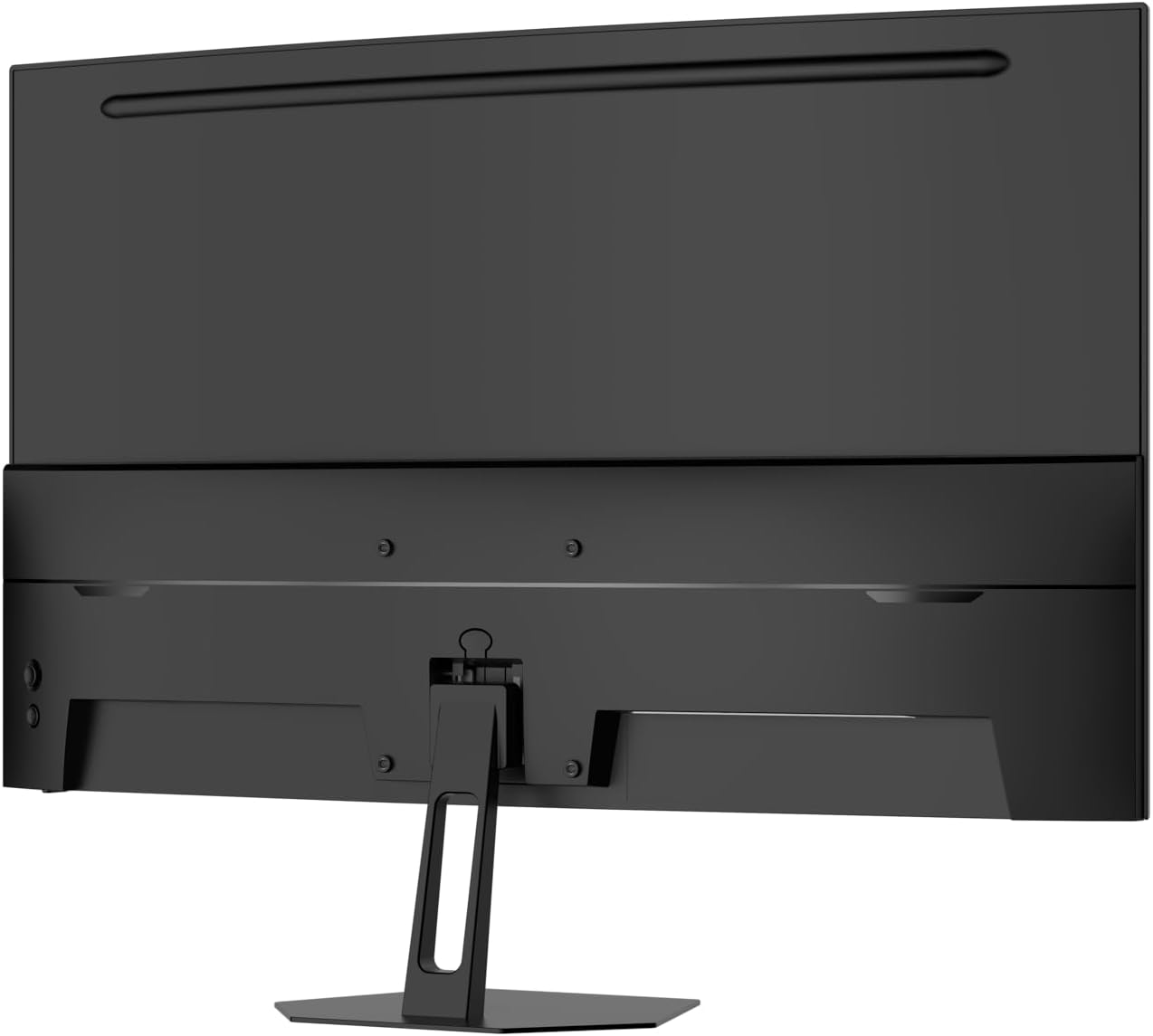
בילד 3: דערציען view of the monitor showing the HDMI, DisplayPort, and power input ports.
4. אַפּערייטינג ינסטרוקטיאָנס
4.1 OSD מעניו נאַוויגאַציע
The On-Screen Display (OSD) menu is controlled by a joystick button located on the back of the monitor. Use the joystick to navigate through the menu options and adjust settings.
- דריקן דזשויסטיק: צוטריט דעם הויפּט OSD מעניו.
- באַוועגן דזשויסטיק אַרויף/אַראָפּ: נאַוויגירן דורך מעניו אָפּציעס.
- באַוועגן דזשויסטיק לינקס/רעכטס: Adjust selected setting values.
- Press Joystick (again): Confirm selection or exit sub-menu.
4.2 גיימינג פֿעיִטשערס
The monitor includes several features optimized for gaming:
- שפּיל מאָדעס: Select from preset modes like FPS, RTS, or RPG for optimized visual settings.
- Crosshair Assistance: Enable an on-screen crosshair for improved aiming in games.
- Black Level Adjustment: Enhance visibility in dark areas of games.
- Adaptive-Sync (FreeSync Premium): סינקראָניזירט דעם מאָניטאָר'ס רעפרעש קורס מיט דיין GPU'ס פריים קורס צו עלימינירן סקרין טיערינג און סטאַטערינג.

Image 4: Visual representation of Game Assistant features including Crosshair, Timer, and Black Level adjustment.
5. ווייַז פֿעיִקייטן
The AMZG27C1 monitor boasts advanced display technologies for a superior visual experience:
- Fast VA Panel: Offers a faster response speed than ordinary VA panels and minimizes light leakage compared to IPS panels, providing deep blacks and vibrant colors.
- 1500R קרומונג: גיט אַן איממערסיוו viewing experience, reducing eye strain during extended use.
- FHD 1080P Resolution: Delivers crisp and clear images at 1920x1080 pixels.
- 200Hz Refresh Rate & 1ms MPRT: Ensures ultra-smooth motion and minimal ghosting, crucial for fast-paced gaming.
- הויך קאָליר אַקיעראַסי: Supports 16.7 million colors (8-bit) with 130% sRGB coverage, offering rich and accurate color reproduction.
- HDR10 שטיצן: Enhances contrast and color for a more dynamic and lifelike image.
- אויג קער טעטשנאָלאָגיעס: Features Anti-flicker, Anti-Glare, and Low Blue Light modes to reduce eye fatigue.
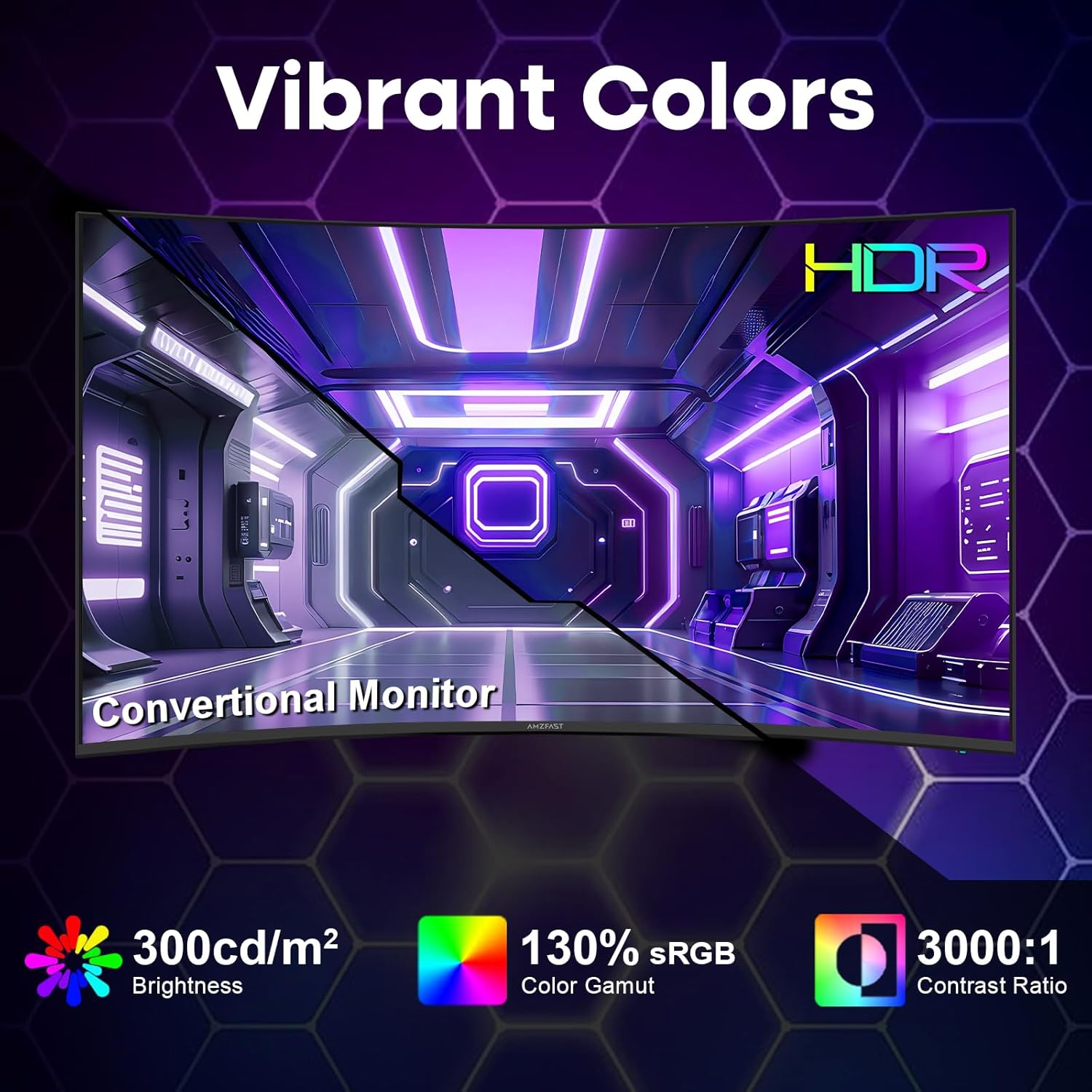
Image 5: Illustrates the vibrant colors, 300cd/m² brightness, 130% sRGB, and 3000:1 contrast ratio with HDR support.
6. קאַנעקטיוויטי
דער מאָניטאָר אָפפערט ווערסאַטאַל קאַנעקטיוויטי אָפּציעס:
- הדמי 2.0: One port for high-definition video and audio input.
- DisplayPort 1.4: One port for high-resolution and high-refresh-rate video input.
- עאַרפאָנע דזשאַק: פֿאַר פֿאַרבינדן עקסטערנע כעדפאָונז אָדער רעדנערס.
- דק אין: מאַכט אַרייַנשרייַב פּאָרט.
- VESA Mount (100mm x 100mm): Allows for alternative mounting solutions using compatible VESA arms or wall mounts.
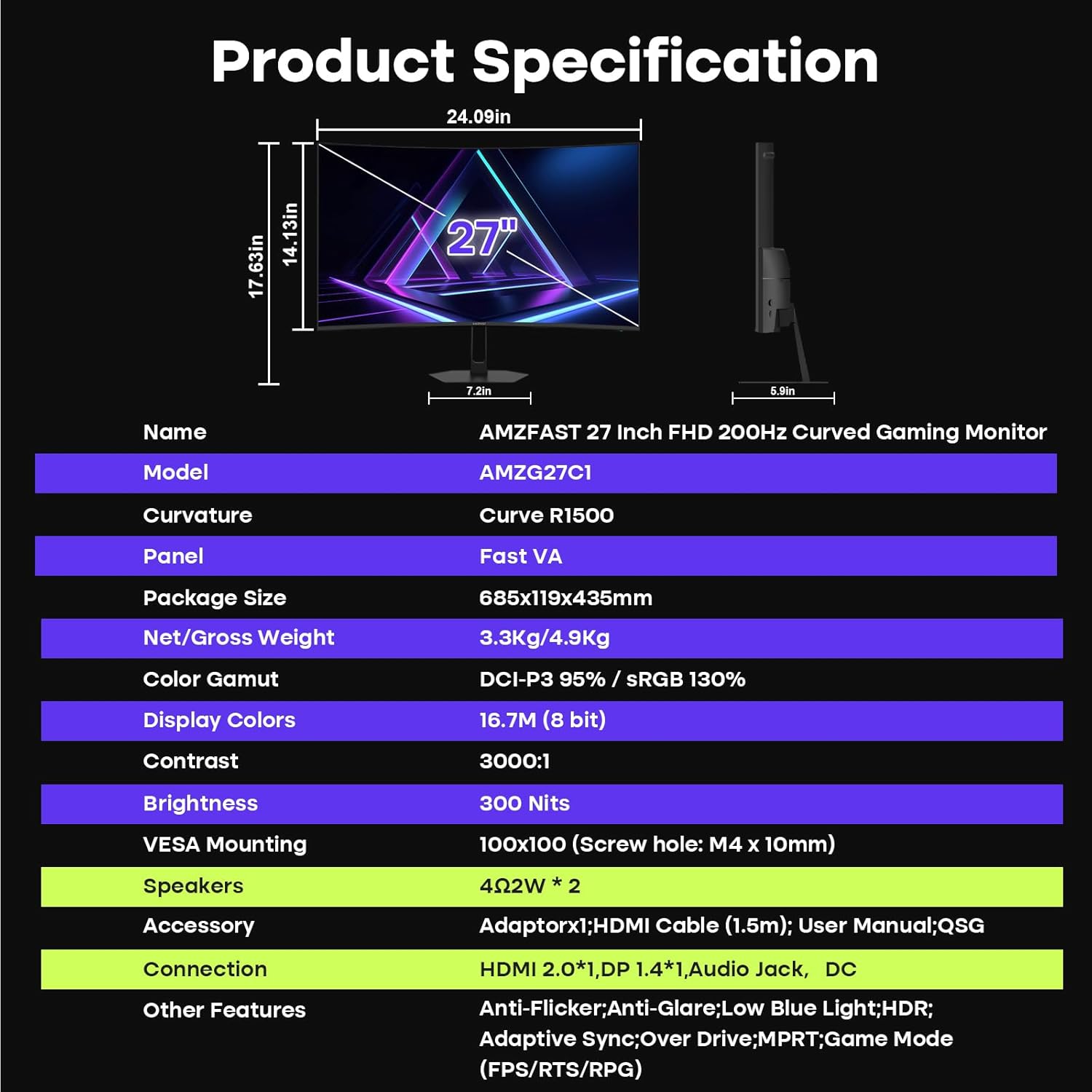
Image 6: Detailed product specification table including connectivity options.
7. וישאַלט
To ensure your monitor remains in optimal condition, follow these maintenance guidelines:
- רייניקונג די פאַרשטעלן: ווישט אָפּ דעם עקראַן מיט אַ ווייכן, לינט-פֿרײַעם שטאָף. פֿאַר שווערע פֿלעקן, ווישט לײַכט.ampווישט דעם שטאָף מיט וואַסער אָדער אַ רייניקונג לייזונג פֿאַרן עקראַן. פֿאַרמייַדט שטרענגע כעמיקאַלן אָדער אַברייסיוו מאַטעריאַלן.
- רייניקונג פון די Casing: ניצט אַ ווייכע, טרוקענע שטאָף צו רייניקן די מאָניטאָר'ס סיסטעם.asing.
- ווענטילאַטיאָן: זיכערט זיך אז די מאָניטאָר'ס ווענטילאַציע עפענונגען זענען ריין און נישט פארשטאפט צו פארמיידן איבערהיצונג.
- מאַכט אַוועק: שטענדיק אויסלעשן דעם מאָניטאָר און אַרויסציען עס פֿון דער עלעקטרישער אַוטלעט איידער איר רייניגט עס אָדער אויב עס וועט נישט ווערן גענוצט פֿאַר אַ לענגערע צייט.
8. טראָובלעשאָאָטינג
If you encounter any issues with your monitor, please refer to the following common solutions:
- קיין מאַכט: זיכער מאַכן אַז דער עלעקטרישער קאַבל איז זיכער פֿאַרבונדן צו ביידע דעם מאָניטאָר און די עלעקטרישע אַוטלעט. קאָנטראָלירט צי די עלעקטרישע אַוטלעט אַרבעט.
- קיין סיגנאַל: Verify that the video cable (HDMI or DisplayPort) is correctly connected to both the monitor and your device. Ensure the correct input source is selected in the OSD menu.
- פליקערנדיקער עקראַן: Check the video cable connection. Ensure your graphics card drivers are up to date. Try adjusting the refresh rate in your device's display settings.
- נעבעך בילד קוואַליטעט: Adjust brightness, contrast, and color settings in the OSD menu. Ensure the display resolution is set to 1920x1080.
- קיין קלאַנג פֿון איינגעבויטע רעדנערס: Check the monitor's volume settings in the OSD menu and your device's audio output settings. Ensure the monitor is selected as the audio output device.
If the problem persists, please contact Amzfast customer support.
9. ספּעסאַפאַקיישאַנז
| שטריך | דעטאַל |
|---|---|
| מאָדעל נאָמען | AMZG27C1 |
| פאַרשטעלן גרייס | 27 אינטשעס |
| האַכלאָטע | FHD 1080p (1920 x 1080) |
| דערפרישן קורס | 200 הז |
| ענטפער צייט | 1 מיליסעקונדע (MPRT) |
| ווייַז טיפּ | Fast VA Panel |
| קערוואַטשער | 1500ר |
| קאַנטראַסט פאַרהעלטעניש | 3000:1 |
| ברייטנאַס | 300 Candela per Square Meter (Nits) |
| קאָליר גאַמע | 130% sRGB (16.7 million colors, 8-bit) |
| HDR שטיצן | HDR 10 |
| אַדאַפּטיוו סינק | פרעעסינק פּרעמיום |
| געבויט-אין ספּיקערז | קסנומקס רענטגענ קסנומקסוו |
| קאַנעקטיוויטי | 1x HDMI 2.0, 1x DisplayPort 1.4, 1x Earphone Jack |
| וועסאַ מאָונטינג | 100 מם X 100 מם |
| אויג קער פֿעיִטשערז | Anti-flicker, Anti-Glare, Low Blue Light |
10. וואָראַנטי און שטיצן
Your Amzfast AMZG27C1 monitor comes with a 1-Year Zero-Bright-Dot warranty און א 12-Month Warranty Exchange. This ensures free replacement or a new monitor for any major quality problems within two years.
For any after-sales issues, technical support, or warranty claims, please contact Amzfast Official customer service. Refer to the contact information provided in your Quick Start Guide or visit the official Amzfast webפּלאַץ פֿאַר הילף.